
Showpass WordPress Extension
| 开发者 |
marcshowpass
spapril spzachary cgarrovillosp faghihy |
|---|---|
| 更新时间 | 2026年11月3日 01:56 |
| PHP版本: | 5.4.45 及以上 |
| WordPress版本: | 7.1 |
| 版权: | GPLv2 or later |
| 版权网址: | 版权信息 |
详情介绍:
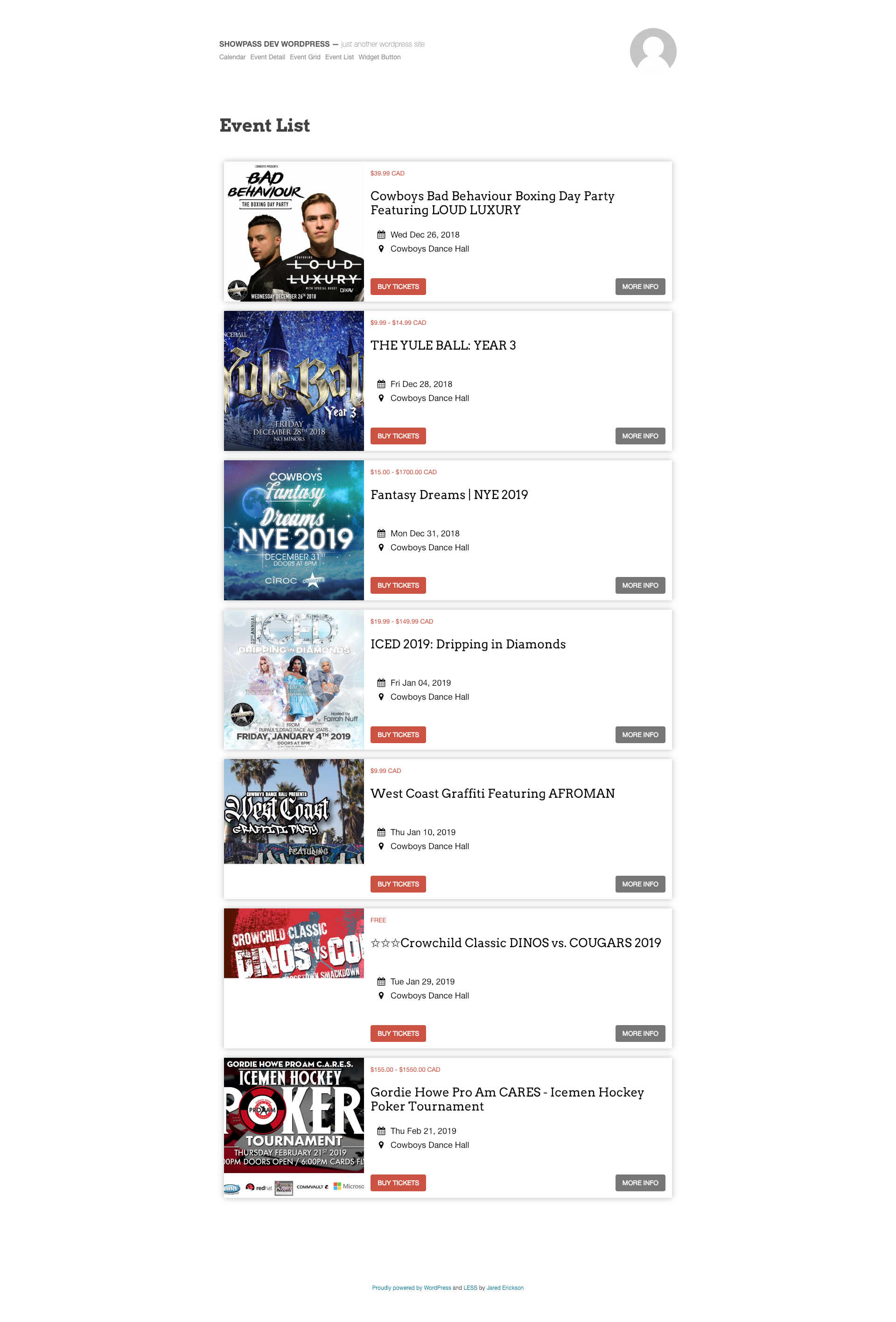
- Display events and products in a list or grid.
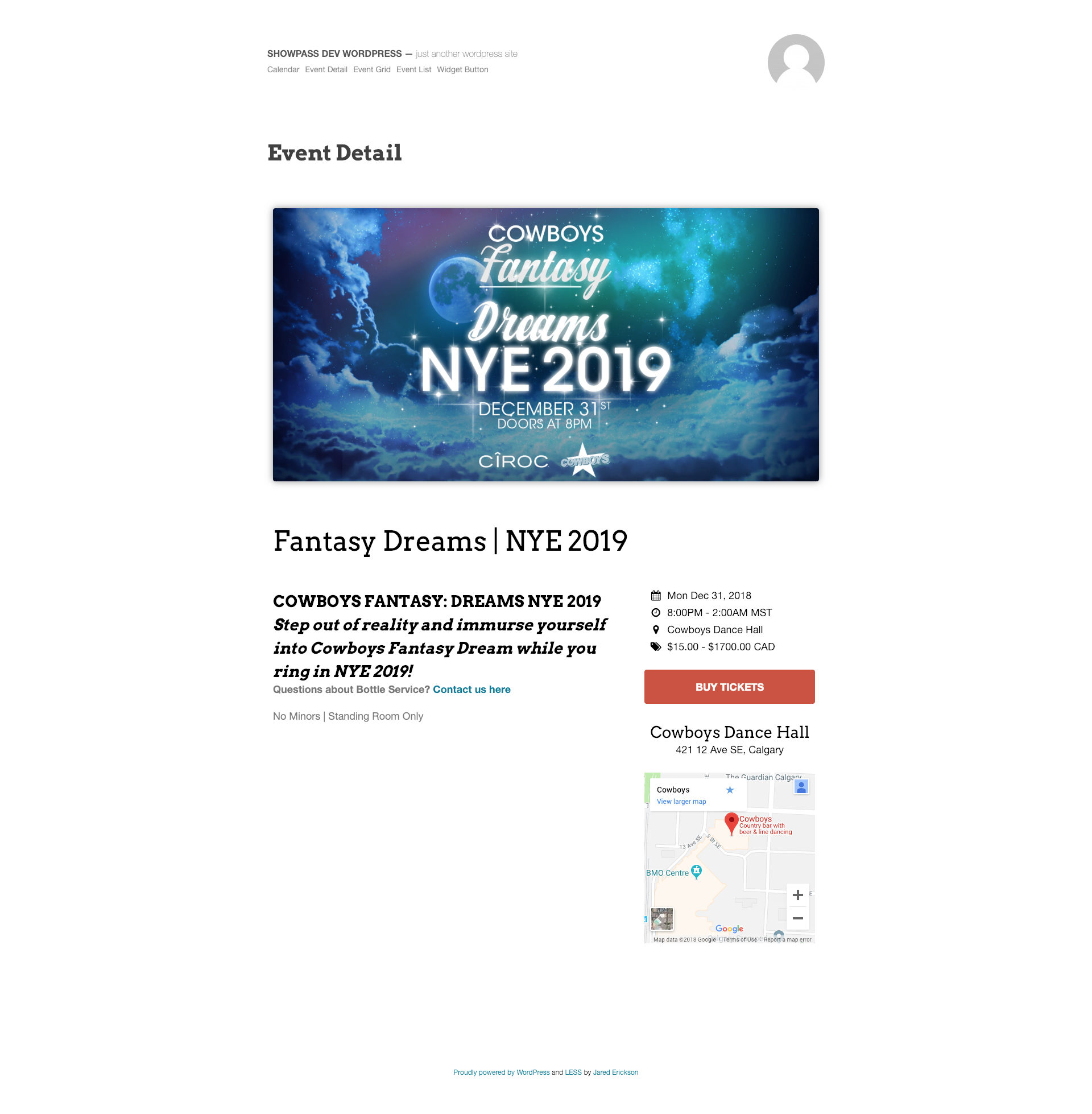
- Show event details, images, dates, and purchase buttons.
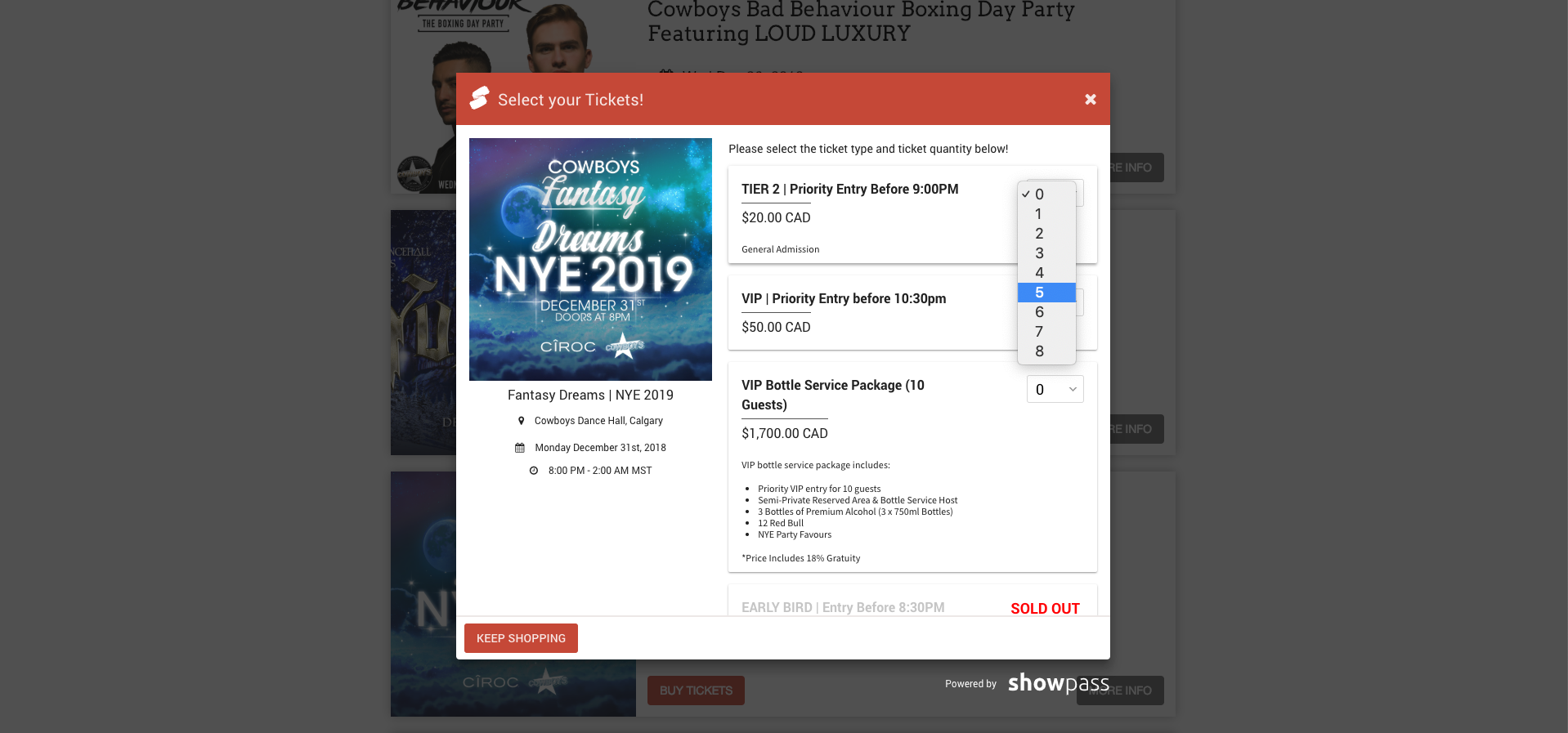
- Add an embedded calendar or open a calendar in a purchase widget.
- Display memberships and open the membership purchase widget.
- Add a Showpass Buy Now Button with the WordPress block editor.
- Set a default widget color and use your theme's button CSS classes.
[showpass_embed_calendar] in a Shortcode block to display a calendar on your page. See the WordPress developer guide for setup and shortcode options.
Getting started
You need a Showpass organizer account and your Organization ID. Install and activate the plugin, then open Showpass in your WordPress dashboard to connect your organization and configure your widgets.
For purchase widgets, use a single Organization ID. Each purchase can include items from only one organization. You can use multiple Organization IDs for supported event and product listings.
Read the installation and configuration guide.
Documentation and support
For setup instructions and shortcode examples, visit the Showpass developer documentation.
For plugin support, email solutions@showpass.com. For help using Showpass, visit the Showpass Help Centre.
Follow Showpass
Connect with Showpass on LinkedIn and Instagram.
安装:
- In your WordPress dashboard, open Plugins > Add New, search for Showpass, and select Install Now. If you have a plugin ZIP, select Upload Plugin instead.
- Activate the plugin.
- Open Showpass in the WordPress dashboard.
- Enter your Organization ID and select Save Changes. If you do not have an account, use the organizer account registration link on the settings page.
- Add a Showpass shortcode to a page or post, or use the Showpass Buy Now Button block to add a purchase button.
- Preview the page and check that the correct events, products, or memberships appear before publishing it.
屏幕截图:
常见问题:
Do I need a Showpass account?
Yes. You need a Showpass organizer account and an Organization ID. Manage your events, products, and memberships in Showpass, then display them on WordPress.
What is my Organization ID?
It identifies your Showpass organization and is also called a venue ID. It is different from an event or product ID. Enter it in Showpass settings. If you need help finding it, email solutions@showpass.com.
Do I need to write code?
No PHP changes are needed to use the included shortcodes or Showpass Buy Now Button block. Custom layouts and styling may require HTML or CSS knowledge.
How do I add events, products, or memberships?
Add a Shortcode block to your page and enter [showpass_events], [showpass_products], or [showpass_memberships]. Save your Organization ID in Showpass settings first, then preview the page.
How do I add a purchase button?
Add the Showpass Buy Now Button block, enter the full Showpass event URL, choose a label, and select Add Button. The block requires WordPress 5.3 or later.
Which calendar should I use?
Use [showpass_embed_calendar] to display a calendar directly on the page. Use [showpass_calendar_widget] for a button that opens the calendar in a purchase widget. See the documentation for attraction calendars and additional options.
Can I customize the appearance?
Yes. In Showpass settings, choose a widget color, button CSS classes, closing button text, and whether descriptions appear. Enter hex colors without #, such as 1C39BB. Your theme controls the surrounding page layout.
Can I display multiple organizations?
Supported event and product listings accept comma-separated Organization IDs, such as 5, 10, 20. Use a single Organization ID for purchase widgets: each purchase can contain items from only one organization.
Can I display widgets in French?
Yes. Add lang="fr" to a supported widget shortcode, for example [showpass_embed_calendar lang="fr"]. This changes the widget language, not your theme or plugin settings. Translate any custom button labels yourself.
Why is my content not appearing?
Check your Organization ID, shortcode filters, and content availability in Showpass. For live organizations, select Production under Developer options. Clear relevant WordPress or hosting caches after changes. If the issue continues, contact plugin support.
Do I need to change Developer options?
Usually not. Keep Production selected for a live customer website. Local, Beta, and Demo are for development or testing and may require separate data or setup.
Does deleting the plugin remove my settings?
No. Saved settings remain in your WordPress database and can reappear after reinstalling. Deleting the plugin does not delete your Showpass account or events.
Where can I get help?
See the setup guide or Showpass Help Centre. For plugin support, email solutions@showpass.com with your page URL, shortcode, WordPress version, and plugin version.
更新日志:
- Verify core plugin flows on WordPress 7.1.3 and update compatibility metadata.
- Fix Buy Now block local URLs, custom labels, saved content and editor asset cache versions.
- Handle membership currency and optional pagination fields from the current API.
- Refresh the Showpass settings page with clearer instructions, accessible labels, and save confirmations.
- Simplify developer environment selection while preserving existing settings.
- Add Showpass branding and update documentation and support links.
- Align outgoing SDK option names with snake_case shortcode attributes and widget URL parameters.
- Accept compatible shortcode aliases and shared options while preserving explicit false values.
- Requires the matching frontend and rebuilt SDK release before publication.
- Expose current calendar SDK options through the modal and embedded calendar shortcodes
- Restore event and membership card image widgets, including events with empty external links and keyboard access to membership images; preserve external URLs, detail pages, and sold-out behavior
- Force redirect-url param for Affirm support
- Add French language support for widgets
- Fix analytics tracking for embedded widgets
- Fix file caching
- Added membership list shortcode
- Update to new SDK
- Added membership widget
- Update to use native wp_remote_get() for api calls
- fix to product list template