SI 2FA Login Security
| 开发者 | strokeinfotech |
|---|---|
| 更新时间 | 2025年3月5日 14:05 |
| PHP版本: | 5.6 及以上 |
| WordPress版本: | 6.7 |
| 版权: | GPL2 or later |
| 版权网址: | 版权信息 |
详情介绍:
- Supports standard TOTP protocols (and so supports Google Authenticator, Authy, and many others).
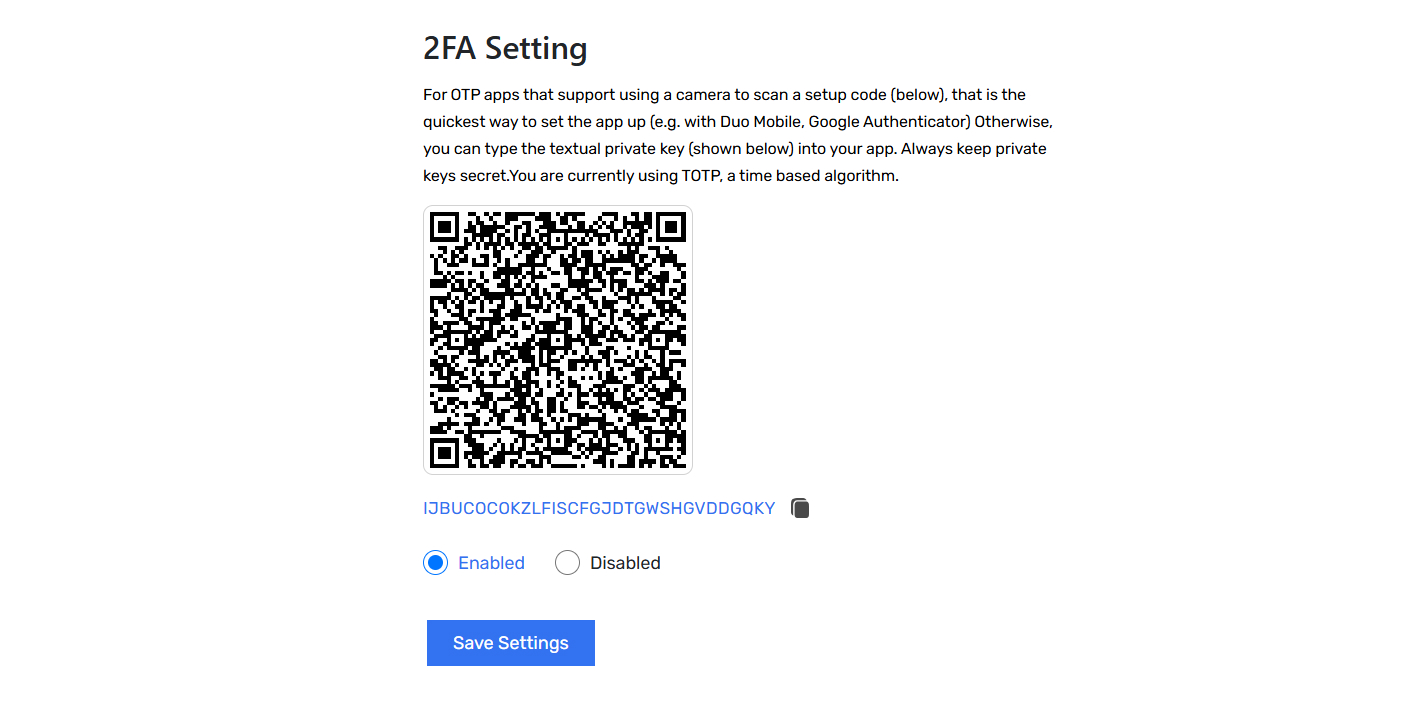
- Displays graphical QR codes for easy scanning into apps on your phone/tablet
- MFA can be turned on or off by each user
- Supports front-end editing of settings, via shortcode (i.e. users don't need access to the WP dashboard).
[si2flose_twofactor_user_settings]
- Simplified user interface and code base for ease of use and performance
- Alert users if someone appears to have found out their password, as indicated by successfully entering a password but repeatedly entering an incorrect MFA code.
- When using the front-end shortcode, require the user to enter the current MFA code correctly to be able to activate MFA
- Search for 'SI 2FA Login Security' in the 'Plugins' menu in WordPress.
- Click the 'Install' button. (Make sure you picks the right one)
- Activate the plugin through the 'Plugins' menu in WordPress
- Find site-wide settings in Settings -> Mfa Factor Setting ; find your own user settings in the top-level menu entry "MFA Factor Auth".
[si2flose_twofactor_user_settings]
安装:
- Search for 'SI 2FA Login Security' in the 'Plugins' menu in WordPress.
- Click the 'Install' button. (Make sure you picks the right one)
- Activate the plugin through the 'Plugins' menu in WordPress
- Find site-wide settings in Settings -> Mfa Factor Setting ; find your own user settings in the top-level menu entry "MFA Factor Auth".
[si2flose_twofactor_user_settings]屏幕截图:
常见问题:
What is SI 2FA Login Security (MFA / 2FA) ?
Basically, it's to do with securing your logins, so that there's more than one link in the chain needing to be broken before an unwanted intruder can get in your website. By default, your WordPress accounts are protected by only one thing: your password. If that's broken, then everything's wide open. "MFA Factor Auth" means adding a second requirement. Usually, this is a code that comes to a device you own (e.g. phone, tablet) - so, someone can't get into your website without getting hold of your device. You can get a longer answer from Wikipedia.
How does two factor authentication (MFA / 2FA) work?
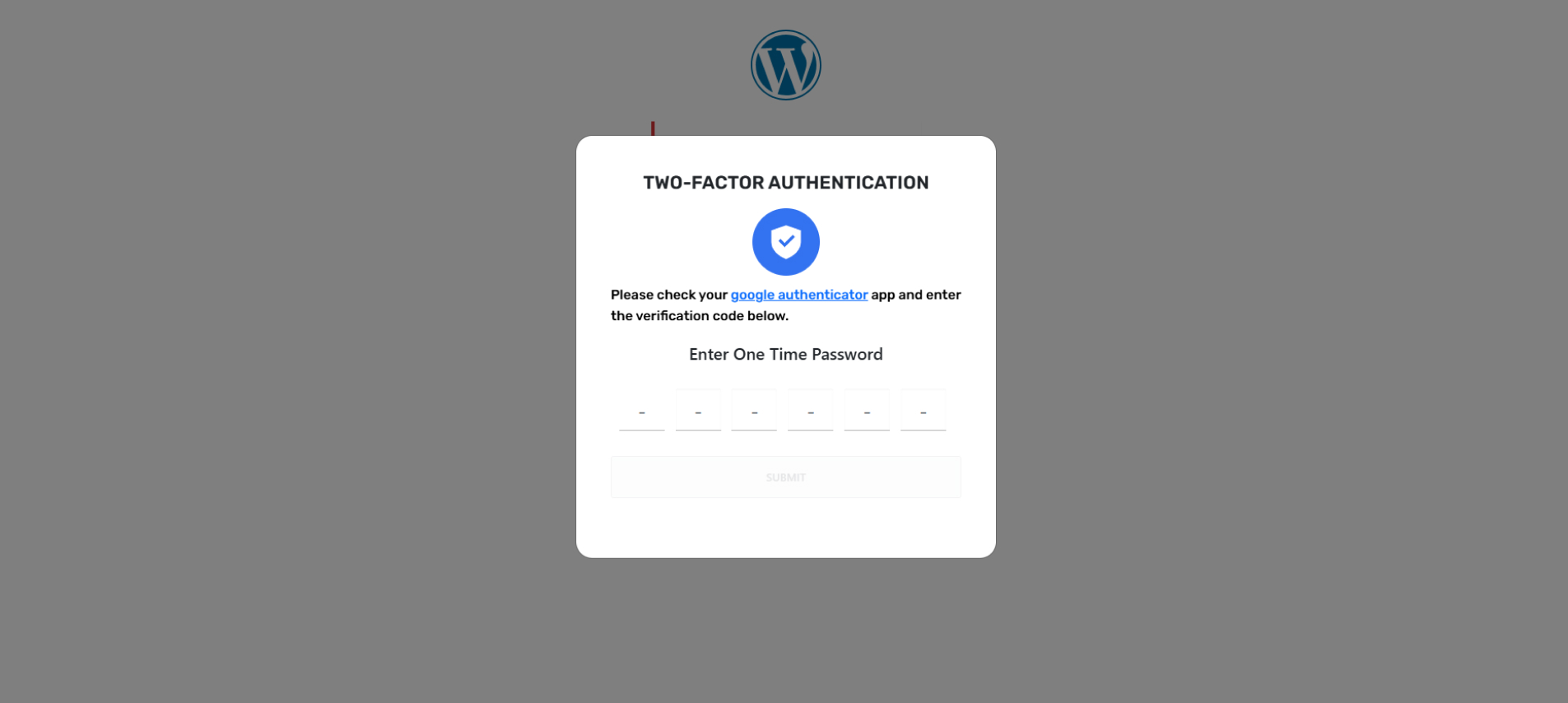
Since "SI 2FA Login Security" just means "a second something is necessary to get in", this answer depends upon the particular set-up. In the most common case, a numeric code is shown on your phone, tablet or other device. This code be sent via an Authenticator; this then depends on the mobile phone network working. This plugin does not uses that method. Instead, it uses a standard mathematical algorithm to generate codes that are only valid once each, or for only for 30 seconds (depending on which algorithm you choose). Your phone or tablet can know the code after it has been set up once (often, by just scanning a bar-code off the screen).
What do I need to set up on my phone/tablet (etc.) in order to generate the codes?
This depends on your particular make of phone, and your preferences. Google have produced a popular app called "Google Authenticator", which is a preferred option for many people because it is easy to use and can be set up via just scanning a bar code off your screen - follow this link, and ignore the first paragraph that is talking about 2FA on your Google account (rather than being relevant to this plugin).
What if I do not have a phone or tablet?
Many and various devices and programs can generate the codes. One option is an add-on for your web browser; for example, here are some apps and add-ons for Google Chrome. Wikipedia lists various programs for different computers. If you cannot get in and need to disable mfa-factor authentication, then add this to your wp-config.php file, using FTP or the file manager in your hosting control panel: define('SI2FLOSE_FACTOR_DISABLE', true);
What is the shortcode to use for front-end settings?
[si2flose_twofactor_user_settings]
I deliberately entered a wrong password, and it let me login!
You have a password manager extension installed in your web browser, with the correct password entered in it. It has automatically replaced your wrong password with the right one from its saved store. This behaviour has been observed and confirmed by several users. You can verify it by using the web developer tools in your browser to look at the HTTP data sent to WordPress, and observe which password is actually in it. You can also open a fresh web browser with no such extension in it to re-test. Note that the two factor authentication plugin has no mechanism to compare or approve passwords; this is done by WordPress core. If the wrong password is sent, then this is handled by WordPress, and the login will not proceed.
更新日志:
- First version
- Shortcode si2flose_twofactor_user_settings added, for front-end settings
- Use AJAX to refresh current code (rather than reloading the whole page)
- Added WordPress nonces and user permission checks in relevant places
- User interface simplified/de-cluttered
- Improvements readme
- Added user login logs