
Silicate Studio – AI Site Designer for MCP
| 开发者 | silicatelabs |
|---|---|
| 更新时间 | 2026年11月18日 21:46 |
| PHP版本: | 7.4 及以上 |
| WordPress版本: | 7.1 |
| 版权: | GPLv2 or later |
| 版权网址: | 版权信息 |
详情介绍:
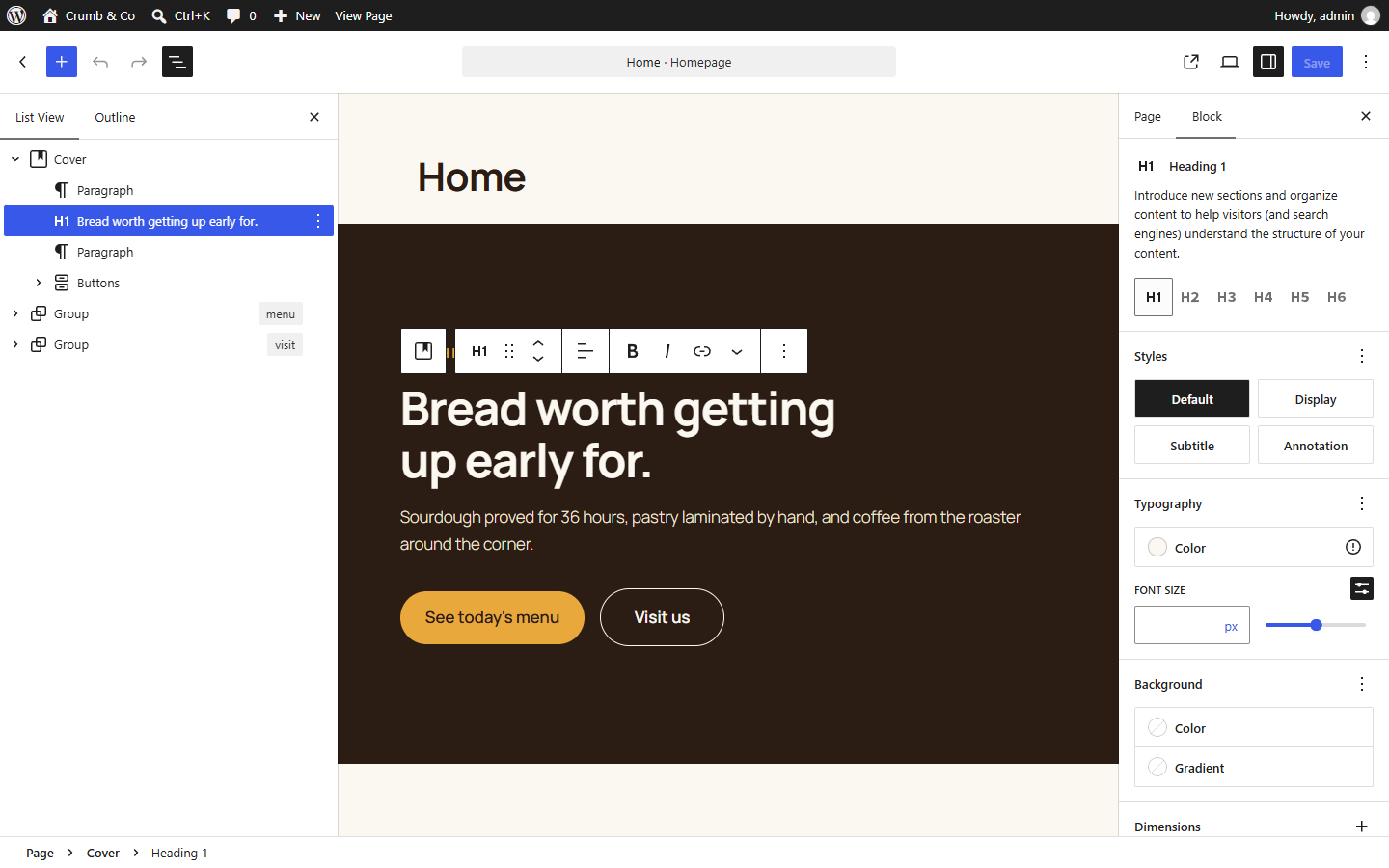
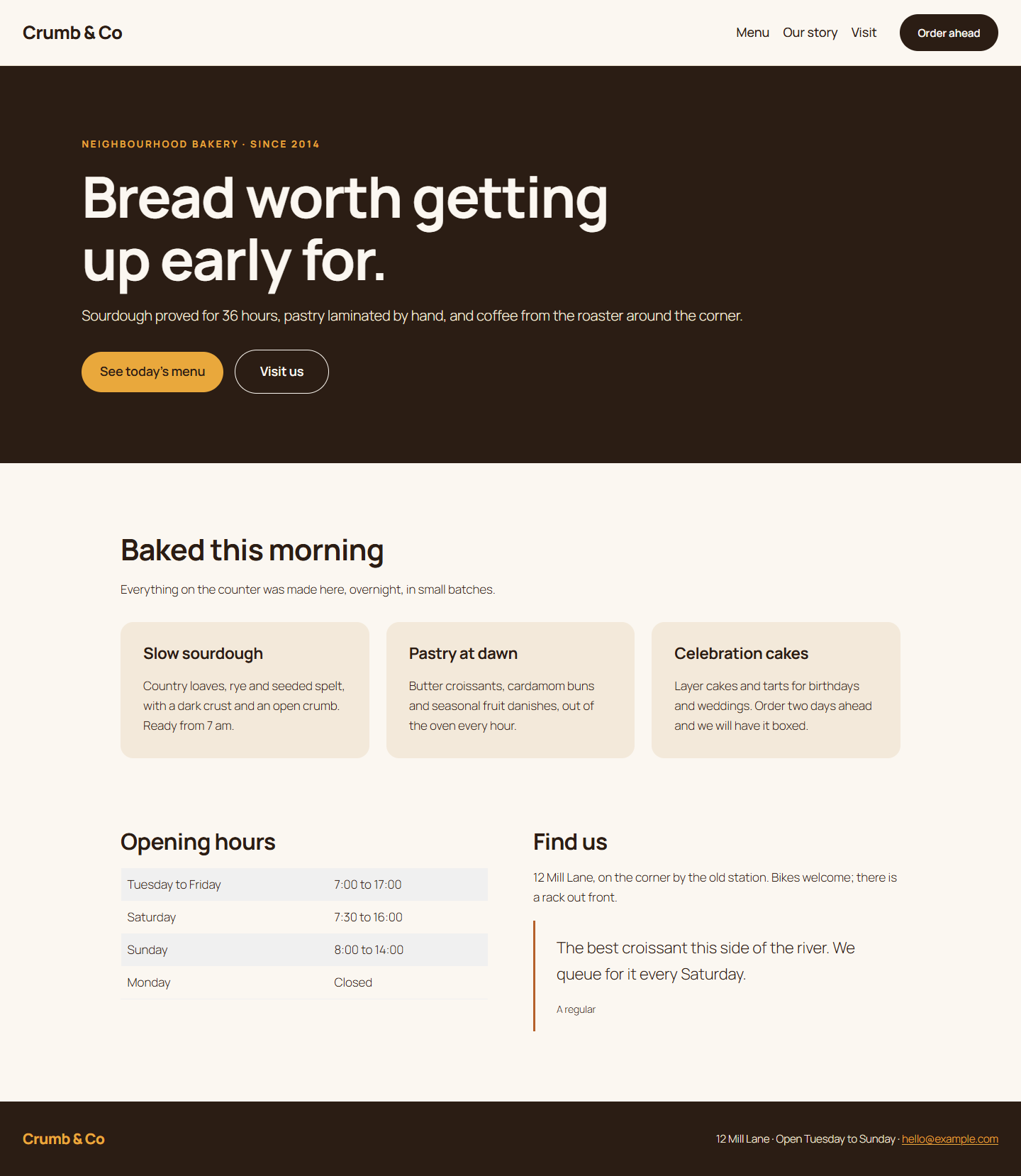
- Create and edit pages and posts as drafts, built from real core blocks (groups, columns, cover, media & text, buttons, query loops and more).
- Edit block theme templates and template parts (header, footer, single, archive, 404...).
- Change global styles (colors, typography, spacing, element styles) using your theme's own design tokens, so you can keep restyling from the Site Editor.
- Build navigation menus and synced patterns.
- Add images to the media library from a URL or uploaded data, with alt text.
- Set the site title, tagline, homepage and site icon.
- Look up block attributes and reuse your theme's block patterns.
- Roll back any change it made.
- MCP server at
/wp-json/slc-mcp/v1/mcp(Streamable HTTP transport) with 21 tools for pages, templates, styles, menus, patterns, media and site identity. - REST API (
slc-mcp/v1) behind the same security gate, for other tools and scripts. - Server-side checks on every block document: registered blocks only, structure, size and nesting limits, and WordPress's HTML filter.
- Snapshots of everything it overwrites, with rollback.
- Audit log of every change, shown on the settings screen.
- Settings screen with an allow-list of users, separate switches for publishing and live design changes, a setup checklist and a connection helper.
- Off until an administrator enables it, and only for users you choose.
- Accepts only Application Passwords (built into WordPress, revocable at any time). Logged-in browser sessions can never use it, and requests from web pages are refused.
- Respects WordPress capabilities: the assistant can never do more than the connected user can.
- Pages are saved as drafts. Publishing and live site-design changes each need their own opt-in.
- WordPress's own HTML filter is applied to everything the assistant writes, even for administrator accounts, and anything it would strip is rejected with an explanation. Scripts, event handlers,
javascript:links (including encoded tricks), iframes and unsafe CSS cannot get in. - Fonts must be hosted on your site, so visitors are never sent to third-party servers without your knowledge.
- Images must be verified JPEG, PNG, GIF, WebP or AVIF files (no SVG) up to 10 MB. URL imports refuse private network addresses and stop at the size limit.
- Every overwrite is snapshotted and can be rolled back, and rollbacks are safety-checked too. Every write is audit-logged and rate-limited.
slc-wp-mcp-bridge) if you want extra tools on your own computer:
- a private local WordPress for designing and testing before you go live;
- one-step deployment of a design from that local site to your live site, previewed and confirmed first;
- block markup generated with WordPress's own block editor code;
- the Application Password stored in a file only your computer account can read, instead of in your AI client's settings.
安装:
- In WordPress, go to Plugins > Add New, search for "Silicate Studio", then install and activate it. Or upload the plugin folder to
/wp-content/plugins/. - Go to Settings > Silicate Studio, tick Enable AI access, and select the users allowed to connect. A dedicated Editor account is best.
- Optional: enable Allow publishing and/or Allow site design changes when you are ready.
- As an allowed user, open Users > Profile > Application Passwords and create a password.
- On the settings screen, enter the username and Application Password in the connection helper and copy the command it makes. For Claude Code it looks like this:
claude mcp add --transport http silicate-studio https://your-site.com/wp-json/slc-mcp/v1/mcp --header "Authorization: Basic ..."Other MCP clients use the same server URL and header. - Ask your assistant to design a page, restyle the site or build a header, then review the drafts.
屏幕截图:
常见问题:
Which AI assistants does it work with?
Any client that supports remote MCP servers over Streamable HTTP with a custom authorization header, for example Claude Code. Clients that only run local MCP servers can use the optional companion connector.
Do I need to install anything on my computer?
No. The MCP server runs inside this plugin. The companion connector is optional and only needed for its extra local tools (local development site, local-to-live deployment).
Do I need a block theme?
Pages and posts work with any theme. Templates, template parts and global styles need a block theme such as Twenty Twenty-Five.
Will it change my live site without asking?
No. By default everything is a draft. Publishing and live design changes (templates, styles, menus, patterns, site identity) are separate switches that are off until you turn them on, and every change can be rolled back.
How does the assistant avoid "This block contains unexpected content"?
The assistant writes standard block markup. It can look up each block's attributes and reuse your theme's patterns, and the plugin checks every document before saving. Always open drafts in the editor before publishing. The optional connector goes further and generates the markup with WordPress's own block editor code.
Is the output locked to this plugin?
No. The assistant produces standard WordPress blocks. If you deactivate the plugin, your pages, templates and styles stay exactly as they are.
Where is my Application Password stored?
With a direct connection, your AI client stores it in its own configuration on your computer, so anyone who can read that file could use it. Connect a dedicated Editor account, keep publishing off unless you need it, and revoke the password under Users > Profile when you no longer need it. The connection helper on the settings screen runs in your browser and does not send or save the password.
My AI client says it is not authorized
Some hosts remove the Authorization header before WordPress sees it. Ask your host to pass it through, or check the Application Passwords section of the WordPress documentation for your server type. The site also needs HTTPS.
Can a malicious web page or document trick the AI into damaging my site?
The plugin assumes it might. Whatever the assistant sends goes through WordPress's HTML filter and safety checks, pages stay drafts unless you allow publishing, live design changes need a separate switch, and every change can be rolled back from the audit trail.
Does it support WooCommerce?
Not yet. This version focuses on site design and content.
What happens when I uninstall?
The plugin removes its settings, audit log and snapshots. Your content is not touched.
更新日志:
- New name: Silicate Studio.
- Built-in MCP server: AI clients connect directly to the site, with nothing to install.
- New tools: look up block attributes, and add images from uploaded data.
- Connection helper on the settings screen.
- First version: pages, posts, templates, template parts, global styles, navigation menus, synced patterns, media, site identity, snapshots and rollback, audit log.