iikoCloud for WooCommerce
| 开发者 |
makspostal
skywebsite |
|---|---|
| 更新时间 | 2021年6月17日 20:22 |
| PHP版本: | 7.2 及以上 |
| WordPress版本: | 5.7 |
| 版权: | GPLv3 |
| 版权网址: | 版权信息 |
详情介绍:
This plugin provides the integration of the basic functionality of the iikoCloud API into WooCommerce:
- Import of organizations, terminals, nomenclature (categories of dishes, goods, and dishes with sizes and modifiers), payment types, cities, and streets.
- Export of orders.
- Auto import using WP CRON (PREMIUM). iiko – a convenient and reliable solution used by a wide variety of establishments: from tiny bars and coffee houses to large restaurant chains with hundreds of outlets and a developed franchise, from food court cafes to gourmet restaurants, from ready-to-eat food delivery projects to gastro-markets. Documentation iiko iikoTransport. API description
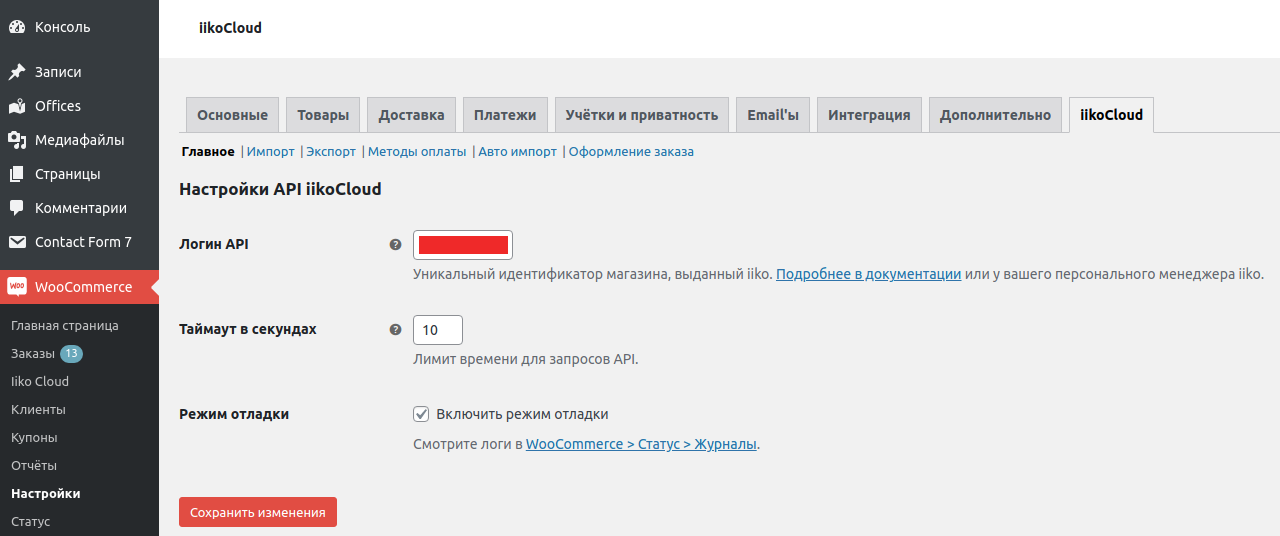
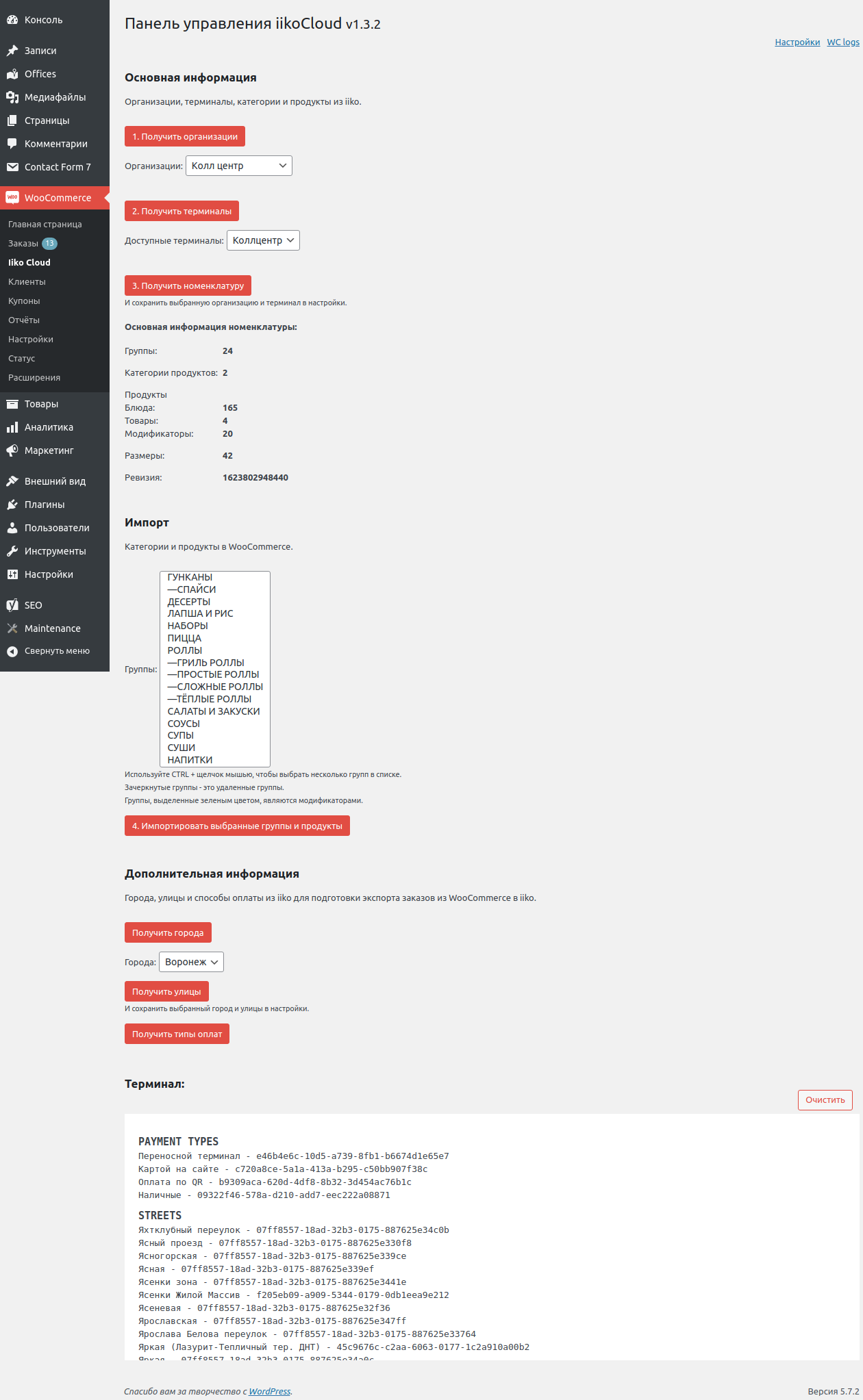
- Enter apiLogin on the plugin settings page (Main tab). Click the "Save Changes" button.
- Go to the plugin page and click the "Get Organizations" button.
- Select the required organization and click the "Get Terminals" button.
- Select the required terminal and click the "Get nomenclature" button.
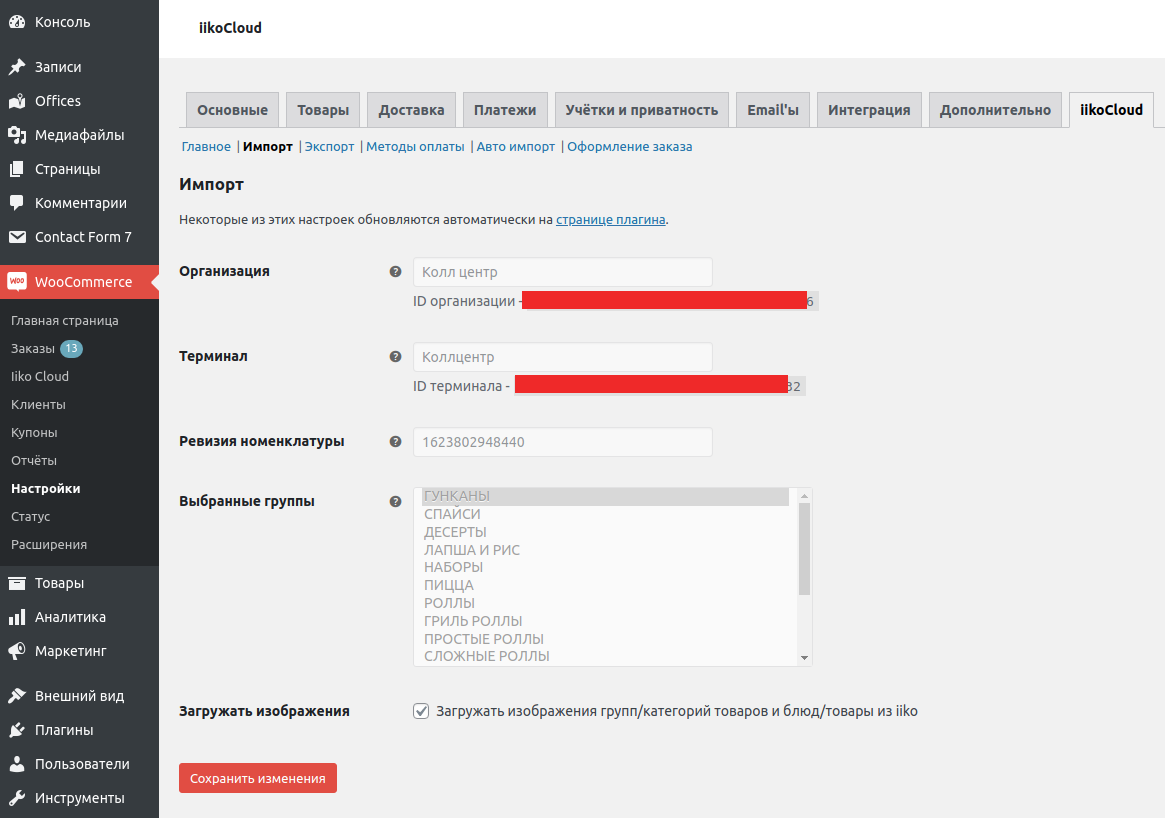
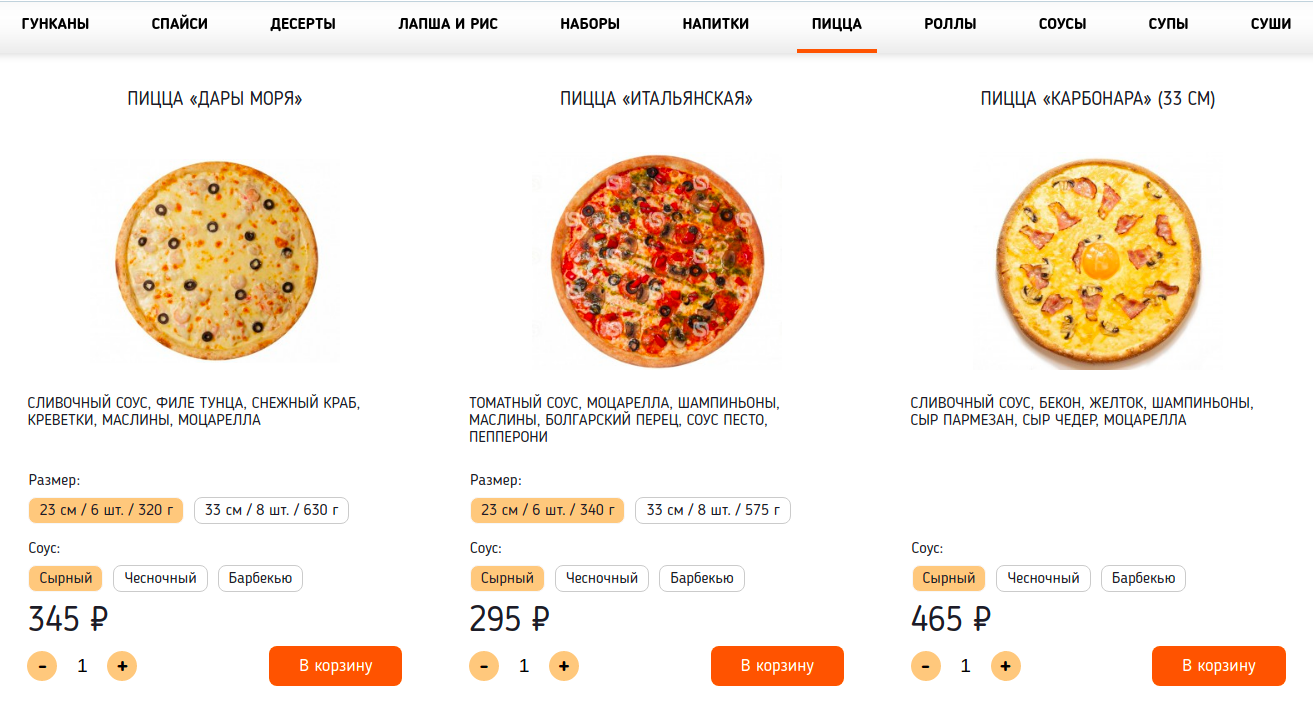
- Select the desired groups and click the "Import Selected Groups and Products" button. The selected groups and the products / products they contain will be uploaded to the site.
- Click the "Get Cities" button.
- Select the city for which you want to load streets and click the "Get streets" button.
- Click the "Get Payment Types" button.
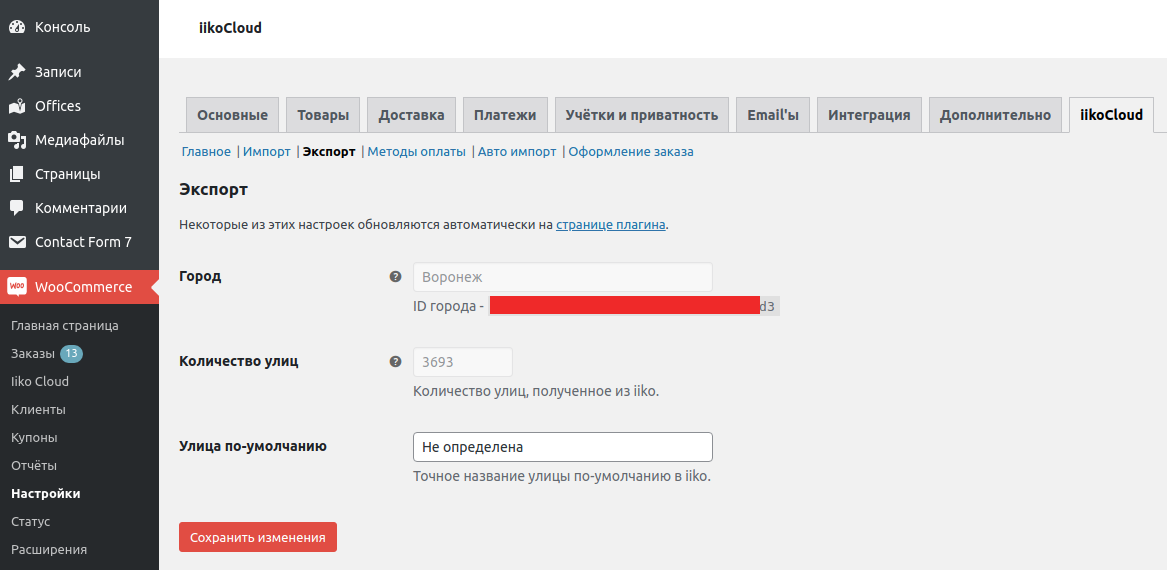
- Enter the default street name in the plugin settings. It will be used when the client enters a street name that is not in iiko. This street must be added to iiko.
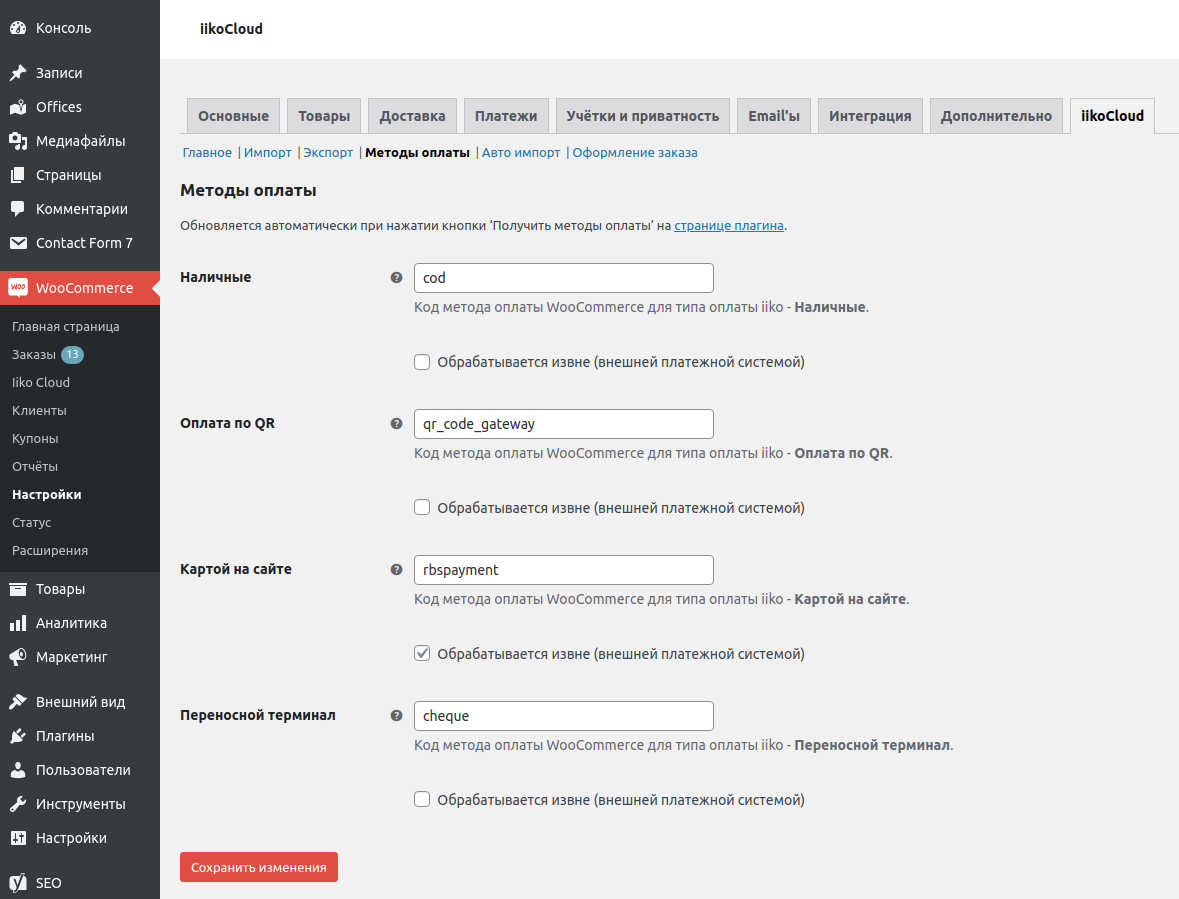
- Fill in the WooCommerce payment method designations corresponding to the iiko payment types in the plugin settings. For example, the settings for the standard Cash payment method are available at /wp-admin/admin.php?page=wc-settings&tab=checkout§ion=cod, where
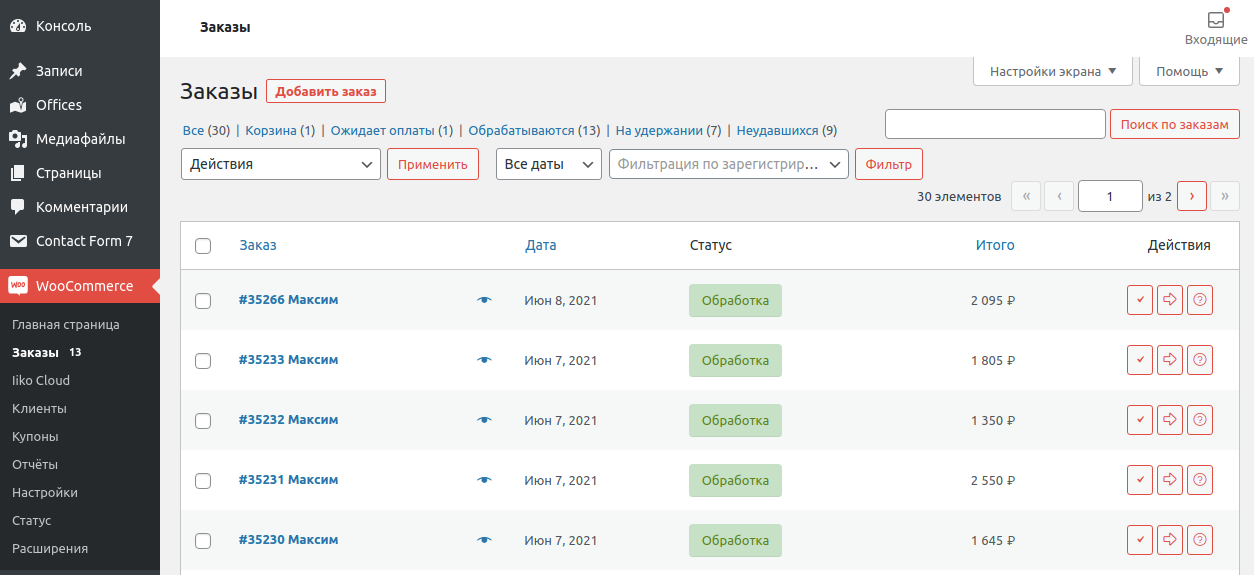
codstands for the Cash payment method. - Orders are exported to iiko automatically when placing orders on the website.
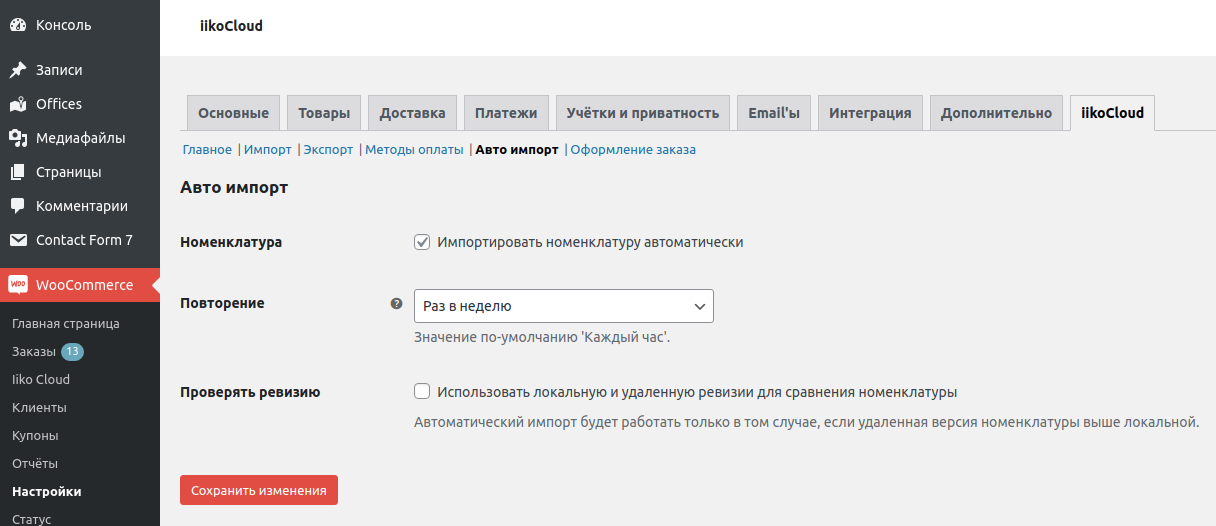
- Check 'Import nomenclature automatically' and set recurrence period on 'Auto import' plugin settings page if you want to use it.
- You can upload an item to the site without selecting a terminal, but it is impossible to export orders to iiko without specifying a terminal.
- Groups highlighted in green are optional to load, since these are modifier groups loaded as individual attributes of goods. Strikethrough groups - marked for deletion in iiko.
- The plugin settings contain the names and IDs of the selected organization, terminal and city, as well as the number of loaded streets. These fields are not available for editing in the plugin settings and are filled in automatically:
- the name and ID of the organization and the terminal - by clicking on the "Get the item" button;
- city name and ID, as well as the number of loaded streets - by clicking on the "Get streets" button.
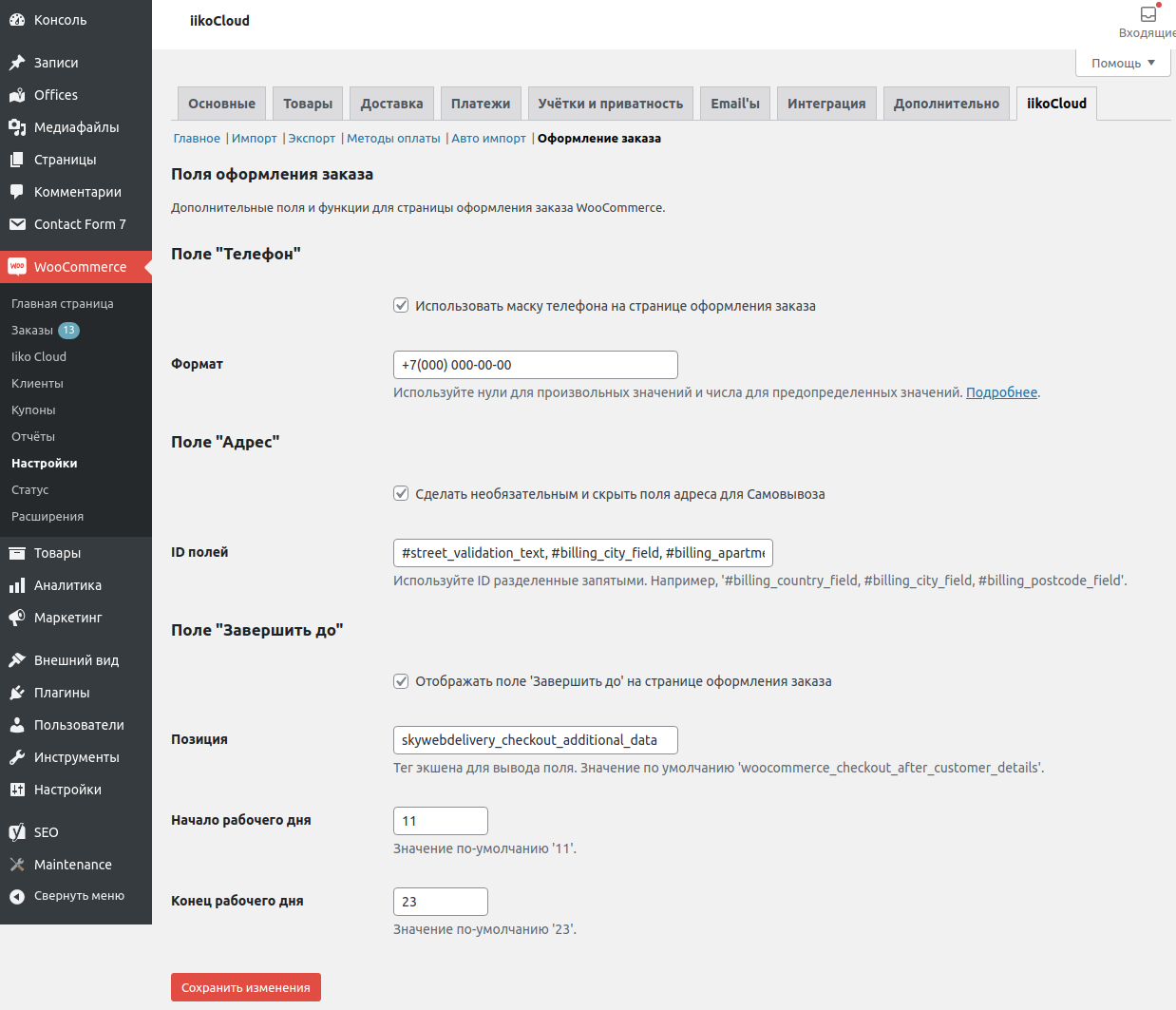
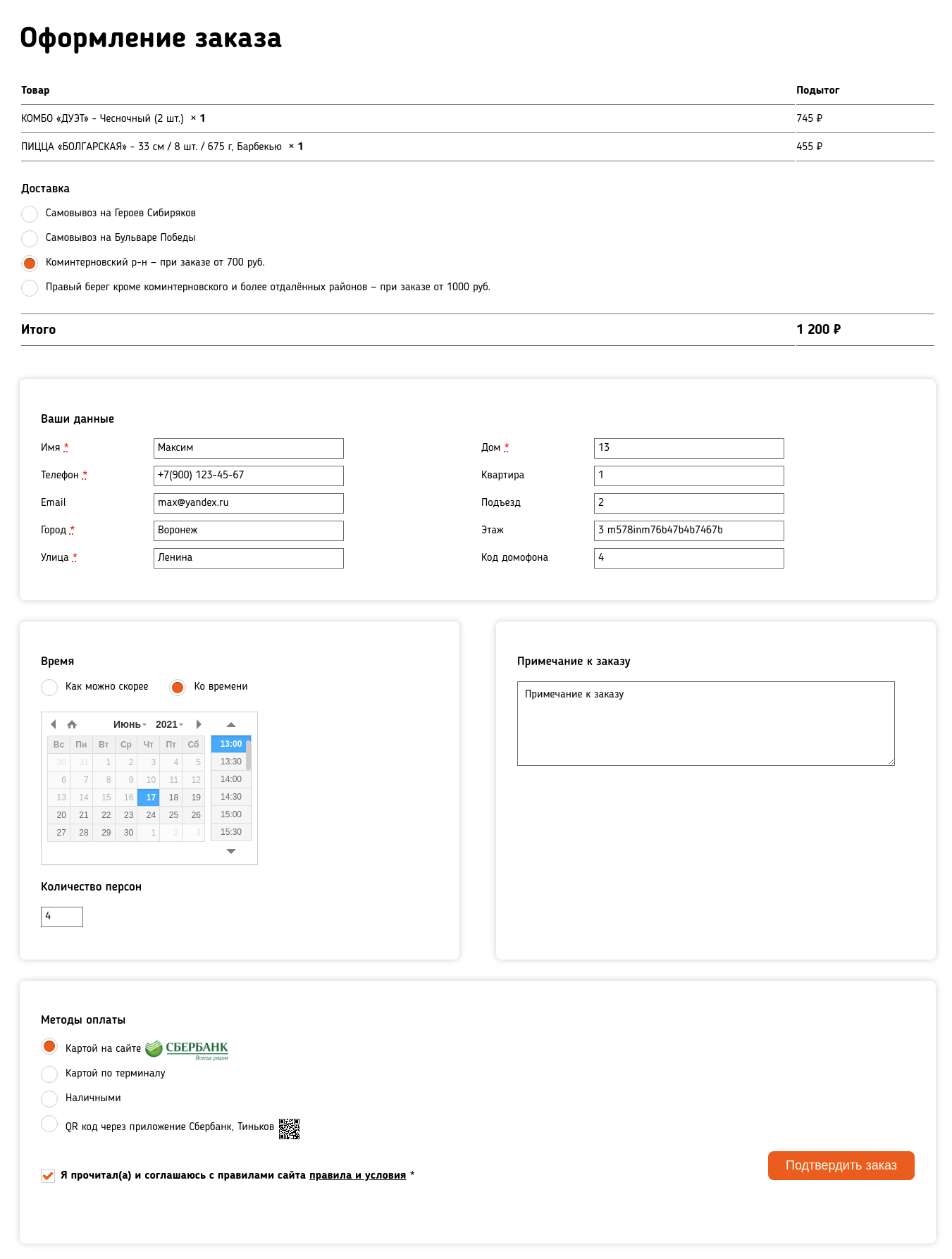
- When placing an order, the fields "Name", "Phone", "Address", and "Supplement to the address" must be required.
- The phone number must start with the "+" symbol and be at least 8 digits long.
- To change the customer's phone when exporting an order, you can use the
skyweb_wc_iiko_order_phonefilter. - To add the date and time of order preparation when exporting orders, you can use the
skyweb_wc_iiko_order_complete_beforefilter. - To add additional address data when exporting orders, you can use the
skyweb_wc_iiko_order_delivery_pointfilter. - To add additional data to the comment when exporting orders, you can use the
skyweb_wc_iiko_order_commentfilter. - To add the number of guests when exporting orders, you can use the
skyweb_wc_iiko_order_guestsfilter. - To add payment methods when exporting orders, you can use the
skyweb_wc_iiko_order_paymentsfilter or use the logic implemented by the plugin. - Supports downloading a list of streets for one city.
- Connection iikoCloud API
- Dishes categories
- Nomenclature elements
- Modifiers
- Size scale
- Modifier schemes
- Orders to change the price list
- Payment types
- Lifetime license.
- Free updates.
- Direct support.
- Installation support.
- Additional services.
安装:
Using The WordPress Dashboard (Recommended)
- Go to
Plugins→Add New. - In a search field type iikoCloud for WooCommerce and hit enter.
- Click
Install Nownext to iikoCloud for WooCommerce by SkywebSite. - Click
Activate the pluginwhen the installation is complete.
- Go to
Plugins→Add New. - Click on the
Upload Pluginbutton next to the Add Plugins page title. - Click on the
Choose Filebutton. - Locate skyweb-wc-iiko.zip on your computer.
- Click the
Install Nowbutton. - Click
Activate the pluginwhen the installation is complete.
- Download skyweb-wc-iiko.zip.
- Extract the iikoCloud for WooCommerce directory to your computer.
- Upload the skyweb-wc-iiko directory /wp-content/plugins/
- Go to
Plugins→Installed Plugins. - Click
Activateunder iikoCloud for WooCommerce plugin title.
- For the plugin iikoCloud for WooCommerce to work, you must have installed and activated plugin WooCommerce.
- Plugin settings are located in the menu:
WooCommerce -> Settings -> iikoCloud. - If the apiLogin field is empty, then the plugin will not work.
屏幕截图:
常见问题:
Where can I get apiLogin?
Read the documentation iikoCloud API connection or contact your personal iiko manager / integrator.
Is import of nested iiko product groups supported?
No, but you can manually nest WooCommerce product categories through the Products - Categories section.
Is WooCommerce variable product import supported?
Yes, with the following features:
- Supports loading iiko dish sizes (one size scale per dish - iiko limitation) as individual attributes of a WooCommerce product.
- Supports loading only group modifiers (one group of modifiers - plugin restriction) as individual attributes of a WooCommerce product.
- Price / quantity / conditions of modifiers are not taken into account when creating variations of a WooCommerce product. The variation price is formed as follows:
- If the loaded dish has only sizes, then for each size its own variation with the price of the size is created.
- If the loaded dish has only a group of modifiers, then for each modifier its own variation with the price of the dish is created.
- If the loaded dish has both sizes and a group of modifiers, then for each size several variations are created (depending on the number of modifications) with the price of the size.
- The modifier schema is not supported in menu unloading, that is, modifier schemas are not transferred via the iikoCloud API. Use only custom modifiers for the dish.
Is the "Default" attribute of iiko sizes supported (specified when creating the size scale)?
Not.
Is the "Available" attribute of iiko sizes supported (specified when editing a dish)?
Yes.
Is import iiko modifiers supported as WooCommerce products?
No, product modifiers are loaded only as attributes, see the question above.
Is import of iiko products supported as WooCommerce products?
Yes.
What data is being imported?
Categories (groups):
- name;
- description;
- image;
- iiko ID;
- SEO title (SeoTitle);
- SEO description (SeoText). Modifier groups that are removed and excluded from the group menu are not imported or updated. SEO data is imported for the Yoast SEO plugin. Products (dishes):
- name;
- description;
- short description (technical information);
- main image;
- image gallery (not supported by iiko API);
- SKU;
- price;
- weight;
- tags (labels), filled in iiko BackOffice separated by semicolons
;without spaces; - iiko ID;
- SEO title (SeoTitle);
- SEO description (SeoText). Deleted dishes are not imported or updated. Dishes excluded from the menu are imported with the "hidden everywhere" status. SEO data is imported for the Yoast SEO plugin.
What does the 'Error while getting iiko nomenclature from the cache.' mean?
It means that you need to update the item from iiko on the plugin page.
What if I want additional features?
Email hi@skyweb.team
How do I get the PREMIUM version?
Email hi@skyweb.team
更新日志:
1.3.2
- Added auto import using WP CRON (PREMIUM).
- Minor fixes.
- Added order checking from order list in admin panel.
- Improved order export comment.
- Improved logs.
- Fixed known issues.
- The export of the order is sent once when the order is created.
- If the order is successfully exported, a corresponding notification is added to it.
- Added the ability to manually export an order from the admin panel.
- Added a filter to change the customer's phone number when exporting an order.
- Added 'Complete before' field to indicate order time.
- Added processing of address fields on the checkout page.
- Added new import settings.
- The settings page is grouped into blocks by separate tabs.
- And something more.
- Added notifications to the administrator's mail in case of problems with exporting orders.
- Support for WooCommerce and iiko payment methods.
- Increased minimum PHP version to 7.2 (for compatibility with the nearest WooCommerce versions).
- The first version of the plugin.