
SMTP.com
| 开发者 | smtpcom |
|---|---|
| 更新时间 | 2026年2月23日 15:37 |
| PHP版本: | 7.2 及以上 |
| WordPress版本: | 6.9 |
| 版权: | GPLv3 or later |
| 版权网址: | 版权信息 |
详情介绍:
SMTP.com was the first company to provide email delivery at scale for customers unsatisfied with traditional sending methods. With over 22 years of email delivery success, SMTP.com is the trusted transactional and email relay provider for over 100,000 businesses worldwide. This WordPress integration for SMTP.com enables you to send and track your emails seamlessly.
Don't worry about maintaining your email server or taking care of its IP reputation, forget about dealing with ISPs like Gmail, Yahoo or Microsoft in attempting to understand why your email isn’t reaching its destination. SMTP.com manages all this on your behalf. Simply create a SMTP.com account to get started and set up this plugin. Although this plugin is free you will need a paid subscription with SMTP.com to send emails from your WordPress site.
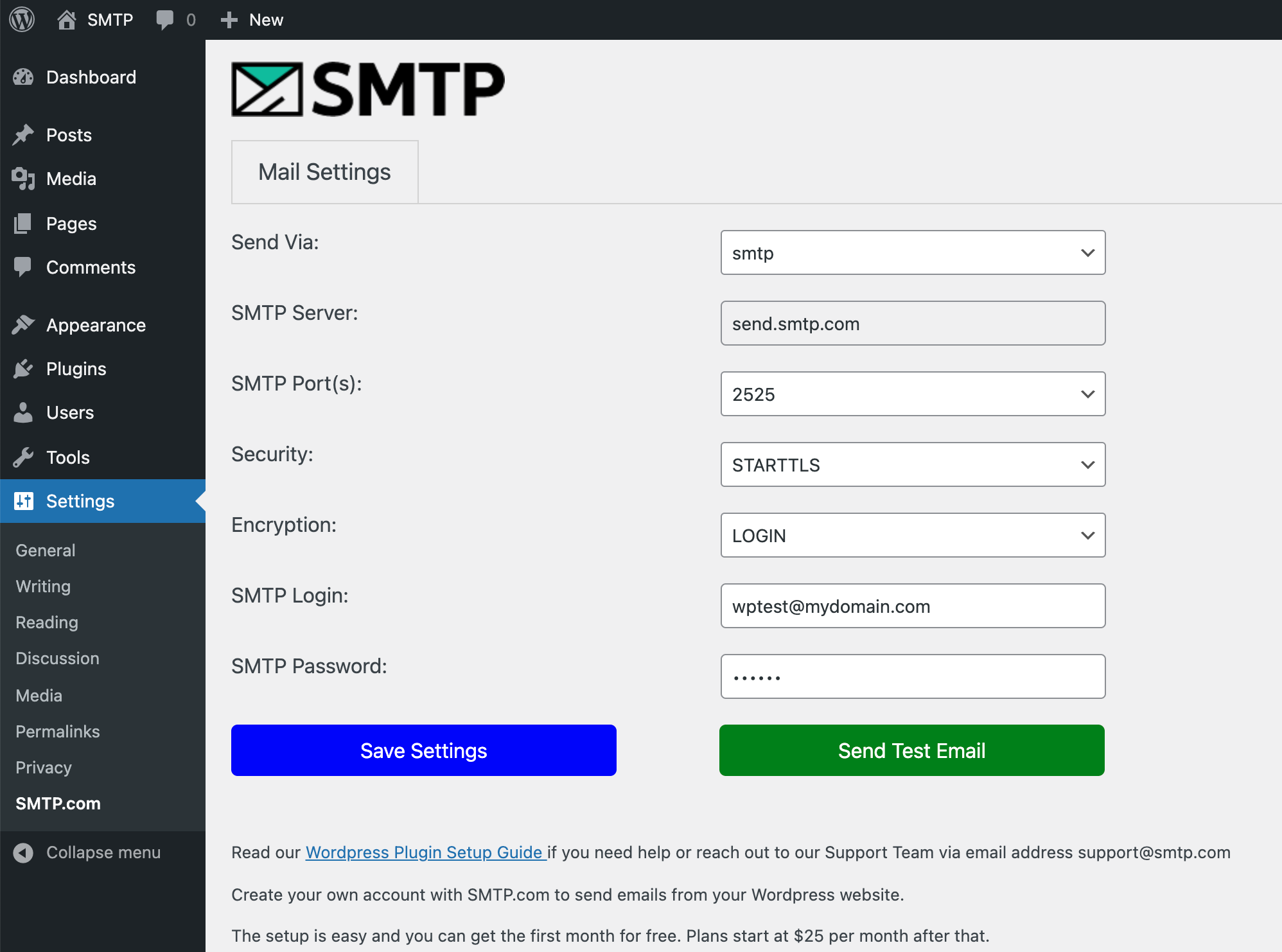
You can send emails from your WordPress site using the SMTP.com API or the standard SMTP protocol. Our plugin will suggest the best way for you to send email even if your provider has restricted access to outbound internet ports. Either way, SMTP.com will still ensure your email gets delivered.
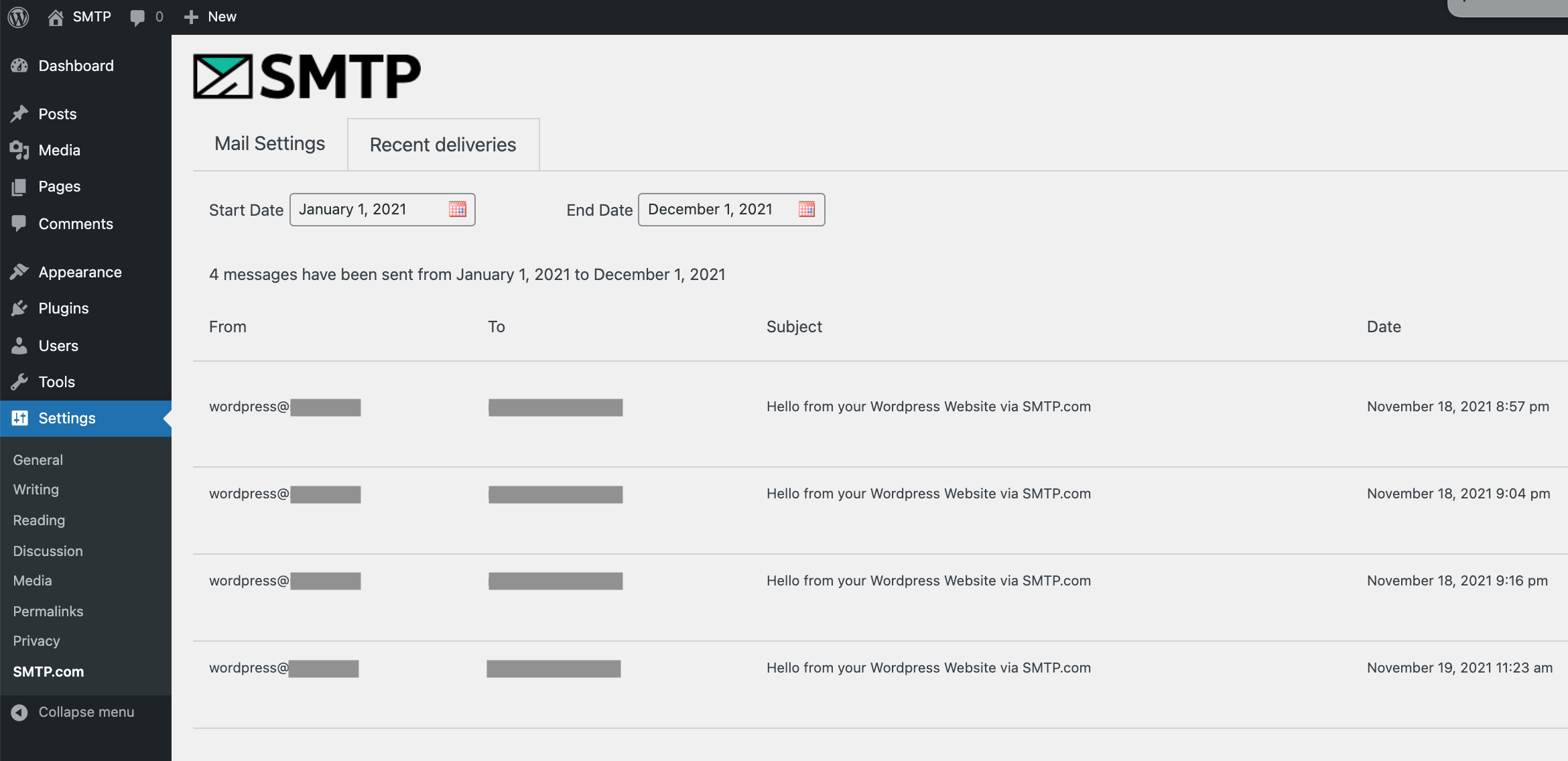
Another useful feature provided with our WordPress plugin is the ability to track your email delivery from within the plugin itself. See the results of your recent sends to ensure successful delivery or identify the reason why your particular email hasn't been delivered.
安装:
Using WordPress Admin Panel
- Go to Plugins and then click the Add New button.
- Search for
smtpcomin the search field Search Plugins.... - Identify the SMTP.com plugin in the list and start the installation by clicking the Install Now button.
- Activate the plugin by going to Plugins and then choose Installed Plugins, find the
SMTP.complugin and click Activate Plugin.
- Download the plugin from its repository by pressing the Download button.
- Go to Plugins in your WordPress Admin Panel and then click Add New button.
- Click the Upload Plugin button, select the downloaded zip archive with the plugin and click Install Now.
- Activate the plugin in the Plugins menu in WordPress as specified in the Admin Panel option above
- Download the plugin from its repository by clicking the Download button.
- Unzip the downloaded file and launch your FTP client.
- Locate the folder
pluginsunder thewp-contentfolder in the root directory. - Upload the whole folder from the unzipped file to the
pluginsfolder on your remote server. - Activate the plugin in the Plugins menu in WordPress as specified in the Admin Panel option above.
屏幕截图:
常见问题:
Where can I find information on getting set up?
Follow this link to find all information about installing and configuring the plugin.
Why do I need to pay?
You don't need to pay for the WordPress plugin -- it's completely free. You will need to pay for an account at SMTP.com. SMTP.com allows you to deliver your messages hassle free, without the need to manage infrastructure, delivery reputation or worry about proper SPF/DKIM setup. If you would like to try the product before you buy feel free to reach out to our Support Team.
更新日志:
1.0.0
- Initial version of the plugin