
SoftIcon Mega Menu
| 开发者 | softiconai |
|---|---|
| 更新时间 | 2026年11月24日 08:51 |
| PHP版本: | 7.1 及以上 |
| WordPress版本: | 7.1 |
| 版权: | GPLv3 or later |
| 版权网址: | 版权信息 |
详情介绍:
- Open your header in Appearance → Editor, select the Navigation block, click its +, then Add block, and choose Mega Menu.
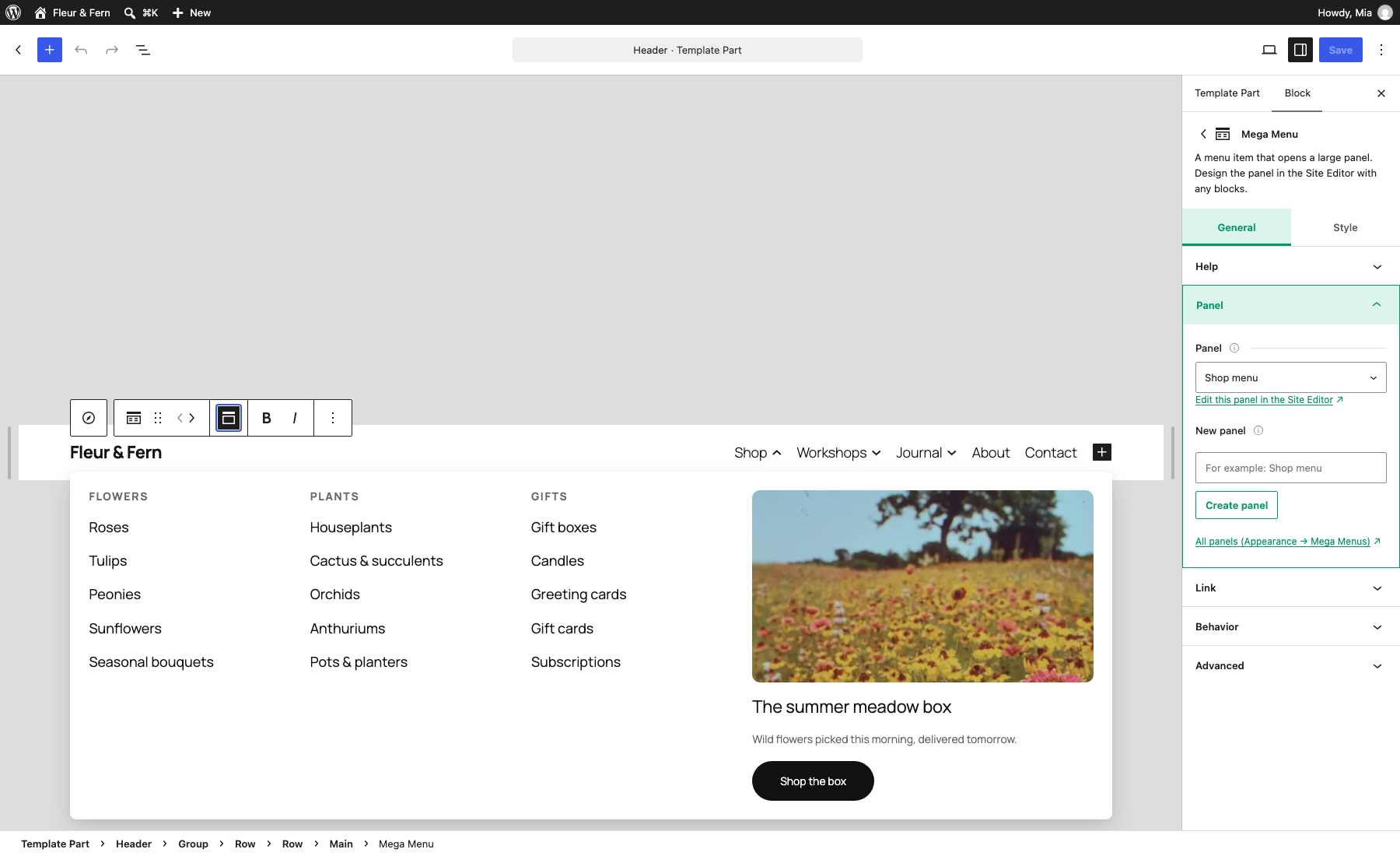
- In the block settings, under Panel, pick a design and click Create panel.
- Click Edit this panel in the Site Editor and change its text, links and images, or design it with any blocks.
- Back in the header, type the item's text and save.
- Mega Menu item for the Navigation block
- Panels designed in the Site Editor with any blocks
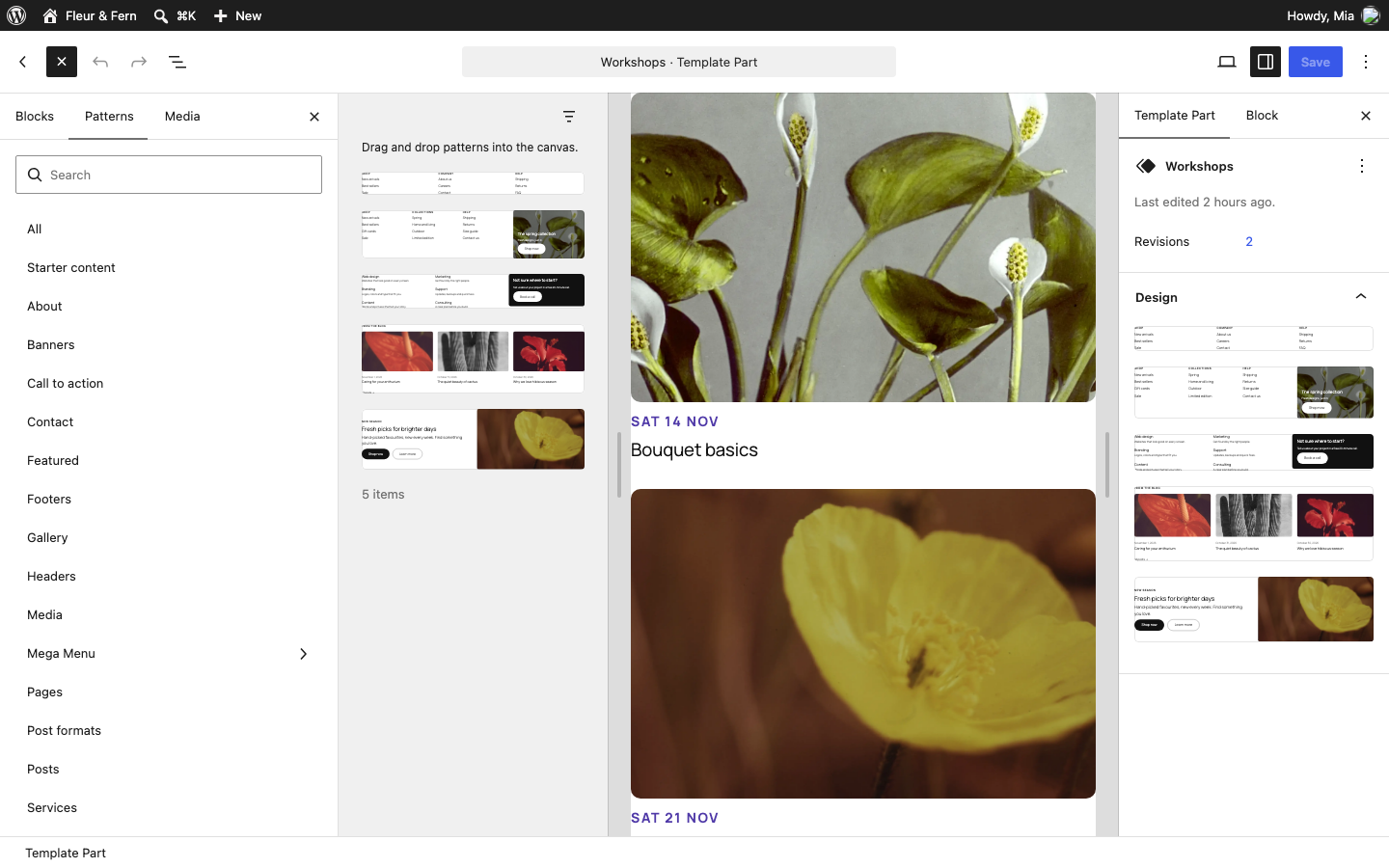
- 5 ready-made panel designs: links in columns, shop with a featured photo, services with a call to action, latest posts, promo
- Create, choose and edit panels right from the block settings, with a short how-to in the Help panel
- Turn any menu link into a mega menu (and back) with Transform, keeping its text and link
- Open on hover or on click
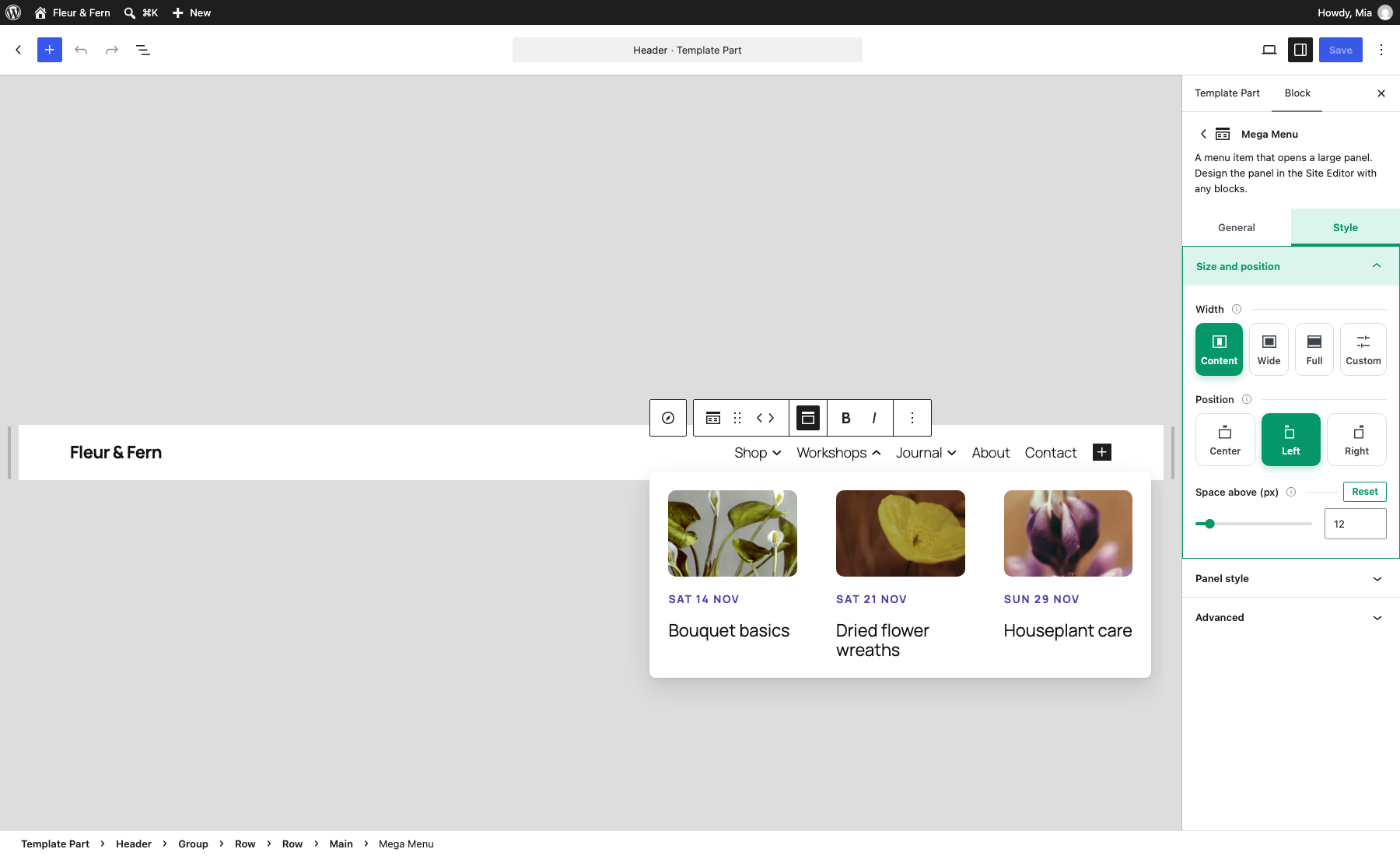
- Panel width: content, wide, full screen or a custom width
- Panel position: centered on the screen, or lined up with the menu item
- Panel always stays inside the screen
- Space above the panel, padding, rounded corners, shadow, background and text colors
- Optional link on the menu item text, with a small arrow that opens the panel
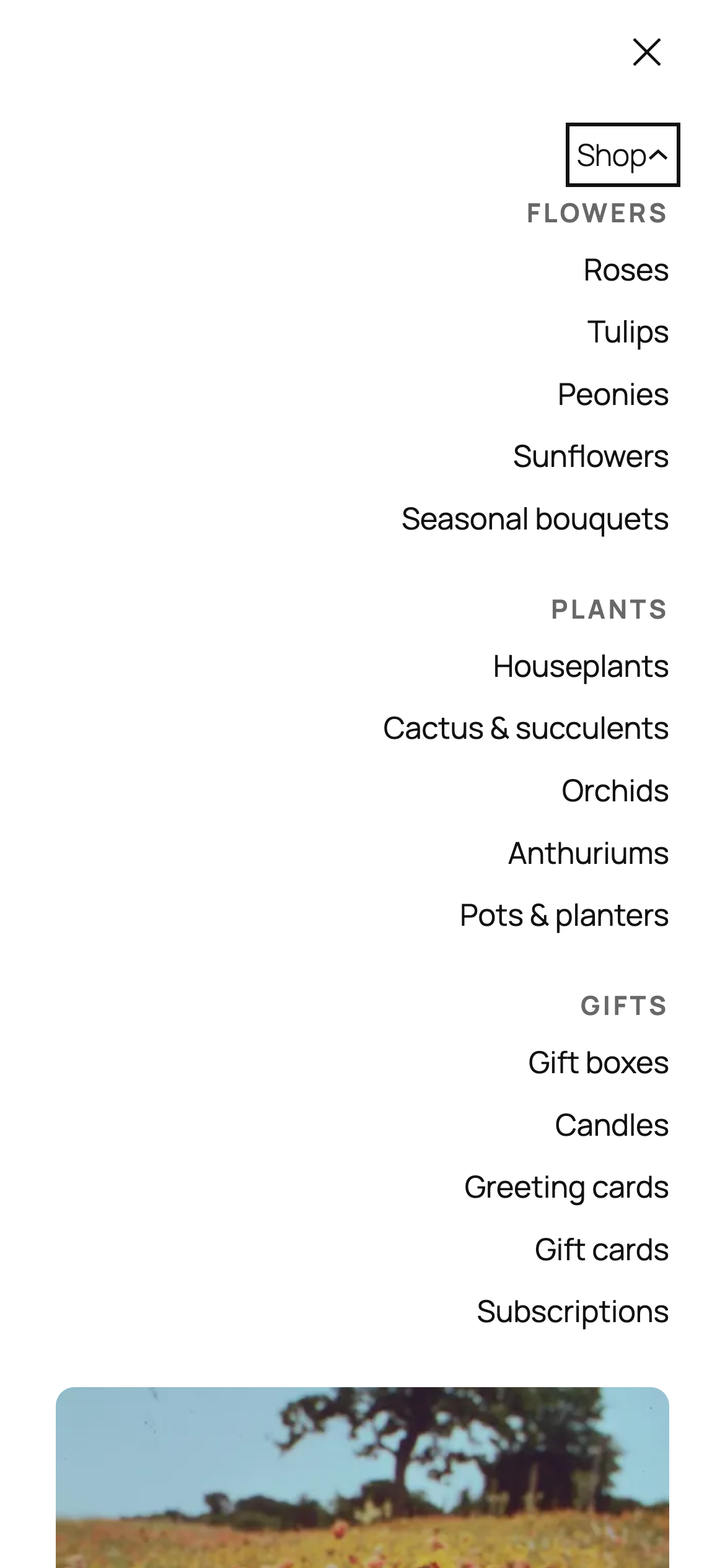
- Phones: the panel opens inside the Navigation block's phone menu, or the item just goes to its link
- Keyboard friendly: Enter or Space opens a panel, Escape closes it, Tab out closes it
- Preview the panel in the editor
- Works without JavaScript too: the panel opens on hover and keyboard focus
- Small script with no dependencies, about 2 KB
build folder are compiled from the human-readable source in the src folder, which is included in the plugin. To build it yourself, run npm install and then npm run build in the plugin folder. The build uses @wordpress/scripts.
External services
The plugin does not connect to any external service. The Help panel in the block settings has plain links to a video guide on YouTube and to WordPress.org, which open in a new tab only when you click them.
Libraries
The plugin does not bundle any third-party library. Its scripts use only the packages that come with WordPress (@wordpress/blocks, @wordpress/block-editor, @wordpress/components and others), loaded from WordPress itself. The settings panel helpers in src/vendor/softicon-tools are our own code, released under the same GPLv3 or later license as the plugin. All icons were drawn for this plugin.
Images
The two photos in the panel designs come from the Twenty Twenty-Five theme and are in the public domain (CC0):
- Botany flowers, https://www.rawpixel.com/image/8812207 (assets/images/botany-flowers.webp)
- Northern Buttercups, https://www.rawpixel.com/image/8802603 (assets/images/northern-buttercups.webp)
安装:
- Upload the plugin and activate it, or install it from Plugins → Add New.
- Use a block theme (Appearance → Editor).
- Edit your header, select the Navigation block and add a Mega Menu item.
屏幕截图:
常见问题:
Does it work with classic themes?
No. Panels are template parts, which need a block theme. Classic themes can use a classic menu plugin.
Where do I find my panels?
The Panel list in the block settings shows them all and links to the chosen one. They are also in Appearance → Editor → Patterns → Mega Menu, where you can rename or delete them.
Where did Appearance → Mega Menus go?
Version 1.3.0 removed that page, so the plugin is a pure block that can be installed right from the editor. Everything it did is in the block settings: pick a design, create a panel, choose it and open it in the Site Editor. Your panels and menus are not changed.
Where is Appearance → Menus?
Block themes have no Menus screen; menus are made with the Navigation block in Appearance → Editor. Mega Menu items go inside that Navigation block.
The panel opens too high, on top of my header
The panel opens right under the menu item. If your header is taller, use Space above in the Style tab to move it down.
What happens on phones?
When the Navigation block turns into a phone menu, the panel opens under its item inside that menu. With a link on the item you can choose Go to link instead, then the item is a normal link on phones.
I switched themes and my panels are gone
Template parts belong to a theme. Switch back to see them, or copy the blocks into new panels in the new theme.
Need help?
Ask in the support forum or email softiconai@gmail.com. Feature ideas are welcome.
更新日志:
- Changed: the video guide is new for 1.3.0, with ready-made designs and without the old Mega Menus page.
- New: a "Watch the 2-minute guide" link in the Panel section until you choose a panel.
- Removed: the Appearance → Mega Menus page, so the plugin is a pure block that can be listed in the Block Directory and installed from the editor. Everything it did is in the block settings: pick a design, create a panel, choose it and open it in the Site Editor. Panels and menus you made are not changed.
- New: a short how-to in the block's Help panel.
- Changed: the block settings get the ready-made designs from the block patterns, so the plugin no longer adds inline data to the editor.
- New: 5 ready-made panel designs (links in columns, shop, services, latest posts, promo). Pick one when you create a panel on the Mega Menus page or in the block settings. They are also in the Site Editor under Patterns → Mega Menu.
- Changed: a new panel's links are no longer underlined and its column headings are small, bold and uppercase, so they stand out from the links.
- Fixed: the panel preview in the editor now shows widths, gaps, grids and link styles the way the site does. Before, a group with its own width was squeezed to the theme's content width.
- Changed: Mega Menu is now in the short block list of the Navigation block (+ → Add block), right after Page link and Custom Link. Before, it was only in Browse all.
- Changed: "Create panel" on the Appearance → Mega Menus page no longer redirects on the server. The page creates the panel and opens it in the Site Editor, or shows a link to it when JavaScript is off.
- Changed: the Mega Menus page script is now a file (includes/admin.js) instead of inline code.
- Readme: added the "block" tag.
- New: video guides on the Appearance → Mega Menus page, a step-by-step guide and a quick tour. A video loads from YouTube only when you click it.
- New: "Video guide" card in the Help panel of the block settings.
- Readme: Video guides and External services sections.
- First release.