SVG Icon Block
| 开发者 |
gkits
binsaifullah |
|---|---|
| 更新时间 | 2026年11月14日 15:11 |
| PHP版本: | 7.4 及以上 |
| WordPress版本: | 7.1 |
| 版权: | GPLv2 or later |
| 版权网址: | 版权信息 |
详情介绍:
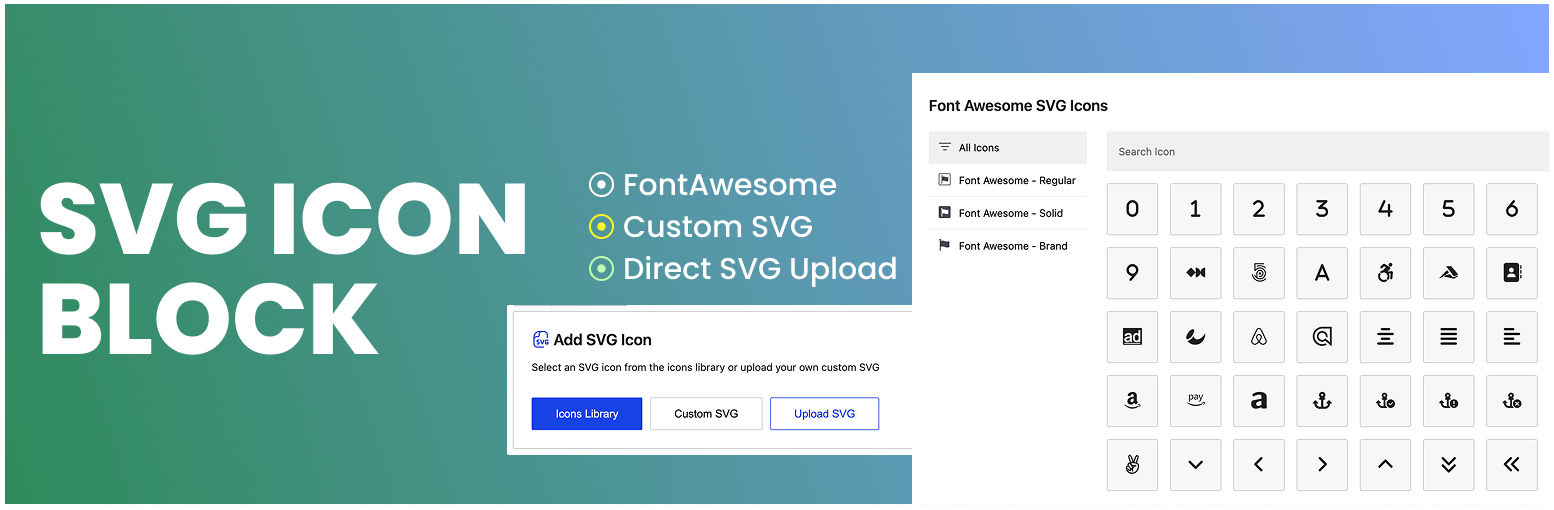
- Icon Library – search 1,800+ Font Awesome Free icons (Solid, Regular and Brands) and insert one with a click.
- Custom SVG – paste SVG code from Figma, Illustrator, Inkscape or any icon set. The markup is validated and previewed on light, dark and transparent backgrounds.
- Upload SVG – upload an
.svgfile to the Media Library, or drop it straight into the editor. SVG uploads are enabled safely, with every file sanitized.
- 1,800+ Font Awesome SVG icons (Solid, Regular and Brands)
- Custom SVG code with live preview and markup validation
- Safe SVG upload support for the Media Library
- My Icons – save your own SVG icons once and reuse them in any post or page
- Icon size, fill, stroke and hover colors, background, padding, border and border radius
- Responsive size, spacing and alignment for desktop, tablet and mobile
- Rotate and flip icons horizontally or vertically
- Optional text label next to the icon, with typography controls
- Link an icon to any URL, with new tab, nofollow and sponsored options
- Accessible: alternative text for icons, plus a warning when an icon-only link has no accessible name
- Additional CSS class and HTML anchor support
- Works with block themes, classic themes and Full Site Editing
- Lightweight with no third-party dependencies, and only the SVG markup is rendered
- Feature lists and service boxes with icons
- Social media icons and brand logos
- Icon buttons and call-to-action links
- Contact details with phone, email and map icons
- Custom illustrations and logos as scalable SVG
安装:
- In your WordPress dashboard, go to Plugins → Add New and search for "SVG Icon Block".
- Click Install Now, then Activate.
- Open the block editor, click the + inserter and add the SVG Icon block.
- Choose an icon from the Icon Library, paste custom SVG code, or upload an SVG file.
svg-icon-block folder to /wp-content/plugins/ and activate it from the Plugins screen.常见问题:
How do I add an SVG icon in the WordPress block editor?
Add the SVG Icon block from the inserter, then pick an icon from the Icon Library, paste SVG code with Custom SVG, or upload an .svg file. Use the block sidebar to change size, color and other styles.
Does this plugin load Font Awesome on the front end?
No. Each icon is saved as inline SVG markup, so no icon font, CSS file or JavaScript from Font Awesome is loaded on your site's front end.
Can I upload my own SVG icons?
Yes. You can upload .svg files to the Media Library, drop them into the editor, or paste SVG code directly. Turn on Add to My Icons to save an icon for reuse.
Is it safe to allow SVG uploads?
The plugin sanitizes every SVG with an allow-list before it is saved. Scripts, event handlers, unsafe links and external references are removed, so a malicious file can't run code on your site.
Can Authors and Contributors use the block?
Yes. Icons display correctly for users without the unfiltered_html capability, including on Multisite networks.
Can I link an icon?
Yes. Add a URL in the block settings and choose whether it opens in a new tab or uses nofollow or sponsored. For icon-only links, add alternative text so screen readers can announce the link.
Can I change the icon color on hover?
Yes. The block has separate normal and hover colors for the icon fill, stroke, label and background.
Does it work with Full Site Editing and block themes?
Yes. You can use the SVG Icon block in posts, pages, templates, template parts and patterns.
更新日志:
- Improved: New plugin icon and banner
- Improved: Rewrote the plugin description, features list and FAQ
- Tested up to WordPress 7.1
- Fixed: Icons no longer vanish when saved by Authors, Contributors, or on Multisite (users without unfiltered HTML)
- Fixed: Adding a background image no longer drops every other style of the block on the front end
- Fixed: SVG code typed in the sidebar is now sanitized, and invalid markup no longer replaces the icon
- Added: Alternative text for icons, with a warning for icon-only links that have no accessible name
- Added: Additional CSS class and HTML anchor settings
- Added: Popular icons in the block placeholder for one-click insert
- Improved: Redesigned icon library, Custom SVG window, My Icons window and block placeholder
- Improved: Removing a saved icon from My Icons now asks for confirmation, since the library is shared site-wide
- Improved: Custom SVG window validates markup, previews on light, dark and transparent backgrounds, and accepts dropped .svg files
- Improved: Font Awesome data loads only when needed, making the editor script about 88% smaller
- Added: My Icons library - save a custom SVG with "Add to My Icons" and reuse it in any block
- Added: My Icons button in the block placeholder to pick a saved icon, with search and remove
- Fixed: SVG upload no longer failed on icons exported from Illustrator, Inkscape and similar tools
- Fixed: An SVG that could not be parsed is now rejected with a clear message instead of being saved empty
- Fixed: SVG uploads sent through the REST API (drag and drop into the editor) are accepted
- Fixed: PHP notices while preparing SVG attachments, which could break the upload response
- Fixed: Link is no longer clickable inside the editor, so an accidental click does not navigate away
- Improved: SVG sanitizer rewritten to an allow-list, stripping scripts, event handlers, unsafe links and external references
- Improved: SVG width, height and previews now display correctly in the media library
- Compatibility check
- Transform features (rotate, flip) are added
- Dynamic CSS codes are optimized
- Compatibility with WordPress 6.8
- Added: Edit SVG Icon option at sidebar
- Improved: Search functionality for icons
- Optimized: Codes are optimized
- Added: Direct SVG upload option
- Added: SVG format support for direct upload
- Compatibility with WordPress 6.7.1
- Initial Release