Tap Chat – Floating Contact Button
| 开发者 |
iruserwp9
wpdevup |
|---|---|
| 更新时间 | 2026年9月6日 08:13 |
| PHP版本: | 7.4 及以上 |
| WordPress版本: | 7.1 |
| 版权: | GPLv2 or later |
| 版权网址: | 版权信息 |
详情介绍:
- Demo: Plugin demo
- Support Forum: WordPress.org support
- Bug Reports: GitHub issues
- Built-in Privacy-First Analytics Dashboard (NEW) - See Total / Today / This Week / This Month chat clicks, percentage change vs the previous period, Top Pages by clicks, and Clicks by Device — right inside wp-admin. Optionally measure button views, unique visitors and click-through rate (CTR). 100% first-party: no cookies, no personal data, no external requests, and your data never leaves your server.
- Floating Chat Button - Beautiful, customizable button that sticks to your site
- Custom Icon Upload - Replace WhatsApp icon with your own brand logo or custom image
- Custom link - Replace WhatsApp Link with Telegram, Messenger, a contact page, Phone, Email or any URL
- Welcome Bubble - Friendly greeting message to encourage conversations with two styles (Modern & Simple)
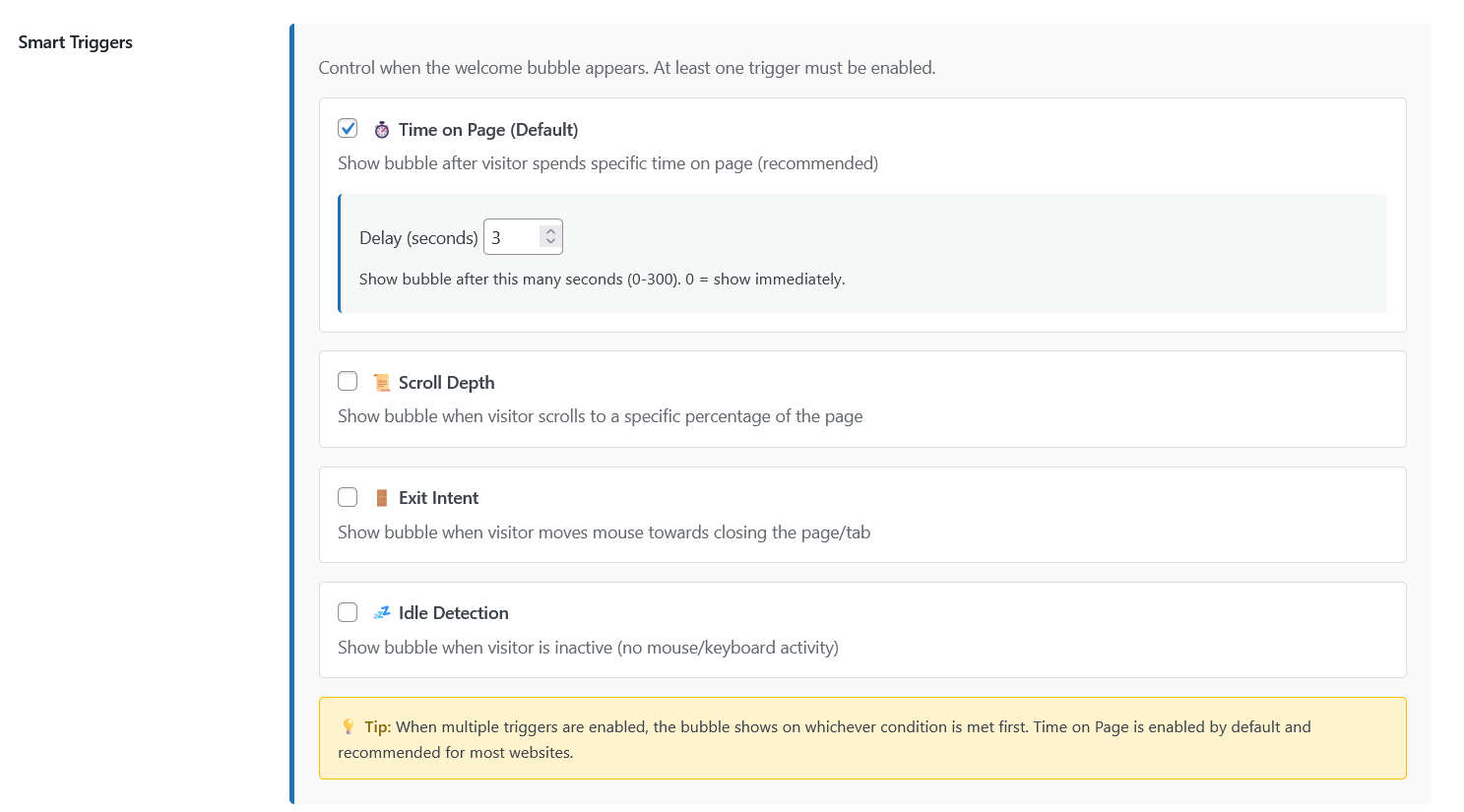
- Smart Triggers - Show the bubble at the perfect moment based on visitor behavior
- Country Selector - Easy phone number configuration with 150+ country codes and flags
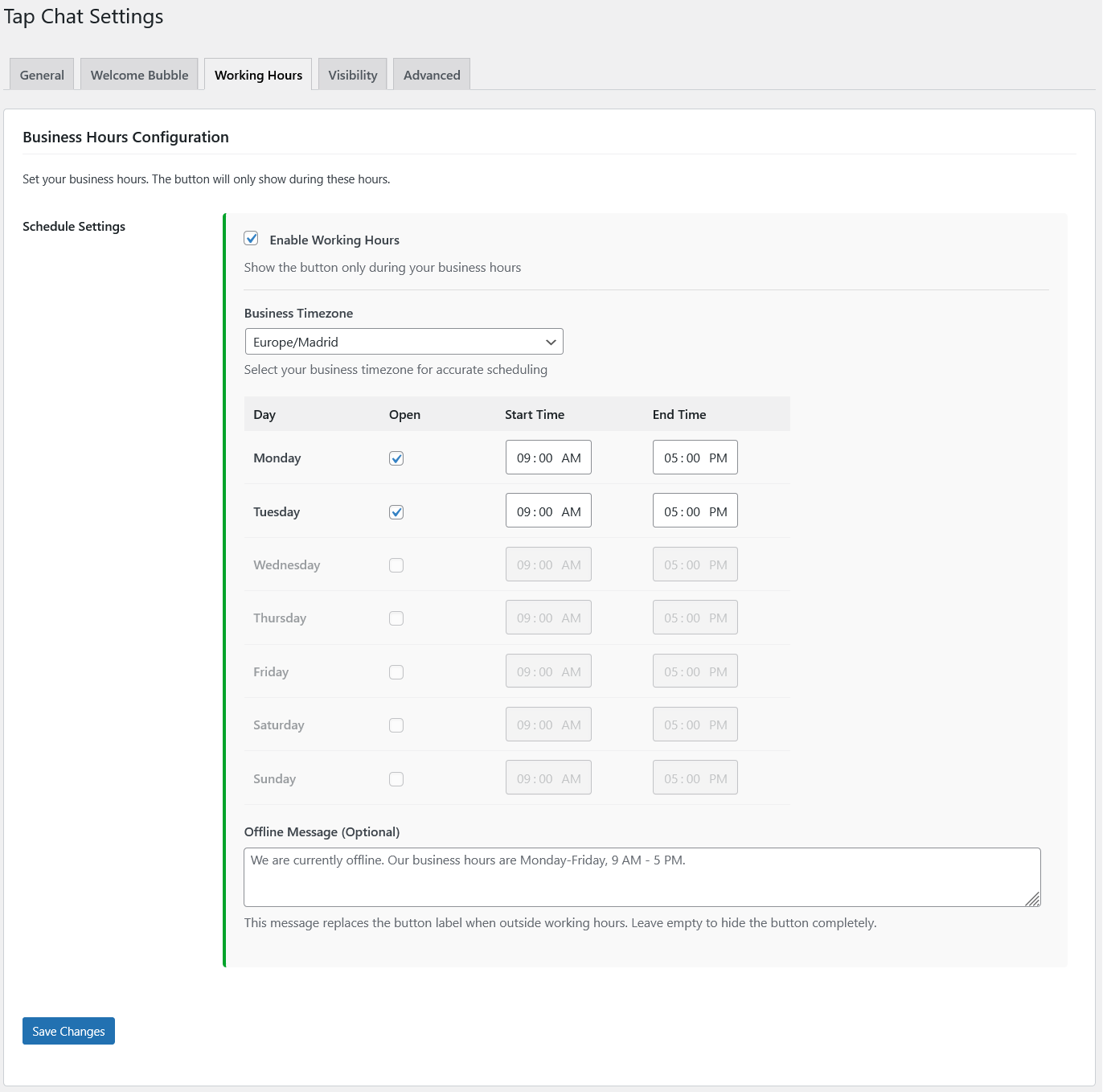
- Working Hours - Display button only during business hours with timezone support
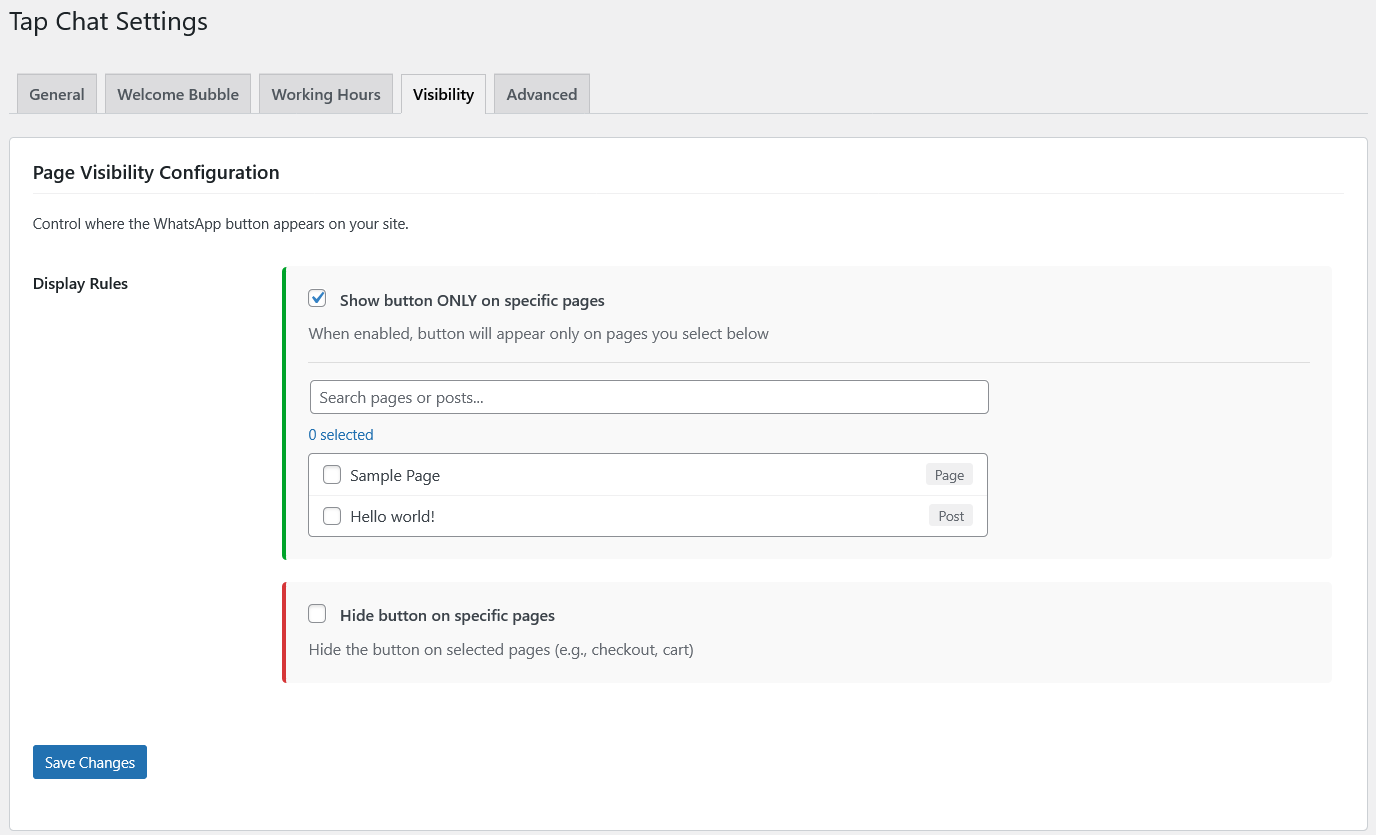
- Page Visibility - Show or hide button on specific pages/posts
- Fully Customizable - Colors, sizes, positions, labels - make it yours
- Mobile Optimized - Separate mobile/desktop configurations
- Google Analytics 4 / Tag Manager Integration - Optionally also forward chat clicks and welcome-bubble impressions as GA4 events using the analytics already installed on your site
- Translation Ready - Fully translatable with .pot file included
- Performance First - Minimal footprint, no jQuery dependencies in frontend
- Headline metrics at a glance: Total, Today, This Week and This Month chat clicks, with a clear percentage change versus the previous period.
- Top Pages by Clicks: discover which pages and products send the most people to chat.
- Clicks by Device: see the mobile / desktop / tablet split at a glance.
- Click-through rate (CTR): turn on optional traffic tracking to measure the Visitors → Button Views → Clicks → CTR funnel.
- At-a-glance dashboard widget: today / last 7 days / all-time clicks with a 14-day sparkline, right on your WordPress dashboard.
- Privacy by design: no cookies, no personal data (IP address and user agent are never stored), no external requests, and nothing shared with Google or any third party.
- You stay in control: exclude logged-in users from tracking, choose how long data is kept (auto-pruned daily), and reset all analytics data at any time.
- Optional GA4 / Tag Manager: if you prefer, also forward events to your existing GA4 or Google Tag Manager — kept completely separate from the built-in analytics.
- Two Beautiful Styles:
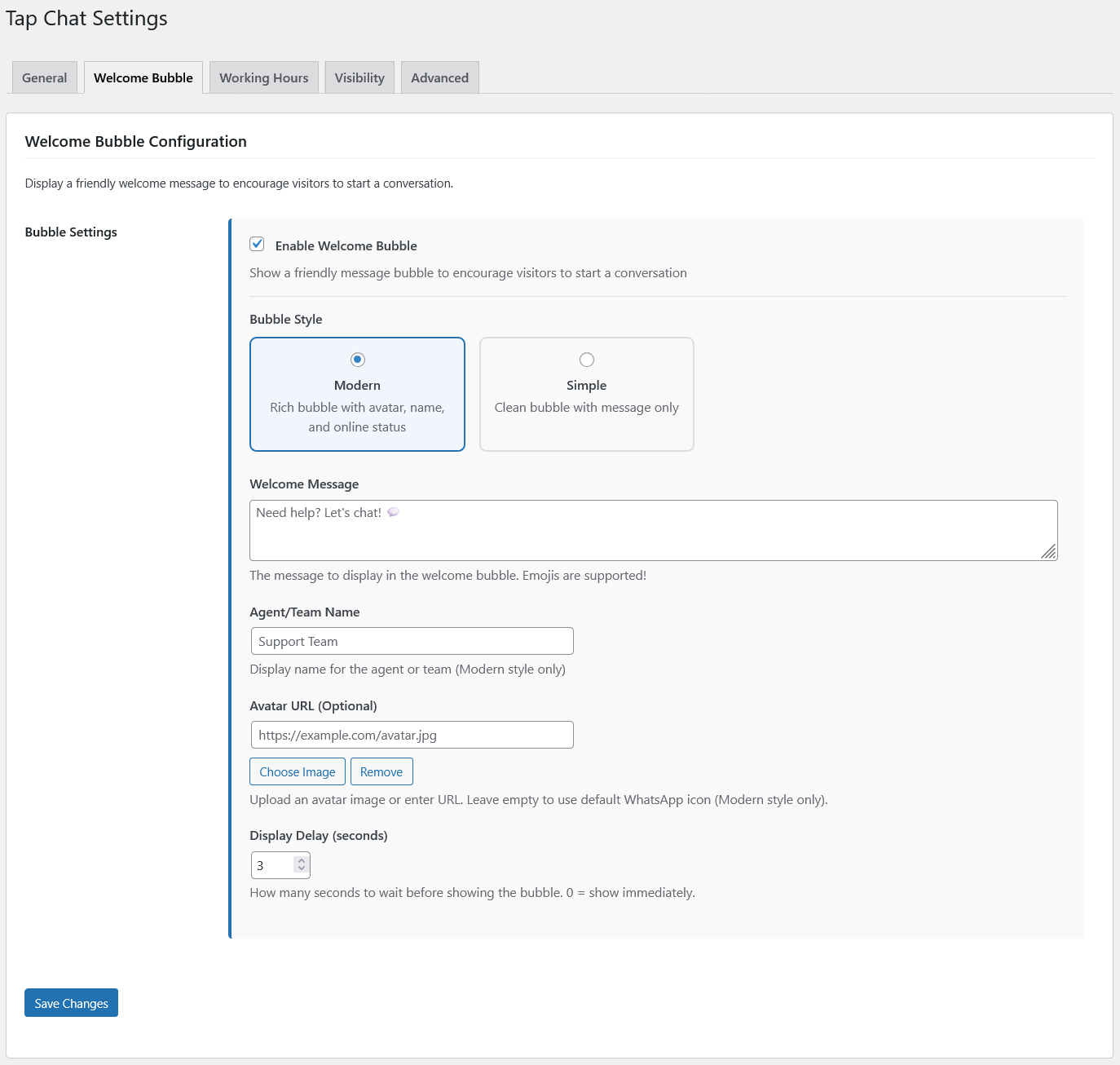
- Modern - Rich bubble with avatar, name, and online status
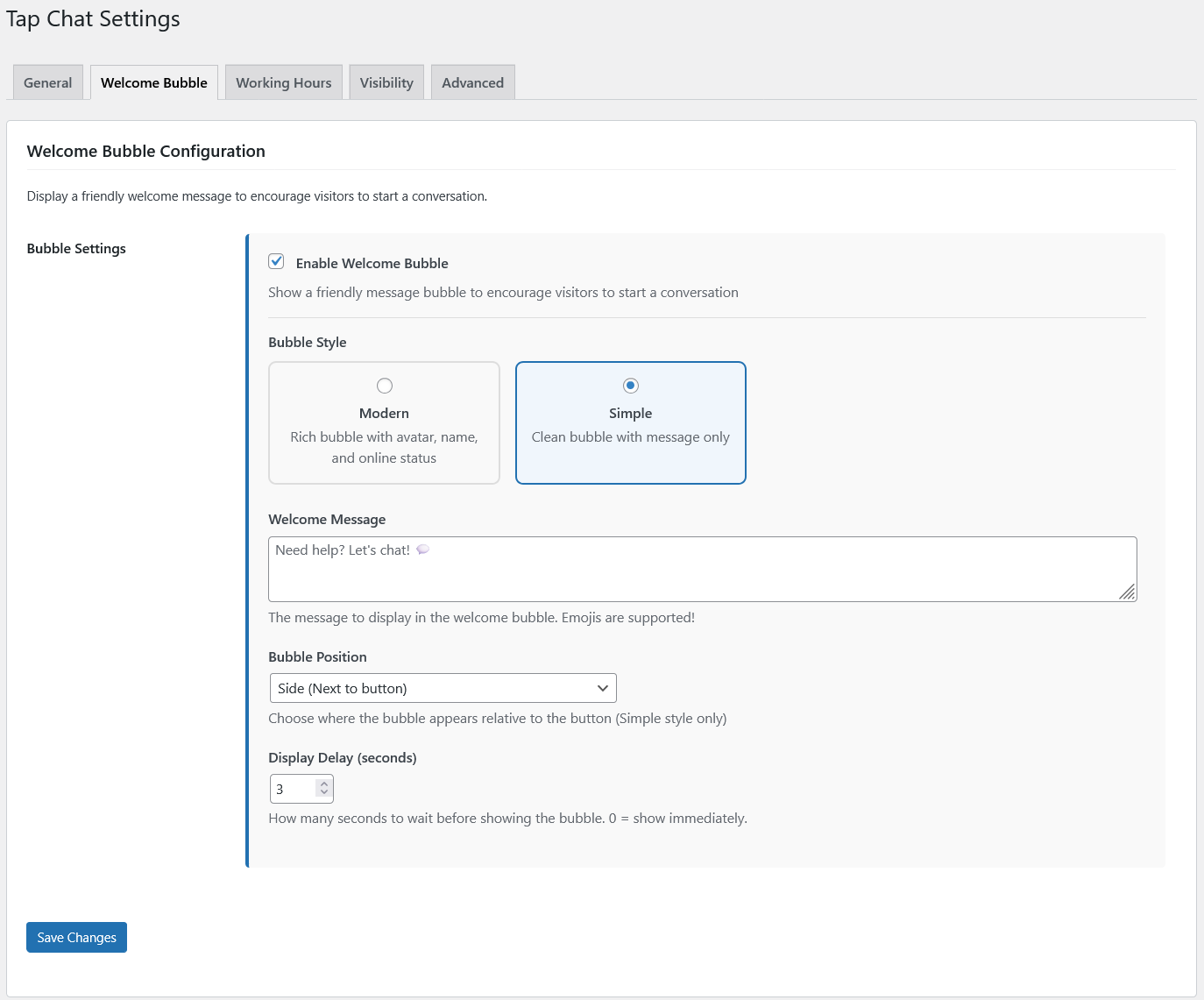
- Simple - Clean bubble with message only, positioned above or beside button
- Smart Triggers - Show bubble based on visitor behavior:
- Time on Page - After visitor spends specific time (recommended)
- Scroll Depth - When visitor scrolls to specific percentage
- Exit Intent - When visitor moves to close tab/window
- Idle Detection - When visitor is inactive
- Customization Options:
- Custom welcome message with emoji support
- Agent/team name display (Modern style)
- Avatar image upload (Modern style)
- Multiple trigger combinations
- Auto-close on interaction
- Session-based display (won't annoy visitors)
- Custom Icon Upload:
- Replace default WhatsApp icon with your brand logo
- Supports PNG, JPG, SVG formats
- Perfect circular display with automatic sizing
- Works in floating button, offline button, and bubble avatar
- Easy fallback to default icon
- Business Hours Control:
- Set different hours for each day of the week
- Timezone support for accurate scheduling
- Custom offline message
- Choose to hide button or show offline state
- Visibility Rules:
- Show on specific pages only
- Hide on specific pages (e.g., checkout, cart)
- Combine show/hide rules for precise control
- Support for all post types and WooCommerce pages
- Customization Options:
- Button position (left/right)
- Custom colors
- Icon sizes (separate for desktop/mobile)
- Hide/show label on mobile or desktop
- Pre-filled message text
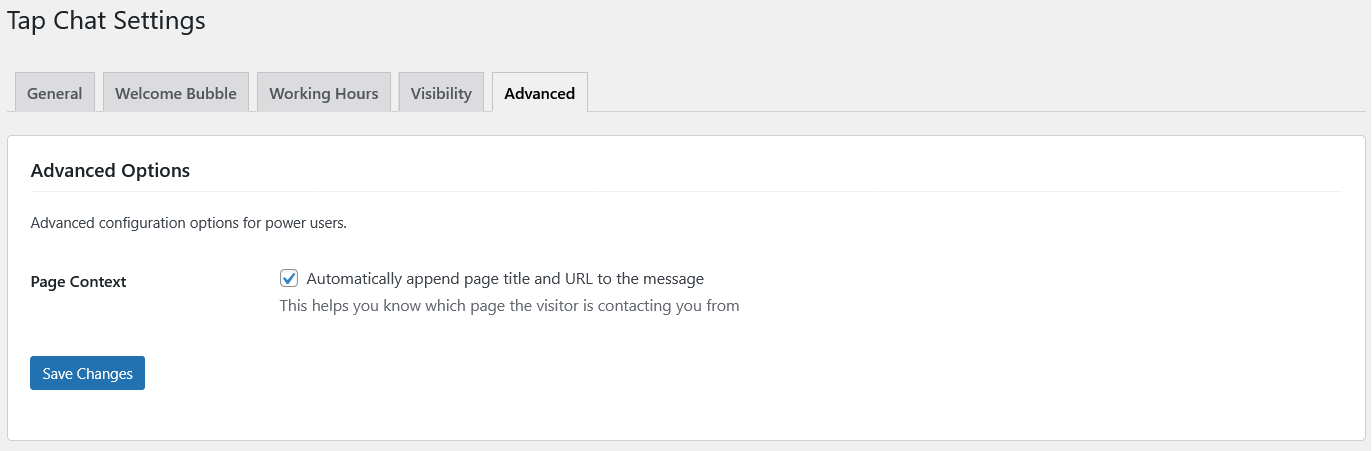
- Page context appending (automatic page info in message)
[tapchat]
Custom shortcode parameters:
[tapchat phone="+1234567890" message="Hello!" label="Contact us"]
安装:
- Go to WordPress Dashboard → Plugins → Add New
- Search for "Tap Chat"
- Click "Install Now" and then "Activate"
- Go to Settings → Tap Chat to configure
- Download the plugin zip file
- Go to WordPress Dashboard → Plugins → Add New → Upload Plugin
- Choose the downloaded zip file and click "Install Now"
- Activate the plugin
- Go to Settings → Tap Chat to configure
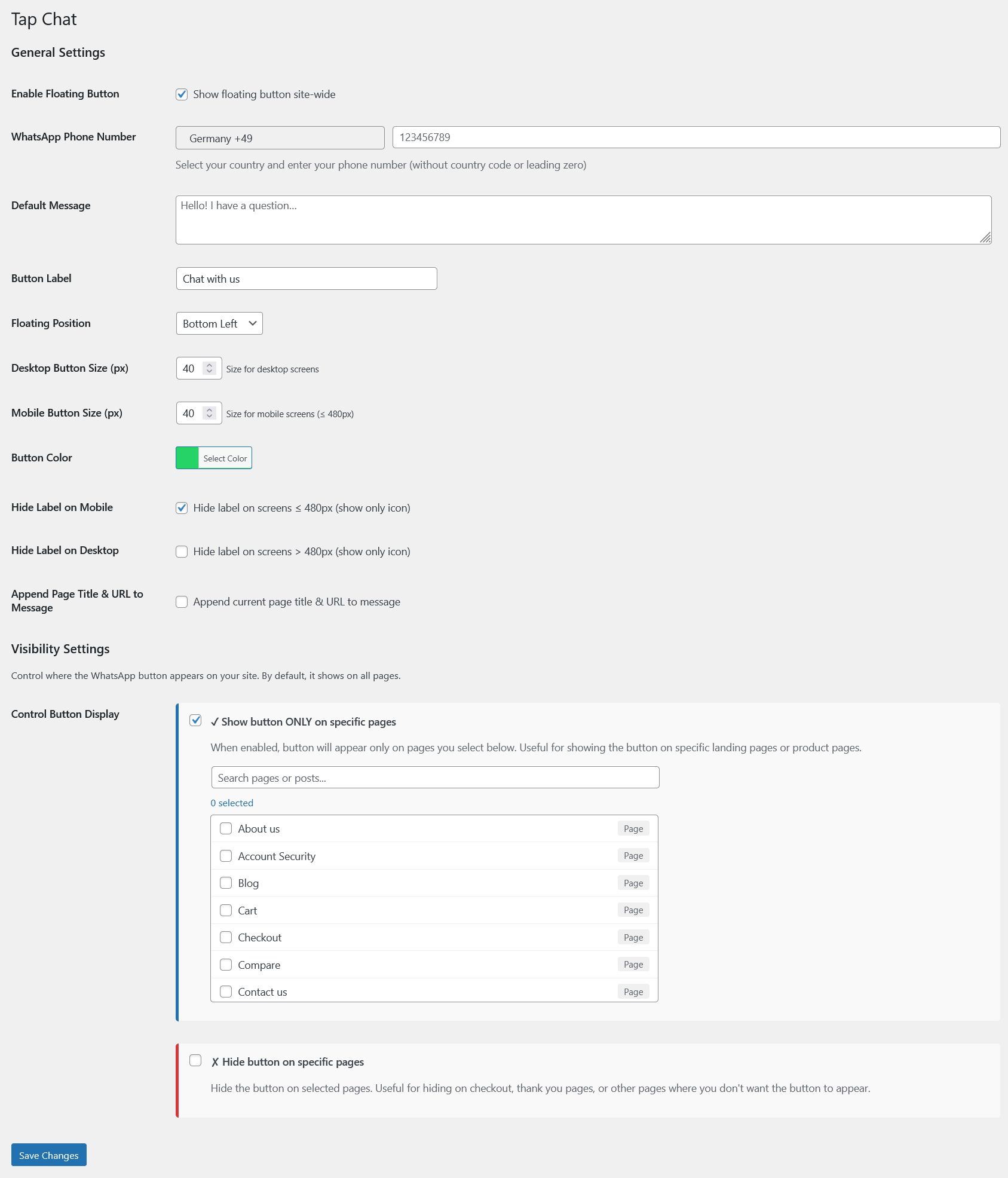
- General Tab:
- Select your country code from the dropdown
- Enter your phone number (without country code)
- Upload custom icon to replace WhatsApp logo (optional)
- Customize button appearance (color, size, position)
- Set default message and label
- Welcome Bubble Tab:
- Enable welcome bubble
- Choose style (Modern or Simple)
- Customize message, name, and avatar
- Configure smart triggers (Time on Page recommended)
- Business Hours Tab:
- Enable working hours if needed
- Set schedule for each day
- Choose timezone
- Add optional offline message
- Visibility Tab:
- Control where button appears
- Show on specific pages only
- Hide on specific pages (e.g., checkout)
- Advanced Tab:
- Enable page context appending
- Additional customization options
- Analytics Tab:
- Overview sub-tab: view your first-party chat-click report (totals, top pages, devices, and CTR when traffic tracking is on)
- Settings sub-tab: turn click tracking on/off, enable optional Traffic & CTR tracking, exclude logged-in users, set data retention, reset data, and configure the optional GA4 / Tag Manager integration
屏幕截图:

常见问题:
Do I need a business account?
No. Tap Chat works with regular accounts or business accounts from supported messaging platforms.
Will it slow down my website?
No. Tap Chat is extremely lightweight and loads asynchronously, so it won't affect your site speed. The built-in analytics use a non-blocking beacon and a compact daily-aggregated table, and are fully compatible with page caching.
Can I customize the button design?
Yes! You can customize colors, sizes, position, and labels. The button adapts to your brand.
Can I upload my own icon?
Yes! Go to General Settings and use the Custom Icon Upload feature to replace the WhatsApp icon with your own brand logo or any custom image.
Does it work on mobile?
Yes! Tap Chat is fully responsive and optimized for mobile devices with separate mobile/desktop controls.
Can I use it with WooCommerce?
Absolutely! Tap Chat works perfectly with WooCommerce and supports all WooCommerce pages.
How do smart triggers work?
Smart triggers show the welcome bubble based on visitor behavior:
- Time on Page: After visitor stays for X seconds (default and recommended)
- Scroll Depth: When visitor scrolls to X% of page
- Exit Intent: When visitor moves mouse to close tab
- Idle Detection: When visitor is inactive for X seconds When multiple triggers are enabled, the bubble shows when ANY trigger condition is met first.
What's the difference between Modern and Simple bubble styles?
Modern Style:
- Includes avatar image
- Shows agent/team name
- Displays online status indicator
- Positioned above button Simple Style:
- Clean, minimal design
- Message only
- Can be positioned above or beside button
- Faster to configure
Can I disable the welcome bubble?
Yes! The welcome bubble is optional. You can use just the floating button without the bubble.
Will visitors see the bubble every time?
No. After a visitor closes the bubble or clicks it, they won't see it again during that browsing session (using sessionStorage).
Can I use a different phone number in shortcode?
Yes! Use: [tapchat phone="+1234567890"] to override the default number.
Can I have different messages for different pages?
Yes! Use the shortcode with custom message parameter: [tapchat message="Custom message for this page"]
How do I set working hours?
- Go to Business Hours tab
- Enable "Enable Working Hours"
- Select your timezone
- Toggle days on/off and set times
- Optionally add offline message
- Save changes
What happens outside working hours?
You have two options:
- Hide the button completely (leave offline message empty)
- Show grayed-out button with offline message
Can I show button only on specific pages?
Yes! Use the Visibility tab:
- "Show ONLY on specific pages" - button appears only where selected
- "Hide on specific pages" - button hidden where selected
- Combine both for precise control
Does Tap Chat include built-in analytics?
Yes. As of version 2.0, Tap Chat records chat-button clicks and shows them in a built-in dashboard under Settings → Tap Chat → Analytics → Overview. You get Total / Today / This Week / This Month clicks, top pages, device breakdown and, optionally, click-through rate.
Is the built-in analytics GDPR-friendly? Does it use cookies?
It is designed to be privacy-first. It sets no cookies, stores no personal data (IP addresses and user agents are never saved), and makes no external requests. All data lives in your own WordPress database and is never shared with Google or any third party. Unique-visitor counting (only used when you enable optional Traffic & CTR tracking) uses a cookieless, first-party browser flag, not a tracking cookie.
Where is my analytics data stored?
In a single, compact table in your own WordPress database. Data is aggregated per day so the table stays small, older rows are pruned automatically based on your retention setting, and the table is removed if you uninstall the plugin.
What is the difference between the built-in analytics and the GA4 / Tag Manager integration?
They are independent. The built-in analytics stores clicks first-party on your own server and shows them inside wp-admin — no third parties involved. The optional GA4 / Tag Manager integration instead forwards events to the Google analytics you already have on your site. You can use either, both, or neither. They live in separate sub-tabs so they never get mixed up.
How do I measure click-through rate (CTR)?
CTR needs button impressions, so turn on Traffic & CTR tracking in Analytics → Settings. Once enabled, the dashboard shows the Visitors → Button Views → Clicks → CTR funnel. This adds one small, cookieless request per page view where the button is shown, which is why it is off by default. Plain click counts work without it.
Will analytics slow down my site or dashboard?
No. Click tracking uses a lightweight, non-blocking beacon and a single aggregated database row per day, and it is fully compatible with page caching. The WordPress dashboard widget caches its figures, so opening your dashboard adds no repeated queries. Optional Traffic & CTR tracking is the only feature that adds a request per page view, and it is off by default.
Can I keep my own testing out of the numbers?
Yes. Enable "Exclude logged-in users" in Analytics → Settings and clicks or views from any logged-in user (including you) are not recorded.
Can I track Tap Chat interactions in Google Analytics?
- Yes! Enable Event Tracking in the Google Analytics 4 / Tag Manager settings. Tap Chat can send chat button clicks and welcome-bubble impressions as events to the GA4 or GTM setup already installed on your site.
Does Tap Chat install Google Analytics or Google Tag Manager?
- No. Tap Chat does not install, load, or bundle any analytics library. It only sends events to GA4 or GTM that are already available on the page.
What events does Tap Chat send?
- By default, Tap Chat sends tapchat_click when a visitor clicks the chat button or link, and tapchat_bubble_shown when the welcome bubble appears. The bubble event includes a trigger_type parameter so you can compare which smart trigger generates the most interactions.
What happens if GA4 or Google Tag Manager is not installed?
- Nothing happens. Tap Chat detects whether GA4 or GTM is available on the page. If neither is present, no event is sent and no error is generated.
更新日志:
- New: Built-in Analytics dashboard (Settings → Tap Chat → Analytics → Overview) showing Total / Today / This Week / This Month chat clicks, percentage change vs. the previous period, Top Pages by Clicks, and Clicks by Device, with a 7 / 30 / 90-day range selector.
- New: Optional Traffic & CTR tracking that records button views and cookieless unique visitors to reveal the Visitors → Button Views → Clicks → CTR funnel. Off by default.
- New: WordPress dashboard widget with today / last 7 days / all-time clicks and a 14-day sparkline, linking to the full report.
- New: Exclude logged-in users option so your own testing and staff activity stay out of the numbers.
- New: Data controls — configurable retention with automatic daily pruning, and a one-click "Reset analytics data" action.
- Privacy by design: all analytics are stored in your own database. No cookies, no personal data (IP address and user agent are never stored), and no external requests. The data table is removed on uninstall.
- Improved: the Analytics tab is now organized into two clear sub-tabs — "Overview" (the read-only report) and "Settings" (built-in tracking plus the existing GA4 / Tag Manager integration, which is unchanged and fully independent).
- Performance: click tracking uses a non-blocking beacon and a compact daily-aggregated table that is cache-friendly; the dashboard widget caches its figures so the WordPress dashboard adds no repeated queries.
- Added a new Analytics tab: send GA4 / Google Tag Manager events on chat clicks (tapchat_click) and welcome-bubble impressions (tapchat_bubble_shown, with trigger_type). Uses your existing GA4/GTM; loads no analytics library of its own.
- Fixed Notice of Function _load_textdomain_just_in_time
- Fixed Update name.
- Added button animations in the General tab: fade in, slide in, bounce, ring/shake, and a "New message" style with an unread badge and pulsing ring. Motion is disabled for visitors who prefer reduced motion.
- Added a dismissible review request notice with three randomized copy variants (A/B assignment per install), shown on the Dashboard, Plugins, and settings screens 1 day after install. Use the
tap_chat_review_delay_daysfilter to change the delay. - Changed plugin name to "Tap Chat – WhatsApp Chat & Floating Chat Button".
- Fixed invalid "Tested up to" header (was 7.0).
- Added a Phone / Custom-link toggle in the General tab — pick Custom to use any URL (Telegram, Messenger, contact page) with no country code.
- Added {TITLE}, {TAGLINE}, {URL} variables that get replaced in the default WhatsApp message with your site title, tagline, and URL.
- Improved: Admin settings now use JavaScript tabs without page refresh
- Improved: All settings from all tabs save together in one submission
- Improved: Dynamic bubble positioning - automatically adjusts to icon size changes
- Improved: Better responsive behavior for welcome bubble on all screen sizes
- Fixed: Bubble alignment issues when changing icon sizes
- Performance: Smoother admin experience with no page reloads between tabs
- New: Custom Icon Upload feature - Replace WhatsApp icon with your brand logo
- New: WordPress Media Library integration for icon selection
- Improved: Perfect circular icon display with automatic sizing
- Improved: Custom icon works in floating button, offline button, and bubble avatar
- Improved: Responsive icon behavior across all devices
- Fixed: Icon sizing and display issues on mobile
- Fixed: Border spacing around custom icons
- Performance: Optimized icon rendering with CSS
- New: Smart Triggers system for welcome bubble
- Time on Page trigger (enabled by default)
- Scroll Depth trigger
- Exit Intent trigger
- Idle Detection trigger
- Improved: Simplified trigger configuration
- Improved: Better default settings for new installations
- Improved: Enhanced UX with Time on Page as recommended option
- Fixed: Removed duplicate Display Delay field
- Fixed: Various minor bug fixes and improvements
- Performance: Optimized trigger detection algorithms
- New: Welcome Bubble feature with two styles (Modern & Simple)
- New: Bubble customization options (message, name, avatar)
- New: Welcome bubble animations and interactions
- New: Session-based bubble display control
- Improved: Better mobile experience
- Fixed: Avatar upload functionality
- Performance: Optimized CSS animations
- New: Business Hours feature with timezone support
- New: Offline message option
- New: Page visibility controls (show/hide on specific pages)
- New: Support for all post types and WooCommerce pages
- Improved: Better settings organization with tabs
- Improved: Enhanced admin UI
- Fixed: Various compatibility issues
- New: Country selector with 150+ countries and flags
- New: Separate mobile and desktop size controls
- New: Hide label options for mobile/desktop
- New: Page context appending option
- Improved: Phone number validation
- Improved: Better URL encoding for messages
- Fixed: International phone number handling
- Initial release
- Floating chat button
- Customizable colors, sizes, and positions
- Pre-filled messages
- Shortcode support
- Translation ready
- GDPR compliant