
Techholds UserLock for Elementor
| 开发者 | techholds89 |
|---|---|
| 更新时间 | 2026年10月28日 03:08 |
| PHP版本: | 8.0 及以上 |
| WordPress版本: | 7.1 |
| 版权: | GPLv2 or later |
| 版权网址: | 版权信息 |
详情介绍:
- Go to UserLock > Permissions and pick a lock level for each role.
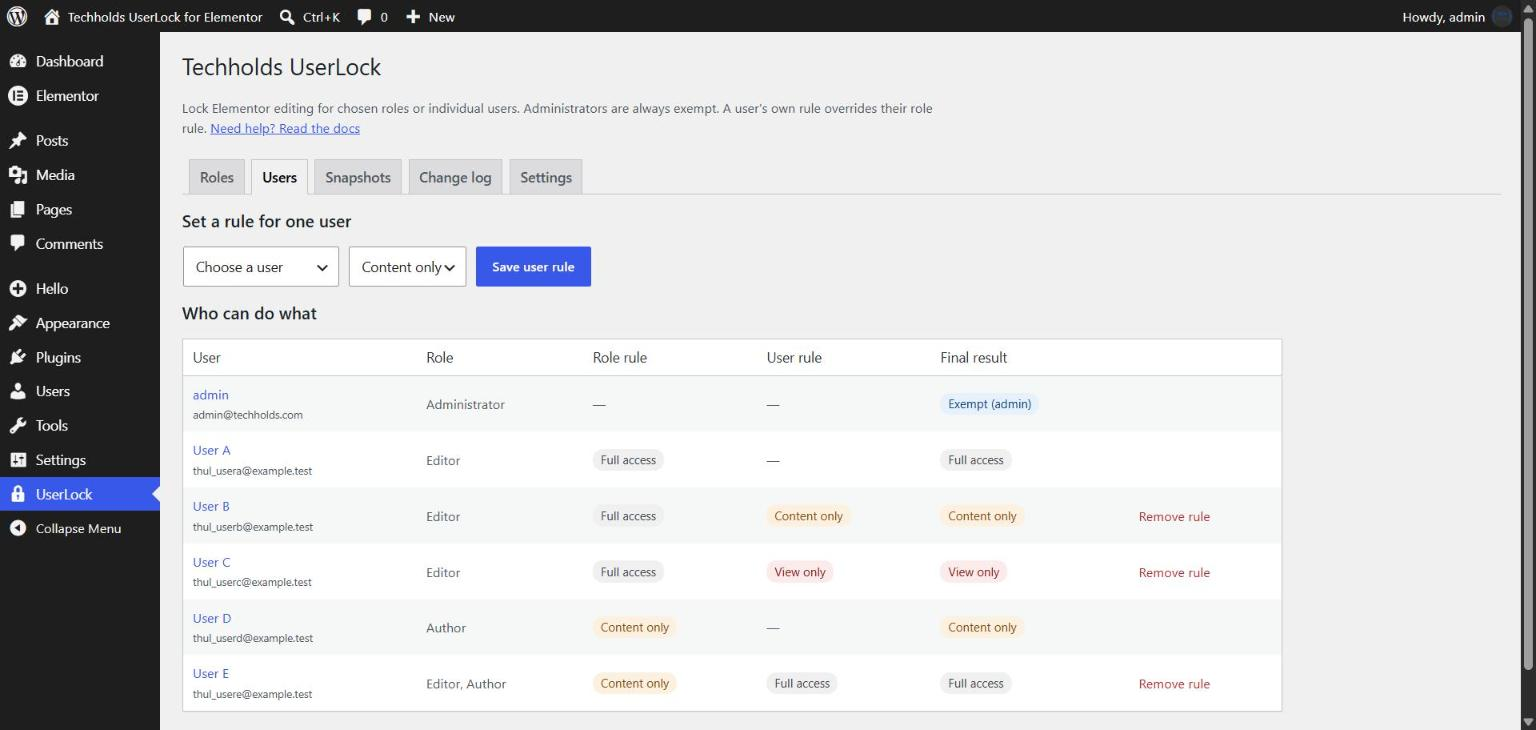
- Optional: give one person their own rule. Lock User B while Users A and C keep full access.
- Hand the site over. Every save is checked and a snapshot of the previous version is kept.
- Full access - normal Elementor editing.
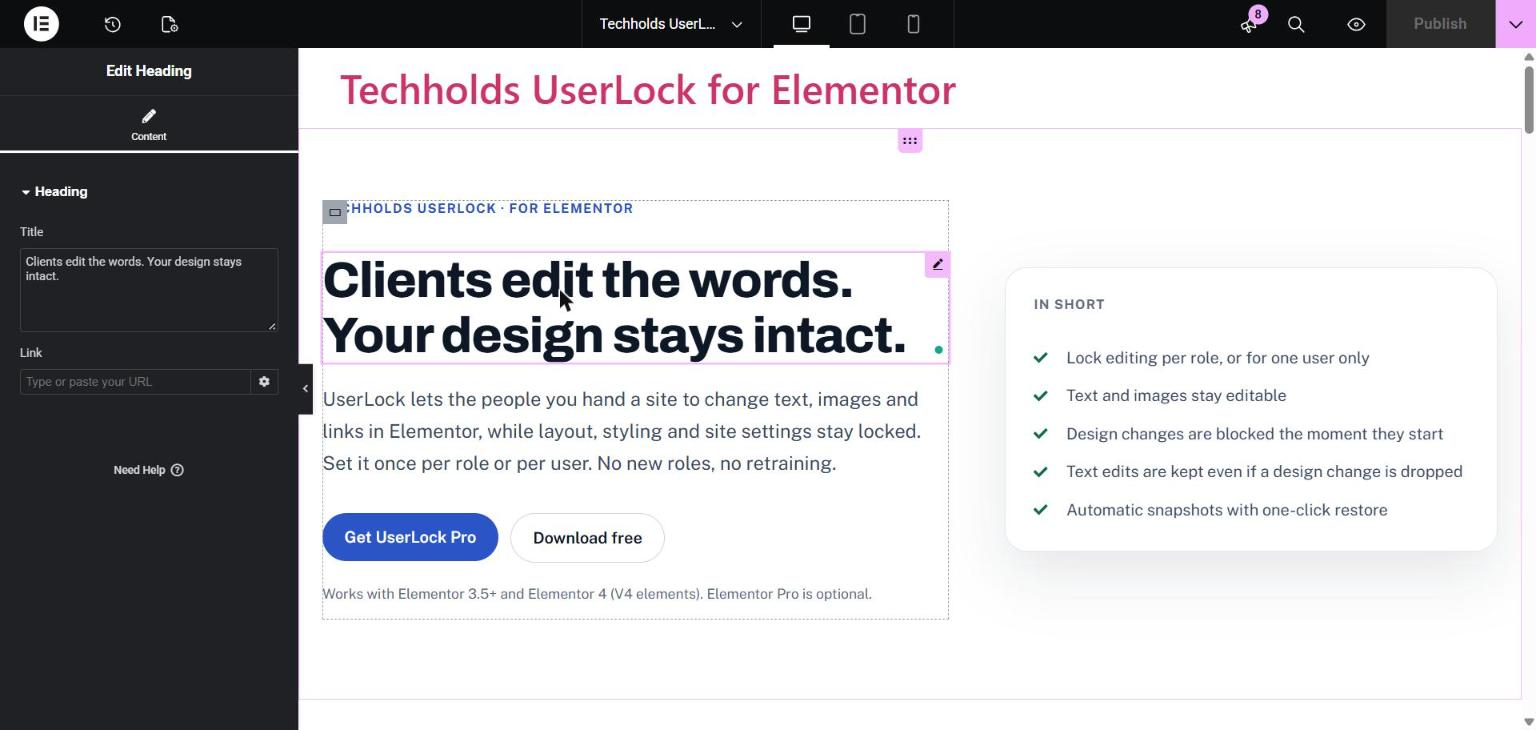
- Content only - edit text, images and links. No style, layout, adding, deleting or moving.
- View only - cannot open the Elementor editor.
- Lock by role or by user. Add rules for as many users as you need. A user's own rule overrides their role rule. If someone has several roles, the strictest one wins.
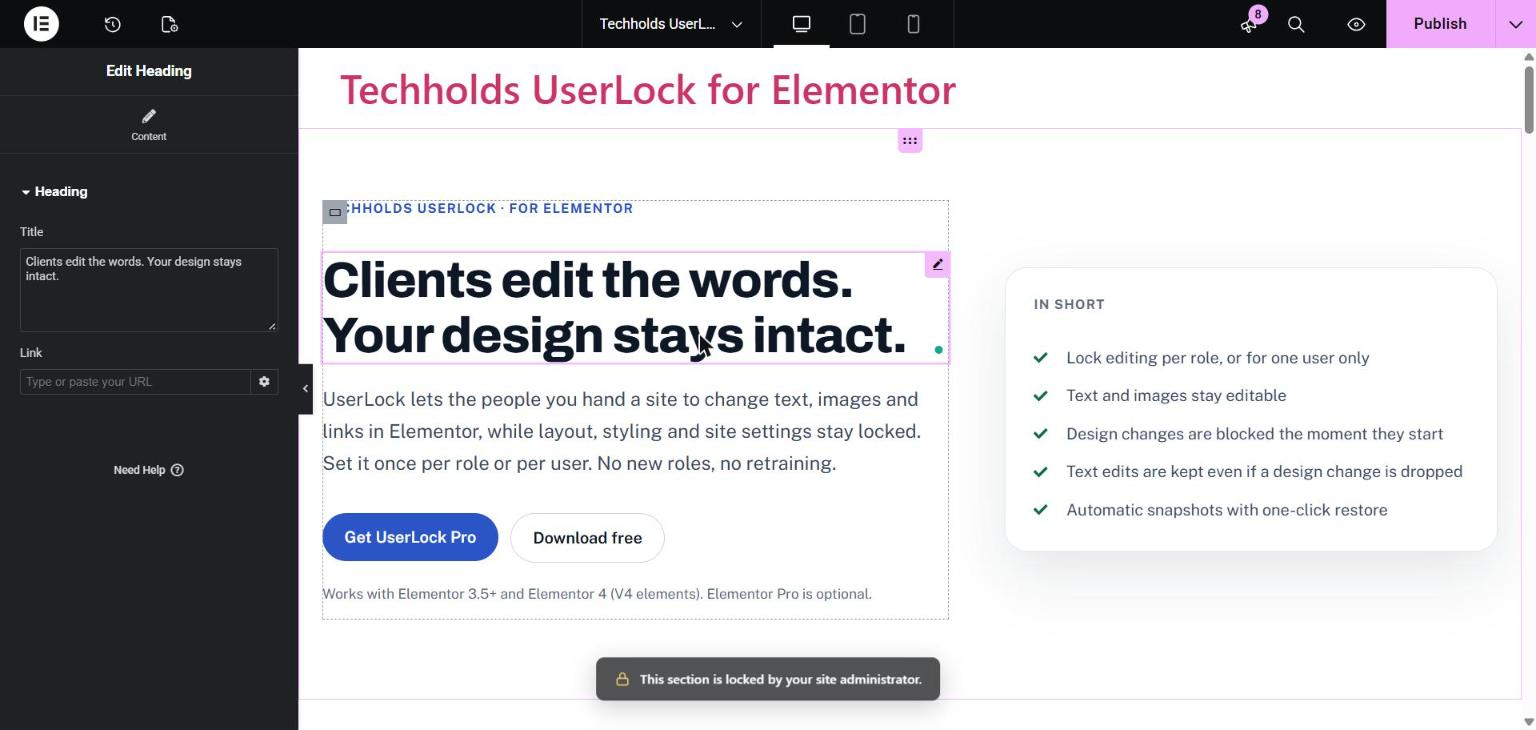
- Instant lock message. When a restricted user tries a locked action (style, drag, delete, duplicate, paste, add), it is stopped right away with a short message. Nothing they typed is lost.
- Text edits are never lost. If a locked change still reaches the save, only that change is dropped. Text, image and link changes are kept.
- Server-side save guard. Even if the editor is bypassed, the server restores locked settings and tells the user what was not applied.
- No code in text fields. Style tags, scripts and inline styling typed into text are removed, with a warning while typing.
- Site-wide design protection. Site Settings, global colours and fonts, global classes and variables are locked for restricted users, including through the REST API.
- Elementor 4 ready. Works with classic widgets and the new V4 (atomic) elements.
- Automatic snapshots. The previous version of a page is saved on every Elementor save. Restore it in one click.
- Change log. See who saved what, and what was blocked.
- Administrators are always exempt. You can never lock yourself out.
- Lightweight. Runs only in the Elementor editor and on save. Nothing extra loads for visitors.
- Role rules: Free - all roles | Pro - all roles
- User rules: Free - unlimited | Pro - unlimited
- Lock levels: Free - Full access, Content only, View only | Pro - adds Text only
- Instant lock messages and save guard: Free - yes | Pro - yes
- Code removed from text fields: Free - yes | Pro - yes
- Site-wide design protection: Free - yes | Pro - yes
- Snapshots: Free - automatic, one-click restore, you choose how many to keep | Pro - adds side-by-side compare, labels and favorite versions
- Change log: Free - yes, you choose how long to keep it | Pro - adds filters, CSV export and email alerts
- Per-page rules: Pro only
- Widget allowlist and per-element locks: Pro only
- Theme Builder, popups and WooCommerce templates: Pro only
- Custom lock message and branding: Pro only
- Import and export rule presets: Pro only
安装:
- Make sure Elementor 3.5 or newer is installed and active.
- In your dashboard go to Plugins > Add New, search for Techholds UserLock and click Install Now, then Activate.
- Go to UserLock > Permissions and set a lock level for a role, or add a rule for one user.
- Log in as a restricted user (or ask your client to) and open a page with Elementor to see the simplified editor.
屏幕截图:


常见问题:
Does it create new user roles?
No. UserLock works with the roles and users you already have.
Can I restrict one user but not others with the same role?
Yes. Leave the role on Full access and add a user rule for that person. A user rule always overrides the role rule.
Can an administrator be locked?
No. Anyone who can manage options (and super admins on multisite) always has full access.
What happens if a restricted user edits text and also tries to change the design?
The design change is stopped the moment they try it, with a short message. Their text edit saves normally.
Do I need Elementor Pro?
No. UserLock needs Elementor 3.5 or newer. Elementor Pro is optional.
Does it work with Elementor 4 and V4 elements?
Yes. Text, link and image fields stay editable. Style, classes, attributes and interactions are locked.
Can I undo a restricted user's changes?
Yes. Go to UserLock > Permissions > Snapshots and click Restore next to the version you want. The current version is saved as a snapshot first, so a restore can be undone too.
Will it slow down my site?
No. UserLock only runs in the Elementor editor and when a page is saved.
Does it work on multisite?
Yes. Rules are set per site. Super admins are always exempt.
What happens to my data if I delete the plugin?
Nothing is deleted unless you tick Remove all UserLock rules, snapshots and logs when the plugin is deleted under UserLock > Permissions > Settings.
Where can I get help?
Read the documentation or post in the support forum.
更新日志:
- First release.