
Thumbwright – Regenerate Thumbnails & Delete Unused Image Sizes
| 开发者 | alidadeeditions |
|---|---|
| 更新时间 | 2026年11月25日 23:41 |
| PHP版本: | 7.4 及以上 |
| WordPress版本: | 7.1 |
| 版权: | GPLv2 or later |
| 版权网址: | 版权信息 |
详情介绍:
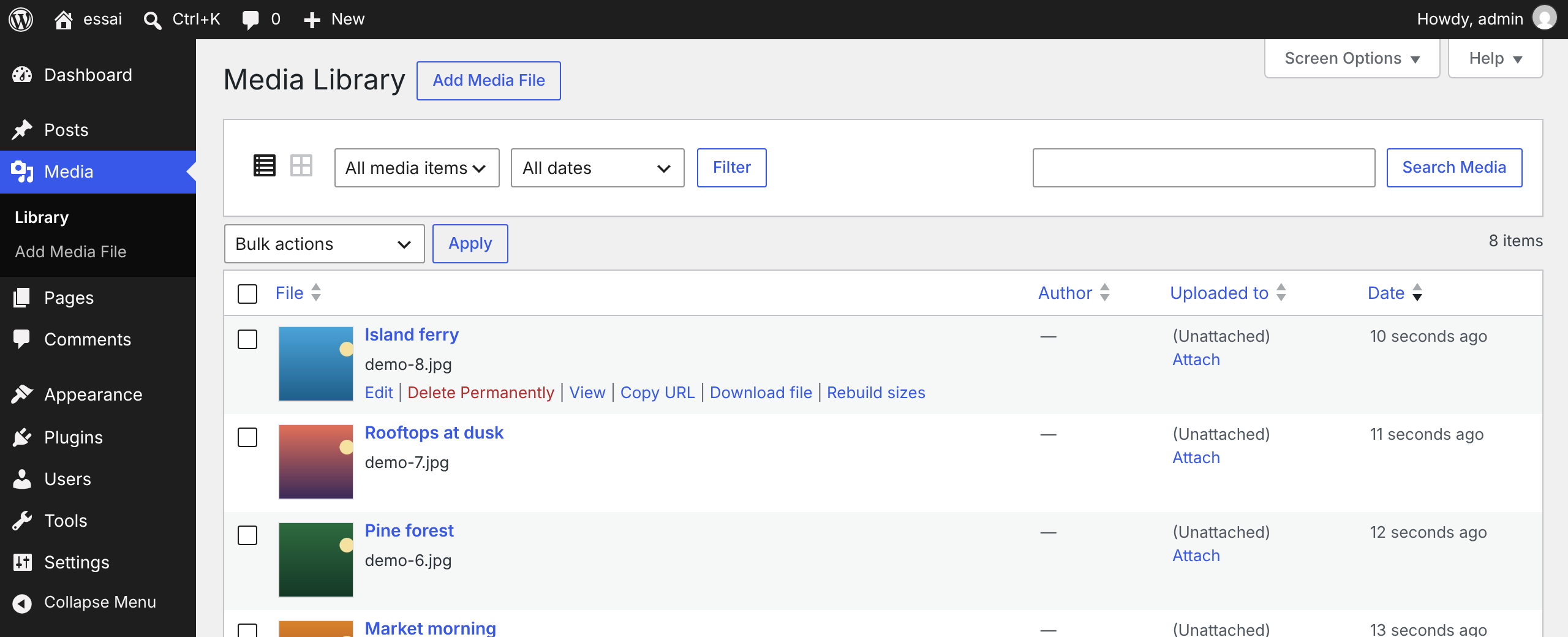
- "Check my library" tells you how many images need repair. Nothing is changed.
- "Repair my images" makes the missing sizes, then runs the dry run: you see how much space you can get back, image by image, with a thumbnail. Deleting stays a separate step that you confirm.
- All images, a selection from the media library, or one image.
- All sizes, or only the sizes you choose.
- "Only missing sizes" mode: makes what is missing, or was made with other dimensions than the current settings, and leaves the other files alone (much faster).
- Rebuilding never deletes a file.
- Sizes your site turned off (with the
intermediate_image_sizes_advancedfilter) are never made again.
- Work is done in short steps. Close the tab, reload the page or lose the connection: the task resumes where it stopped.
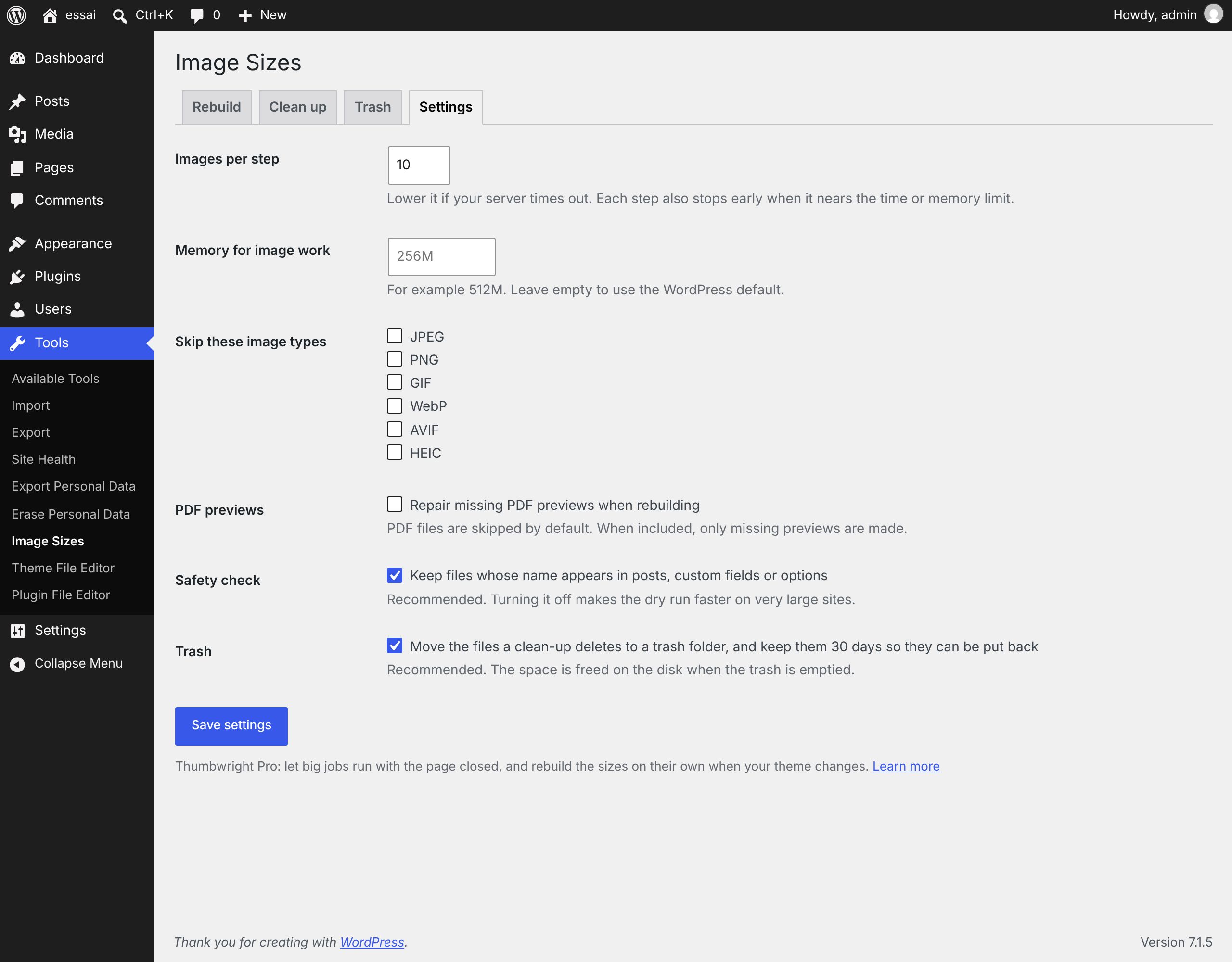
- Each step stops before the server time or memory limit. You can lower the number of images per step and raise the memory for image work.
- An image that crashes the server (too big for its memory, damaged file) is recorded and skipped, instead of blocking the whole run.
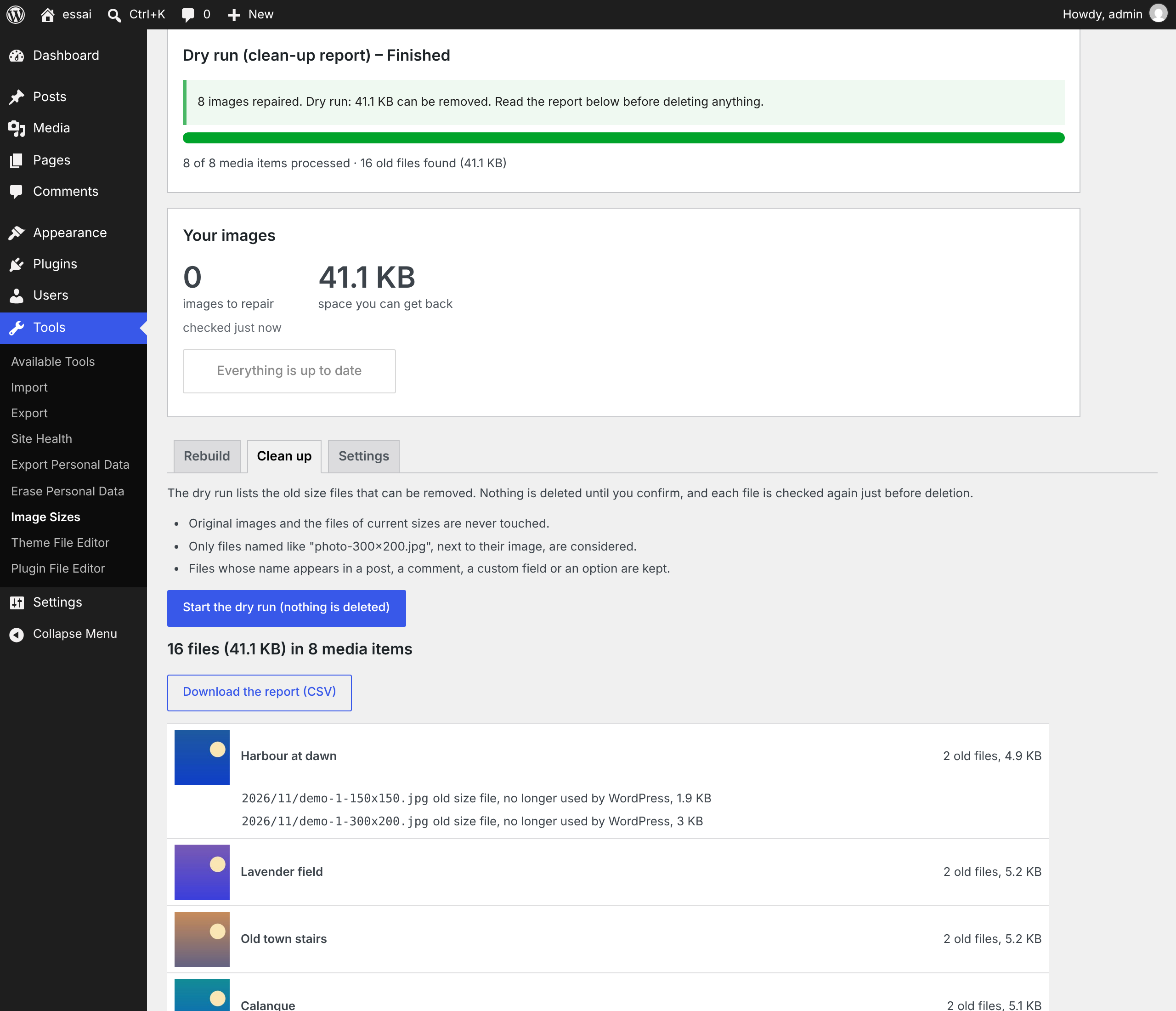
- A dry run lists every file that would be removed, with its size. Download it as CSV. Nothing is deleted until you confirm.
- Only files named like
photo-300x200.jpg, next to their image, are ever considered. Originals, current sizes, edit backups and files of other media items are never touched. - Files whose name appears in a post, a comment, a custom field or an option are kept, so pages that still use an old size do not break. The media files and the content are read once per dry run, so the checks stay quick on large libraries and databases.
- WebP and AVIF copies made by optimisation plugins next to your current sizes are kept.
- Images edited in WordPress (cropped, rotated) keep their edit when their sizes are rebuilt, including sizes edited on their own.
- Every file is checked again on disk and against your media library just before deletion, and the content is read again when the deletion starts (or resumes after a pause).
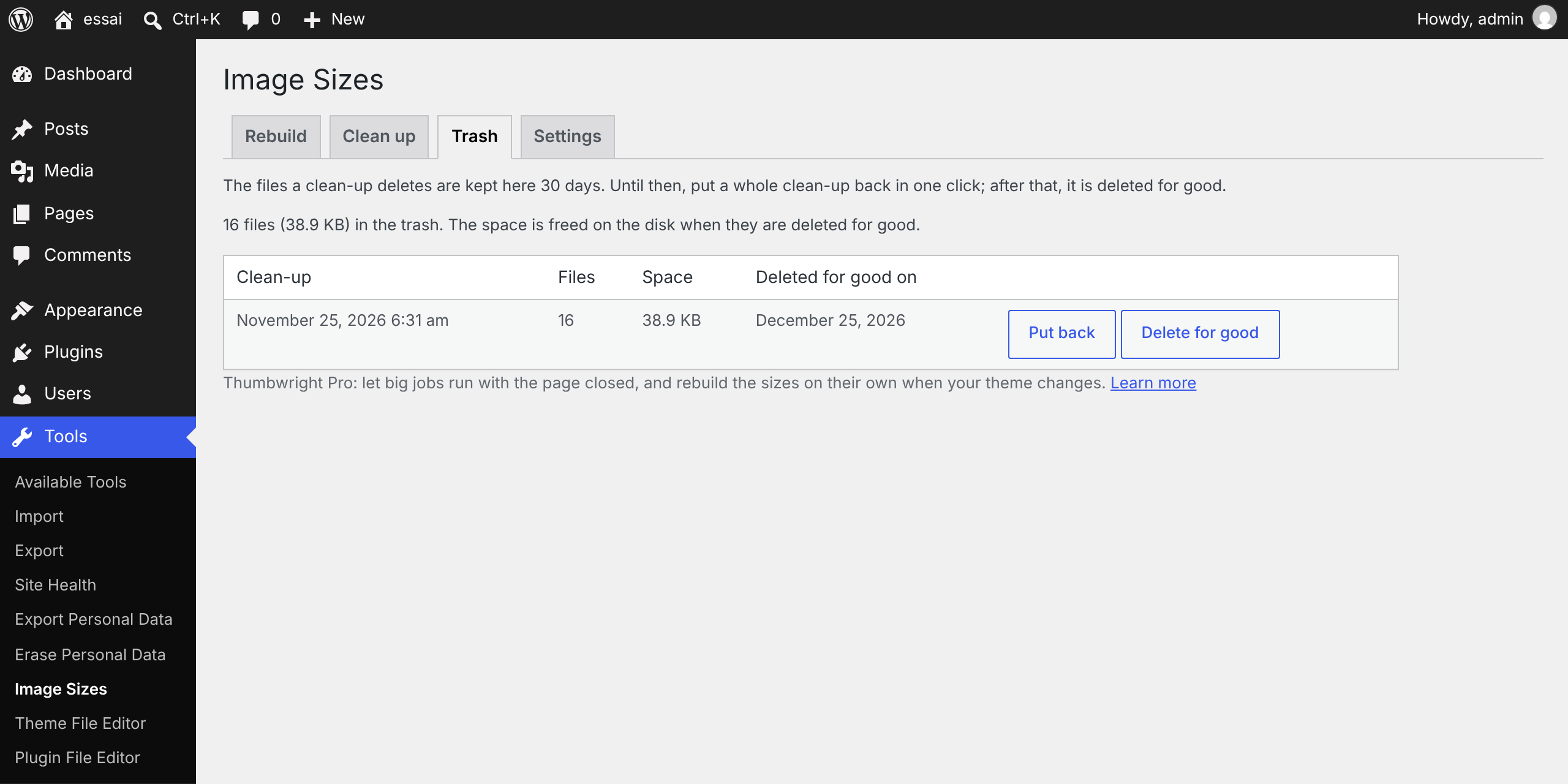
- Included in the free plugin. The files a clean-up deletes first go to a trash folder, kept 30 days. A page lost an image, or you changed your mind? Put the whole clean-up back in one click, from the Trash tab.
- Each file goes back where it was, and files of a size no longer registered come back attached to their image. A file of the same name made there since is never overwritten.
- After 30 days, the files are deleted for good and their space is freed. You can also delete a clean-up for good yourself, or turn the trash off in the settings.
- Skip image types you do not want to process. PDF files are skipped by default.
- WP-CLI commands:
wp thumbwright regenerate,wp thumbwright cleanup(makes the dry run;--yesthen deletes what it listed),wp thumbwright resumeandwp thumbwright cancel. Ctrl-C stops after the current image where PHP has the pcntl extension (without it, Ctrl-C stops in the middle of an image, andresumefirst waits up to 5 minutes for the stopped run's lock to expire); reports can be saved with--format=csv > report.csv. They sit besidewp media regenerateand do not replace it. - No tracking and no external service: everything happens on your server.
- Rebuilds, dry runs and deletions keep going in the background after you close the page, and you get an e-mail when they end.
- When your theme or image sizes change, the new sizes are made on their own; nothing is ever deleted without your dry run and your confirmation.
- See how much space each size takes, and how much each clean-up freed.
安装:
- Install and activate the plugin.
- Go to Tools > Image Sizes.
- Choose what to rebuild, or start a clean-up dry run.
屏幕截图:
常见问题:
Will it delete my original images?
No. Rebuilding never deletes anything, and the clean-up never considers the original upload, the main file, current sizes or edit backups. It only lists files named like a size of the image (photo-300x200.jpg), and only deletes them after you have read the dry run and confirmed.
What if a post still uses an old size?
Before listing a file, the clean-up searches the WordPress tables for its name: posts, menu item labels, custom fields, options, comments, category descriptions, and term, user and comment meta. The old Link Manager (hidden since WordPress 3.5) is not searched. If it is found, the file is kept. Old post revisions are not searched (on most sites they would keep nearly every file): if you restore an old revision, check its images. Tables created by other plugins (sliders such as Slider Revolution, SEO caches) are not searched; such plugins can use the thumbwright_file_in_use filter. We still recommend a backup of the uploads folder before deleting.
I use a page builder. Are its images protected?
Yes for content stored in the WordPress tables, including the raw HTML and code blocks of WPBakery and Avada, which are stored encoded. Not covered: tables of their own (for example Slider Revolution's slides), pages stored in files, and themes that build image file names on the fly in their code. For those, use the thumbwright_file_in_use filter, read the dry run carefully, and keep a backup.
Can the clean-up miss a file my theme uses?
Yes, in one case: a file named like an image size (banner-1600x300.jpg) that is not a media item and is only referenced from a theme or plugin file (CSS, PHP). Such references cannot be detected. Read the dry-run report before deleting, and keep a backup.
What about images I edited in WordPress?
They are rebuilt from the edited version (crop, rotation, scale). Sizes you set apart in the image editor ("thumbnail only", "all sizes except thumbnail") are kept as they are and reported. A restored image is rebuilt from its original upload.
Are WebP copies made by my optimisation plugin removed?
Copies named like the size with another extension (photo-300x200.webp) are kept as long as their size is in use, and listed with it once it is old. Copies with a double extension (photo-300x200.jpg.webp), and the copies of the Modern Image Formats plugin (photo-300x200-jpg.webp), are never touched, even when their size is old: remove them with the plugin that made them.
I switched my sizes from JPEG to WebP. Why are the old JPEG files kept?
When an old JPEG has exactly the same dimensions as a new WebP size, it looks like a copy made by an optimisation plugin, so it is kept to be safe. Remove such files by hand after checking your pages.
My server times out. What can I do?
Nothing is lost: resume the task. Then lower "Images per step" in the settings, or raise "Memory for image work" (for example 512M) if your host allows it.
Where are the trashed files, and are they public?
In wp-content/uploads/thumbwright-trash/, one folder per clean-up, with the same sub-folders as your uploads. The folder holds an .htaccess file that closes it to visitors on Apache and LiteSpeed; on Nginx, image files there can still be opened by someone who knows their exact address, as they could before the clean-up. Deleting the plugin (not just turning it off) deletes the trash for good.
When is the space freed?
When the files leave the trash: 30 days after the clean-up, or as soon as you choose "Delete for good" on the Trash tab. Turn the trash off in the settings to free the space at once.
Do I need to clear my page cache after a clean-up?
Yes, if you use a page cache (caching plugin, host cache, Cloudflare). Cached pages may still show the old image files until the cache is cleared.
My theme adds a size with the intermediate_image_sizes_advanced filter only.
Thumbwright follows that filter when rebuilding, but the clean-up only knows sizes registered with add_image_size(). Files of a size added by the filter alone are listed as a size "no longer registered" (the dry run names it): leave them out by not deleting, or register the size with add_image_size().
Does it work with images stored on S3, Cloudflare R2 or a CDN?
Only with files present in the uploads folder of your server. Images offloaded to external storage are not supported in this version.
Does it work on multisite?
Yes, site by site: open Tools > Image Sizes on each site, or use --url= with WP-CLI (there is no --network option). The check for files used in content only looks at the current site: if one site shows an image from another site's uploads, keep a backup before deleting.
Who can use it?
Administrators only (the manage_options capability).
更新日志:
- No change to the plugin's code. Clearer name, tags and summary on WordPress.org; the description now lists the places checked before a file is deleted, and the screenshots show the free trash and its setting.
- New: a 30-day trash. The files a clean-up deletes are kept on the new Trash tab and can be put back in one click (until now, a feature of Thumbwright Pro). On by default; can be turned off in the settings.
- The overview is also marked out of date when an image is deleted and another uploaded.
- If you used the trash of Thumbwright Pro 1.0.0, update Thumbwright Pro too: its trash then appears on the Trash tab, with every file still in it.
- First public version.