
Time Picker – Delivery & Pickup Slots for WooCommerce
| 开发者 | arosoft |
|---|---|
| 更新时间 | 2026年11月13日 17:11 |
| 捐献地址: | 去捐款 |
| PHP版本: | 7.4 及以上 |
| WordPress版本: | 7.1 |
| 版权: | GPL v2 or later |
| 版权网址: | 版权信息 |
详情介绍:
- Drop-down lists (default) – a date list and a time list side by side.
- Date and time buttons in a panel – a compact time row that opens the dates and times as buttons, grouped in morning, afternoon and evening. On phones the panel opens as a bottom sheet.
- Date and time picker for delivery orders, pickup orders or both
- Schedules per weekday, single date, product category and product tag
- Time slot length of your choice, for example 15 or 30 minutes
- Show slots as a single time (10:00) or as a range (10:00 – 10:15)
- Maximum number of orders or items per time slot; full slots close automatically
- Preparation time that pushes back the first available slot, fixed or based on current orders
- "As soon as possible" option
- Preselect the nearest available slot
- Choose how many days ahead customers can book
- Closed days are shown as closed and cannot be picked
- Chosen time in the admin order list, the order screen, the order emails, the thank-you page and My Account
- Works with Flat rate, Free shipping, Local pickup, the block checkout Local Pickup and Shipping Zones by Drawing
- Compatible with High-Performance Order Storage (HPOS)
- Separate schedules for delivery orders and pickup orders
- Slot limits for delivery only, pickup only or both
- Change the delivery or pickup time of an order after it has been placed
安装:
- Install and activate the plugin. WooCommerce must be active.
- Go to WooCommerce → Settings → Time picker for WooCommerce.
- In the Time Picker section, enable the time picker for delivery orders, pickup orders or both, and choose the slot length.
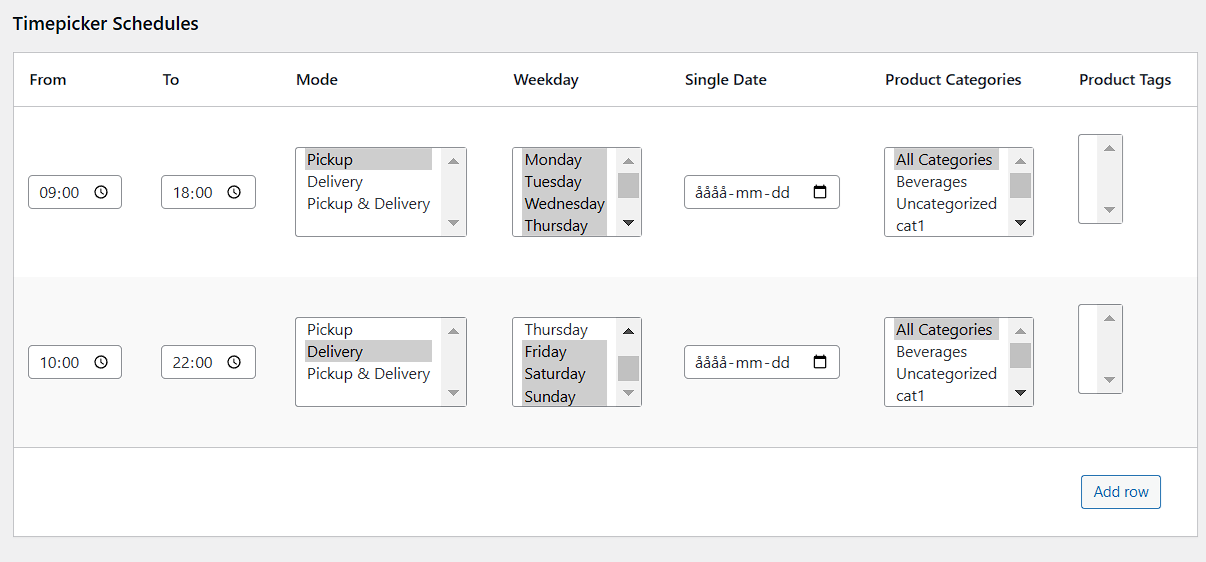
- In the Schedules section, add the hours you are open.
- Optional: in the Time Picker section, choose the look of the picker on the block checkout.
- Place a test order.
屏幕截图:


常见问题:
Does it work with the block checkout?
Yes. The picker is added to the block checkout automatically, under the shipping options and under the pickup options. It also works on the classic checkout.
Can I change how the picker looks on the block checkout?
Yes. In WooCommerce → Settings → Time picker for WooCommerce, set "Time picker style (block checkout)" to drop-down lists or to date and time buttons in a panel. The buttons use your theme's fonts, and the selected button uses the theme's contrast color.
Which shipping methods show the time picker?
Delivery times are shown for Flat rate, Free shipping and Shipping Zones by Drawing. Pickup times are shown for Local pickup and the block checkout Local Pickup.
Why is a day shown as closed?
A day is closed when no schedule covers it, or when the products in the cart are not included in the schedules for that day. Schedules for categories and tags only apply to products in those categories or tags.
Can I limit how many orders each time slot takes?
Yes. Enable the maximum per time slot and choose whether to count orders or items. When a slot is full, customers can no longer pick it.
Where can customers and staff see the chosen time?
On the thank-you page, in the order emails, under My Account → Orders, and in the admin order list and order screen.
Is there a premium version?
Yes, as a separate plugin. Premium adds separate schedules for delivery and pickup, slot limits per shipping mode, and editing the time of an existing order. See "Time Picker and Premium" above.
更新日志:
- Change: New plugin name in the plugin list: "Time Picker – Delivery & Pickup Slots for WooCommerce". Nothing else changes.
- Change: Requires WordPress 6.5 or later (already needed for the WooCommerce dependency check).
- New: Choose the look of the picker on the block checkout: drop-down lists or date and time buttons in a panel, grouped by morning, afternoon and evening, with a bottom sheet on phones.
- New: The block checkout lists the available times directly, without the separate pop-up time list.
- Change: Refreshed look of the time picker on the classic checkout.
- Fix: Delivery and pickup times sent through the block checkout are now strictly validated before they are saved on the order.
- Fix: An empty error notice could be added on the classic checkout.
- Fix: The chosen time could be shown twice in order emails, and plain-text emails no longer show HTML tags.
- Fix: Orders with time ranges now save the correct time stamp.
- Tested with WordPress 7.1 and WooCommerce 11.2.
- Change: Some blocks packages now running at ‘woocommerce_loaded’ hook, formerly ‘plugins_loaded’.
- Updated compatible WooCommerce version
- Initial release