
TSync Sheet for WooCommerce
| 开发者 |
taalhaa
ABDUL_KARIM911 |
|---|---|
| 更新时间 | 2026年10月5日 20:15 |
| PHP版本: | 7.4 及以上 |
| WordPress版本: | 6.6 |
| 版权: | GPLv2 or later |
| 版权网址: | 版权信息 |
详情介绍:
Managing WooCommerce orders often requires sharing live order data with fulfillment teams, delivery personnel, dropship suppliers, or accountants.
TSync Sheet for WooCommerce connects your WooCommerce store directly to your Google Spreadsheet via a fast, secure Webhook. Whenever a new order is placed, customer details, line items, and totals are automatically added as a new row in your Google Sheet in real time.
🚀 Key Features (Version 1.0.0)
- Real-Time Order Synchronization: New orders trigger an automated webhook that appends order data directly to your designated Google Sheet.
- Zero Checkout Delay: Uses asynchronous non-blocking background dispatch (
wp_remote_postwith non-blocking mode), ensuring customer checkout performance is never impacted. - Built-in Connection Tester: Test your webhook URL directly from the WordPress administration settings with the "Send Test Data" button before going live.
- Concurrency Safe: The included Google Apps Script code utilizes Google's
LockServiceto prevent data collisions during high-traffic sales. - HPOS Compatible: Fully compatible with WooCommerce High-Performance Order Storage (Custom Order Tables).
- Order Deduplication: Includes built-in metadata safeguards to ensure that individual orders are synchronized without duplication.
安装:
Setting up TSync Sheet takes only a few minutes:
Step 1: Install the Plugin
- Go to your WordPress Dashboard.
- Navigate to Plugins > Add New Plugin.
- Click Upload Plugin and select
tsync-sheet.zip. - Click Install Now and then Activate.
- Open a new Google Sheet.
- Click Extensions > Apps Script in the top menu.
- Paste the provided script code from the plugin guide into the script editor.
- Click Deploy > New deployment, select Web app, set access to Anyone, and click Deploy.
- Copy the generated Web app URL.
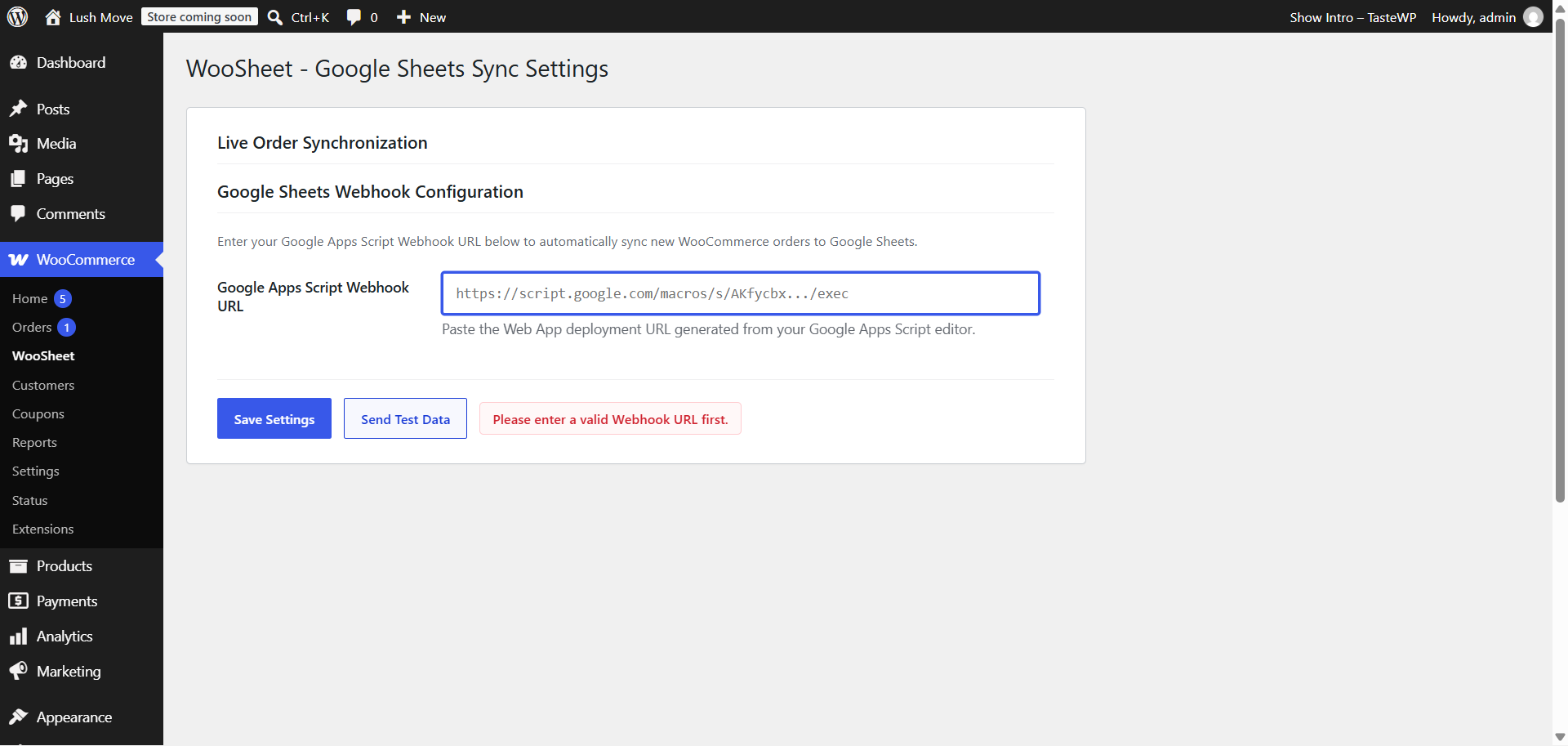
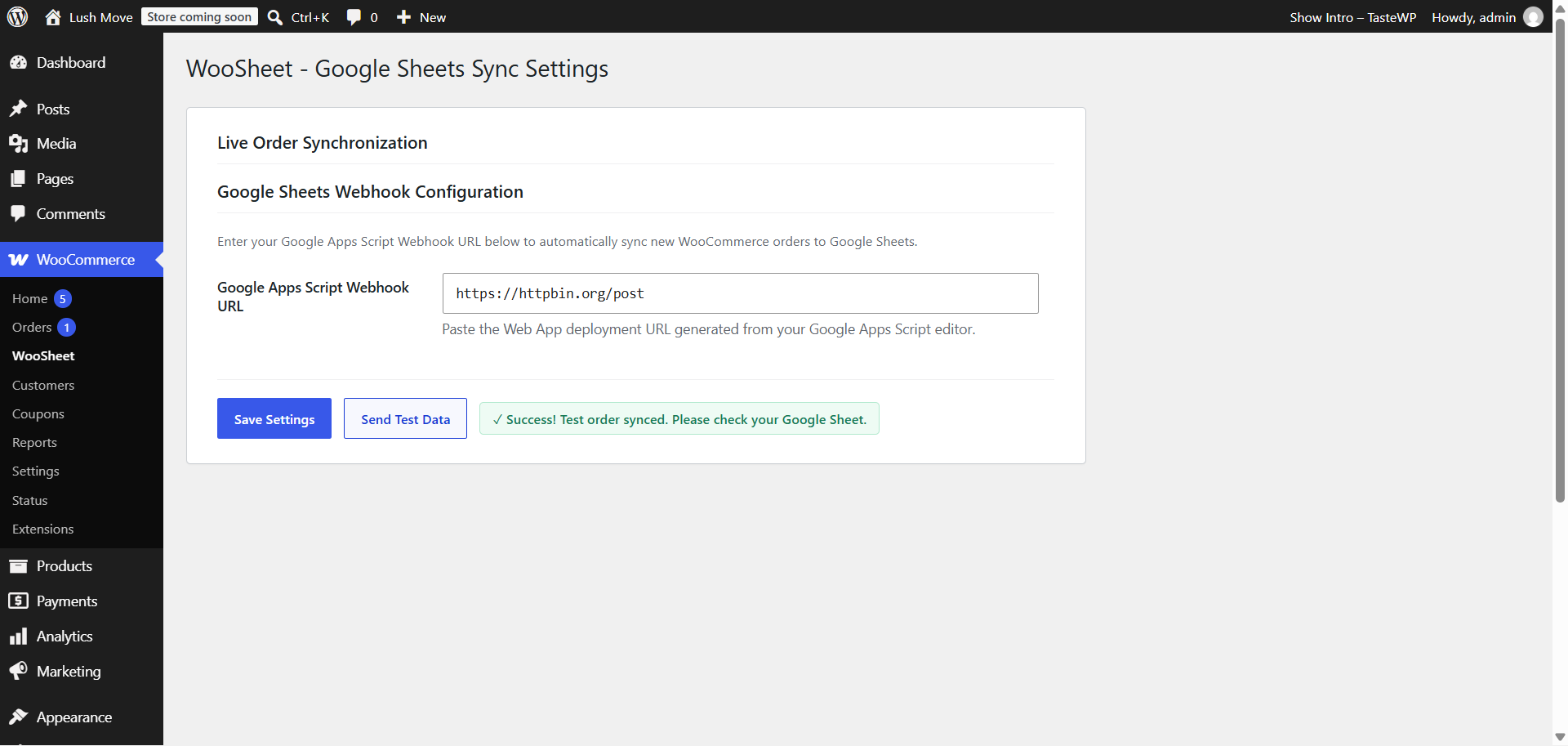
- In your WordPress admin, go to WooCommerce > TSync Sheet.
- Paste your Web app URL into the field and click Save Settings.
- Click Send Test Data to verify your setup.
屏幕截图:
常见问题:
Does it support WooCommerce High-Performance Order Storage (HPOS)?
Yes! TSync Sheet is 100% compatible with HPOS (Custom Order Tables).
Will it slow down my website's checkout page?
No. The plugin uses asynchronous non-blocking HTTP requests. WooCommerce creates the order and finishes checkout without waiting for Google's HTTP response.
Which order fields are synced to Google Sheets?
The plugin synchronizes: Order ID, Order Number, Date, Status, Currency, Totals, Subtotals, Shipping Cost, Payment Method, Customer Name, Email, Phone, Shipping Address, Item Details (Product Name, SKU, Quantity, Price), and Customer Notes.
更新日志:
1.0.0
- Initial release.
- Automated order synchronization on order creation.
- Settings screen with instant Webhook test dispatch.
- Concurrency-safe Google Apps Script template.
- Full WooCommerce HPOS compatibility.