UPCODEA AI Chatbot – Product Search & Order Tracking
| 开发者 | dervisis |
|---|---|
| 更新时间 | 2026年10月25日 17:48 |
| PHP版本: | 7.4 及以上 |
| WordPress版本: | 7.1 |
| 版权: | GPLv2 or later |
| 版权网址: | 版权信息 |
详情介绍:
- Floating chat widget with product/category page awareness.
- Understands natural-language questions, even in a different language than your product titles.
- Answers grounded in real-time WooCommerce data (price, stock, SKU, description, permalink).
- Product cards under the reply, with photo, price, sale price and stock, so customers can go straight to the product.
- Welcome message and quick reply buttons ("Recommend a product", "Where is my order?"…) that you can edit.
- The conversation follows the customer as they browse from page to page.
- Full-screen chat on phones.
- Order status in the chat ("where is my order?"): a "Track my order" button, or customers simply type their order number and billing email. Logged-in customers see their own orders automatically.
- Secure order lookups: guests must match the order number with the billing email used at checkout, and repeated failed attempts are blocked. Addresses, phone numbers and payment details are never shown or sent to the AI.
- Order status replies are built by your store, not the AI: they don't use your AI quota and work even when it's used up.
- Powered by Google Gemini. Start with a free API key; enable billing on your Google project when your store needs more replies per day.
- Nonce-protected, rate-limited REST API endpoint; no API keys ever reach the browser.
- Configurable widget appearance (title, button label, colors, bottom-right or bottom-left corner). The bot introduces itself by the title you choose.
- Optional site-wide daily reply cap to protect against unexpected API costs.
- Dashboard notice when replies were refused because a usage limit was reached, so you hear about it before your customers do.
- Guardrails keep the bot on-topic and resistant to prompt-injection attempts from users.
- WooCommerce 8.0+
- A free Google Gemini API key from aistudio.google.com/apikey
- Google Privacy Policy: https://policies.google.com/privacy
- Google Gemini API Terms: https://ai.google.dev/gemini-api/terms
安装:
- Upload the
upcodea-store-chatfolder to/wp-content/plugins/, or install the zip via Plugins → Add New → Upload Plugin. - Activate the plugin. WooCommerce must already be installed and active.
- Go to UPCODEA AI Chatbot in the wp-admin menu.
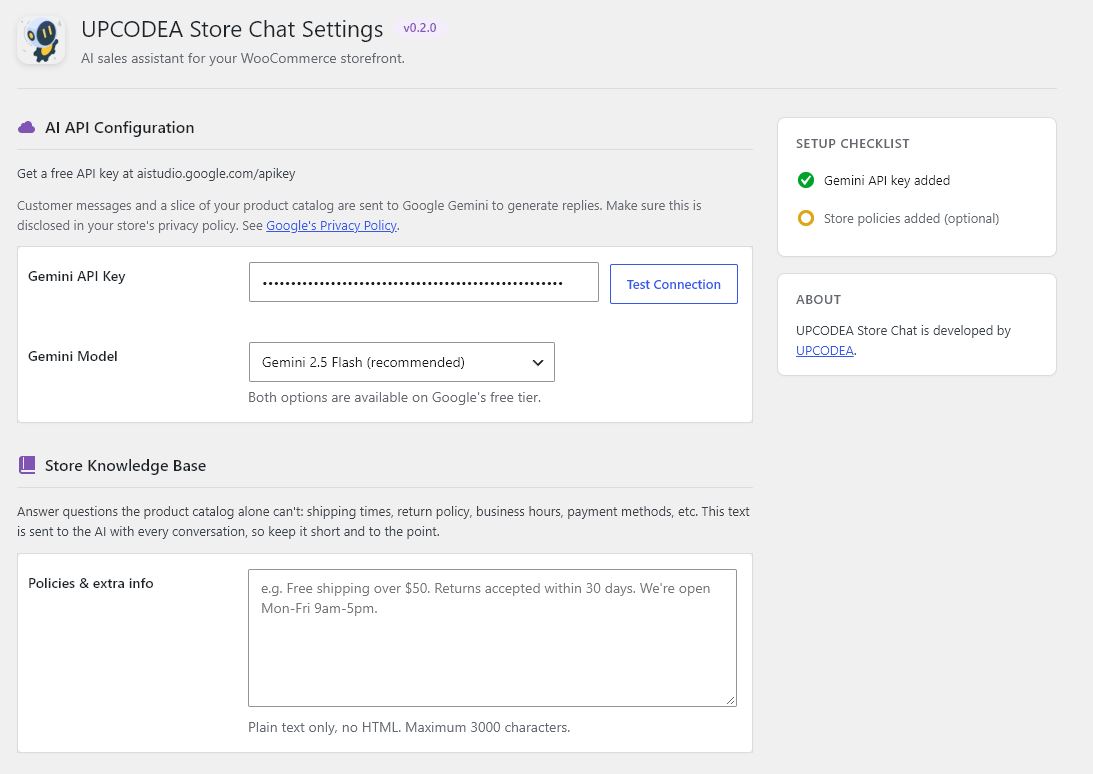
- Paste a free Gemini API key from aistudio.google.com/apikey.
- Optionally, turn on Order status lookups so customers can check their orders in the chat.
- Customize the widget title, button label and colors as needed.
- Review Settings → Privacy and publish the suggested disclosure text.
屏幕截图:
常见问题:
Does this cost money to run?
The plugin itself is free, with no subscription or paid upgrade. AI replies are generated by Google Gemini under your own API key. A free Gemini API key works, but Google gives free keys low daily request limits: enough to set up and test the chat, usually not enough for a live store with regular traffic. To raise the limits, enable billing on the Google project behind your key. The same key keeps working and nothing changes in the plugin. Google then charges you directly for what you use; see Google's own pricing and rate-limit pages for current figures. You can also set a daily reply cap in the plugin's settings to hard-limit usage and cost.
The chat says it's "very busy". What happened?
Your Gemini API key reached Google's usage limit, which happens quickly with a free key. The plugin shows a notice on your Dashboard when this happens. The chat starts answering again when Google resets the limit, or straight away once billing is enabled on your Google project.
Can I move the chat to the left side of the screen?
Yes. In the plugin settings, under Widget Appearance, set Position on the page to "Bottom left". This helps when your theme already has a button in the bottom-right corner. On phones the chat always opens full screen.
Can customers check their order status in the chat?
Yes. Turn on Order status lookups in the plugin settings. Customers can then click "Track my order" in the chat, or just type their order number and billing email. Logged-in customers see their recent orders straight away, with a link to each one in their account. Guests must give both the order number and the billing email used at checkout, the same details WooCommerce's own order tracking asks for. After several failed attempts from the same visitor, lookups pause for an hour.
Does checking an order use my AI quota?
No. Order status replies are built by your store from the order itself, without calling the AI, so they don't count toward Google's limits or the plugin's daily reply cap, and they keep working when either is reached. Only follow-up questions about the order, such as "when will it arrive?", go to the AI.
Where does the customer's data go?
Chat messages and a relevant slice of your product catalog are sent to Google's Gemini API to generate a reply. See the "Third-party service" section above.
Can I use my own OpenAI/Claude key instead of Gemini?
Not in the current version — Gemini-only for now.
Does the bot see private/draft products?
No. The catalog query only fetches published, publicly visible products via WooCommerce's own product query APIs.
What happens if I uninstall the plugin?
All plugin options and transients are removed automatically on deletion (not on simple deactivation).
更新日志:
- Added: product cards under chat replies, with photo, price, sale price, stock status and a link, for the products the bot recommends. They're built from your catalog, not by the AI, so they use no extra AI requests.
- Added: welcome message and quick reply buttons when the chat opens. Edit them under Widget Appearance; a "Where is my order?" button is added automatically when order status lookups are on.
- Added: the conversation now carries over as the customer moves between pages, for as long as their browser tab is open.
- Added: full-screen chat on phones, and a close button in the chat header.
- Added: option to place the chat in the bottom-left corner.
- Added: animated "typing" indicator while the bot is answering.
- Improved: replies are nicely formatted (bold text, lists, short "View product" links instead of long web addresses).
- Improved: the bot introduces itself by the widget title you set, not by the plugin's name.
- Improved: shorter replies, since product prices and links now appear on the cards.
- Fixed: themes that turn every button into capital letters or enlarge text fields no longer change the chat's look.
- Changed: the plugin is now called "UPCODEA AI Chatbot – Product Search & Order Tracking" (previously "UPCODEA Store Chat"), so the name says what it does. Nothing else changes: same plugin, same settings, same address on WordPress.org.
- Added: order status in the chat ("where is my order?"). Customers use the new "Track my order" button, or type their order number and billing email; logged-in customers see their own recent orders. Off by default; enable it under Order Status in the settings.
- Added: order lookups are verified on your server on every message (order number + billing email for guests), with a lockout after repeated failed attempts. Addresses, phone numbers and payment details are never shown or sent to the AI.
- Added: order status replies are built without the AI, so they keep working when the AI usage limit is reached and don't count toward the daily reply cap.
- Added: Dashboard notice when chat replies were refused because Google's usage limit or the plugin's daily cap was reached.
- Changed: the chat now uses Google's current Gemini 3.5 Flash and Flash-Lite models. Google has retired the Gemini 2.5 models for new users; sites with a 2.5 model saved switch to Gemini 3.5 Flash automatically.
- Changed: the AI is only asked for extra product-search keywords when a plain catalog search finds nothing, so most messages use fewer AI requests.
- Changed: when the AI is unavailable or over its limit, customers see a friendly "busy" message instead of the raw error from Google. The full error is still logged for you.
- Changed: chat replies keep their line breaks.
- Changed: the settings and this readme now explain the limits of free Gemini API keys and how to raise them.
- Fixed: replies could be cut short or come back empty on newer Gemini models that "think" before answering.
- Added:
woobotai_order_lookup_id,woobotai_order_dataandwoobotai_order_status_replyfilters for developers, e.g. for stores using custom order numbers.
- wp-rankings verification string: https://wp-rankings.com/plugins/upcodea-store-chat
- Added: smarter product search. Natural-language questions are now translated into catalog search keywords (including an English translation, since most catalogs use English product titles) before searching, so phrasing that shares no words with a product's title or description — including questions asked in a different language — can still find it.
- Fixed: the floating button, header, user message bubble, and send button colors could be silently overridden by theme CSS that sets
background-coloron generic button selectors. Colors are now set explicitly (including thebackground-colorlonghand, not just thebackgroundshorthand) with the priority needed to respect the color pickers in the plugin settings.
- Changed: plugin name to "UPCODEA Store Chat" and text domain to
upcodea-store-chat. The original working name ("WoobotAI") was flagged during WordPress.org review as confusingly similar to an existing WooCommerce chatbot plugin and to a registered chatbot trademark, so it was replaced before the first public release. - Added: site-wide daily reply cap to protect against unexpected API costs.
- Added:
uninstall.phpto fully clean up plugin data on removal. - Added: Privacy Policy suggested-text integration and in-widget data disclaimer.
- Added: minimum PHP version check with a graceful admin notice.
- Improved: friendlier handling of Gemini safety-blocked responses.
- Improved: error logging via the WooCommerce logger for easier troubleshooting.
- Fixed: chat now falls back to catalog search if an invalid
product_idis supplied. - Reduced: outbound AI request timeout to avoid PHP execution-time fatals on shared hosting.
- Initial MVP: chat widget, REST endpoint, WooCommerce catalog context, Gemini integration, admin settings.