UrlifyWriter | AI Content Generator from URLs
| 开发者 | autopressai |
|---|---|
| 更新时间 | 2026年1月16日 04:51 |
| PHP版本: | 7.3 及以上 |
| WordPress版本: | 6.9 |
| 版权: | GPLv2 or later |
| 版权网址: | 版权信息 |
详情介绍:
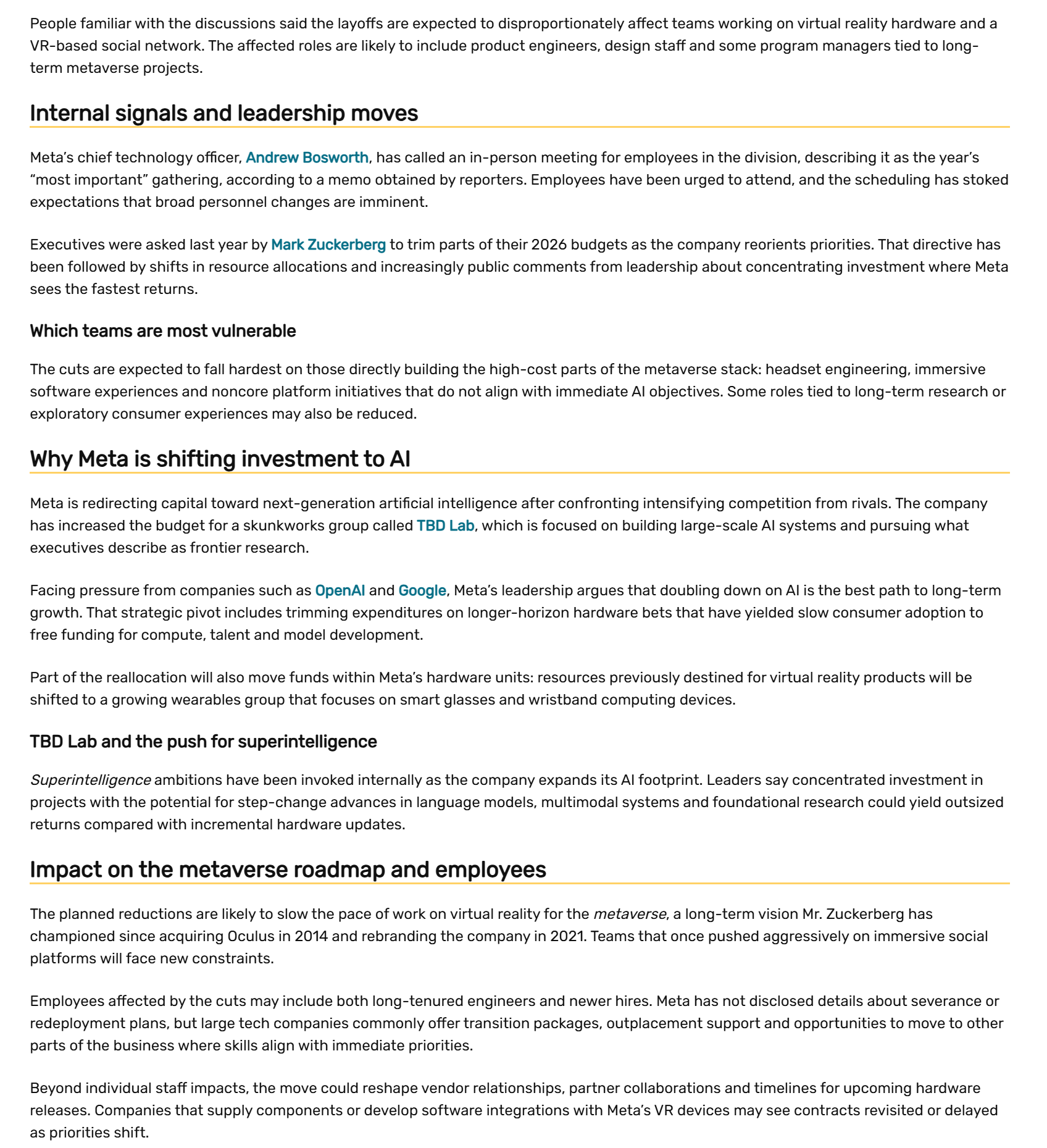
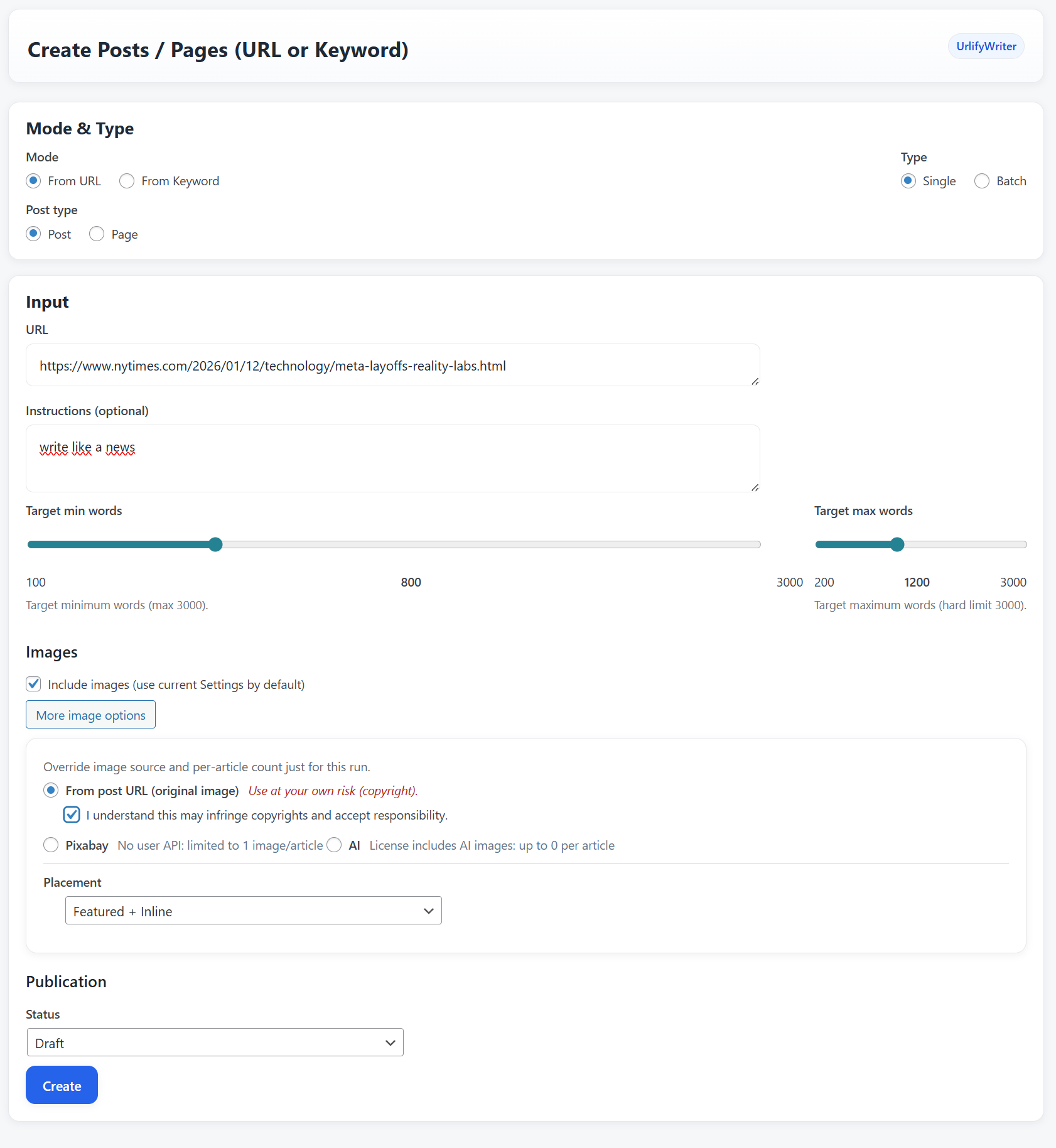
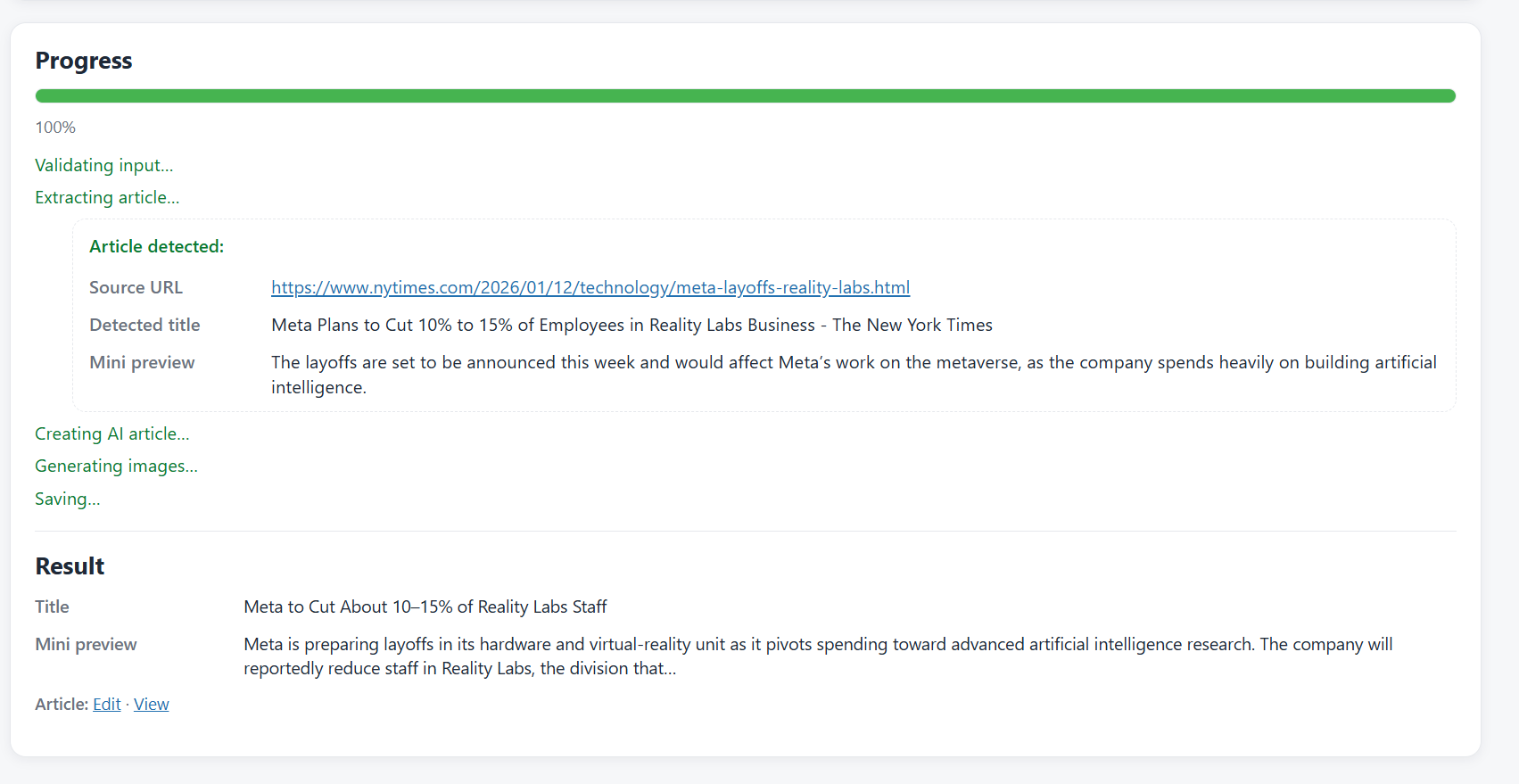
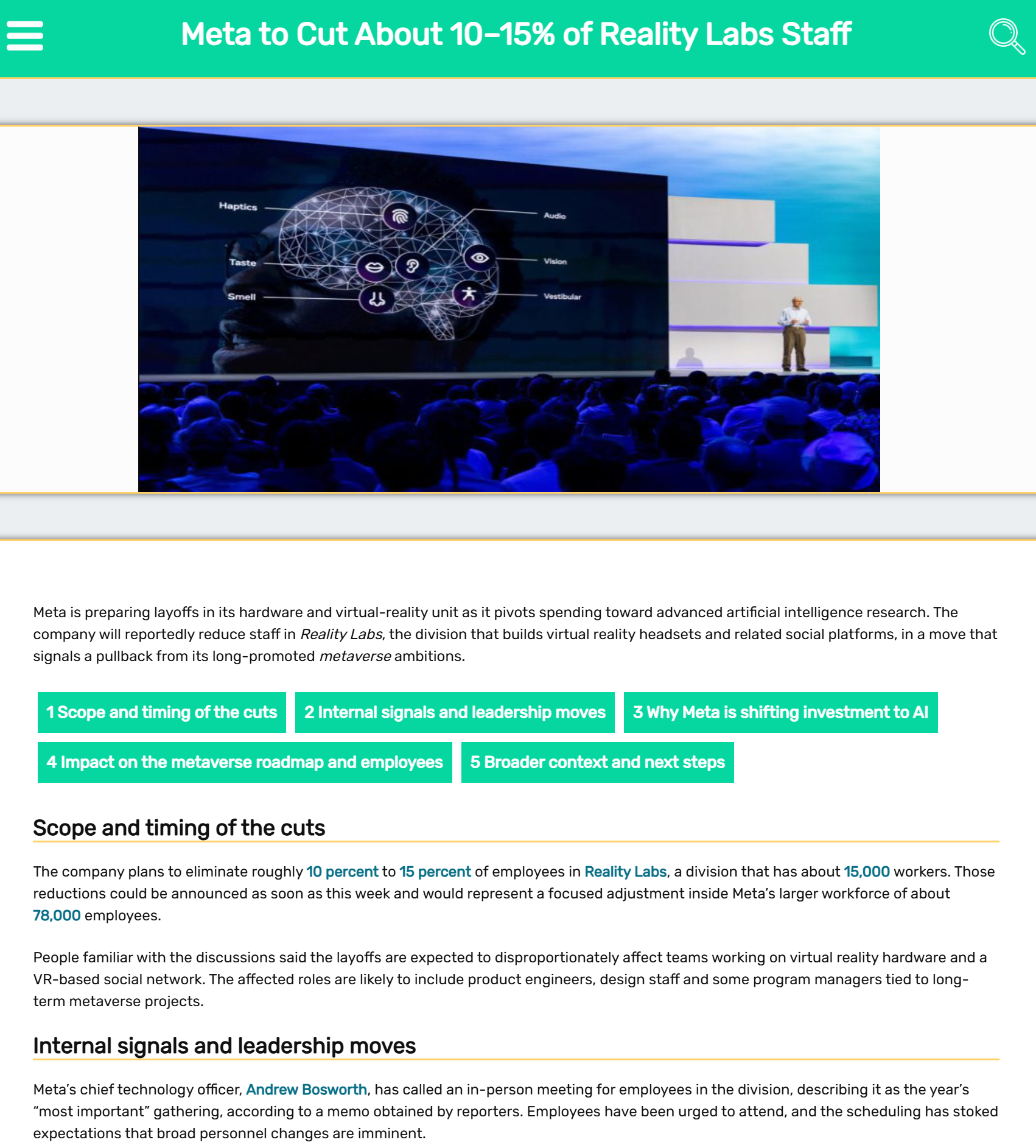
- URL → Article: Paste a URL (allowed by robots.txt) to generate a clean WordPress post.
- Keywords → Articles: Enter keywords and instructions to generate single or multiple posts.
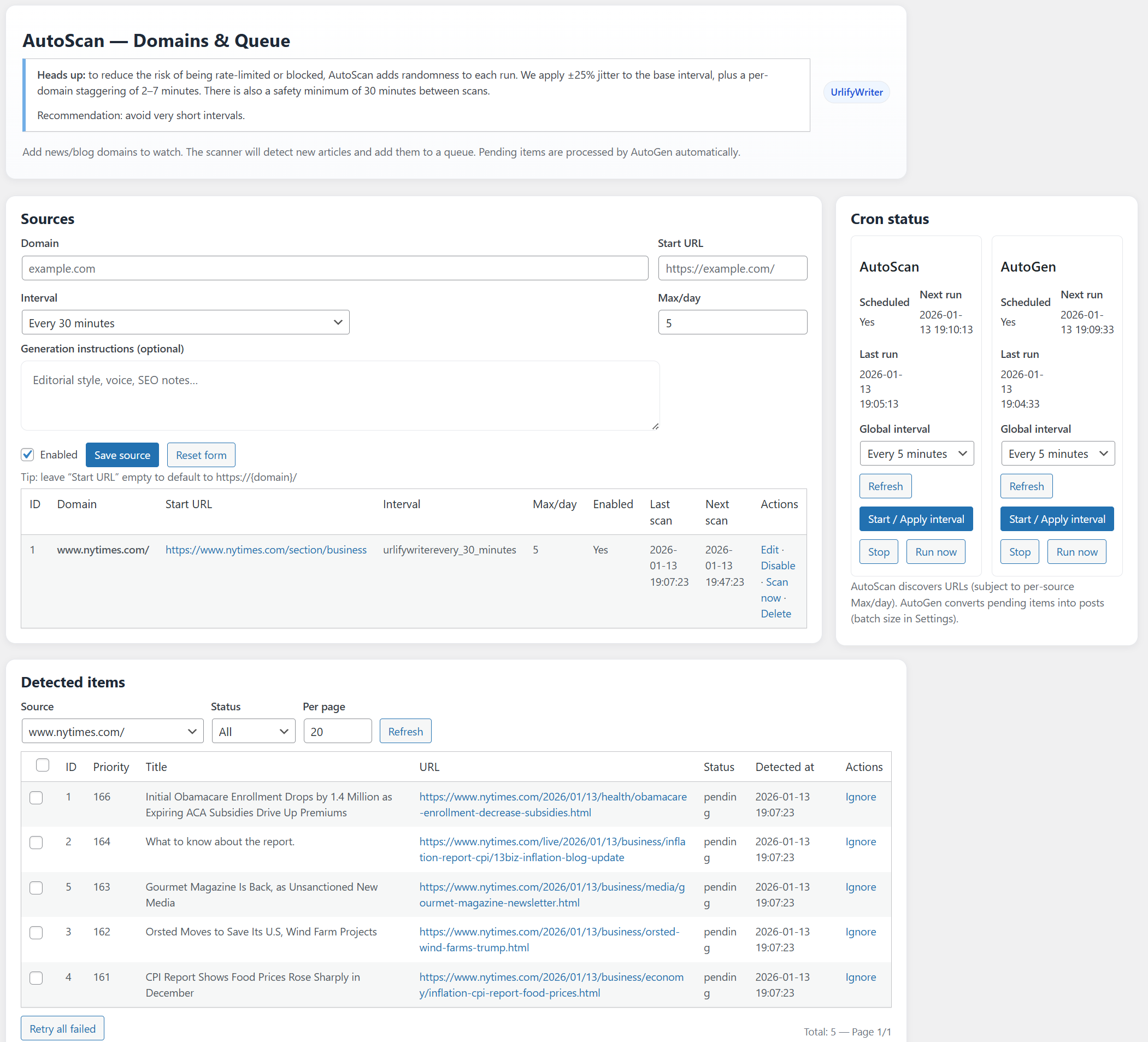
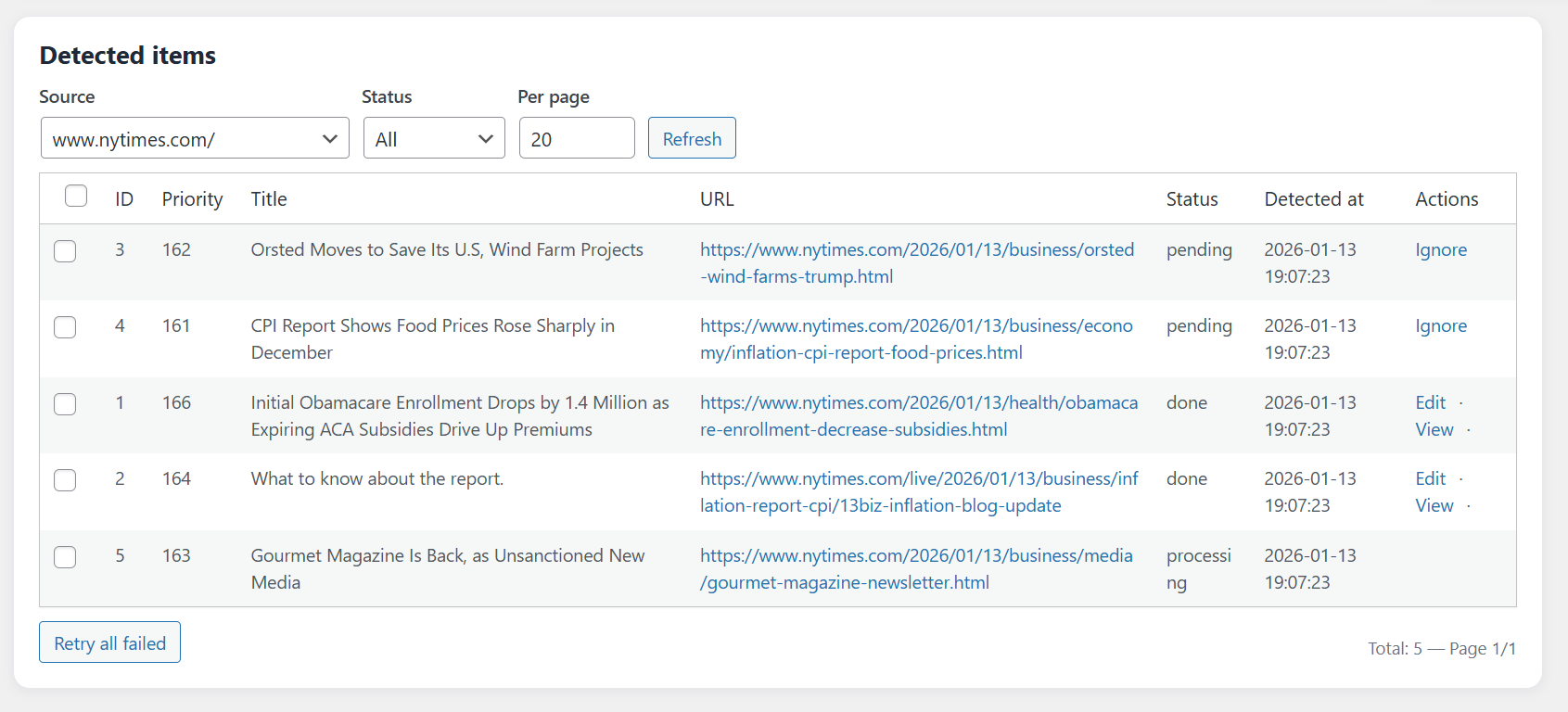
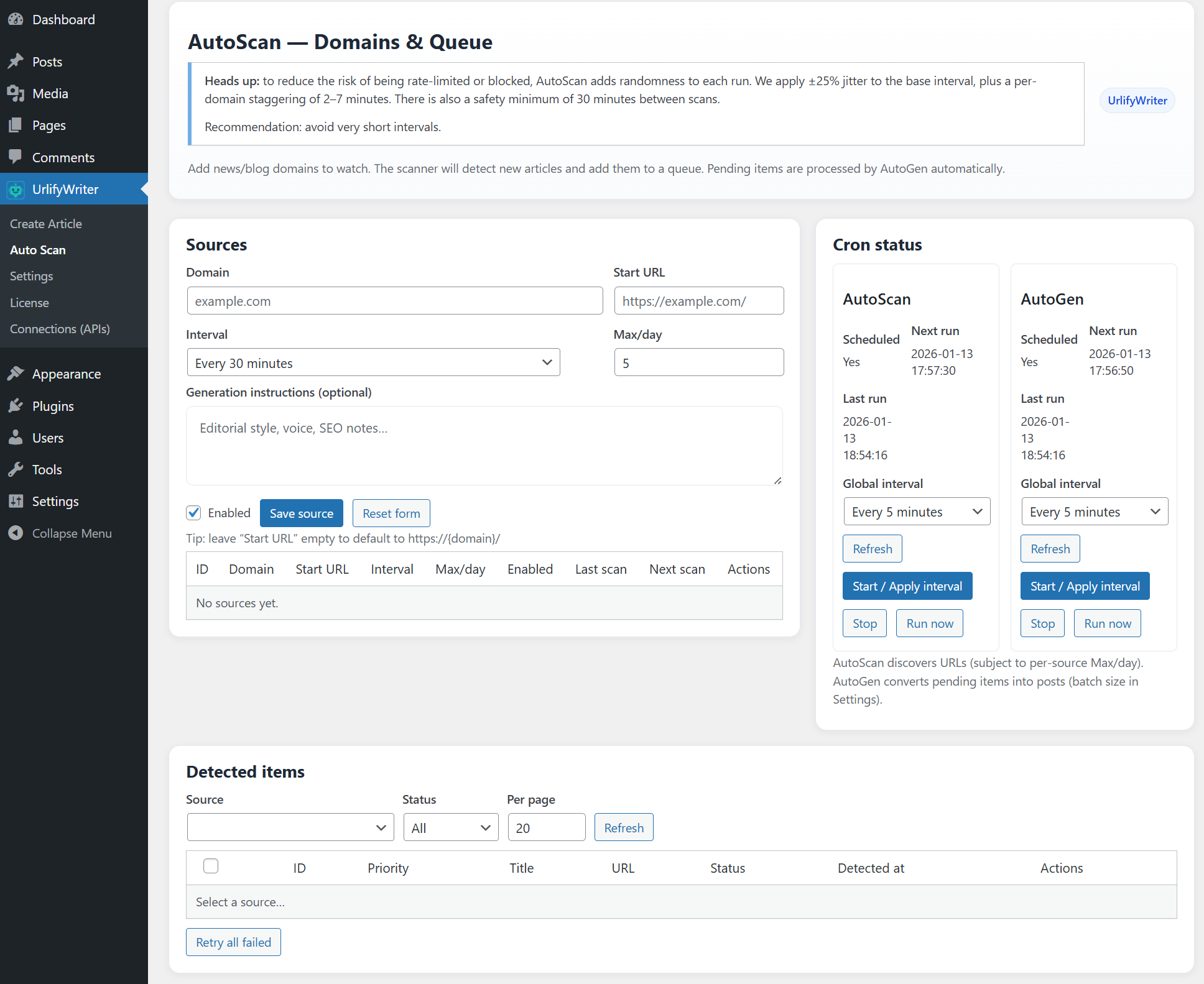
- AutoScan: Monitor a page (for example, a homepage or listing). The plugin checks it at intervals, detects new links, writes original AI posts, and publishes them automatically according to your configuration.
安装:
- Upload the
urlifywriterfolder to the/wp-content/plugins/directory. - Activate the plugin through the 'Plugins' menu in WordPress.
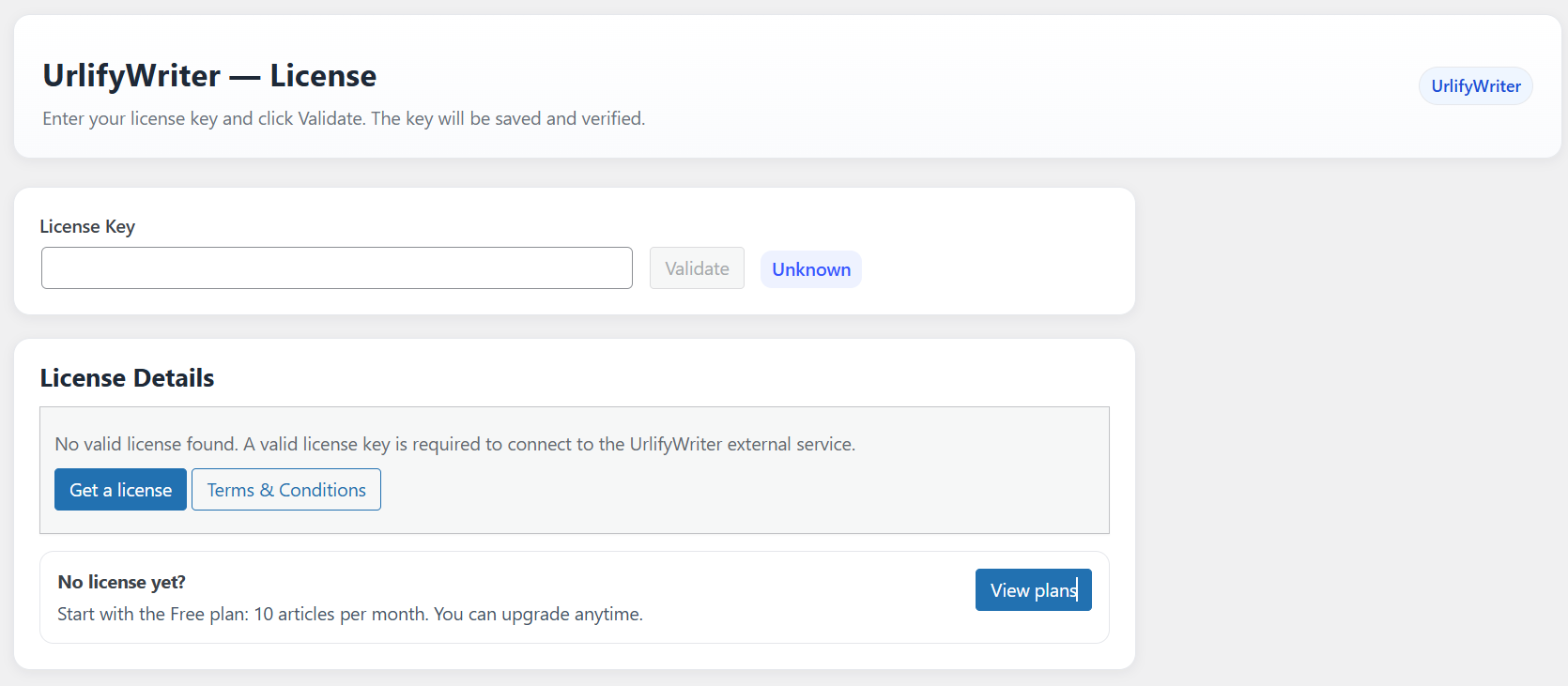
- License Activation\ To use UrlifyWriter, you need to activate a license.
- Go to UrlifyWriter > License in your WordPress dashboard.
- Click the option to obtain a free license or enter an existing license key.
- Click Validate to activate it.
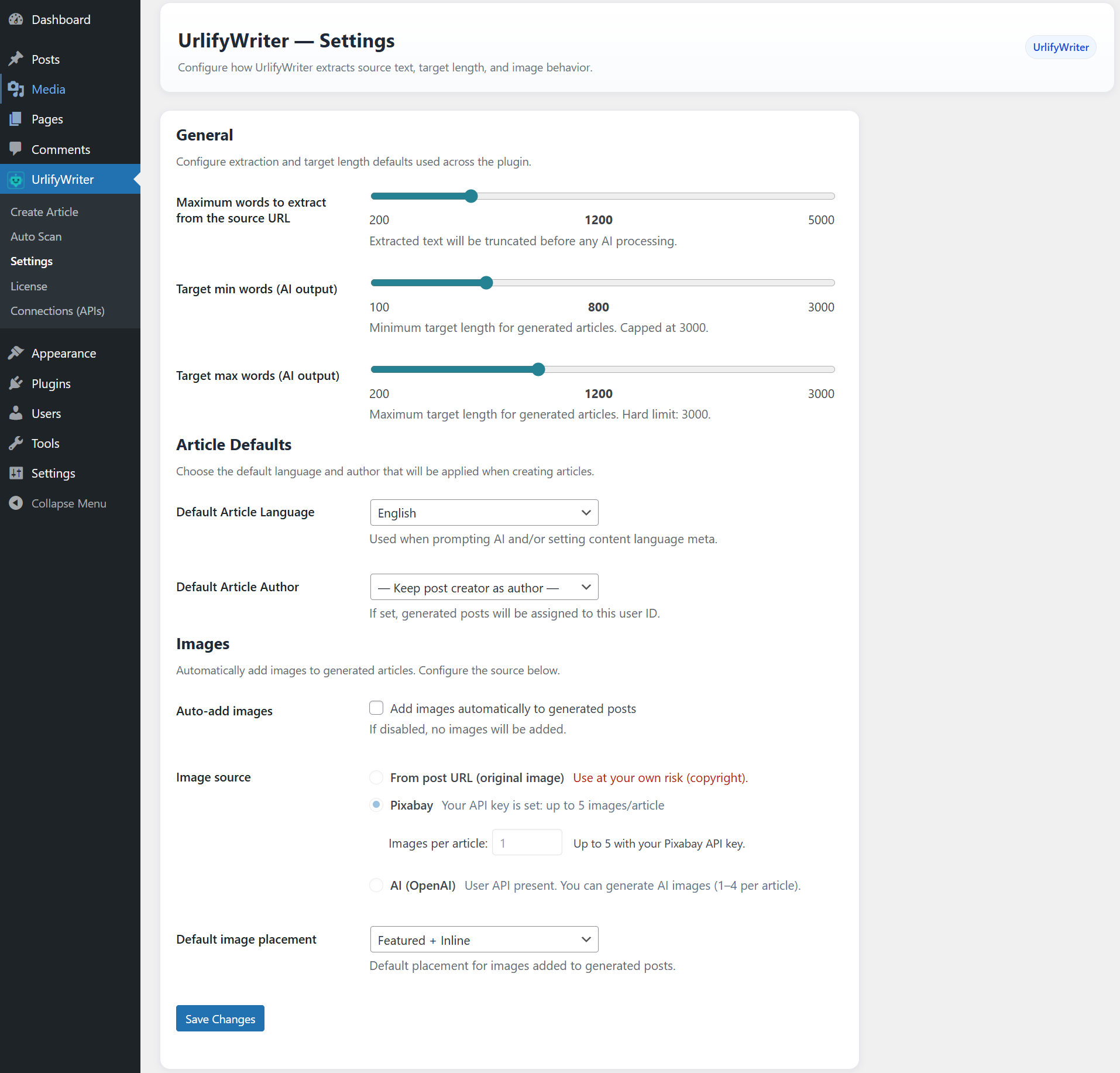
- Images & API Connections (Optional)\ UrlifyWriter includes built-in image support and can optionally connect to external services for additional images.
- By default, UrlifyWriter can include one Pixabay image per article without any API configuration.
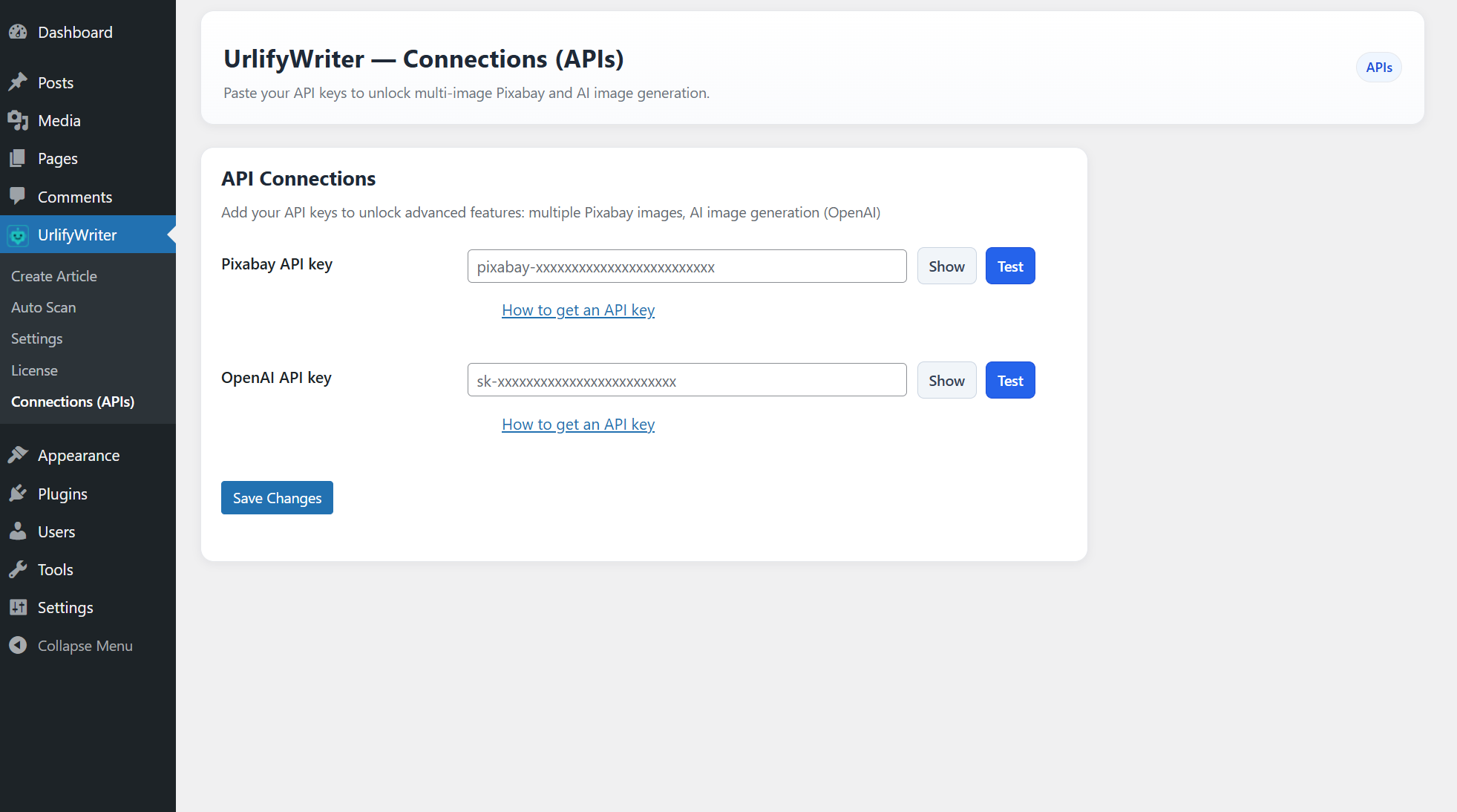
- If you add a Pixabay API key, you can include more images per article.
- If you add an OpenAI API key, you can generate AI images regardless of your license plan.
- To configure APIs, go to UrlifyWriter > Connections (APIs).
- Supported services:
- Pixabay – https://pixabay.com/api/docs/
- OpenAI – https://platform.openai.com/api-keys
- Create Your First Article
- Go to UrlifyWriter > Create Article.
- Generate an article from a URL.
- Choose whether to save the article as a draft, schedule it, or publish it immediately.
- Auto Scan (Optional)
- Go to UrlifyWriter > Auto Scan.
- Add a source URL from a domain you want to monitor.
- UrlifyWriter will periodically scan the source, rewrite newly detected articles with AI, and create posts based on your settings.
屏幕截图:
常见问题:
Does AutoScan publish automatically?
Yes. AutoScan can publish automatically when new items are detected. You control how many items it processes per run and whether it creates drafts or publishes.
Does it scrape entire websites?
No. AutoScan targets a single page that you specify. It detects new links on that page and uses them as context to generate original articles.
Which AI technology is used?
Content and optional image generation are handled by the UrlifyWriter external service. In some cases (such as listing available models), the plugin may connect directly to third-party AI provider APIs if the user configures their own API keys.
Can I use Pixabay images?
Yes. Pixabay images can be included without an API key. Adding your own key enables additional images per article.
Is there a review step before publishing?
You can manually create drafts using the URL or keyword tools. AutoScan publishes automatically.
更新日志:
- Fixed a minor auto scan issue.
- Fixed a minor batch generation issue.
- Initial release: URL → Article, Keyword → Articles (single/batch), AutoScan automatic publishing, external API generation, Pixabay support, Cloudflare delivery.