
Version Locker: Disable Updates, Rollback and Downgrade
| 开发者 | alphadev01 |
|---|---|
| 更新时间 | 2026年9月2日 17:48 |
| PHP版本: | 7.0 及以上 |
| WordPress版本: | 7.1 |
| 版权: | GPLv2 or later |
| 版权网址: | 版权信息 |
详情介绍:
- Agencies and freelancers managing client sites.
- Anyone running a customized or patched plugin.
- Production and eCommerce sites that update on a schedule.
- Sites on older PHP or an older WordPress version.
- Lock an individual plugin or theme at the version it is on, including against another admin who tries to update it.
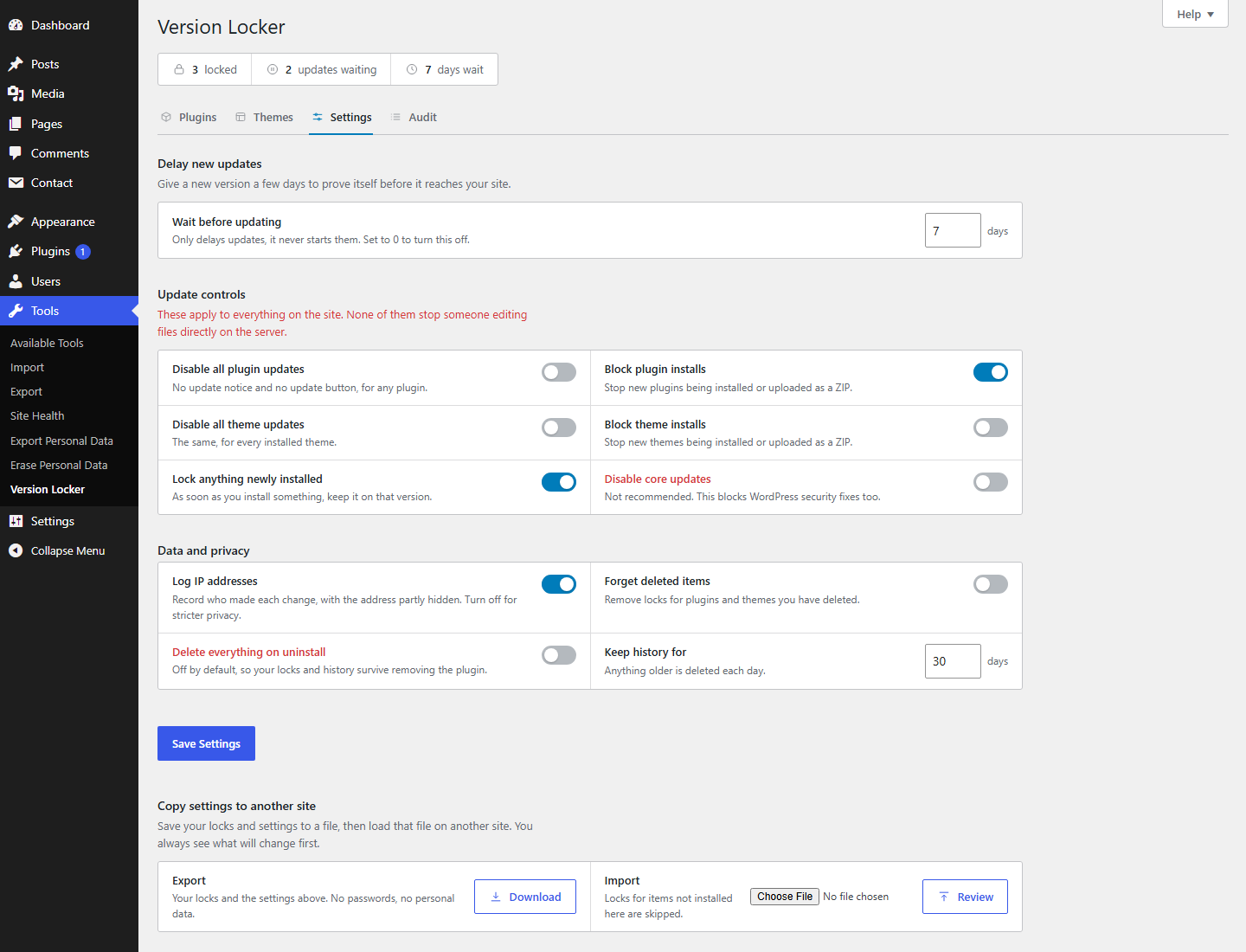
- Turn off all plugin updates, all theme updates, or core updates with one switch, so you can freeze a whole site before a migration, an audit, or a busy trading period.
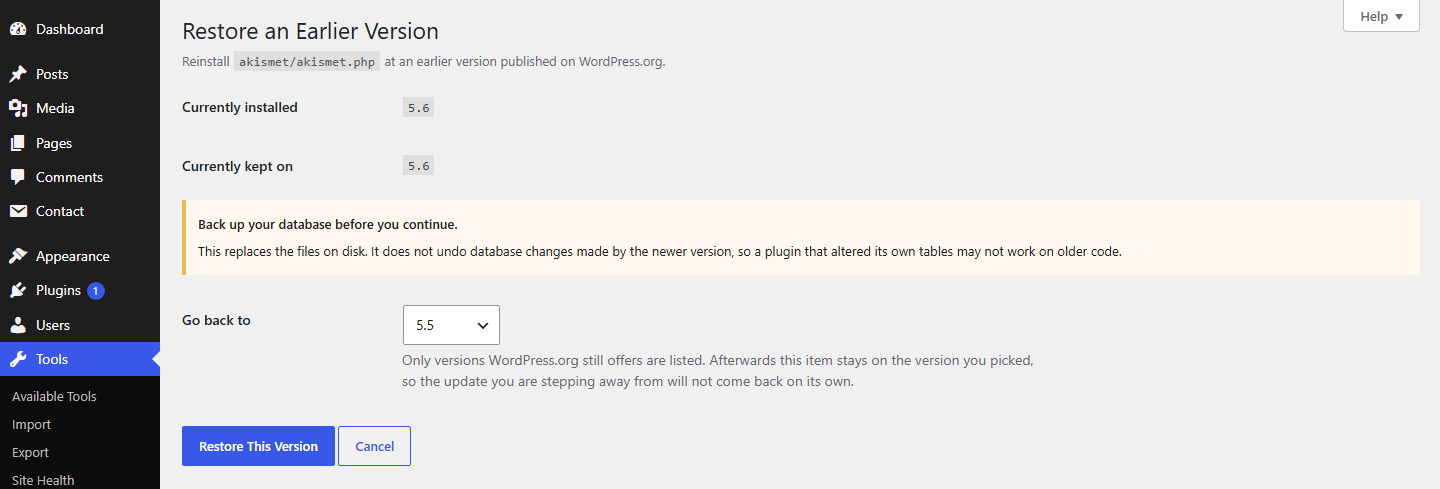
- Roll back a plugin or theme to any earlier version still published on WordPress.org, from inside your dashboard. No FTP, no hunting for old ZIP files.
- Downgrade WordPress core to a specific version, or hold it on the one you have tested.
- Hold new releases for a set number of days before WordPress offers or installs them. Let other people find the bugs first. It only ever delays an update, it never starts one.
- Block new plugin and theme installs, including ZIP uploads.
- Lock anything you newly install, automatically.
- Save your locks and settings to a file and load them on another site. You see exactly what will change before anything is applied.
- See the version each item is pinned at and how far behind you have fallen, major, minor, or patch, with an "update available" indicator that does not bring the update button back.
- Add a note to any lock, and set it to unlock itself on a date.
- Lock and unlock without a page reload, in bulk, with search and filtering across your plugins and themes.
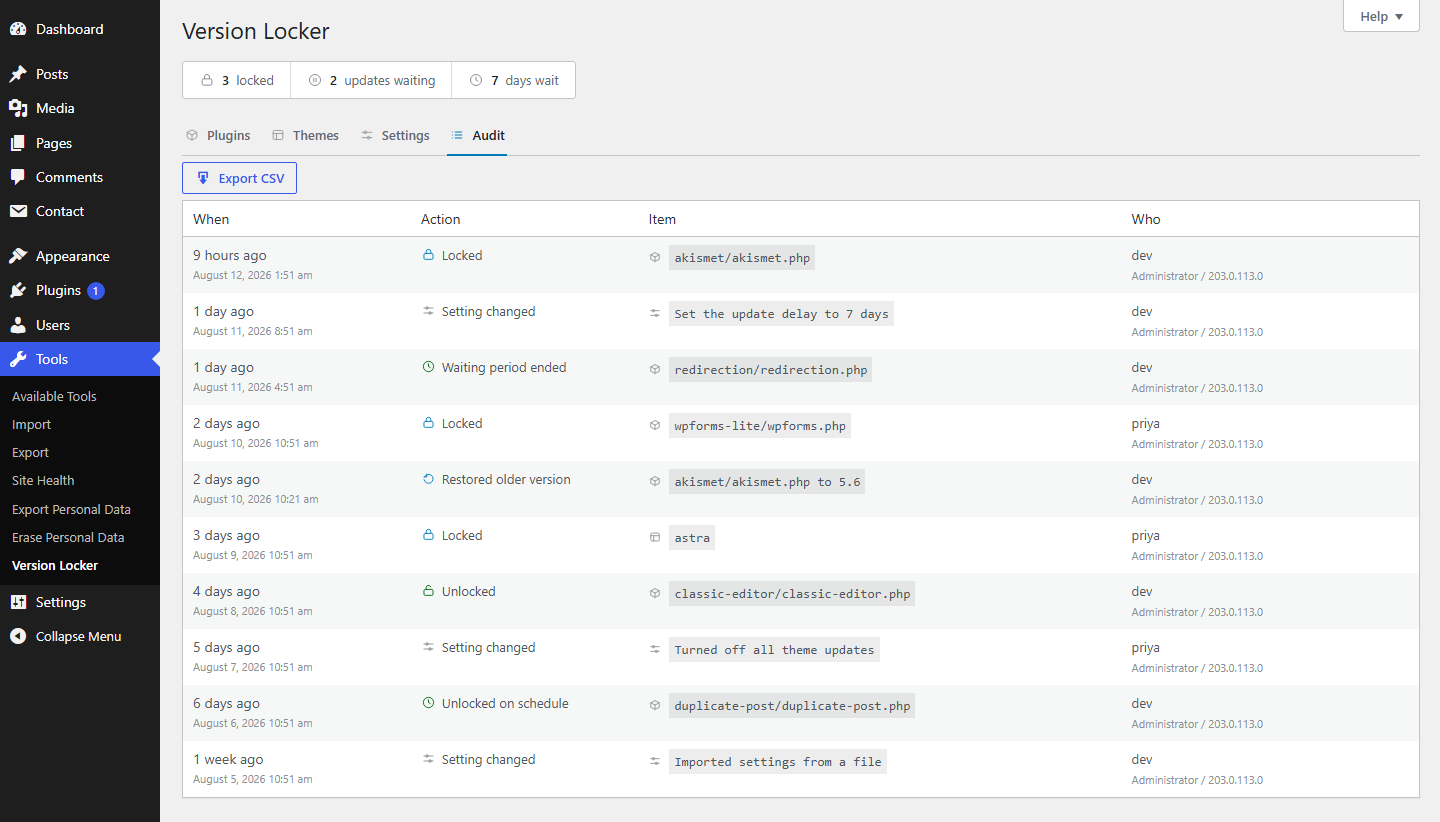
- Activity log showing who changed what and when, with CSV export.
- Works on Multisite.
安装:
- Install through the WordPress Plugins screen, or upload the folder to
/wp-content/plugins/ - Activate the plugin
- Go to Tools > Version Locker
- Toggle the lock on anything you want to keep where it is
屏幕截图:
常见问题:
How do I stop WordPress from updating plugins automatically?
Install Version Locker and go to Tools > Version Locker. Toggle the lock on any plugin to hold it at its current version, or turn on "Disable all plugin updates" in the Settings tab to stop every plugin update at once. Both are reversible at any time.
How do I disable automatic updates for just one plugin?
Lock that single plugin from the Plugins tab. Every other plugin keeps updating as normal. Locks are per item, so you are not forced into an all-or-nothing choice.
Can I disable WordPress core updates?
Yes. The Settings tab has a separate switch for core updates, which also turns off core auto-updates. It is independent of your plugin and theme locks.
How do I downgrade WordPress to a specific version?
Go to Tools > Version Locker > Settings and choose the release you want under "Hold WordPress on". Version Locker then offers that exact version under Dashboard > Updates, and you start the change there yourself. Nothing is downloaded or installed until you do. Once the site is on that release, further core updates are held back so it stays there.
How do I roll back WordPress core after an update broke my site?
Pick the version that was working from the same dropdown, then run the update from Dashboard > Updates. WordPress reinstalls that release using its own update routine, so it behaves exactly like a normal core update. Take a database backup first: the files move backwards, but a database that has already been upgraded does not.
Can I use this instead of WP Downgrade?
Yes. If WP Downgrade is already holding a version on your site, Version Locker detects it, tells you which version it found, and pre-selects the same release so you only have to press Save. You get the same specific core version control, plus plugin and theme locks, rollback, an activity log, and a delay window in the same plugin.
Is it safe to downgrade WordPress across a major version?
It can break a site, so Version Locker will not do it silently. WordPress upgrades the database as it goes and has no reverse migration, which means going from, say, 7.x back to 6.x can leave the database ahead of the code. That move is refused until you confirm you have a working backup. Moving back within the same major version, such as a patch or minor release, does not carry that risk.
Can I delay WordPress updates instead of blocking them?
Yes. Set a waiting period in days and every new release is held for that long before WordPress offers or installs it. It only ever delays an update. It never starts one, and it never switches on auto-updates for a site that had them off.
How do I go back to an older version of a plugin?
Lock the plugin, then use the roll back link on its row. You will see every version WordPress.org still publishes, older than the one you have installed. Pick one, confirm, and Version Locker reinstalls it and pins the plugin there so the update you are stepping away from does not come straight back. Take a database backup first: rolling back replaces files, but it cannot undo database changes a newer version already made.
Can I delay updates instead of blocking them completely?
Yes. Set a waiting period in the Settings tab and every new release is held for that many days before WordPress offers it. Each release gets its own window. This only delays updates. It never starts one, and it never turns on auto-updates for a site that had them off.
Will this stop the update notification badge in my admin menu?
Locked items are removed from the counts WordPress uses for the update badge, so the number reflects only the updates you can actually apply. Version Locker still shows you the held update on its own screen, including the new version number, so nothing is hidden from you.
Does locking a plugin make my site insecure?
It can, if you lock something and forget about it. That is why every lock records the version it was pinned at, shows how far behind you have fallen with a major, minor, or patch badge, and can be given a date to unlock itself. Locking is meant to delay an update you have not tested yet, not to avoid updating forever.
Does this modify plugin or theme files?
Locking does not. It only uses WordPress filters to control update behavior, so your files are left exactly as they are. Roll Back is the exception, and it only runs when you ask for it. Choosing a version and confirming the warning replaces the installed files with that release, the same way an update does.
Will locked items still show update available?
Yes. The Plugins and Themes tabs show an "update available" indicator with the new version number for locked items, but the update is held and the update button will not appear until you unlock.
Can I still update a locked item?
Yes, just unlock it first. Updates work normally once unlocked.
What is the difference between locking one item and turning off all updates?
Locking targets specific items. The site-wide switches turn off ALL plugin updates, ALL theme updates, or core updates at once.
Does "Disable all plugin updates" stop someone uploading a plugin ZIP by hand?
No. The site-wide switches only stop WordPress update checks: update notices, one-click updates, and auto-updates. A plugin uploaded by hand from Plugins > Add New > Upload Plugin is treated by WordPress as an install, so an update or downgrade ZIP will still install. To stop that, lock the specific plugin or turn on "Block plugin installs". Files changed directly on the server over FTP, SSH, or cPanel cannot be blocked by any plugin, because WordPress does not run during a direct file copy.
Can I copy my settings to another site?
Yes. Export your locks and settings to a file from the Settings tab, then import that file on another site. Nothing is applied on upload: you first see which locks would be added or removed and which settings would change. An imported file can only change Version Locker's own settings, and locks for items not installed on the receiving site are skipped.
Does this work on Multisite?
Yes. Each site keeps its own list of locks, so what one site shows as locked is its own business. Protection works across the whole network, though, because it has to. Plugin and theme files exist once and are shared by every site, so a lock set on any single site stops those files being updated from anywhere, including Network Admin. Without that, one site could overwrite the version another site deliberately kept.
Does it slow my site down?
No. Version Locker does no work at all on front-end page views. Its data is only read when WordPress is deciding about updates, which happens in the admin and on cron, never when a visitor loads a page.
What happens if I delete the plugin?
By default, all locks and settings are preserved on uninstall. To delete all data on removal, turn on "Delete everything on uninstall" in the Settings tab before uninstalling.
更新日志:
- Hold WordPress core on a chosen release. Pick a version and it is offered under Dashboard > Updates; nothing is installed until you start it there yourself. Once the site is on the pinned release, further core updates are held back. Only releases published on WordPress.org are accepted, and the package always comes from WordPress.org in your site's own language.
- Going backwards across a major release now has to be confirmed. WordPress upgrades the database as it goes and cannot migrate it back, so a move like 7.x to 6.x can break a site. That move is refused until you tick the box saying you have a working backup, and the confirmation is tied to the exact version you picked.
- Arriving from WP Downgrade? If that plugin is holding a version on this site, Version Locker says so and pre-selects the same release, so you only have to press Save.
- Core auto-updates are switched off while a release is pinned. Reaching a chosen version unattended, in the background, is not what pinning asks for.
- The release list offers only versions WordPress.org still considers secure, newest first. The version you are running and any version you have already pinned are always listed, even if they are marked insecure.
- Roll back to an earlier version. Reinstall any version still published on WordPress.org and pin the item there. Only packages served by WordPress.org over HTTPS are used. Items hosted elsewhere report that no rollback is available instead of failing part-way. The installed version is checked on disk afterwards, and if it does not match, nothing is locked and you are told.
- A waiting period for new releases. Set a number of days and new releases are held for that long before WordPress offers or installs them. Waiting only delays an update. It never starts one, and it never turns on auto-updates for a site that had them off. Each release gets its own window, and releases are written to the activity log.
- Lock profiles. Export your locks and settings as a file and import them on another site. Nothing is applied on upload: you first see which locks would be added or removed and which settings would change. An imported file can only change Version Locker's own settings, and locks for items not installed on the receiving site are skipped.
- Multisite: a lock set on any site now protects the files on every site. Plugin and theme files are shared by the whole network, so an update run from Network Admin could previously overwrite files a single site had pinned. What each site shows as locked is unchanged and still per site.
- Locks and waiting-period data are no longer autoloaded. They are only read when WordPress is deciding about updates, which never happens on a front-end page view, so every visitor was loading data nobody read. On a site with fifty locked plugins that is about 16 KB per request. Existing sites are corrected automatically on upgrade.
- Locked items are no longer stripped out of the update data WordPress stores on disk. Previously the removal was written to the database, so deactivating Version Locker left genuine updates invisible for up to 12 hours. Locks are now applied when the data is read, which means unlocking or deactivating takes effect immediately.
- Auto-updates now skip a locked item cleanly on Multisite instead of starting and then failing. A lock held by a single site was not visible to the network's update run, so the update began and was stopped later, which reported a failed update rather than a skipped one.
- Rolling back now tells you if the plugin could not be switched back on afterwards, instead of reporting success while it sits deactivated.
- The rollback screen no longer lists versions newer than the one installed.
- Saving settings now confirms that it saved. The notice depended on a value WordPress removes from the address bar while the page loads, so it usually never appeared.
- The count of held updates now reads correctly when there is only one.
- Deactivating the plugin now clears the cached plugin and theme update lists, so WordPress rebuilds them without this plugin's filters in place.
- Deactivation cleaned up a transient key that never existed while leaving the real ones behind.
- The update filters no longer replace a missing update transient with an empty object. WordPress uses its absence to decide a fresh update check is due, and that signal was being hidden.
- Keyboard focus no longer leaves the lock actions dimmed.
- Tested up to WordPress 7.0
- The "update available" indicator now works for locked plugins and themes. Previously the update payload was discarded, so locked items never showed a pending update. Update data is now preserved in a private bucket so the UI can display it while WordPress still withholds the update.
- Audit log "Role" column and deleted-user names now display correctly (they were read from the wrong field and always showed blank).
- Filter tabs (All / Locked / Unlocked / Updates) now work. They were bound to a selector that did not exist in the markup.
- Success and error toasts now render (the notice container was missing from the page).
- Themes-tab pagination buttons now work.
- Confirmation prompts now fire for all dangerous toggles via a single
data-confirmhandler. - Reconciled the "Orphan Locks" auto-clean default so the Settings UI and the cleanup logic agree (locks are preserved by default).
- "Auto-Lock Uploads" now works for both plugins and themes. It previously never locked an uploaded item because it relied on an identifier WordPress omits on install; the installed item is now resolved from the upgrader instance.
- Email notifications have been removed entirely (service, settings, test-email tool, and related options). They depended on server SMTP, fired on update availability rather than on real attempts, and added maintenance weight. Legacy email options are cleaned up on uninstall.
- Removed dead code: an unused delete-confirmation modal, an unreachable GET unlock handler, and the empty audit "Hash" column.
- Replaced the custom global error handler with lightweight per-callback guards, relying on WordPress core fatal-error protection. Same crash safety, far less code.
- Locks now store the version they were pinned at, who locked them and when, an optional note, and an optional auto-unlock date. The Plugins and Themes tabs show the pinned version alongside any available update with a major/minor/patch drift badge, and a per-lock editor lets you record a note and an expiry.
- Auto-expiring locks: set an "auto-unlock on" date and the lock is released automatically (enforced immediately, cleaned up daily, and recorded in the audit log). Expiry dates are stored in UTC so they behave consistently across timezones.
- The audit log is now stored in a dedicated database table instead of a single option. Writes are atomic, so concurrent admin actions can no longer drop entries. Existing logs are migrated automatically. Timestamps are stored in UTC and shown in the site's timezone.
- Lock storage moved from a flat list of slugs to a per-item record. Existing locks are migrated automatically on upgrade.
- Nonce verification now runs before the capability check when saving settings.
- Authentication and authorization now run before any rate-limit state changes.
- Admin UI now follows the active admin color scheme via
--wp-admin-theme-color. - Additional i18n coverage for JavaScript and audit strings.
- Theme locking: lock individual themes just like plugins
- Site-wide switches: disable all plugin, all theme, or core updates at once
- Quick toggle: lock or unlock without a page reload
- Bulk lock/unlock: select multiple items and toggle them at once
- Auto-lock for newly installed plugins (optional)
- Live search and filter on plugins and themes tabs
- Multisite support
- Audit log now available on all sites (previously multi-admin only)
- Audit log CSV export
- Rate limiting on AJAX actions to prevent abuse
- Rebuilt with a proper class-based structure (autoloader, services, failsafe layer)
- Error handling now catches bootstrap failures and shows a graceful admin notice instead of crashing
- Improved input validation across all form submissions and AJAX handlers
- Added
VLOCKER_DISABLE_ALLconstant as an emergency kill switch (define in wp-config.php) - PHP requirement lowered from 7.4 to 7.0
- Uninstall behavior changed to safe-by-default. Data is now preserved on removal unless you opt in to deletion from the Settings tab
- Separate capability checks per tab (plugins, themes, settings)
- AJAX nonce verification on all endpoints
- CSV injection protection on audit log export
- Initial release
- Plugin locking only (no theme support)
- Audit log for multi-admin sites only