
Visigate – Conditional Content & Visibility Rules
| 开发者 | jaypeeperos |
|---|---|
| 更新时间 | 2026年11月13日 12:31 |
| PHP版本: | 7.4 及以上 |
| WordPress版本: | 7.1 |
| 版权: | GPLv2 or later |
| 版权网址: | 版权信息 |
详情介绍:
- Show an offer only to logged-in customers on mobile
- Run a promotion on weekends or between two dates
- Display a phone number or chat prompt during business hours
- Welcome members whose accounts are less than 7 days old
- Hide a sign-up prompt from people who are already logged in
- Show a private note or download link to selected user accounts
- Display a promotion only on a chosen post type, or only on archive pages
- Show a search tip on search results and 404 pages, or a banner on every page under /shop/
- Always hide: temporarily hide content without adding a condition. Existing conditions remain saved and resume when you turn the toggle off. Available in saved rule sets and custom rules for blocks, patterns, menus and Elementor elements. Editor content remains editable; admin reveal and configured Pro fallbacks retain their usual behavior.
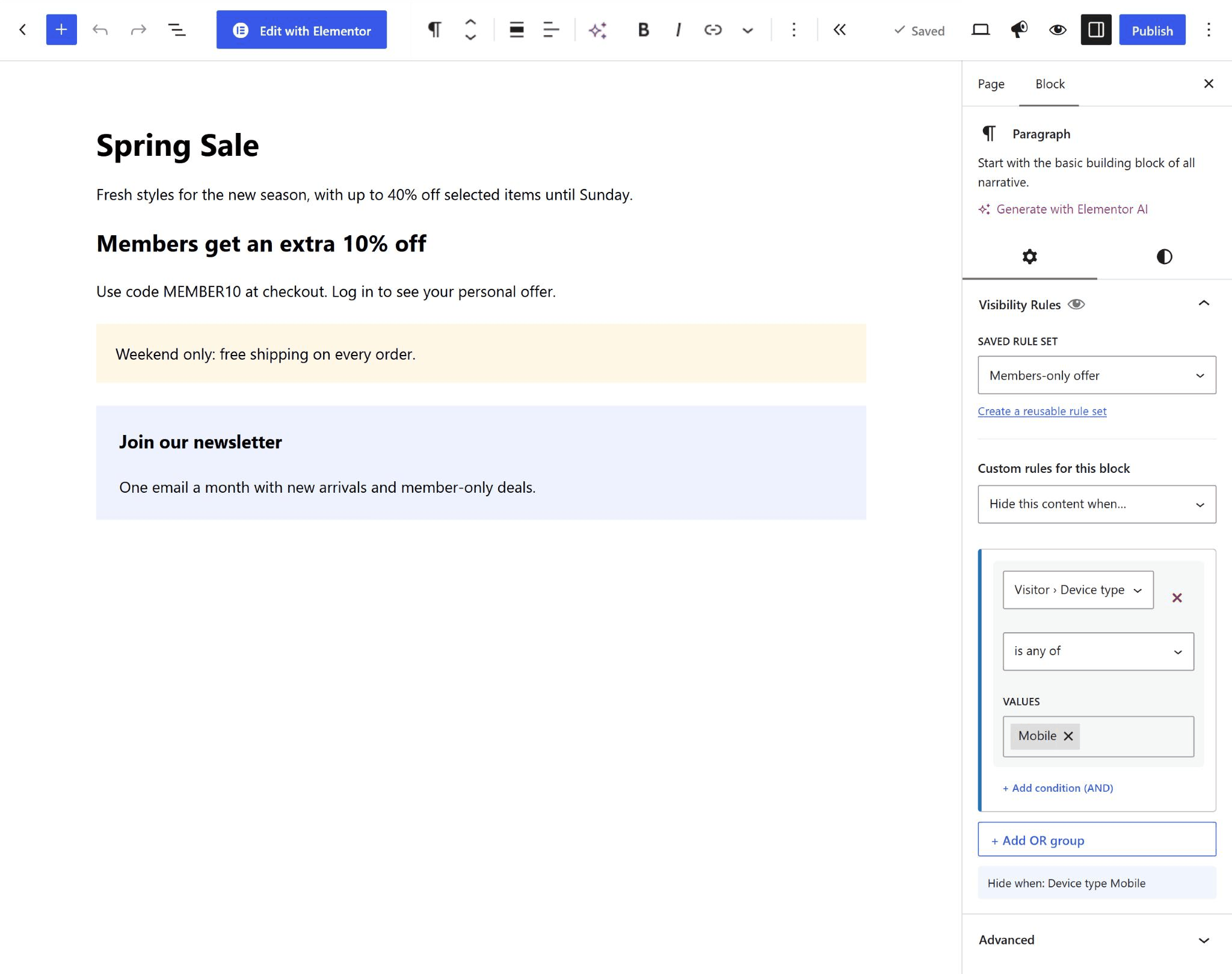
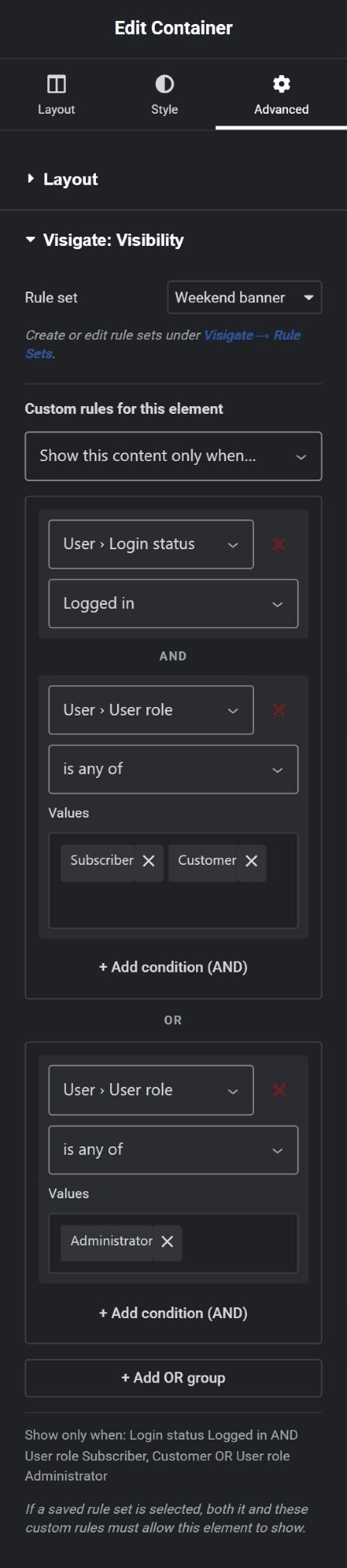
- Visual rule builder: combine conditions without code. Conditions in a group must all match (AND), and any matching group is enough (OR).
- Plain-English summaries: every rule set describes itself, so you can check its logic at a glance.
- Reusable rule sets: build a rule once and use it across your site. Edit it in one place and every use updates.
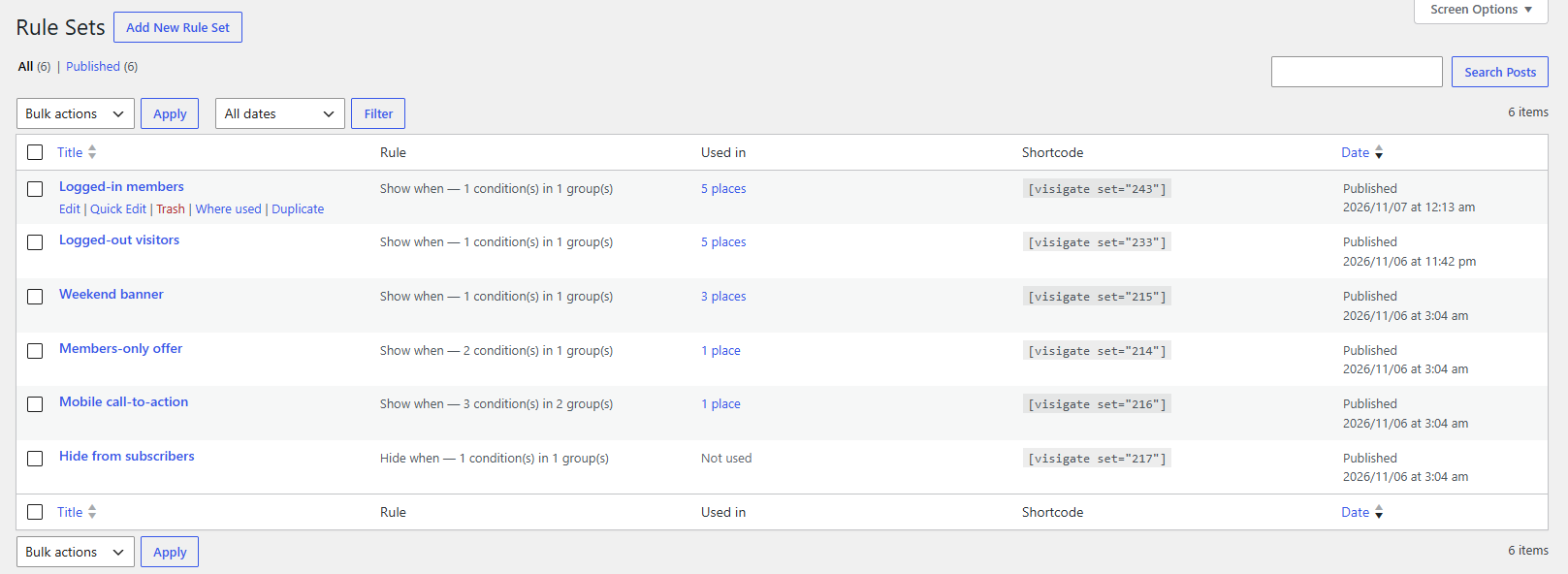
- Duplicate rule sets: use Duplicate in the Rule Sets list to copy the visibility rules into a new draft that you can edit independently.
- Block editor support: add a Visibility Rules panel to every block, using a saved rule set or custom rules for that block.
- Elementor support: apply a saved rule set or build custom rules for classic widgets and containers, plus atomic widgets and layouts.
- Shortcode and PHP helper: use rules with other page builders, in classic content, or in theme templates.
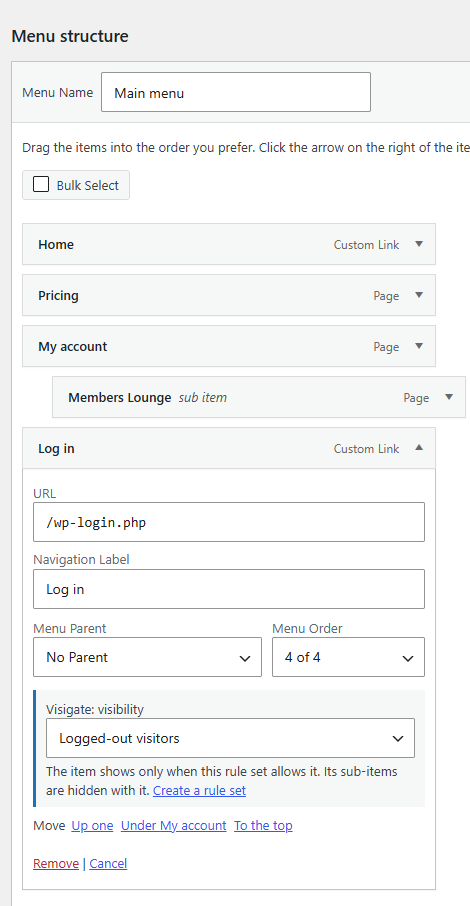
- Menu item visibility: use a saved rule set or custom conditions on any classic menu item, such as hiding "Log in" from logged-in users. Navigation block links use the normal Visibility Rules panel.
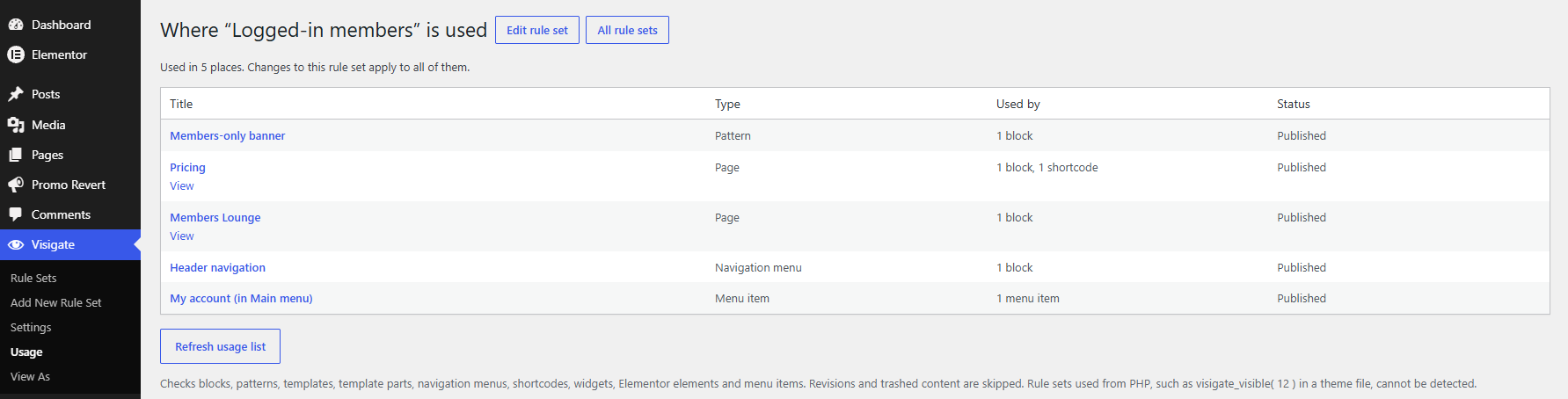
- Where used: see every page, pattern, template, menu item, widget and Elementor element that uses a rule set, and get a warning before you trash one that is in use.
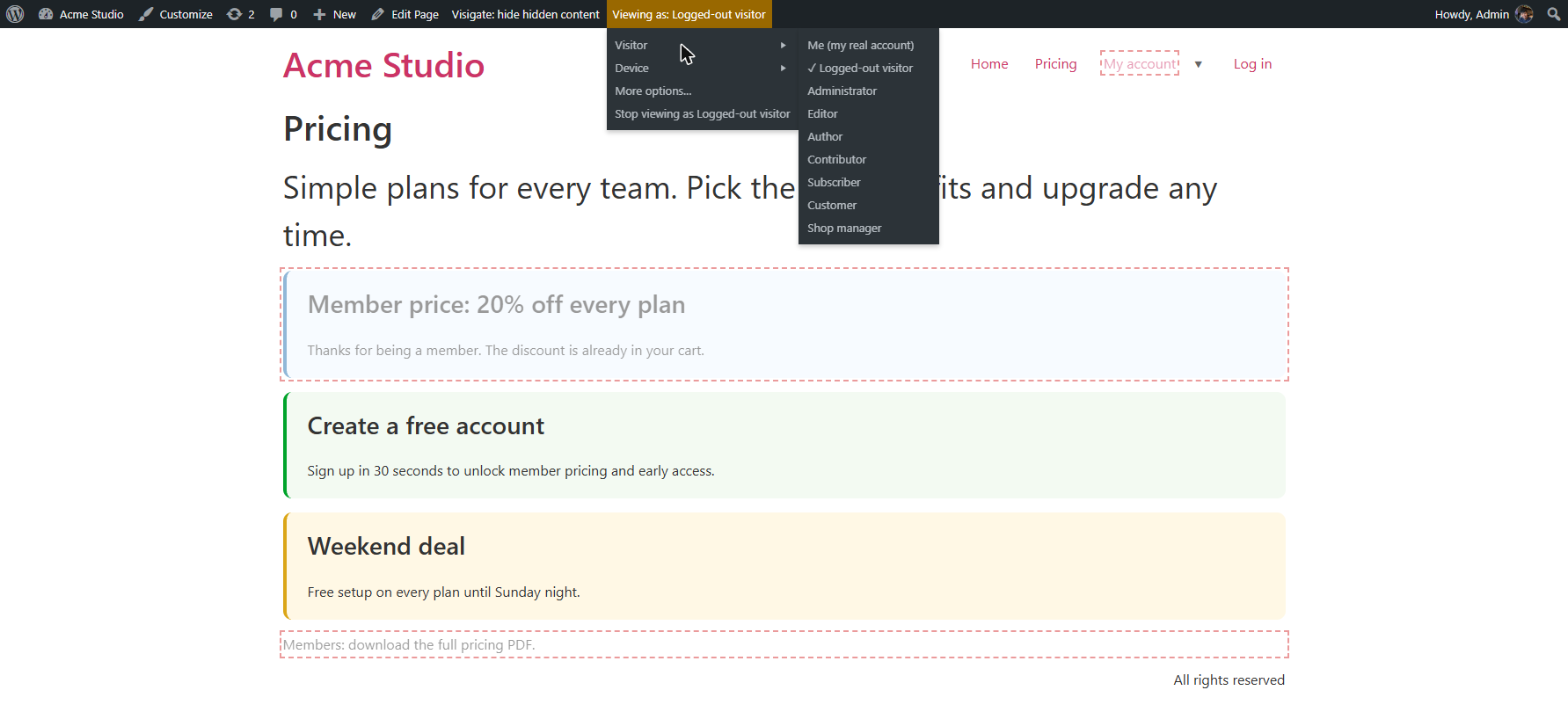
- View as: preview any page as a logged-out visitor, another role or another device from the admin bar, without logging out.
- "Why is this hidden?" inspector: a panel on the live page lists every rule that ran, which conditions passed or failed, the final decision, whether fallback content was shown and whether the page was excluded from caching. Inspect mode marks each hidden item in place with its number. Only Visigate managers see it.
- Rule warnings: the builder flags conditions that can never all be true, incomplete conditions, date ranges that have ended and selected posts, users or terms that were deleted. The block editor lists them again before you publish.
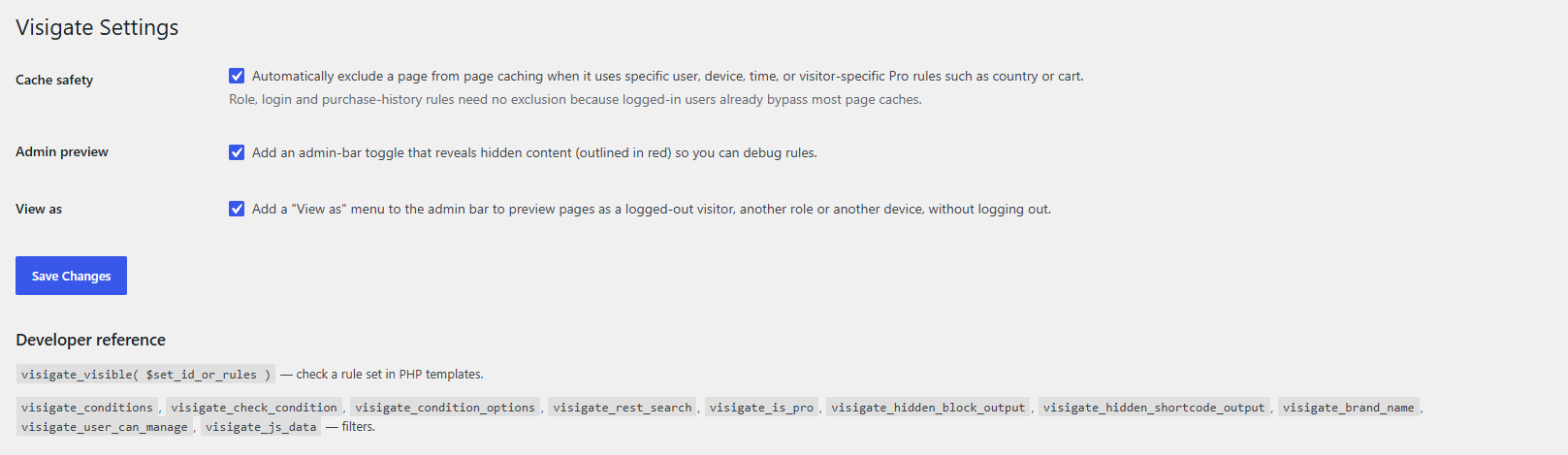
- Admin preview: reveal hidden content on the live page, faded and outlined in red, to check your rules.
- Cache safety: pages using specific user, device, URL parameter, cookie, referrer, or time rules can be flagged automatically so page cache plugins skip them. On block themes Visigate also sends no-cache headers for server and CDN caches, and it tells LiteSpeed Cache directly.
- Cache check: see which cache plugins and hosts are active, whether they honor Visigate's signal, which rule sets and pages a cached copy could get wrong, and test any page's cache headers.
- User: login status, user role, specific users, user capability, account age
- Visitor: device type (desktop, tablet, mobile), URL parameter, cookie, referrer
- Page location: page type (homepage, blog index, search results, 404, author, date and other archives), URL path (exact, wildcard, "is or is inside" and contains), categories and tags (including descendants), specific pages or posts, post type, and page view (singular or archive)
- Time: day of week, time of day, date range
set: the ID of a saved rule setlogged_in:yesornoroles: one or more role slugs, separated by commasdevice:desktop,tabletormobile, separated by commashide: set toyesto hide the content when the direct conditions match
visigate_conditions, visigate_check_condition, visigate_condition_options, visigate_condition_groups, visigate_rest_search, visigate_device, visigate_missing_set_visible, visigate_is_pro, visigate_upgrade_url, visigate_hidden_block_output, visigate_hidden_shortcode_output, visigate_brand_name, visigate_base_capability, visigate_user_can_manage, visigate_js_data, visigate_usage_index, visigate_usage_describe, visigate_rules_subject, visigate_loop_template_blocks, visigate_page_types, visigate_target_exists, visigate_cache_detect.
JavaScript filters: visigate.builder.extras, visigate.builder.warnings, visigate.panel.extras.
Visigate Pro
Visigate is fully usable on its own. Visigate Pro is an optional paid add-on that adds more conditions, including country, ACF/post-meta, user meta and advanced WooCommerce rules, plus fallback content and agency tools. URL parameter, cookie and referrer rules are included in the free plugin.
安装:
- In your WordPress admin, go to Plugins → Add New and search for "Visigate".
- Click Install Now, then Activate.
- Go to Visigate → Add Rule Set and create your first rule.
- Apply it from a block's Visibility Rules panel, from Elementor → Advanced → Visigate, or with the
[visigate]shortcode.
屏幕截图:
常见问题:
Can I set visibility on a pattern without editing it?
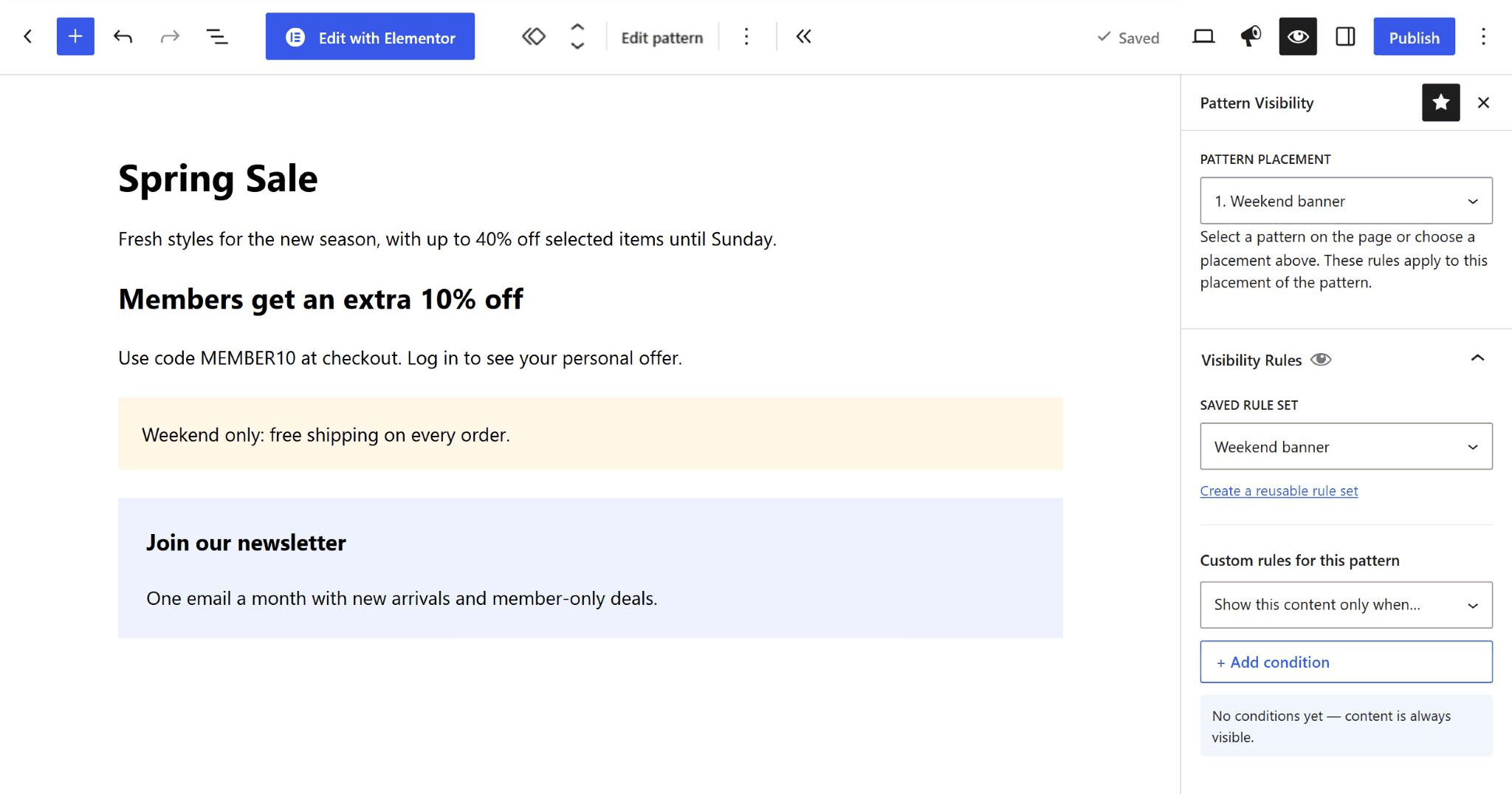
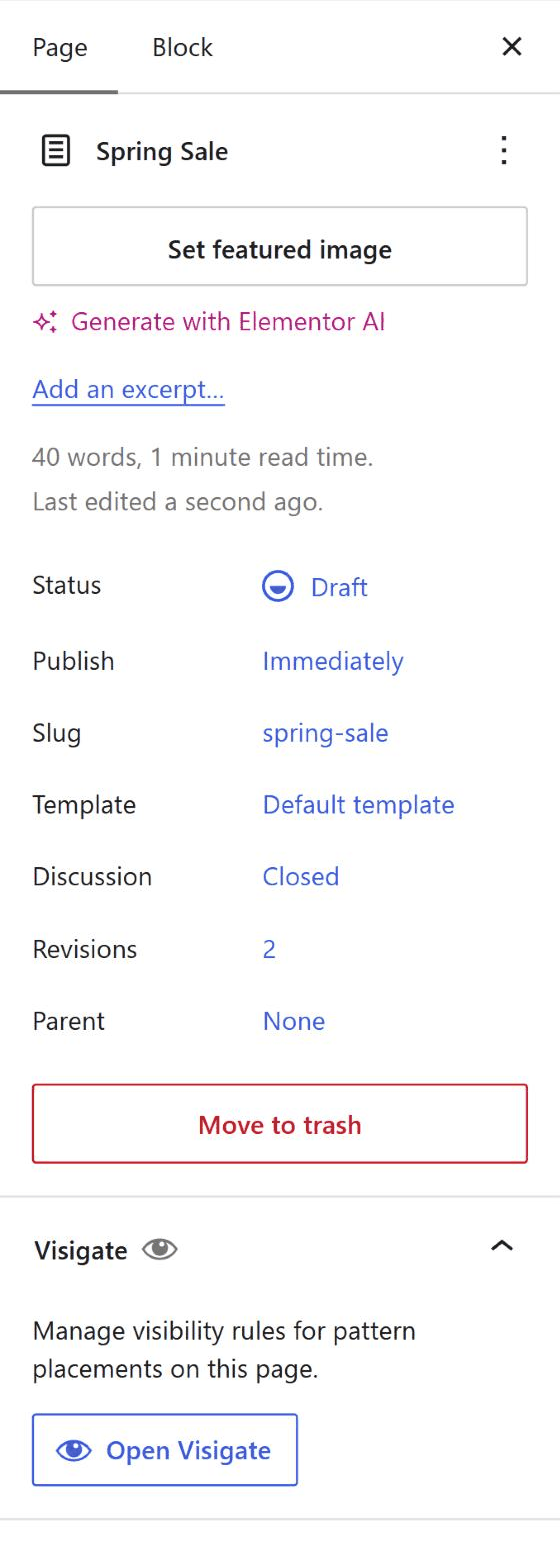
Yes. Open the Page/Post settings sidebar, expand Visigate and click "Open Visigate". You can also open Pattern Visibility from the editor's Plugins menu (or its eye icon when pinned). Select a synced or inserted unsynced pattern on the page, or choose it from the Pattern placement list. Pick a saved rule set or add custom rules. The rules are saved on that placement, so two uses of the same synced pattern can have different visibility. Rules on blocks inside the original pattern continue to apply as well. This sidebar also works when WordPress uses content-only pattern editing and hides the usual block settings. You can configure the placement without entering Edit pattern. Pro fallback controls are available in the same panel according to your plan.
Does this plugin require Elementor or WooCommerce?
No. Visigate works with the block editor on its own, and its Elementor support turns on when Elementor is active. WooCommerce conditions are part of Visigate Pro.
Does it work with other page builders?
Yes, through the [visigate] shortcode or the visigate_visible() PHP helper. Any builder or theme that can output a shortcode or run PHP can use them.
Where are the Elementor visibility controls?
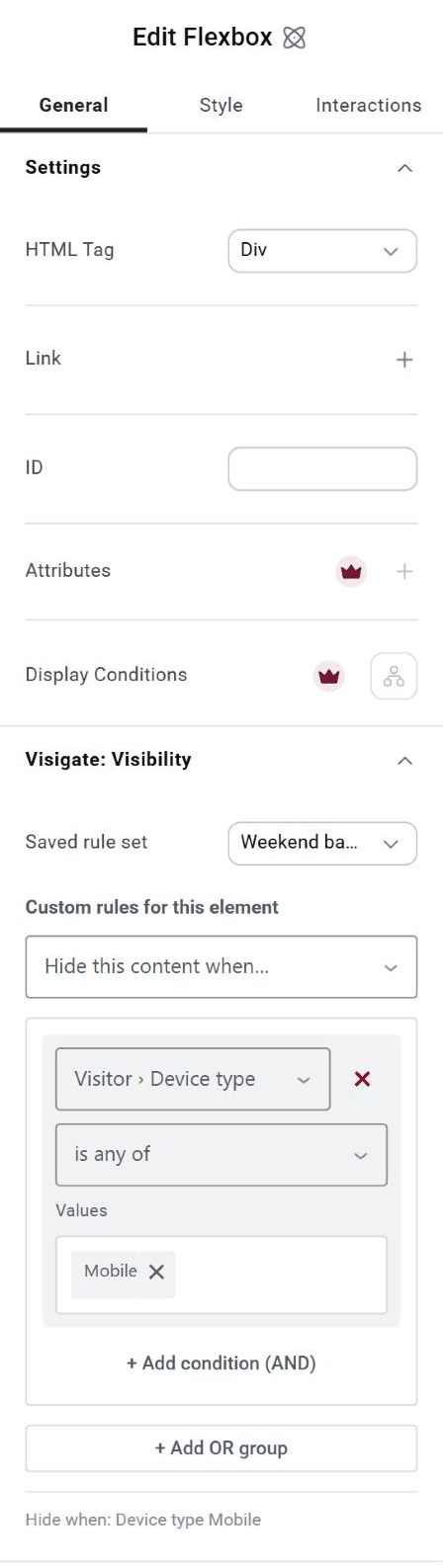
Select a widget, section, column or container, then open Advanced → Visigate: Visibility and choose a saved rule set or use "Custom rules for this element". The custom rule builder supports the same conditions, AND/OR groups and show/hide actions as the block editor. If you configure both a saved set and custom rules, both must allow the element to show. Flexbox and Grid containers are supported. A rule on a container controls the whole container and its contents. Elements remain visible while editing in Elementor. Atomic elements use their own Visigate: Visibility section in the atomic settings panel. Saved sets and custom rules work on atomic widgets and layouts, including Flexbox, Grid and Div Block. Requires an Elementor version with the atomic controls and props-schema APIs; classic Elementor support remains available on older versions.
Will it slow down my site?
Visigate loads no CSS or JavaScript on the front end. Rules are checked on the server while the page is being built.
Does it work with caching?
For specific user, device, and time rules, Visigate can flag the page with DONOTCACHEPAGE, which is on by default and can be changed under Visigate settings. Most page cache plugins respect this flag, but some server or CDN caches may not, so you may need to exclude those pages there. Login and role rules usually need no exclusion, because most page caches are bypassed for logged-in users.
Which time zone do time rules use?
Day, time and date rules use the time zone set under Settings → General.
How is the device detected?
Visigate uses the browser's user agent on the server, so it detects the device type rather than the screen width. Developers can adjust the result with the visigate_device filter.
How do I target individual users?
Add Specific users and search by display name or username. Is any of matches the selected accounts. Is none of also matches logged-out visitors. Add a Logged in condition in the same group to limit it to signed-in accounts.
What do the page location rules match?
Categories / tags is included in Free. Search built-in WordPress categories and tags by name and select one or more. Selecting a parent category also matches its child categories. On a single page/post it checks assigned terms; on a category or tag archive it checks the archive term. Neither operator matches on other views, such as search results or custom-taxonomy archives. Rules use the page being visited, not an item inside a Query Loop. Custom taxonomies, including WooCommerce product categories and tags, require Pro. Specific Page or Post searches published content by title, including public-facing custom post types. Use is any of to match selected entries or is none of to match other singular entries. Both operators check the page being visited. Archive pages and the blog posts index do not match this condition. Post type checks the current page's single item or dedicated post type archive. It supports public-facing custom post types. Page view matches either a single item or a WordPress archive, including category, tag, author, and date archives. Search results and the blog posts index are separate views. These rules check the page being visited, regardless of which item a Query Loop block is displaying.
How can I test a rule?
While logged in as an administrator, open View as in the admin bar on any front-end page and pick a logged-out visitor, a role or a device. The page reloads as that visitor would see it, while you stay logged in. Choose Stop viewing as to go back. More options… opens the full View As screen. You can also use the Visigate toggle in the admin bar to reveal hidden content, faded and outlined in red. The two work together: reveal hidden content while viewing as a visitor to see exactly what they miss. Only you see these previews.
Can I show or hide menu items?
Yes. In Appearance → Menus, open a menu item and choose a saved rule set or "Custom conditions" under "Visigate: visibility". Custom conditions use the same visual builder, including Show/Hide actions and AND/OR groups. When visibility rules hide the item, its sub-items are hidden too. In block themes, select a link inside a Navigation block and use its Visibility Rules panel.
How do I see where a rule set is used?
The Rule Sets list has a Used in column, and Visigate → Usage lists every rule set. Open one to see each page, post, pattern, template, template part, navigation menu, menu item, widget and Elementor element that uses it. When you trash a rule set that is in use, Visigate asks you to confirm first, because content that uses a missing rule set is hidden. Rule sets used only from PHP, with visigate_visible(), cannot be detected.
What happens when I delete the plugin?
Visigate removes its settings but keeps your rule sets, so reinstalling won't break your pages. Blocks and shortcodes stop being filtered while it's inactive, so check any sensitive content before you deactivate it.
Is there a premium version?
Yes. Visigate Pro is a separate plugin sold outside WordPress.org. This plugin doesn't require it.
更新日志:
- New: "Why is this hidden?" inspector. While View as is active, or after choosing "Inspect rules on this page" in the admin bar, a panel lists every rule on the page with each condition marked passed, failed or ignored, the final decision, fallback content and page-cache status. Inspect mode labels hidden items in place.
- New: rule warnings in the rule builder for contradictory conditions (for example logged in and logged out, or mobile and desktop in one group), incomplete conditions, skipped groups, impossible number or time ranges, ended date ranges, inactive add-on conditions and deleted or unpublished selections. The block editor lists blocks with warnings before you publish, and the Rule Sets list flags ended date ranges.
- New: Page type condition: homepage, posts page, search results, 404, author, date, category, tag, custom taxonomy and post type archives, attachments and the privacy policy page.
- New: URL path condition with exact match, * wildcards, "is or is inside", contains and their negatives. Works in subdirectory installs and in content loaded through admin-ajax.php.
- New: Visigate → Cache Check: detected cache plugins and hosts, whether each honors Visigate's do-not-cache signal, rule sets and pages with visitor-specific conditions, and an on-demand cache header test.
- Improved: pages with visitor-specific rules also send no-cache headers when possible (block themes) and notify LiteSpeed Cache through its API.
- Improved: condition help text is shown in the builder.
- Developers:
visigate_rules_subject,visigate_loop_template_blocks,visigate_condition_groups,visigate_page_types,visigate_target_existsandvisigate_cache_detectfilters;Visigate_Engine::with_subject()andVisigate_Frontend::evaluate().
- New: Always hide toggle in the shared rule builder. Hide content without conditions while preserving existing rules, in saved sets, blocks/patterns, classic menus and classic/atomic Elementor elements.
- Improved: visitor-condition help text in the rule builder and teasers for Pro browser/IP targeting and Business IP ranges.
- Fixed: saving a rule set no longer strips backslashes from URL parameter and cookie values, and a malformed save request no longer erases the set's rules.
- New: category and tag visibility rules, including descendant categories, are included in Free. Custom-taxonomy targeting is available in Pro.
- New: classic menu items can use custom conditions directly, alongside the saved rule set option. Includes Show/Hide actions, AND/OR groups, admin preview and Pro menu fallbacks.
- New: URL parameter, cookie and referrer conditions are now free, including all existing operators. Saved rules continue working without Pro.
- Compatibility: these conditions remain editable with older Pro add-ons and retain visitor-specific cache protection.
- Improved: a cleaner menu item visibility panel with help that matches the chosen option, an "Edit rule set" link, and a badge on each menu item showing its visibility at a glance.
- Fixed: a malformed URL parameter or cookie rule in block markup no longer causes a PHP error.
- New: the Visibility Rules panel shows when WordPress's own "Hide" setting hides a block for everyone or on some devices (mobile, tablet or desktop), with a one-click way to show it again.
- New: blocks hidden by WordPress's "Hide" setting get their own badge in the editor, with a tooltip naming the hidden devices.
- Fix: the editor badge and outline for blocks with visibility rules now appear in the block editor on WordPress 7.0 and newer.
- Fix: text inside a hidden Group or Columns block no longer appears in automatic excerpts (archive pages, RSS feeds, SEO descriptions).
- Fix: hidden blocks and menu items stay hidden in content loaded through admin-ajax.php, such as "load more" buttons and quick-view popups.
- Fix: menu items hidden by a rule set stay hidden in public REST API responses; only users who can edit menus see every item.
- Fix: adding ?context=edit to a REST request no longer skips visibility rules for visitors who cannot edit content.
- Fix: "Specific Page or Post is none of" and "Post type is none of" now match on the home page, archives and search results instead of always failing there.
- Fix: in the block editor, "Hide this content when…" can be chosen before any condition is added; it no longer switches back to "Show".
- Fix: a date range ending on a date without a time now includes that whole day.
- Fix: a block, pattern or Elementor element that uses a rule set in the Trash or not yet published no longer shows "None" as its saved rule set. The set is listed with a warning, because the content stays hidden until the set is published again.
- Improve: the [visigate] shortcode accepts hide="1" and hide="true" as well as hide="yes".
- Improve: the rule builder's scripts and styles refresh in the browser whenever their files change.
- New: rule set usage report. A "Used in" column, a Usage screen and a "Where it's used" box show every page, pattern, template, template part, navigation menu, menu item, widget and Elementor element that uses each rule set.
- New: confirmation before trashing or deleting a rule set that is in use, and a warning when used rule sets are not published.
- New: menu item visibility. Choose a rule set for any classic menu item; its sub-items are hidden with it.
- New: "View as" in the admin bar previews pages as a logged-out visitor, another role or another device without logging out. Can be turned off in Settings.
- Fix: editor scripts load on WordPress builds that bundle the interface package instead of registering a separate script handle.
- Added an "Open Visigate" shortcut in Page/Post settings and available pattern visibility panels, opening the existing Pattern Visibility sidebar.
- Added a Pattern Visibility sidebar for setting rules on synced and inserted unsynced pattern placements without entering pattern editing.
- Added custom visibility rules for individual Elementor elements using the shared visual rule builder, including show/hide actions and AND/OR groups.
- Added saved rule sets and custom rules for Elementor atomic widgets and layouts, including Flexbox, Grid and Div Block.
- Fix: visibility controls no longer appear in Elementor Post Settings.
- Improve: Elementor element caching now accounts for custom rules and atomic typed settings.
- Fix: custom rule fields now load in Elementor 4's classic element panels using the current editor asset hooks.
- Improve: rule builder styling follows Elementor's light and dark editor themes.
- Added Specific Page or Post rules for targeting individual published pages, posts, and public-facing custom post entries.
- Added a Duplicate action that copies a rule set's visibility rules into a new draft.
- Added Specific users rules for including or excluding selected WordPress accounts.
- Added Post type and Page view rules for targeting singular pages and archives.
- Fix: the Visigate visibility panel now appears on Elementor Flexbox and Grid containers.
- Improve: register visibility controls by the Advanced tab instead of specific section names, supporting widgets that use different Advanced section IDs.
visigate_manage capability (granted to administrators) and developer hooks for replacement content, renaming and builder extensions.
1.1.1
Directory-ready readme and plugin headers (free features only). Upgrade URL is empty until a real pricing page exists.
1.1.0
Pro conditions moved to the separate Visigate Pro add-on; unknown conditions now fail closed and are preserved on save.
1.0.0
Initial release.