
VisualCompare – Before & After Slider
| 开发者 | volodymyrdev |
|---|---|
| 更新时间 | 2026年9月18日 05:34 |
| PHP版本: | 7.4 及以上 |
| WordPress版本: | 7.1 |
| 版权: | GPLv2 or later |
| 版权网址: | 版权信息 |
详情介绍:
- Create polished before-and-after sliders without writing custom code.
- Reuse saved comparisons across posts, pages, templates, and shortcodes.
- Keep comparisons usable for visitors who navigate with a keyboard or assistive technology.
- Configure new comparison defaults once so editors start from consistent settings.
- Show both images when JavaScript is unavailable instead of hiding important content.
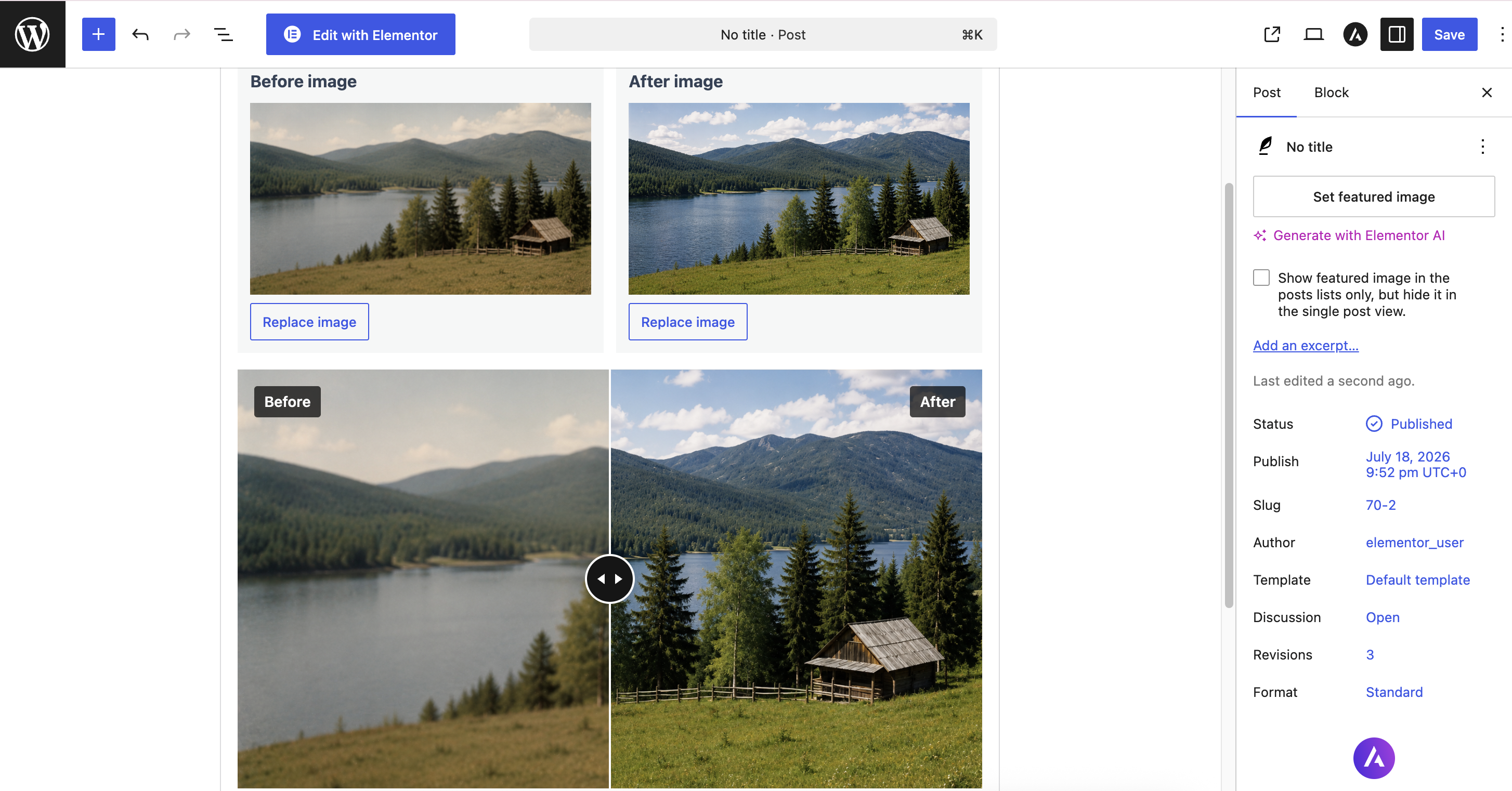
- Add before-and-after image comparisons with a native WordPress block.
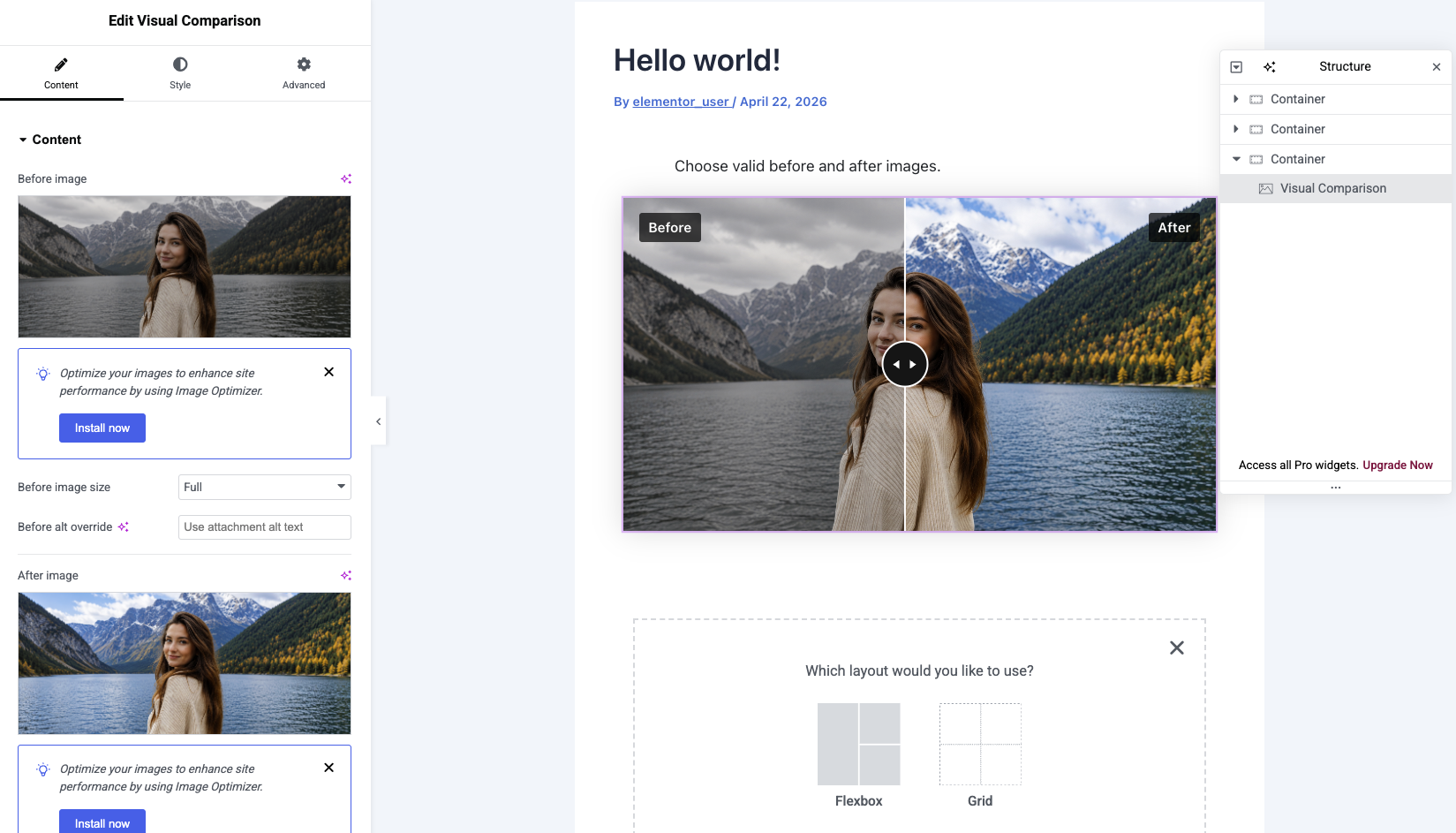
- Build sliders in Elementor with live preview controls.
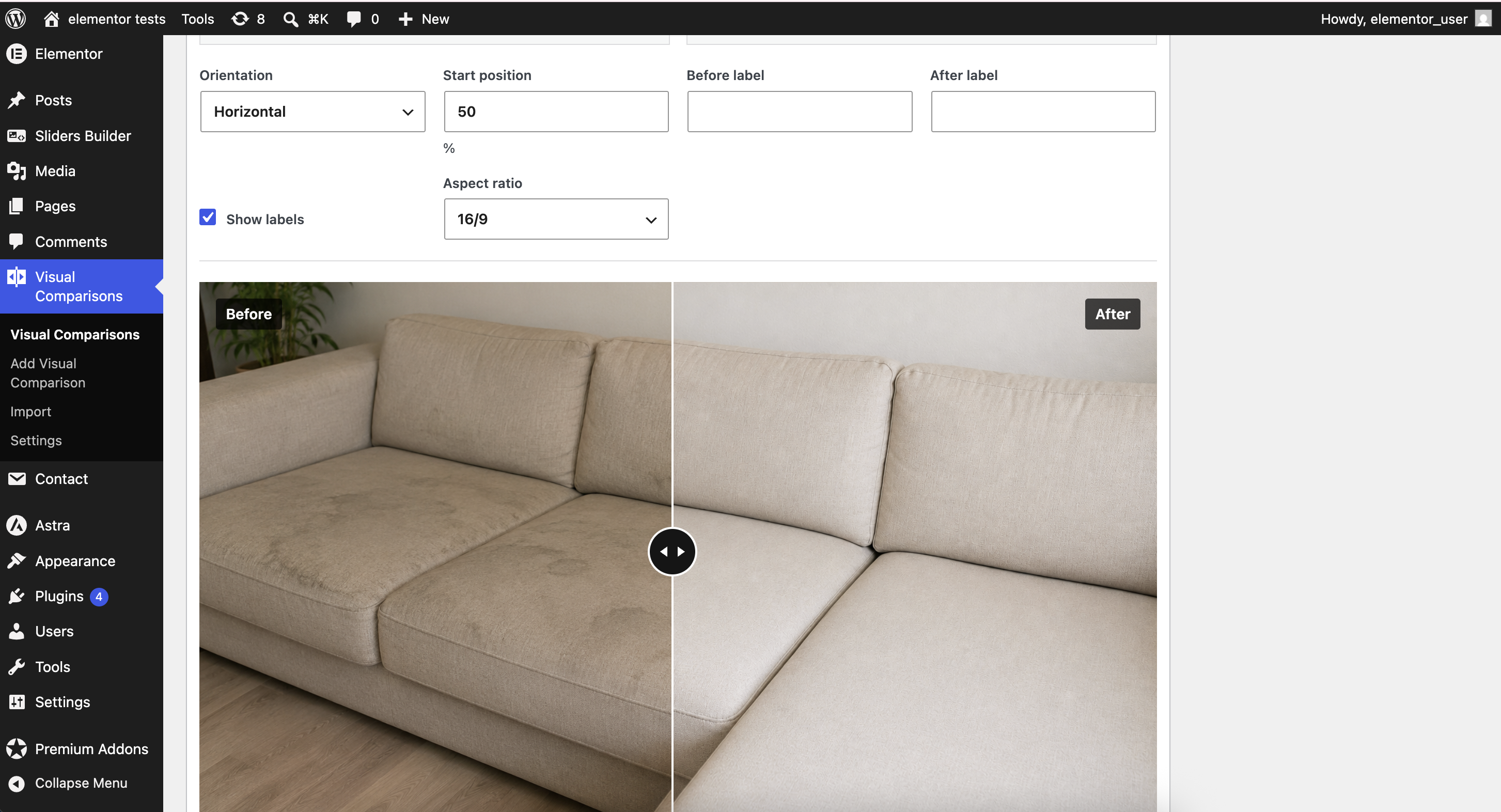
- Save reusable comparisons in the Visual Comparisons admin area.
- Embed saved comparisons with
[visual_compare id="123"]. - Embed inline comparisons with
[visual_compare before="123" after="456"]. - Choose horizontal or vertical slider orientation.
- Set the starting divider position for each comparison.
- Enable drag, click, touch, and keyboard interaction.
- Customize labels, divider color, divider width, handle size, corner radius, aspect ratio, image fit, and object position.
- Use responsive WordPress image markup from the Media Library.
- Display a stacked fallback when JavaScript is disabled or cannot mount.
- Warn editors when selected images have different aspect ratios and may be cropped.
- Duplicate reusable comparisons to speed up repeated layouts.
- Import and export comparison settings as JSON.
- Preserve saved content on deactivation and remove data only when uninstall cleanup is explicitly enabled.
- Load frontend assets only when a comparison is rendered or detected.
- Support RTL layouts and translation files.
- Compare room renovations, landscaping projects, repairs, and construction progress.
- Present photo retouching, color grading, illustration, and design revisions.
- Show beauty, wellness, dental, cosmetic, or treatment progress where before-and-after images are appropriate.
- Demonstrate product improvements, UI redesigns, restoration work, cleaning services, and visual audits.
- Reuse the same comparison in a case study, landing page, and template without rebuilding it.
- Use the Visual Comparison block in the WordPress block editor.
- Use the Visual Comparison widget in Elementor when Elementor is active.
- Use the
[visual_compare]shortcode in classic content, widgets, templates, and builders that render WordPress shortcodes.
安装:
- Upload the
visual-comparefolder to/wp-content/plugins/. - Activate VisualCompare – Before & After Slider in the WordPress admin.
- Open a post or page and add the Visual Comparison block from the block inserter.
- Choose the before and after images from the WordPress Media Library.
- Optional: create reusable items under Visual Comparisons and insert them with
[visual_compare id="123"]. - Optional: open Visual Comparisons > Settings to set defaults for new comparisons.
屏幕截图:
常见问题:
Does VisualCompare require Elementor?
No. VisualCompare includes a native WordPress block, reusable comparison entries, and shortcode support. The Elementor widget is available only when Elementor is active.
Does VisualCompare support the WordPress block editor?
Yes. Add the Visual Comparison block from the block inserter. The block supports inline comparisons and reusable Visual Comparison items.
Does VisualCompare support Bricks, Divi, or other builders?
This version includes dedicated support for the WordPress block editor and Elementor. Other builders can use the [visual_compare] shortcode where they support normal WordPress shortcode rendering.
Which WordPress themes are supported?
VisualCompare is theme-independent and should work with themes that output normal WordPress content, widgets, shortcodes, and enqueued frontend assets. If a theme or builder disables WordPress shortcodes or strips plugin assets, use the native block or Elementor widget where available.
How do I use the shortcode?
Create a reusable comparison under Visual Comparisons and copy its shortcode, for example:
[visual_compare id="123"]
You can also create an inline comparison with attachment IDs:
[visual_compare before="123" after="456" orientation="horizontal" start="50"]
Why is my slider not showing?
Make sure both images are valid WordPress image attachments. If a reusable comparison is used, confirm that the comparison is published and that the shortcode ID matches the saved item.
What happens if JavaScript is disabled?
Both images remain visible in a stacked layout. JavaScript progressively enhances the markup into an interactive comparison slider when it loads successfully.
Is VisualCompare accessible?
VisualCompare includes keyboard interaction, range input semantics, screen-reader instructions, labels, unique instance IDs, and a no-JavaScript fallback. Site owners should still provide meaningful image alt text and review final page content for their own accessibility requirements.
Will VisualCompare slow down every page?
The plugin registers its frontend assets but enqueues them only when a comparison is detected or rendered. Pages without comparisons should not load the VisualCompare frontend script or stylesheet.
Can I change the default slider settings?
Yes. Administrators can open Visual Comparisons > Settings and set defaults for orientation, starting position, interactions, aspect ratio, image fit, labels, divider style, handle size, and corner radius. Defaults apply to newly created comparisons and do not overwrite existing content.
Does uninstalling the plugin delete my comparisons?
No, saved data is preserved by default. Permanent cleanup must be explicitly enabled in Visual Comparisons > Settings before uninstalling the plugin.
更新日志:
- Added: A deactivation feedback modal with reason capture and optional notes before the plugin is turned off.
- Added: A plugin-owned uninstall flow that can collect feedback before WordPress removes the plugin.
- Improved: Data-retention messaging so administrators can see more clearly when uninstall cleanup will delete saved comparisons and settings.
- Added: A direct Settings link on the WordPress Plugins screen for faster access to Visual Comparisons > Settings.
- Added: A one-time admin welcome notice after activation with a quick link to create a reusable slider and clearer guidance for Gutenberg and Elementor usage.
- Improved: Translation generation with a Google-powered auto-translation workflow for the bundled locale catalogs.
- Added: Translation catalogs for English, German, Spanish, French, Italian, Portuguese (Brazil), Dutch, and Polish.
- Improved: WordPress.org metadata and readme content for the 1.0.1 release.
- Added: Native WordPress block editor support, Elementor widget support, reusable comparisons, shortcode embeds, JSON import/export, duplicate actions, and global defaults for new comparisons.
- Improved: Accessibility, keyboard interaction, touch and pointer behavior, no-JavaScript fallback output, RTL behavior, responsive image rendering, and conditional asset loading.
- Fixed: WordPress Plugin Check findings related to translation context, sanitization, prefixed uninstall variables, filter-safe cleanup, compatibility metadata, and translation loading.