
Visualithic Phyllix
| 开发者 | mtairowodza |
|---|---|
| 更新时间 | 2026年10月14日 12:54 |
| PHP版本: | 7.4 及以上 |
| WordPress版本: | 7.1 |
| 版权: | GPLv2 or later |
| 版权网址: | 版权信息 |
详情介绍:
- Reads your published pages and builds a profile of your business from them
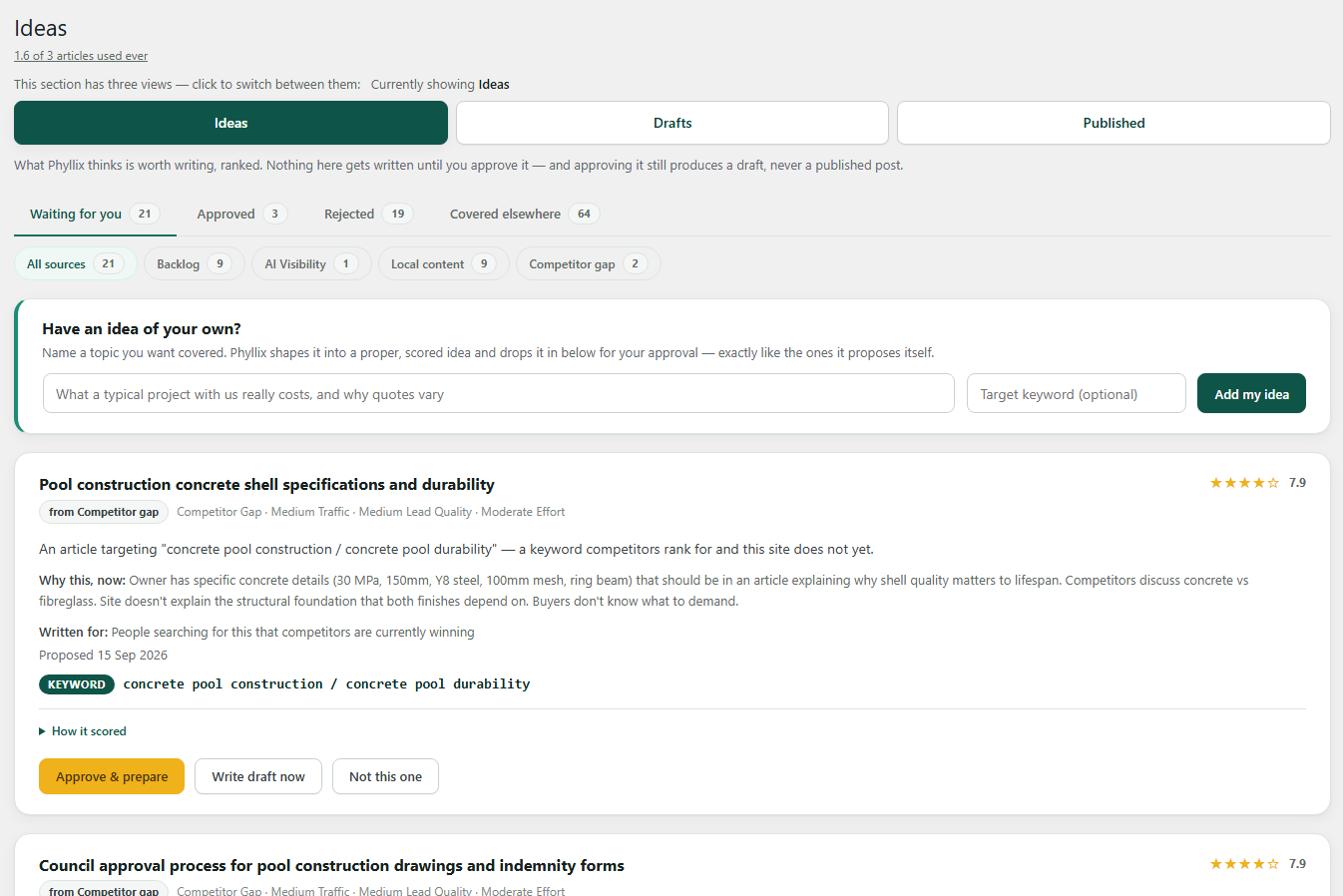
- Maps your existing content and finds the gaps in it
- Builds a keyword map, cross-checked against Google Search Console where you connect it
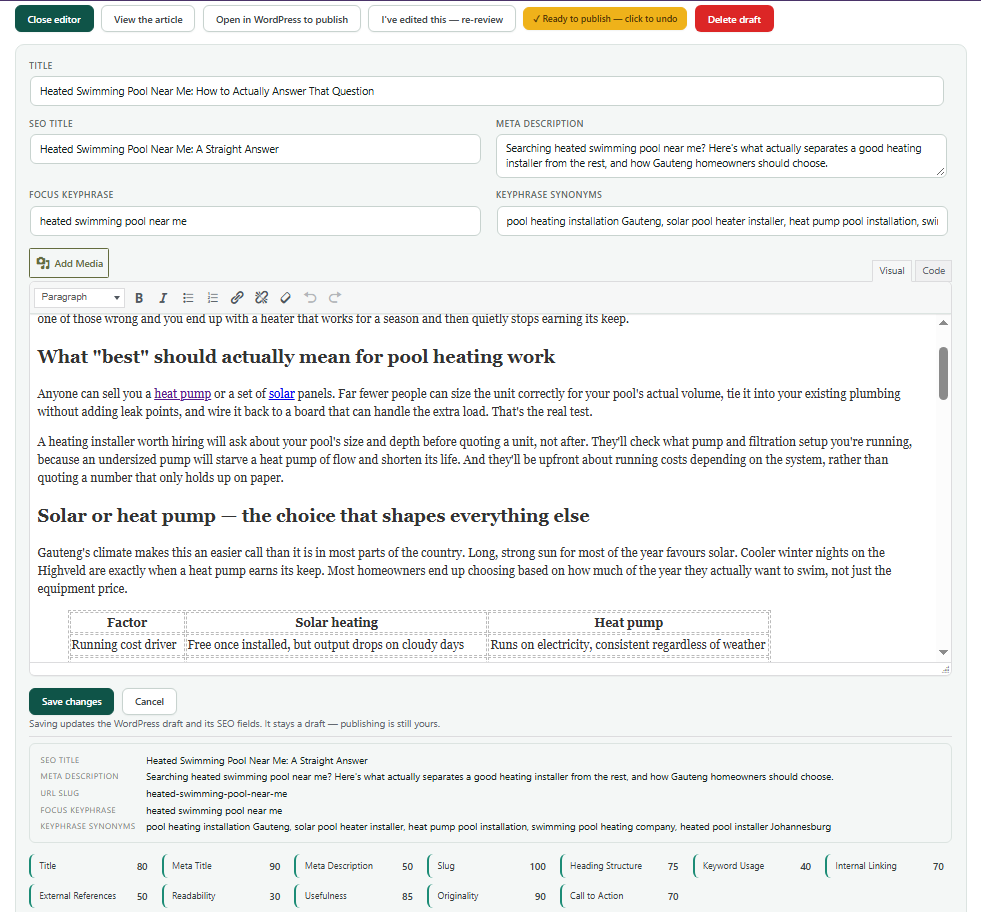
- Researches a topic, then writes a full article and files it as a draft
- Reviews its own drafts for SEO, readability and accuracy before you see them
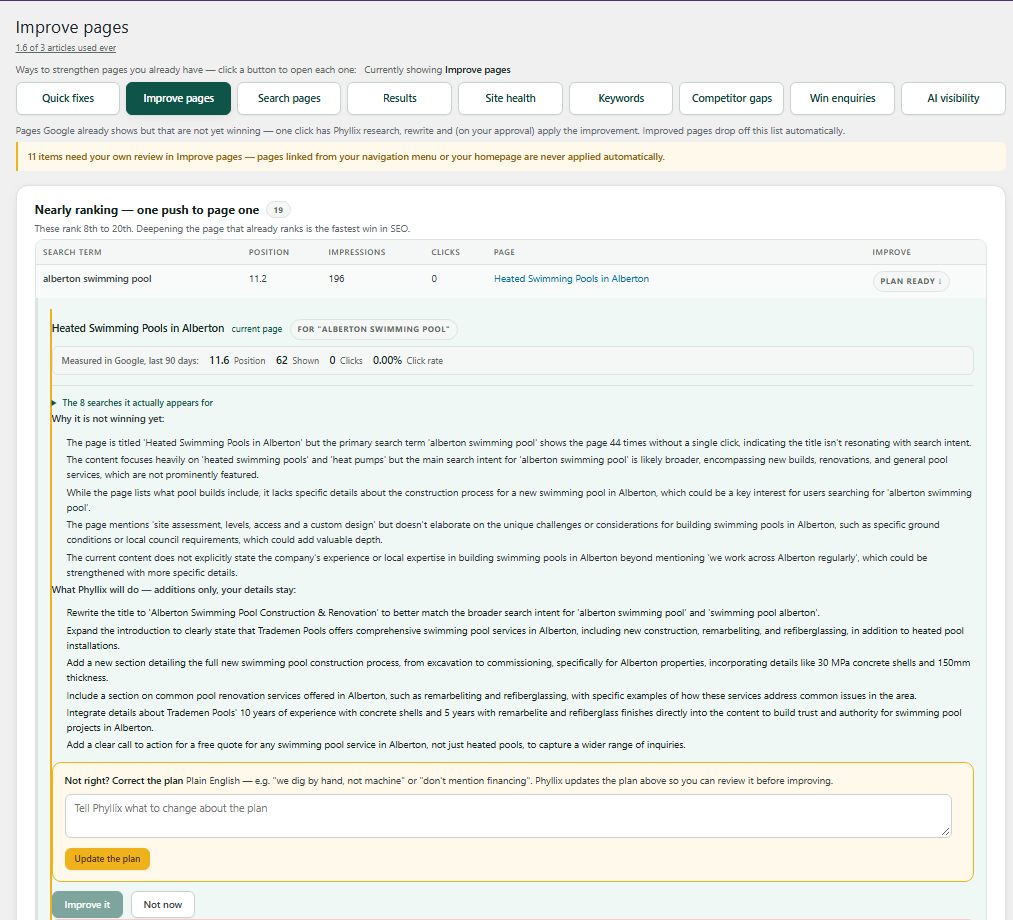
- Improves pages you already have, one at a time, always as a reviewable proposal (or, if you turn automation on, applied automatically with the same safety checks a manual click passes through)
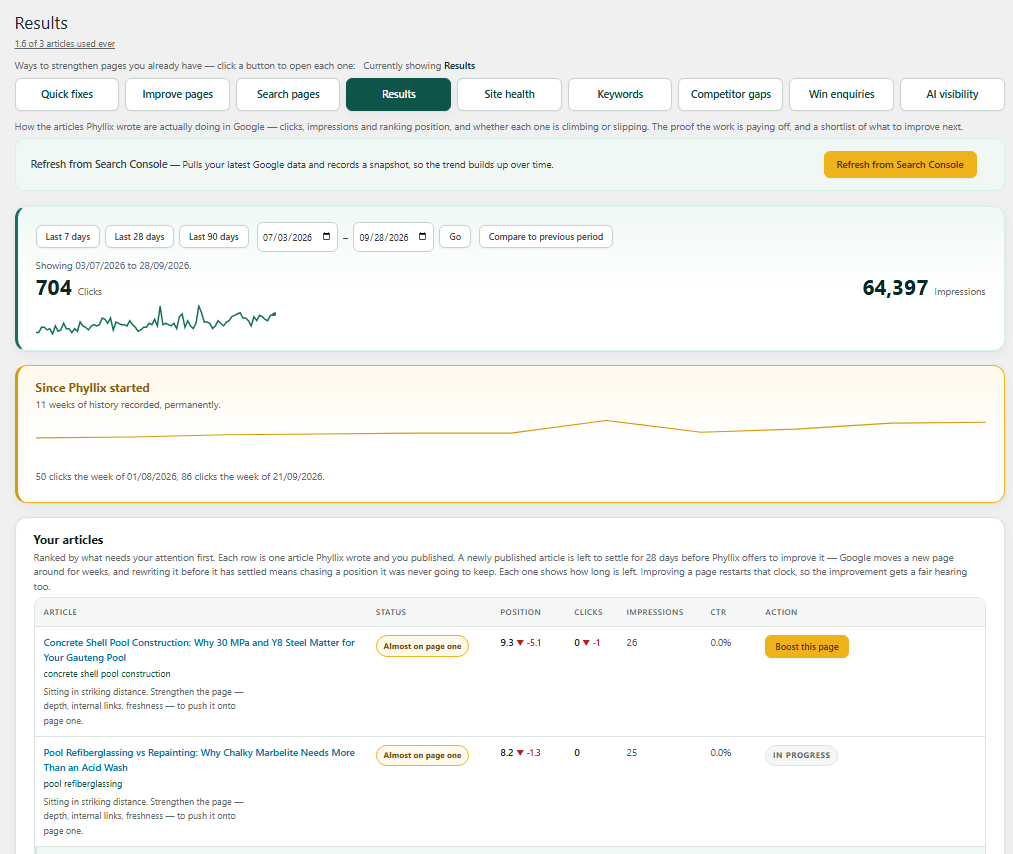
- Tracks how published articles actually perform in Google over time
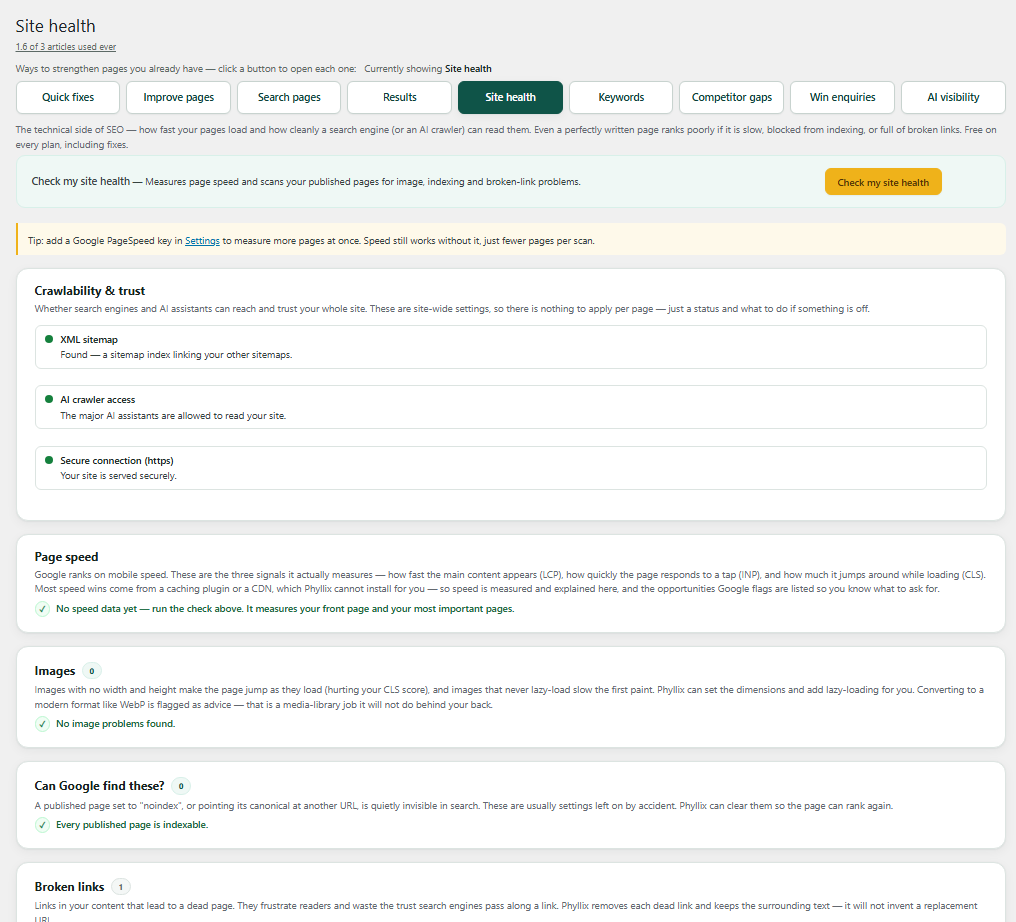
- Checks technical health: image dimensions, heading structure, broken links, redirect chains, mixed content, accidental noindex
- Adds a call to action to pages that attract visitors but never ask for the business
- Optional automation: approve, write and publish articles unattended, spread across the week at a pace you set, with a full audit trail of what it did and when
- Nothing is published automatically unless you explicitly turn that on in Settings — off by default, and every level of automation is its own separate, individually-labelled toggle, not an all-or-nothing switch
- Every idea, draft and published article keeps a full record of when it was proposed, when and by whom it was approved, when and by whom it was written, and when and by whom it was published — so you can always see what automation did versus what you did yourself
- A published article is an ordinary WordPress post — you can edit it, unpublish it, or delete it at any time through Phyllix's own editor or WordPress's own post editor, exactly as you would with anything you wrote yourself
- Pages linked in your site's navigation menu are never touched by any automated action, at any setting — quick fixes, calls to action, page rewrites, none of it. Those always wait for your own explicit review
- What gets read is an allow-list you control - only Pages and Posts by default, nothing else unless you add it in Settings
- Private and password-protected content is skipped outright, and any email address found in a page's text is stripped before that text ever reaches an AI request
- Page structure is preserved, whatever built the page. Only the text inside your existing layout is edited — the block editor, the classic editor, Elementor, Divi, WPBakery, Avada, Beaver Builder and Bricks alike — and the layout itself is never sent to the AI in the first place. Sections, columns, images, forms and embeds stay exactly where they were
- Pages built with Oxygen, Breakdance, Brizy, Thrive or SiteOrigin are not rewritten at all
- Every edit to a live page keeps the original, so it can be reversed
- A newly published article is left alone for four weeks before Phyllix offers to improve it, because Google needs that long before its position means anything
安装:
- Install and activate the plugin.
- Open Phyllix in the admin menu.
- Read what Phyllix will send to its service, and connect. A free licence is created for your site automatically - there is no account to make and no key to paste.
- Open Settings -> Instructions for the full walkthrough: what to set up first (including how much automation you want - off by default, and easy to turn on gradually), reading your site, and checking your Business Profile before Phyllix starts writing from it.
屏幕截图:
常见问题:
Does it publish anything by itself?
By default, no — articles are filed as drafts, and changes to existing pages are shown to you as a proposal and only applied when you click to apply them. An explicit Automation section in Settings lets you turn on more — anywhere from just sending findings to your Ideas queue automatically, up to approving, writing and publishing articles with no click at all — but every level is off by default, and turning it on is a deliberate choice you make, not something the plugin does on its own out of the box. A draft still passes the exact same content checks every draft passes before it can be filed at all, whether a human or automation triggered it. Every idea, draft and published article keeps a full record of when it was proposed, when and by whom it was approved, when and by whom it was written, and when and by whom it was published — visible on every relevant screen, so you can always see what automation did versus what you did yourself. Nothing automation publishes is permanent. A published article is an ordinary WordPress post — you can edit it, unpublish it, or delete it at any time through Phyllix's own editor or WordPress's own post editor, exactly as you would with anything you wrote yourself. Any edit Phyllix makes to a page you already had keeps the original content, so it can be reverted with one click. Pages linked in your site's navigation menu are never touched by any automated action, at any setting — quick fixes, calls to action, page rewrites, none of it. Those always wait for your own explicit review, with nothing in Settings that overrides it.
Can I use my own OpenAI or Anthropic API key?
No. Phyllix provides the AI as part of the plan, which is why there are no keys to manage and no separate AI bill to reconcile.
Will it break the layout of my pages?
It is built specifically not to. Only the text inside your existing layout is edited — blocks, builder sections, columns and widgets are put back exactly as they were, so full-width sections and layout settings survive. This works the same on the block editor, the classic editor, Elementor, Divi, WPBakery, Avada, Beaver Builder and Bricks. If a rewrite would lose a block, a shortcode, an image, a form or an embed, it is refused rather than applied. Pages built with Oxygen, Breakdance, Brizy, Thrive or SiteOrigin are not rewritten at all.
Can I undo a change to a live page?
Yes. The original content is stored before any edit, and every applied change can be reverted from within Phyllix.
What happens when I use up my article allowance?
It pauses and tells you, right where you clicked. Nothing is charged automatically and nothing is written that you have not asked for. On a paid plan the allowance resets on the 1st of each month; on the Free plan the 3 articles are a one-time allowance that never resets. Either way, you can buy AI credits ($1.25 each, no subscription, pay only for what you use) to keep going immediately, or move up a plan for ongoing headroom.
How do I get the Google file for Search Console?
Step-by-step instructions in plain English are shown inside the plugin, right above the upload box in Settings. It takes about five minutes, it is free, and you only do it once. In short: create a free Google Cloud project, enable the Search Console API, create a service account and download its JSON key, upload that file here, then add the email address Phyllix shows you as a user on your site in Search Console. You never need to open the JSON file. Upload it and Phyllix reads the email address out of it for you.
Does it work without Google Search Console?
Yes. Search Console makes the keyword and results work far more accurate, because it replaces guesswork with what Google actually shows for your site, but Phyllix works without it.
What data does it send?
See the "External services" section above, which lists this in full.
Could it read something it shouldn't - an invoice, a quote, a private page?
No. What Phyllix reads is an allow-list you control in Settings -> Content to read - it starts with just your ordinary Pages and Posts, and nothing else is added unless you tick it, so a separate "Invoices" or "Quotes" post type stays out by default. On top of that, anything you have marked Private or password-protected is skipped outright, whatever its type - and any email address inside a page's text is stripped in code before that text ever reaches an AI request, everywhere in the plugin, not only on the first read.
What stops it putting something odd on my page?
Every change Phyllix makes to a page is checked before it is saved. If the result contains anything that should not be visible to a visitor - structured data showing as words, HTML tags reading as text, markdown symbols, an unfilled placeholder, mangled characters, or the assistant talking to you - the change is refused and you are told exactly what was found. Nothing Phyllix introduces of that kind can reach a published page.
A step says "This failed" with an old-looking error — I fixed that already, why is it still there?
That message is the stored result of the last time this step actually ran — not a live check. It stays on screen exactly as written, however old, until this specific step runs again. If whatever caused it has since been fixed (a setting corrected, a connection restored, a plugin updated), the message will not know that on its own. Click "Clear error & try again" right there on the step — this clears the stored error and gives it a genuine fresh attempt, which either succeeds (the message disappears) or fails again with an up-to-date reason.
Do I need Yoast or Rank Math?
No, but Phyllix works with both. Where one is installed, the search settings it writes - focus keyphrase, synonyms, SEO title and meta description - go straight into that plugin's own fields. With neither installed, Phyllix keeps its own copy so the work is not lost if you add one later.
更新日志:
- New: after setup, Home says which automation level is on and what that leaves you to do (on Full, nothing). Under it, a "Happening now" box shows what Phyllix is doing at that moment, wherever it was started, and updates as it happens. When nothing is running it says when the next automatic run is.
- Changed: the Free plan card moved down, between Controls and Recent activity, so it no longer sits in the middle of your work.
- Fixed: the three buttons in the automation choice after setup now line up.
- Changed: the automatic rounds now do everything the Home buttons used to: they also re-check your site's health every week, look for your competitors (weekly until some are found, then monthly; ones you named in your profile are added, others wait for you), and propose more ideas the same day writing runs out of them, instead of waiting for the weekly ideas day.
- Changed: rebuilding the business profile (by hand or in the weekly round) builds on your work instead of starting again. Sections you edited and your answers were already never touched; now the rebuild is also told them, so the sections it refreshes agree with what you said, a section it finds nothing new for keeps its earlier text instead of being blanked, and a question you answered or marked "Not relevant" is never asked again (new questions still appear).
- New: one-button setup. Press Start and Phyllix reads your site, learns your business, finds the gaps, researches your market, proposes ideas and runs the free site checks, with a meter showing what it is doing. You can close the page; it carries on. Then you check your business profile (setup waits until anything it could not work out is filled in), answer its questions, and choose how much it does on its own.
- Changed: a simpler Home: what is waiting for you, four idea boxes, and one suggested next step (your service areas page). Rebuild the profile and Re-read the website are now on the Business Profile page.
- New: articles vary in shape (step-by-step, comparison, decision guide, troubleshooting and more), with tables only where they help. Every article still answers the questions people ask, as an FAQ, question headings or quick answers, with matching FAQ schema.
- New: on the Free plan, Home shows how many free articles are left and what a paid plan adds.
- Fixed: Home buttons looked idle while the AI was still working, which invited a second, paid run.
- Fixed: "Go to Home" on the Business Profile page and "Propose more ideas" on Ideas showed "Sorry, you are not allowed to access this page".
- Fixed: after an update, Phyllix's screens could keep the previous version's look from the browser or host cache.
- Also: a licence key entered before connecting is activated as soon as you connect; questions you have answered in the profile are no longer asked; the welcome screen says why it does not offer automatic updates.
- Fixed: the 2.3.0 download from WordPress.org was missing two files and could stop with an error.
- New: Phyllix offers, once, to switch on WordPress's own automatic updates for itself. Nothing changes unless you click.
- Fixed: the home screen showed twice, and ideas could say "Research did not finish" while research was still running.
- Changed: your homepage and menu pages are never rewritten automatically, and AI visibility shows how you were named. Earlier versions, and the full detail of every release, are in changelog.txt in the plugin folder.