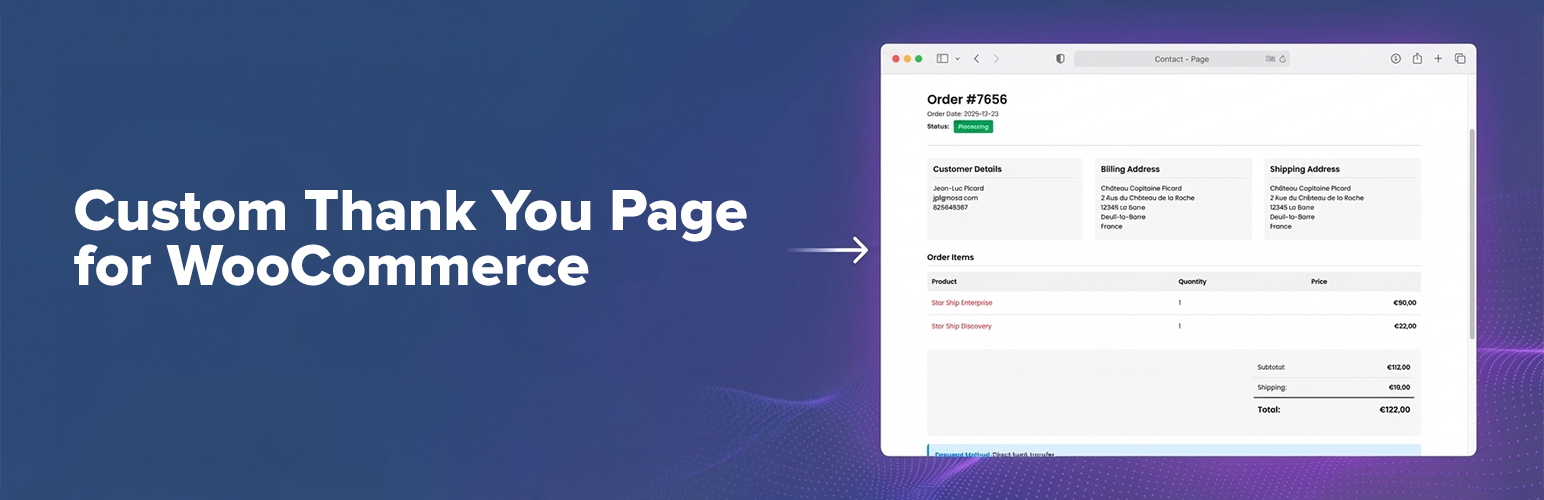
Custom Thank You Page for WooCommerce
| 开发者 |
nicolamustone
riaanknoetze |
|---|---|
| 更新时间 | 2026年7月8日 16:28 |
| PHP版本: | 7.4 及以上 |
| WordPress版本: | 7.0 |
| 版权: | GPLv3 |
| 版权网址: | 版权信息 |
详情介绍:
- Choose any WordPress page as your custom WooCommerce Thank You page.
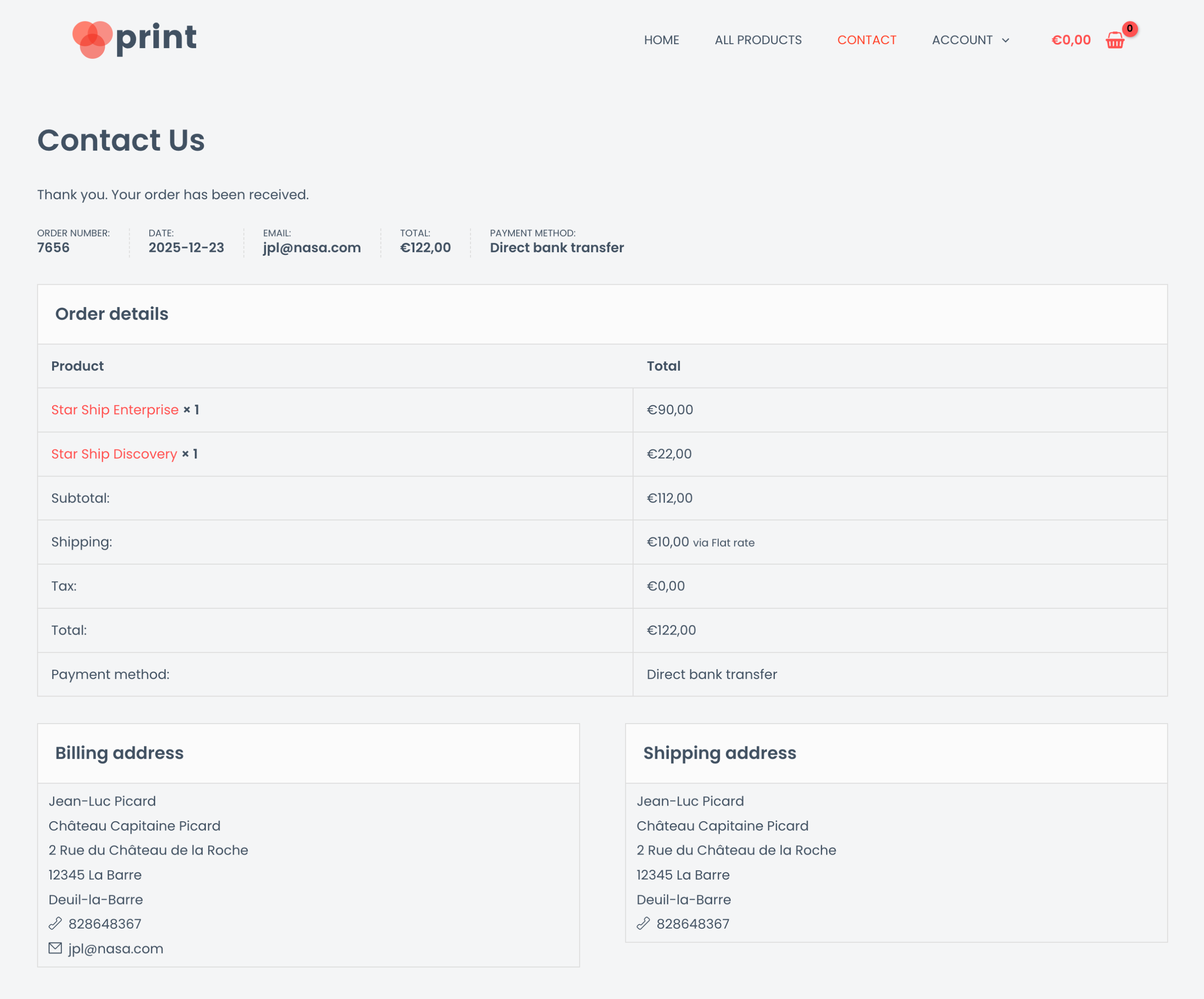
- Automatic redirect after checkout (customers land on your custom order confirmation page).
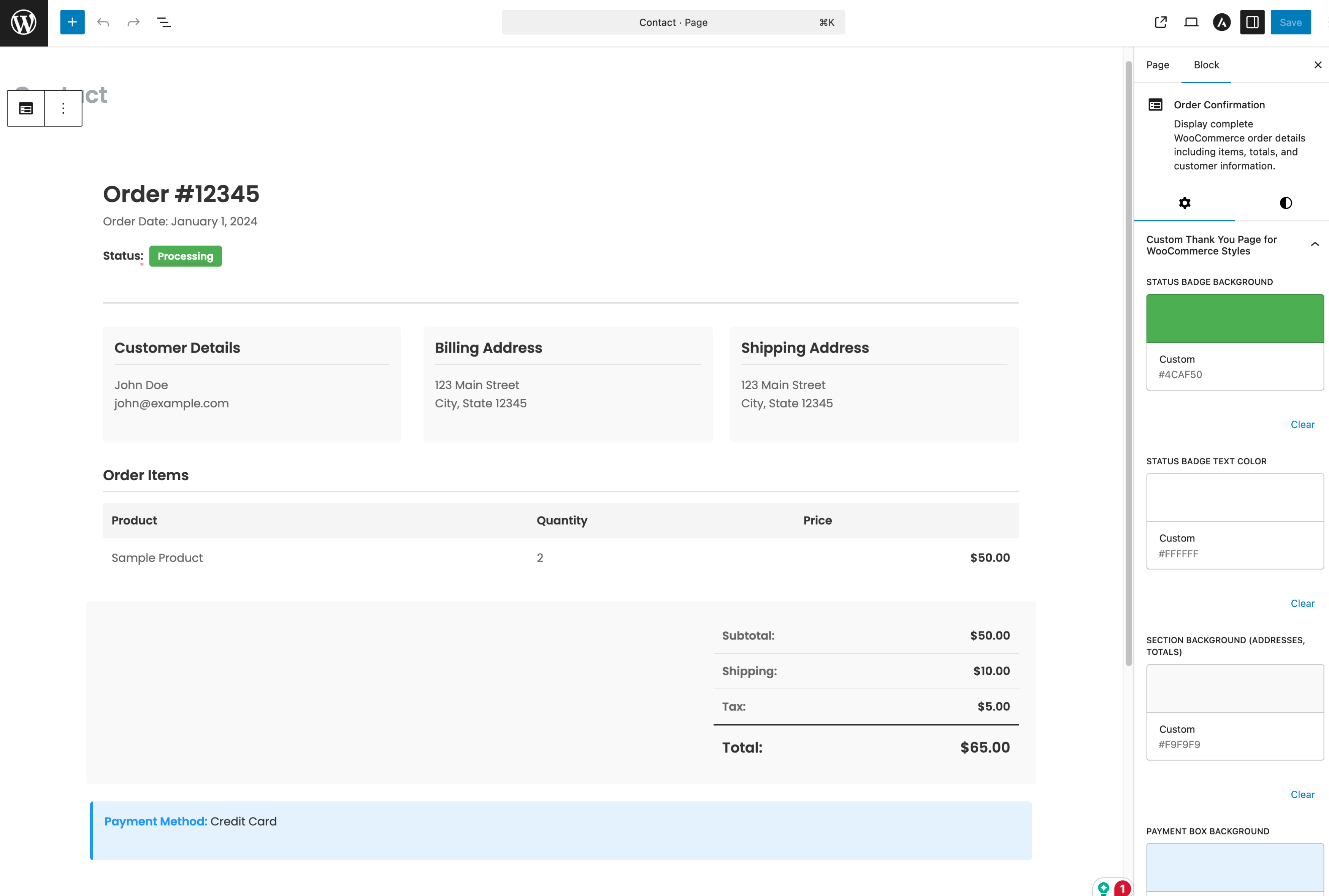
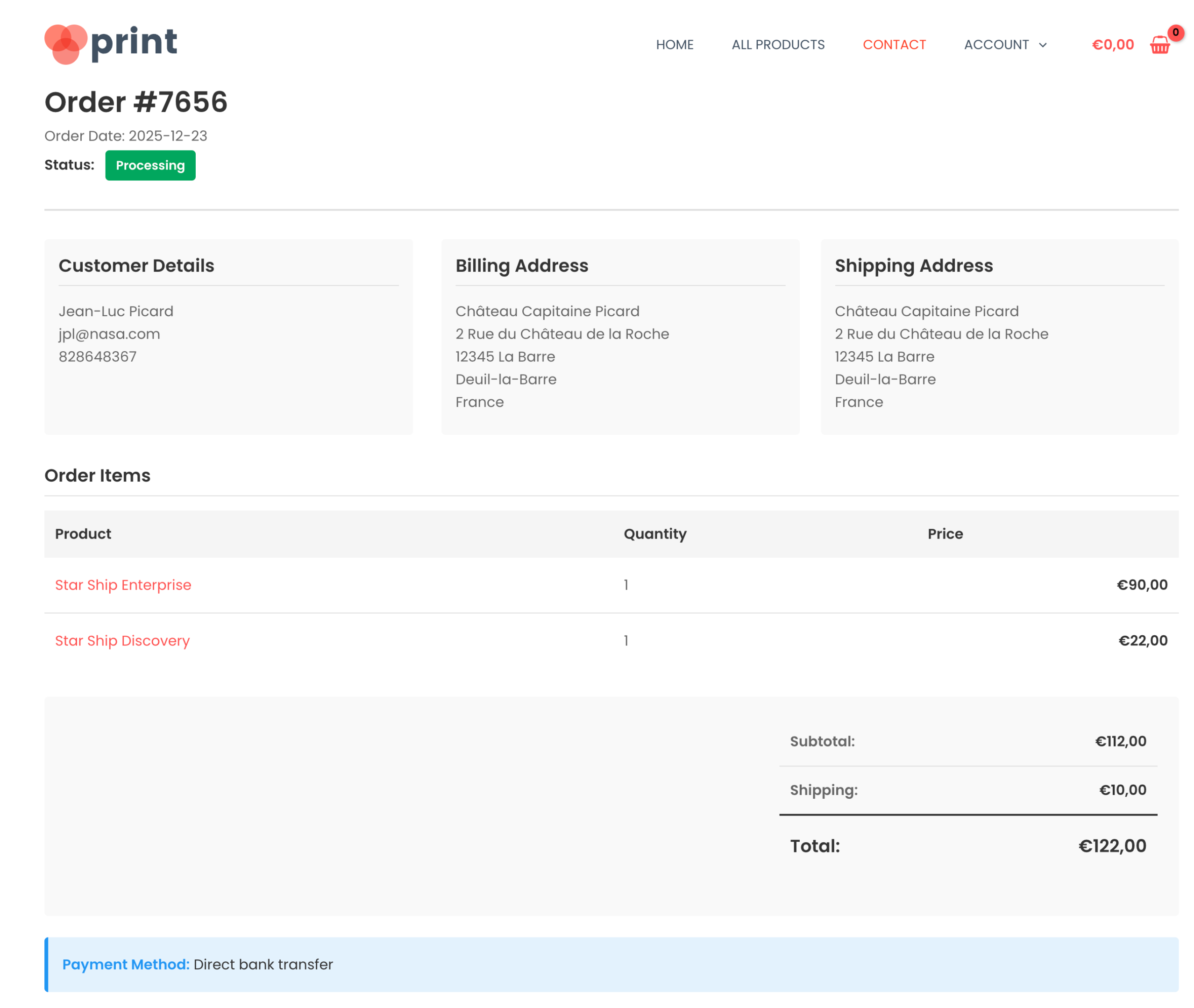
- Block-based order confirmation: add the included Order Confirmation block (Gutenberg / Site Editor / FSE) to show complete order details.
- Elementor widget: drop the Order Confirmation widget onto any Elementor page for the same order details, with the same layouts, section toggles, and colors as the block (and a live preview while you edit).
- Shortcode support: use
[wc_custom_thankyou]if you prefer explicit placement (classic editor, templates, builders, etc). - Compatible by design: uses WooCommerce core logic and the default
checkout/thankyou.phptemplate when needed, so it stays aligned with WooCommerce updates. - Modern WooCommerce compatibility: declared compatible with HPOS (High-Performance Order Storage) and Cart & Checkout blocks.
- Add a personalized thank you message and “what happens next”
- Upsell/cross-sell related products after purchase
- Display delivery timeframes, FAQ, support links, and onboarding steps
- Add download instructions, community invites, or account setup links
- Add custom tracking scripts or conversion snippets (where appropriate)
- Customer completes checkout.
- WooCommerce redirects to its standard Order Received page.
- This plugin safely redirects them to your configured custom Thank You page (keeping the required order context).
- Your page can display the order confirmation details automatically, via shortcode, via the block, or via the Elementor widget.
- Go to WooCommerce → Settings → Advanced
- Find Custom Thank You
- Select your Thank You Page and save
- Block (recommended for block themes / Site Editor): On your custom Thank You page, add the Order Confirmation block.
- Elementor widget (for Elementor sites): Edit your custom Thank You page with Elementor and add the Order Confirmation widget (in the "Custom Thank You" category). It offers the same layouts, section toggles, and colors as the block.
- Shortcode: Add
[wc_custom_thankyou]where you want the order confirmation details to appear.
- Your WordPress + WooCommerce versions
- Your theme name (and whether it’s a block theme)
- The exact steps to reproduce
安装:
- WordPress 6.5 or greater
- PHP 7.4 or greater
- MySQL 5.6 or greater (or MariaDB equivalent)
- WooCommerce 8.0 or greater
- Log in to your WordPress dashboard
- Go to Plugins → Add New
- Search for “Custom Thank You Page for WooCommerce”
- Click Install Now, then Activate
屏幕截图:
常见问题:
I receive a PHP error on my custom Thank You page. Why?
Make sure you are running:
- WordPress 6.5 or newer
- WooCommerce 8.0 or newer
- PHP 7.4 or newer
- The Thank You Page option in WooCommerce → Settings → Advanced is set to an existing published page
- You are viewing the page after a real checkout, so the URL includes the required order context
My custom page shows, but the order confirmation details do not.
Order details only appear when the request contains valid order data (the order and key parameters). The plugin adds these automatically after checkout.
To test: place a real order, then you’ll be redirected to your custom order confirmation page with the correct URL parameters.
Should I use the block, the Elementor widget, the shortcode, or “automatic” output?
- Use the block if you’re building a modern block-based thank you page (Gutenberg / FSE) and you want a dedicated order confirmation layout.
- Use the Elementor widget if you build your pages with Elementor: add the Order Confirmation widget and pick a layout, sections, and colors right in the editor.
- Use the shortcode if you want explicit placement inside page builders, templates, or classic content.
- Automatic output is best for simple setups: your content stays, and WooCommerce’s default thank you template is appended.
Will payment instructions from gateways still work?
Yes. When the Order Confirmation block or Elementor widget is used, the plugin avoids duplicating WooCommerce’s legacy order details markup, but still runs WooCommerce “thankyou” hooks so payment gateways and extensions can output instructions as expected.
Can I customize the templates?
When using automatic output / shortcode, this plugin uses WooCommerce’s default checkout/thankyou.php template. You can override and customize it in your theme or child theme. Learn how here: https://woo.com/document/template-structure/
I have a custom language file. Where do I save it?
This plugin loads language files from:
wp-content/languages/wc-custom-thank-you/wc-custom-thank-you-{YOURLOCALE}.mowp-content/languages/plugins/wc-custom-thank-you-{YOURLOCALE}.mowp-content/plugins/wc-custom-thank-you/languages/
更新日志:
- New - Template selector for the Order Confirmation block: choose "Default", "WooCommerce Core" (inherits your theme's native WooCommerce styling), or "Hero + summary cards"
- New - "Hero + summary cards" layout with a success banner, an editable "Thank you" heading, and at-a-glance order/date/total/payment cards
- New - Nested blocks: add a custom message, buttons, upsells, or any blocks inside the Order Confirmation block
- New - Show or hide each section (customer details, billing address, shipping address, order note, items, totals, payment method, downloads) from the editor sidebar
- New - Optional product thumbnails and SKUs in the order items table
- New - Downloads list for orders that contain downloadable products
- New - Consolidated the block's color options into a single "Colors" panel that adapts to the selected layout
- New - Order Confirmation Elementor widget: place the full order confirmation on any Elementor page, with the same layouts (Default, WooCommerce Core, Hero + summary cards), section toggles, colors, and product image/SKU options as the block; color changes preview live in the Elementor editor
- Fix - Totals now reconcile with the grand total by including discounts, coupons, and fees (uses WooCommerce's own totals breakdown)
- Fix - The customer's order note is now shown on the confirmation when one was provided at checkout
- Fix - Prevented duplicate order details on block themes when the block is placed in a site template or template part
- Fix - Hiding a section no longer shrinks the remaining columns; the visible columns stay equal width and fill the row
- Fix - Order totals now display as a compact, right-aligned summary instead of a wide box with empty space
- Fix - The payment box text color now sets the "Payment Method:" label, and the border color no longer affects it
- Fix - Theme palette colors (which many themes store as CSS variables) now apply on the front end, not only in the editor
- Fix - WooCommerce Core layout: product images now appear when enabled, and the borders themes add around the address blocks are removed
- Fix - WooCommerce Core layout: order details table cells keep even left and right padding, so content no longer sits flush against the cell edge on themes that strip the left padding of checkout tables
- Fix - Hero layout: added spacing above the customer details and address section
- Tweak - The block no longer forces its default colors inline, so your theme's styling shows through until you override a color
- Dev - Unified order resolution and validation across the block and legacy output into a single, timing-safe helper that requires a matching order key
- Dev - Split the block's data-gathering into a dedicated presenter, exposed via a new
wccty_order_confirmation_datafilter for customizing the data shown - Dev - Extracted the order confirmation output into a shared renderer so the Order Confirmation block and the new Elementor widget render from a single code path; the widget is detected like the block to avoid duplicating the legacy Thank You output
- Dev - Internal cleanup: removed the unused i18n class and documented the legacy
$page_idproperty as a read-only, backwards-compatibility snapshot - Dev - Block stylesheets are versioned by file modification time, so CSS updates always apply (no stale cached styles)
- Update - Tested up to WordPress 7.0
- Update - WooCommerce tested up to 10.9.3
- New - WC Version compatibility
- Fix - Readme fixes
- New - Completely rewritten codebase
- New - WooCommerce compatibility
- New - Tested with WordPress 6.9
- New - Added an Order Confirmation block for Gutenberg / Site Editor (FSE) to display complete order details
- New - Declared compatibility with WooCommerce High-Performance Order Storage (HPOS)
- New - Declared compatibility with WooCommerce Cart & Checkout blocks
- New - Added a Settings link on the Plugins screen for faster access
- New - Localization for popular languages (Arabic, Danish, German, Greek, Spanish, Finnish, French, Hebrew, Indonesian, Italian, Japanese, Korean, Dutch, Portuguese, Russian, Swedish, Turkish, and Chinese)
- Update - Shortcode support:
[wc_custom_thankyou] - Update - Refactored codebase for modern WooCommerce versions and APIs
- Update - Limited
the_contentfilter to the configured Thank You page only, to reduce overhead on the rest of the site - Update - text domain to
wc-custom-thank-youand language file paths
- Tested with WooCommerce 3.4.3
- Tested with WordPress 4.9.7
- Moved the page option in WooCommerce > Settings > Advanced
- Compatibility test for WordPress 4.7.3
- Compatibility with WooCommerce 3.0
- Compatibility with WPML
- Dropped support for WooCommerce < 3.0 - Update WooCommerce to