
WebChange Detector for MainWP
| 开发者 | Mike.Miler |
|---|---|
| 更新时间 | 2026年10月16日 03:38 |
| PHP版本: | 7.4 及以上 |
| WordPress版本: | 7.1 |
| 版权: | GPLv2 or later |
| 版权网址: | 版权信息 |
详情介绍:
- Create a free WebChange Detector account at webchangedetector.com if you do not have one yet, then copy your API token from your account and enter it in MainWP.
- Enable the child sites you want to check.
- Sync each enabled child site's pages with "Sync WP URLs" so its pages become available, then select the pages to check (desktop and/or mobile).
- Click "Run visual checks & updates" on your MainWP dashboard or Updates page.
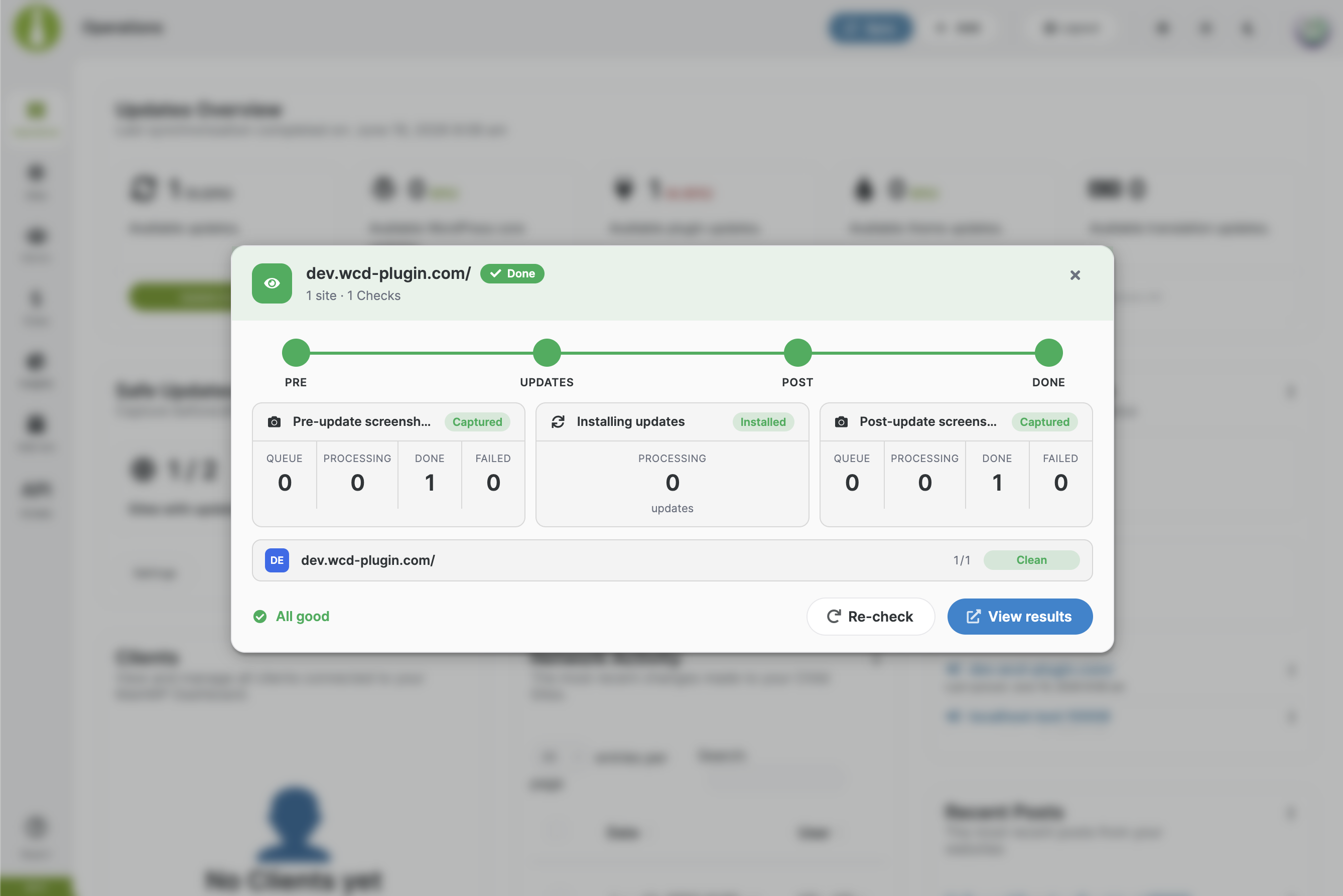
- The plugin captures pre-update screenshots, installs all pending updates, captures post-update screenshots and compares them. Before the pre-update screenshots and after the updates, the cache on each child site is cleared automatically, so the screenshots always show the real, freshly generated state of the site.
- Review the results on the Checks tab: every page with a visual change is flagged, including an AI summary of what changed.
- One-click WCD Updates: pre-update screenshots, updates, post-update screenshots, comparison: all in one run across all child sites.
- Start a run where you already work: "Update Selected with Checks" and "Update All with Checks" on MainWP's own Updates page (WordPress, Plugins, Themes and Translations) with MainWP's row selection, on each child site's Updates subpage, from the WCD Updates widget on your Operations dashboard and every site overview, or for the whole fleet from the Run tab.
- Automatic cache clearing: the child site's cache is cleared before the pre-update screenshots and after the updates, so screenshots never show a stale cached page. Works with 20+ caching plugins (WP Rocket, LiteSpeed Cache, W3 Total Cache, WP Super Cache and more) through the MainWP Child plugin, with nothing extra to install.
- Page selection per site: choose which URLs are checked, separately for desktop and mobile.
- Check settings per site: screenshot region, difference threshold, alert emails, which devices new URLs are activated for, Basic Auth, static IP proxy, screenshot delay, and CSS or JS injection.
- Checks overview: all runs across your sites with filters, change percentages and side-by-side comparisons.
- Live run popup: a Pre-update, Updates, Post-update and Done timeline with per-site progress, and automatic resume if you navigate away mid-run.
- Your account in the dashboard: sign up on the Account tab or connect an existing account with your API token, and see your plan, remaining checks and active sites.
- Auto-enable new sites: optionally provision every newly added MainWP child site for visual checks automatically.
api.webchangedetector.com only after you have entered your API token or submitted the account signup form, and only in these circumstances: when you create your free trial account from the Account tab (your first and last name, email address, a hashed version of your chosen password (never the plain text password), your dashboard site's domain and server IP address are transmitted to create the account), when you connect or verify your account, when you enable a child site or sync its page URLs (the public URLs and page titles of that site are transmitted), when you start a visual check (screenshots are taken of the selected public URLs), and when you review or update results. Your API token is sent with each request to authenticate your account. No data about your WordPress users or any non-selected content is transmitted.
- Service: https://www.webchangedetector.com
- Terms of use: https://www.webchangedetector.com/terms-of-use/
- Privacy policy: https://www.webchangedetector.com/privacy-statement/
- A MainWP Dashboard (the free MainWP plugin) with at least one connected child site.
- A WebChange Detector account and API token. If you do not have an account yet, create a free one at webchangedetector.com; the free plan includes monthly checks. See plans for paid options.
安装:
- Install and activate the plugin on the WordPress site running your MainWP Dashboard (not on the child sites).
- Create a free WebChange Detector account at www.webchangedetector.com if you do not have one yet.
- Copy your API token from your WebChange Detector account.
- Go to MainWP > Extensions > WebChange Detector and paste the API token into the "WebChange Detector API Token" field.
- Enable the child sites you want to check.
- Sync each enabled child site's pages with "Sync WP URLs" so its pages become available.
- Select the pages to check for desktop and/or mobile.
- Run your next update from the MainWP dashboard with "Run visual checks & updates".
屏幕截图:



常见问题:
What is an on-demand check?
An on-demand check is a visual diff you run around a change you make yourself. WebChange Detector takes a screenshot of each selected page before the change, you apply the change, it takes another screenshot after, and the two are compared automatically on desktop and mobile. In MainWP this is wrapped around the updates you run: the plugin captures the pre-update screenshots, installs the updates, captures the post-update screenshots, and shows you every page that changed, with an AI summary. The AI ignores moving parts like sliders, carousels and ads, so you only get flagged on real changes.
Do I need to install anything on my child sites?
No. The plugin runs entirely on your MainWP Dashboard and talks to the WebChange Detector service. Child sites are captured through their public URLs.
Do I need a WebChange Detector account?
Yes. The screenshots are captured and compared by the WebChange Detector service, so you need an account and API token. A free plan is available.
Which pages are checked?
You choose. After enabling a child site, its published pages and posts are synced and you select which URLs are checked, separately for desktop and mobile. Every selected URL and device counts as one check per capture.
Why do I need to sync the child site's pages?
Before it can check a site, the plugin needs the list of public URLs on that site. Syncing fetches the published pages and posts from the child and makes them available for selection. It runs automatically when you enable a site and again after MainWP syncs the child. Until a site is synced, there are no pages to select and no checks can run.
What happens if a site is offline during an update run?
The run tolerates it: the offline site is skipped for updates and the other sites continue. The post-update screenshots still run for the sites that were updated.
Do I need to clear the cache on my child sites after updates?
No, the plugin does that for you. It clears each child site's cache before the pre-update screenshots and again after the updates, using the cache clearing built into the MainWP Child plugin (supports 20+ caching plugins, detected automatically). This makes sure the comparison shows the actual state of the site after the updates instead of a cached old version. If no supported caching plugin is active, this step is simply skipped.
Does this work with MainWP updates started elsewhere (e.g. scheduled)?
No. Only updates you start with one of the plugin's own "with Checks" buttons are checked. Updates started with MainWP's own update buttons, and scheduled or automatic updates, run without any screenshots or comparisons, so they never use check credits.
更新日志:
- Improvement: The screenshot delay in the per-site check settings now has a minimum of 10 seconds, and the default is 10 seconds. A lower delay saved earlier is shown as 10 seconds, and the field now explains what the delay does.
- New: Sign up for a WebChange Detector account right on the Account tab.
- New: "Update Selected with Checks" and "Update All with Checks" on MainWP's own Updates page.
- New: The same two buttons on each child site's Updates subpage.
- New: A "WCD Updates" card with an "Update with Checks" button inside MainWP's Updates Overview widget.
- New: Per-site check settings: screenshot region, threshold, alert emails, Basic Auth, proxy, delay, CSS and JS.
- Improvement: On MainWP's Updates page, selected sites without visual checks are updated too, badged in the pre-run overview, and use no checks.
- Improvement: The safe-update flow is now called "WCD Updates".
- Fix: Updates started outside WebChange Detector no longer produce screenshots. They used to trigger a post-update screenshot compared against an outdated baseline, using up checks for nothing.
- New: One unified extension page with Run, Checks, Settings and Account tabs.
- New: Safe Update dashboard widget.
- New: The update run moved to a live popup.
- New: "Reset connection" button on the Account tab disconnects this dashboard from your WebChange Detector account locally.
- Improvement: A run now covers only the sites that actually have updates.
- Improvement: The pre-flight summary now shows credit coverage and the exact pages each site will check.
- Fix: Long page titles in the Checks list now wrap to a new line instead of pushing the "View" button out of sight.
- Improvement: "Select all" pages is now instant, even on sites with thousands of URLs.
- Improvement: new "Activate checks for all websites" button activates every managed site at once
- Improvement: the dashboard now shows a short setup hint when no API token is connected yet.
- Fix: switching your API token now re-links your existing websites under the new account instead of creating duplicates, and repairs stale links automatically.
- Initial release: safe-update flow (pre/post screenshots around MainWP updates), Visual Checks overview, dashboard widget, per-site URL selection, auto-enable for new sites, automatic cache clearing on child sites before pre-update screenshots and after updates.