
Whalesync Status
| 开发者 | whalesync |
|---|---|
| 更新时间 | 2026年10月9日 06:30 |
| PHP版本: | 7.4 及以上 |
| WordPress版本: | 7.1 |
| 版权: | GPLv2 or later |
| 版权网址: | 版权信息 |
详情介绍:
- Run the blog from Notion or Airtable, with the whole team editing in a database instead of wp-admin.
- Bulk-edit titles, categories, excerpts, and custom fields in a spreadsheet and push them back.
- Build programmatic pages from a database, with a new row becoming a new post.
- Keep a live copy of posts, pages, and custom post types in a database for reporting.
- A "Whalesync status" column in your post lists, for every post type the sync covers. Each synced post shows what happened to it last: "Updated from Airtable · 5 minutes ago", "Synced to Notion · just now", "Needs attention", "Delete awaiting review". Click it to open the record's status page in Whalesync.
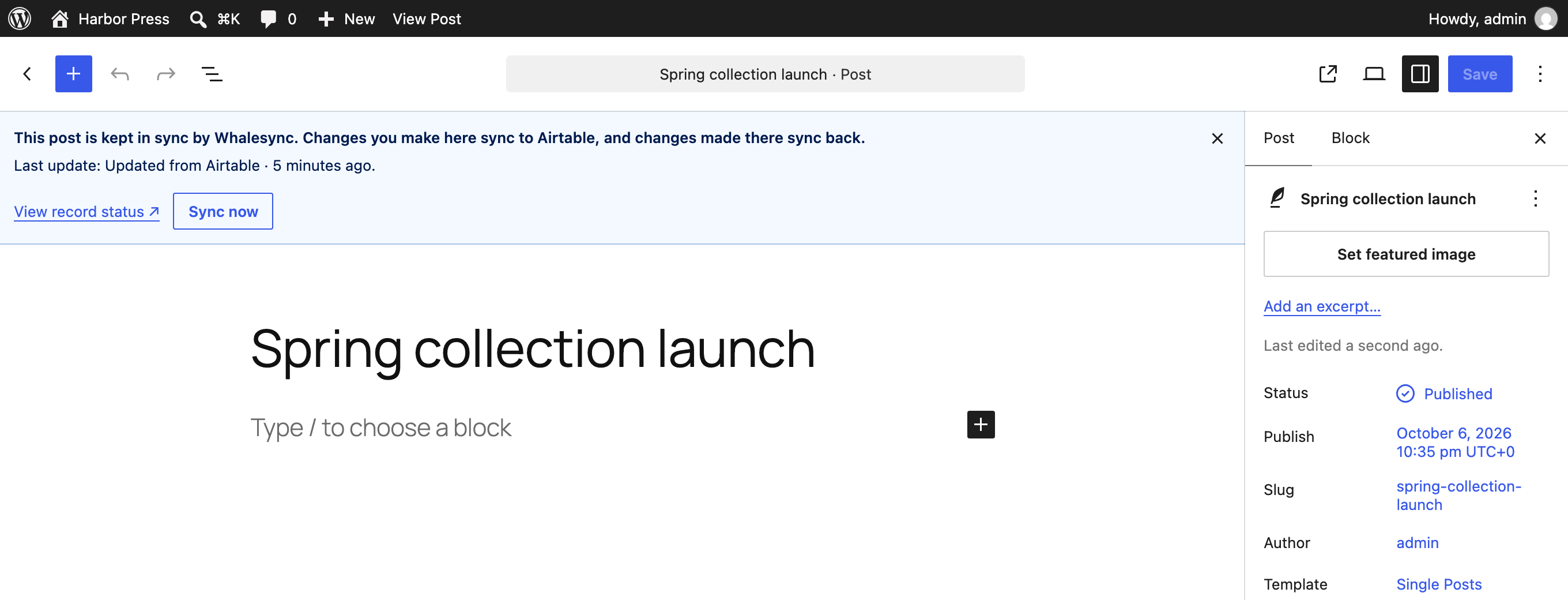
- A banner on a synced post's edit screen, in both the block editor and the classic editor, that says the post is kept in sync and what it did last, links to its record status in Whalesync, and has a Sync now button that asks Whalesync to fetch the post again right away.
- A sync overview on Settings → Whalesync Status: the connected sync, whether it's active, how many issues and deletes are waiting, and when it last synced.
api.whalesync.com and opens app.whalesync.com. Whalesync's privacy policy and terms of service apply to the Whalesync account you connect.
安装:
- Install and activate the plugin from Plugins → Add New, or upload the
whalesyncfolder to/wp-content/plugins/. - Go to Settings → Whalesync Status and click Connect with Whalesync.
- Sign in, pick the sync that uses this site, and approve. No sync yet? Create one with WordPress already selected; the free trial starts when you sign in.
- Open Posts. Synced posts now show their status.
屏幕截图:


常见问题:
Do I need a Whalesync account?
Yes. The plugin shows the status of a sync you run at app.whalesync.com. Whalesync has a 7-day free trial with no credit card required.
Does the plugin change my content?
No. Its key can read sync status and ask Whalesync to sync a post again, nothing more. Syncing itself happens through the WordPress REST API with the application password you created for Whalesync, with or without this plugin.
Which apps can I sync WordPress with?
Airtable, Notion, HubSpot, Google Sheets, Postgres, Supabase, Webflow, Attio, Pipedrive, and the rest of the Whalesync connectors.
Which post types get the column?
Every post type the connected sync maps: posts, pages and custom post types. Post types that aren't in the sync are left alone.
Why does a post say "Not synced"?
Its post type is in the sync, but Whalesync hasn't seen this particular post yet, or the sync's filter excludes it. Open the sync in Whalesync for details.
Can I turn the column off?
Yes, on Settings → Whalesync Status.
Does it work on WordPress.com?
Only on plans that allow plugins. The connector itself is for self-hosted WordPress.
更新日志:
- First release: the Whalesync status column, the edit-screen banner, and the sync overview.