
Visual Feedback Pins
| 开发者 | wolfiz215 |
|---|---|
| 更新时间 | 2026年10月26日 15:16 |
| 捐献地址: | 去捐款 |
| PHP版本: | 7.4 及以上 |
| WordPress版本: | 7.1 |
| 版权: | GPLv2 or later |
| 版权网址: | 版权信息 |
详情介绍:
- Agencies and freelancers collecting client revisions before a site goes live.
- Designers reviewing spacing, typography and layout on the real page instead of a mockup.
- Content and QA teams reporting typos, broken elements and layout bugs.
- Site owners who want one place to track every change request.
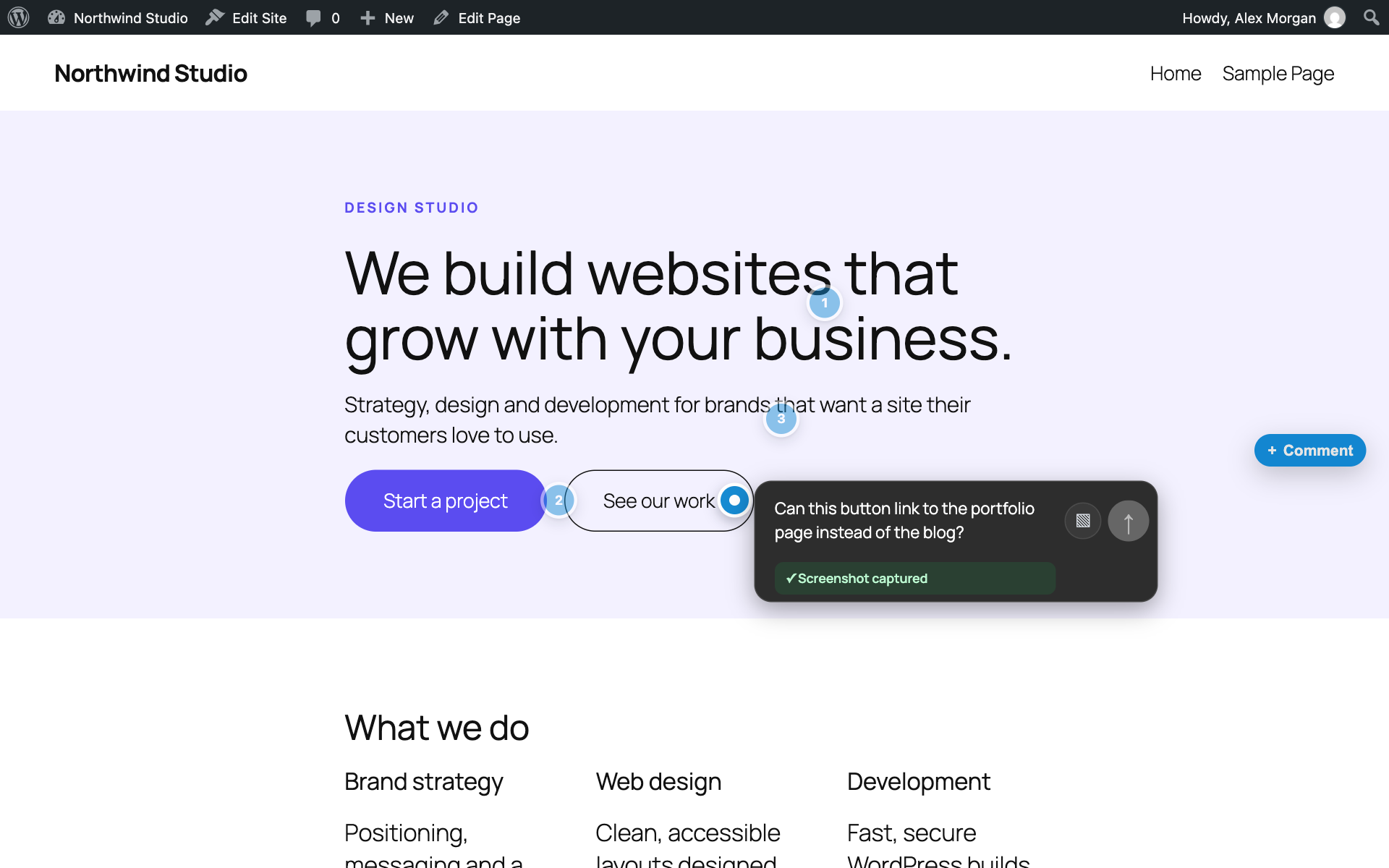
- A logged in reviewer opens any page on the frontend and clicks the feedback button.
- They click the exact element or spot they want to talk about. A numbered pin appears there.
- They write a comment and can attach an image. The visible area of the page is captured as a screenshot automatically.
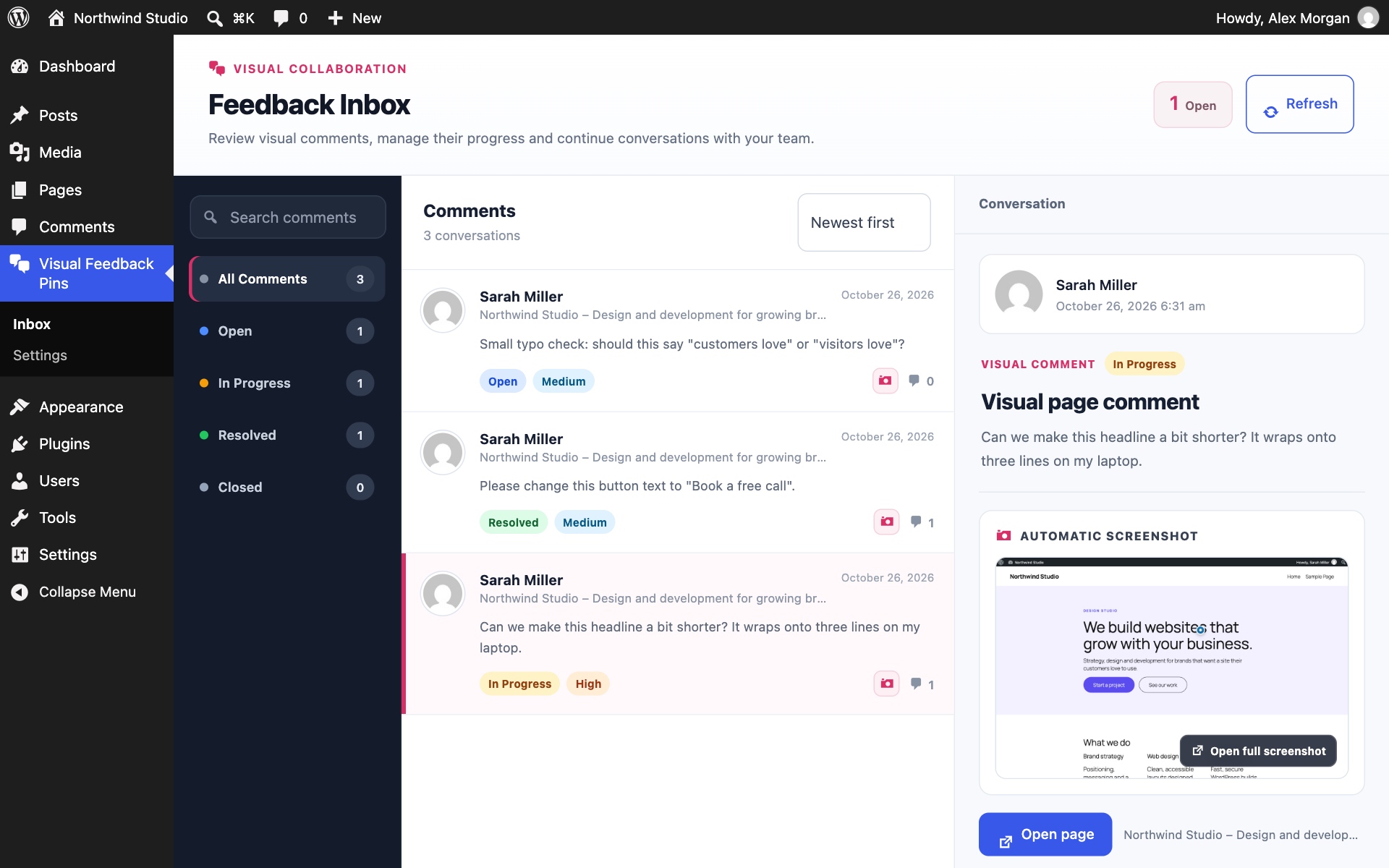
- The feedback lands in the admin inbox with the page, the pin position, the screenshot and the reviewer's details.
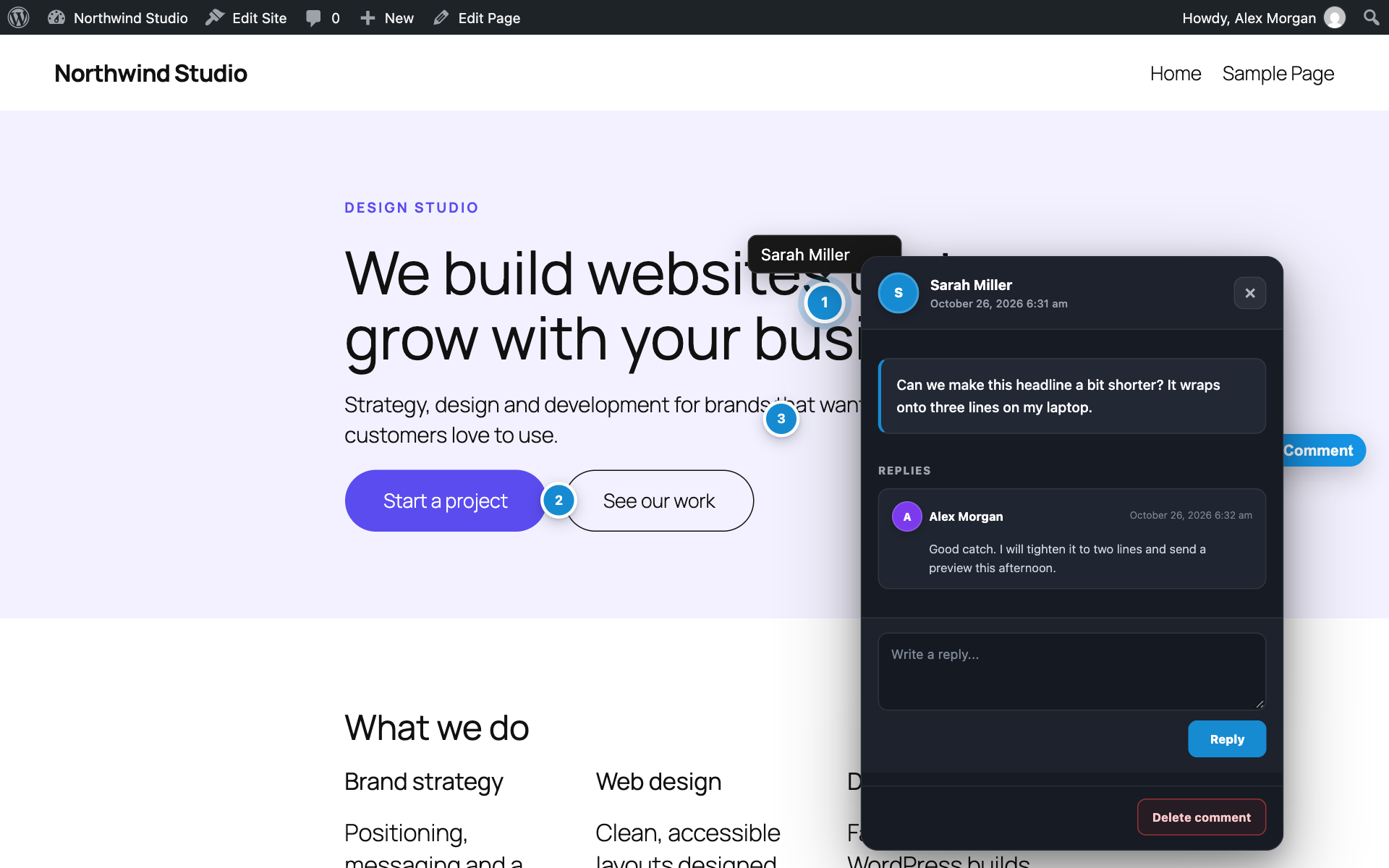
- Your team replies, sets a status and priority, and resolves it. The conversation stays attached to the pin on the page.
- Pin comments on live pages. Feedback is tied to an exact position and page element, and the numbered pin shows again whenever the page is reopened.
- Automatic screenshots. The visible part of the page is captured in the browser the moment feedback is sent, so you see exactly what the reviewer saw.
- Image attachments. Reviewers can add their own JPG, PNG or WebP image (up to 5 MB) alongside the comment.
- Threaded replies. Discuss each item from the frontend pin or from the admin inbox. Both views stay in sync.
- Feedback inbox. Search all feedback, filter by status, sort by date, and open any item to see its screenshot, attachment, page link and full conversation.
- Email notifications. Get an email when new feedback or a reply arrives, send alerts to several addresses, and let the person who left feedback know when someone replies.
- Status and priority. Move each item through Open, In Progress, Resolved and Closed, and set a priority so the important fixes get done first.
- Technical context included. Each report records the page URL, browser, screen size, viewport size and device pixel ratio, which helps you reproduce layout bugs.
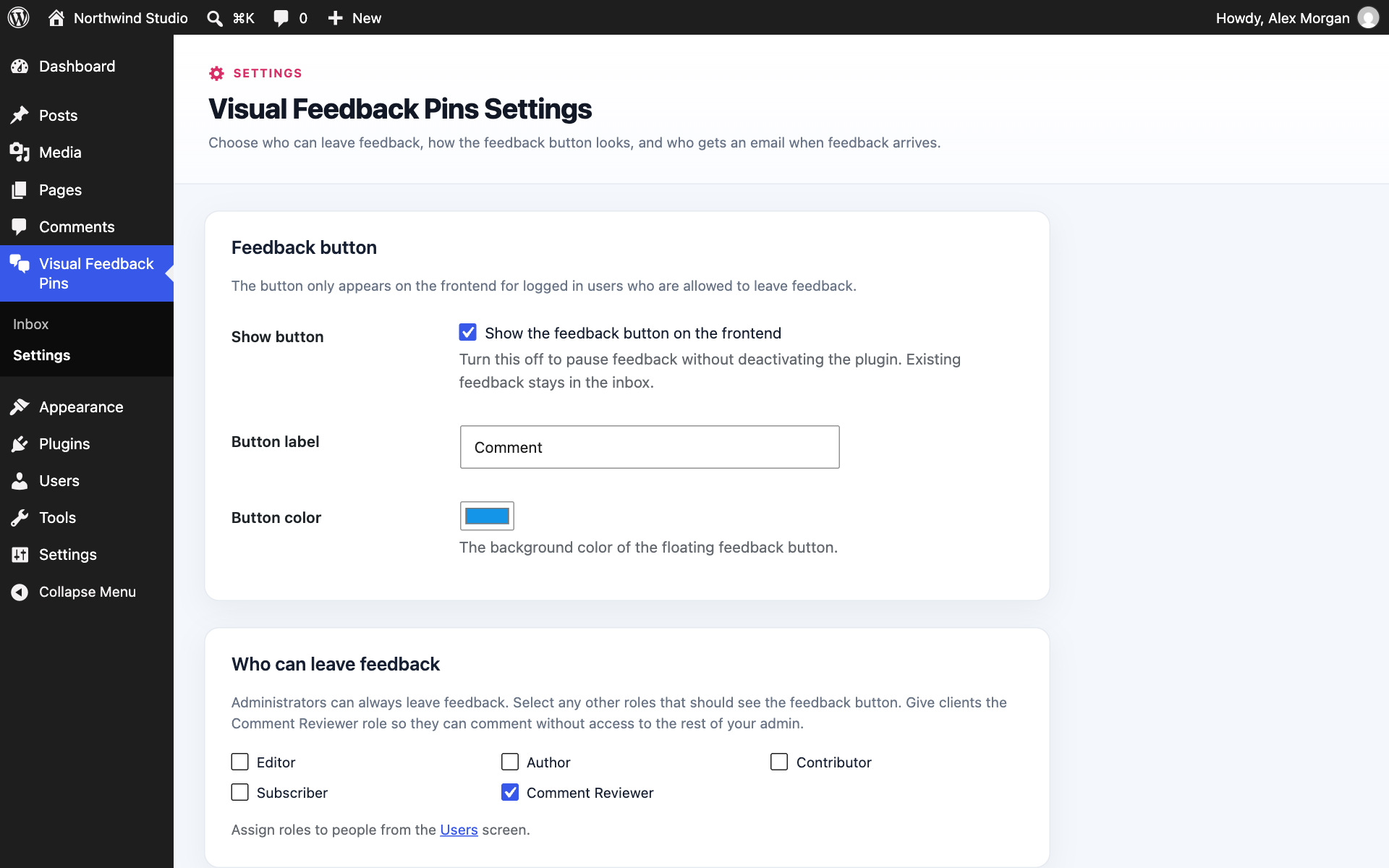
- Reviewer role and role control. Activation adds a Comment Reviewer role for clients and teammates. From the settings page you can also allow Editors, Authors or any other role to leave feedback.
- Simple settings. Change the button label and color, pause the button without deactivating the plugin, and choose who gets notified.
- Clean deletion. Deleting feedback also removes its replies, its screenshot file and its image attachment.
- Lightweight. The feedback interface only loads for logged in users who are allowed to leave feedback. Regular visitors never see it and never load its scripts.
- Self hosted. All data stays in your WordPress database and uploads folder.
- Administrators can leave feedback, reply, and manage everything in the inbox.
- Comment Reviewers can leave feedback and reply on the frontend.
- Any other role you enable on the settings page can do the same.
- Visitors who are not logged in never see the feedback tools.
wp-content/uploads/userback/screenshots/. Image attachments are saved in the Media Library.
Nothing is sent to an outside service except Gravatar avatars, explained under External Services below.
安装:
- In your WordPress admin, go to Plugins > Add New, search for Visual Feedback Pins, then install and activate it.
- Open Visual Feedback Pins in the admin menu to see the inbox.
- Optional: open Visual Feedback Pins > Settings to choose who gets email notifications, which roles can leave feedback, and the button label and color.
- To invite a client or teammate, go to Users, create or edit their account, and set the role to Comment Reviewer. Administrators can leave feedback right away.
- While logged in, visit any page on your site and click the feedback button to leave your first pin.
屏幕截图:
常见问题:
Do I need an account with an external service?
No. Visual Feedback Pins runs entirely inside your WordPress site. There is no sign up, API key or subscription.
Can clients leave feedback without being administrators?
Yes. Give their WordPress user the Comment Reviewer role. They can leave and reply to feedback on the frontend but have no access to your settings, content or other admin screens.
Will I get an email when someone leaves feedback?
Yes. By default the site admin email gets an email for every new feedback item and reply. You can add more addresses, turn either alert off, and choose whether the person who left the feedback is emailed when someone replies. Nobody is emailed about their own comments. Emails use your site's normal WordPress mail setup, so if your site cannot send email, install an SMTP plugin.
Can I let Editors or other roles leave feedback?
Yes. Go to Visual Feedback Pins > Settings and tick the roles that should see the feedback button. Administrators always have access.
Can I hide the feedback button without deactivating the plugin?
Yes. Untick Show button in the settings. Existing feedback stays in the inbox and the button comes back when you turn it on again.
Can visitors who are not logged in leave feedback?
No. To prevent spam, only logged in users with permission can see and use the feedback tools.
Will regular visitors see the feedback button or pins?
No. The button, pins and scripts load only for logged in users who are allowed to leave feedback.
Where are screenshots stored?
Automatic screenshots are stored in wp-content/uploads/userback/screenshots/. They are not added to the Media Library, so your library stays clean.
Where are image attachments stored?
Images that reviewers attach by hand are stored in the WordPress Media Library.
Which image formats can be attached?
JPG, JPEG, PNG and WebP, up to 5 MB each.
Does it work with page builders like Elementor, Divi, Bricks or the block editor?
Yes. The feedback tools run on the finished frontend page, so they work on any theme or page builder.
Why does a screenshot look slightly different from the real page?
Screenshots are rendered in the browser from the page's HTML and CSS. Some content, such as cross origin iframes, embedded videos or certain advanced CSS effects, may not appear exactly as on screen. The pin position and your comment are always saved accurately.
What happens when feedback is deleted?
The feedback, its replies, its screenshot file and its attached image are all removed.
What happens to my feedback if I deactivate the plugin?
Nothing is deleted. Your feedback and screenshots stay in place and are there again when you reactivate.
更新日志:
- New: Email notifications for new feedback and replies, sent to one or more addresses.
- New: Optionally email the person who left feedback when someone replies to it.
- New: Settings page to change the button label and color, pause the button, and choose which roles can leave feedback.
- New: Getting started notice after activation that explains where to find the feedback button.
- New directory screenshots.
- Developer: New userback_feedback_created and userback_reply_created actions.
- Renamed the plugin to Visual Feedback Pins. The admin menu and page titles now use the new name.
- Rewrote the plugin description, installation steps and FAQ.
- New plugin icon and banner.
- No changes to features or stored data. Existing feedback is untouched.
- Initial public release.
- Frontend visual feedback with numbered pins on live pages.
- Automatic viewport screenshot capture.
- Optional image attachments.
- Threaded replies from the frontend and the admin inbox.
- Admin inbox with search, status filters, status and priority management.
- Comment Reviewer role for clients and teammates.
- Screenshot and attachment cleanup when feedback is deleted.