
WPVR - 360 Panorama viewer and Virtual Tour Builder for WordPress
| 开发者 |
rextheme
coderexltd coderexco |
|---|---|
| 更新时间 | 2026年10月16日 13:27 |
| 捐献地址: | 去捐款 |
| PHP版本: | 7.0.0 及以上 |
| WordPress版本: | 7.1 |
| 版权: | GPLv2 or later |
| 版权网址: | 版权信息 |
标签
下载
详情介绍:
- Real Estate Virtual Tour
- Virtual Art Gallery
- Hotel Virtual Tour
- Virtual Car Showroom
- Virtual Tour Of A Pub/Bar
- Upload the images to WPVR and they will turn into 360 panoramic views.
- Connect them to each other for navigation easily.
- Place hotspots to provide information around your location.
For unlimited scenes and hotspots, consider using WPVR Pro 💎https://youtu.be/kOCNHJdM0TA?si=jdph5JflvX1QmH3S You can also add Scene Transitions (PRO) to make the journey more exciting. Everything You Need To Create Virtual Tours That Engage & Convert WPVR comes with several features to make virtual tours more engaging and conversion-optimized. Simply put, it's not just a tool to show off, but also a solution to help you get real clients interested to make inquiries, place bookings, and contact you for negotiations. 🔮 High Quality Virtual Tours With Multiple Scenes 🔮 Suppose you want to show off a property with 3 bedrooms, 2 bathrooms, a kitchen, living room, balconies, or even a backyard. Just take 360° panoramic images of each space and let WPVR turn them into one virtual tour. You’re probably worried about quality - a realistic 360° panorama image needs high resolution, over 3000×1500 pixels. With WPVR, you can disable WordPress compression and use any high-quality images (JPEG, PNG, WebP) to create free 360° VR tours without losing quality. 🔮 Use Interactive Hotspots To Answer Questions & Engage With Prospects 🔮 During a real visit, people want to explore and ask questions - your virtual tour maker can do the same. You can also use interactive hotspots with full control via HTML Editor/WYSIWYG Editor to add any content you want. https://youtu.be/rOAX7gqT7HQ?feature=shared You can enhance your virtual tour with: ➤ Tooltips – Show quick info when visitors hover over an object. ➤ Descriptions – Let people click to see more details. For example, describe the comfort of a hotel bed. ➤ Images or GIFs – Show clearer visuals if something isn’t obvious. ➤ Videos – Use short clips to explain features instead of text. ➤ Audio – Play pre-recorded audio to guide visitors like a real person.
Pro Tip: Pro Tip: Think about questions or highlights visitors might want. Add them as hotspots.You can also add buttons to link to forms or external pages, like booking or inquiry forms. We do have direct support for booking. https://youtu.be/ZJkMsq522A4?si=d7dIPGTOj0zINkAb Bonus: You’ll get access to 900+ custom icons to use as hotspots to make the experience meaningufl. And you can add custom colors (Pro) or ripple animation (Pro) to grab user attention. P.S. If you want, you can also add custom icons of your own using snippets. (Hear's how.) 🔮 Place Your Virtual Tours Anywhere on Your Website without Hassle 🔮 Once your virtual tour is ready, you can embed it anywhere using a shortcode, no matter what theme you use. It’s also compatible with popular page builders:
- Virtual Tour Widget for Elementor.
- Virtual Tour Block for Gutenberg.
- 360 VR Panorama Module for Divi.
- Virtual Tour Element for Oxygen.
- Virtual Tour Element for Visual Composer.
Learn more about using Interactive Virtual Floor Plan in case you want to offer private access (maybe for a fee).🔮 Share Your Virtual Tour on Social Media Via Link or QR Code (Pro) 🔮 With WPVR, you can share your 360° virtual tours instantly using a link or QR code perfect for social media, email, or direct sharing without a webpage. 🔮 360 Video Player for WordPress 🔮 Apart from creating virtual tours with 360 panoramic images, you can also use WPVR as a 360 video player on your website. 🔮 Cardboard & VR Headset Support for Full Immersive Experience (Pro) 🔮 You can enable VR Glass mode, so visitors can use Google Cardboard or a VR headset to enjoy a more realistic virtual tour experience. https://youtu.be/uKtNst1jehs?si=ZiRdsCEY2FQ0ePQN 🔮 WPVR Analytics Support (Pro) 🔮 Apart from all those interactive options, you also get to view analytics to help you make business decisions. 📈 Track tour views 🔥 Monitor hotspot clicks 🗓️ Filter by time period 🔮 Mobile First VR Approach 🔮 This virtual tour creator is built for mobile phones from the start. Every virtual tour you create is fully responsive and optimized to load fast on phones. 🌟 Who Should Use WP VR? 🌟 Any business you run, if it gives you any advantage by showing your location or space to prospects, then you can use WPVR. If you part of any of the following industries, WPVR can be your go-to virtual tour creator:
- Real Estate Industry
- Schools and Colleges (Virtual campus tours 🏫)
- Hotels & Resorts
- Restaurants.
- Travel/Tourism.
- Museums.
- Art Galleries & Exhibitions.
- Car Showrooms.
- Furniture Showrooms.
- Clothing Stores.
- Grocery and Retail Stores.
- Bars/Pubs.
- An unlimited number of 360 Panorama VR tours
- 360 Degree Video Support (Self-hosted, Youtube, & Vimeo Videos).
- Full-window Virtual Tours.
- VR Glass support for Video Tours.
- Shortcode Support.
- Gutenberg Block Support.
- Elementor Widget Support.
- Webp image support
- Live Preview of Tour On The Back-end.
- Tour Preview Image.
- Tour Autoload Feature.
- Scene Fade Animation.
- Private and Password Protected Tour
- Auto Rotation with Speed Control.
- Auto Rotation Direction, Pause and Stop control.
- Basic Control Buttons (Zoom In, Zoom Out, and Fullscreen).
- Mouse Drag Control on Virtual Tour.
- Zoom In and Out with Mouse Scroll on Virtual Tour.
- Zoom In and Out with '+' and '-' keyboard buttons.
- Add Multiple Scenes and Hotspots.
- Scene Type Hotspot to Connect Scenes.
- Info Type Hotspots to Give Information.
- On Hover and On-Click Content Option for Hotspots.
- Embed Texts, Videos, Images, GIFs, and Website Links on Hotspots.
- Hotspot Customization with Custom CSS.
- Full-width Tour Tag.
- Radius Tag for tour border-radius.
- Multi-Site Support.
- WP User Role Support (Editors and Authors).
- Disable FontAwesome Option.
- Disable WordPress Default Large Image Handler.
- Control Plugin Assets To Load on Specific Pages/posts Only.
- Enable Front-end notice for Mobile Visitors.
- Mobile Media Resize Option.
- Plugin Version Rollback Option.
- Password Protected Tour.
- Support From the Support Forum.
- All Free Features.
- Unlimited 360 Panorama VR (Scenes).
- Unlimited Hotspots.
- Publish Tours anywhere (Embed Add-on).
- WooCommerce Add-on for Hotspots.
- WooCommerce Products - Add To Cart.
- Scene Gallery (Panorama Image Gallery).
- VR Glass/Cardboard support.
- Floor Plan support.
- Explainer Video.
- Background Audio
- Autoplay, Loop, and pause in virtual tours
- Gyroscope Support for Virtual Reality (Mobile Devices).
- VR Glass Support for Video Tours.
- 900+ Premium Icons for Hotspot.
- RGB Color Support for Hotspots.
- Partial Panorama / Mobile Panorama.
- Google Street View Support.
- Cubemap Image Support.
- Import & Export Virtual Tours.
- Custom Zoom Settings for 360 images.
- Background 360 Panorama Viewer.
- Fluent Forms Add-on.
- Company Logo & Description (White-label).
- Duplicate Tours with One Click.
- Control Horizontal & Vertical 360 view.
- Custom Loading Point (Face) for 360 views.
- Scene Title, Author Name & URL.
- On-Screen Compass for 360 Image Viewer Mode.
- Direct Social Media Share.
- Share virtual tours with a QR Code.
- Priority Support.
We have many more amazing features planned. Take a look at our development roadmap.Upcoming Features
- Contact Form/Booking Option Button.
- Storytelling.
- Mail Mint Integration for Lead Generation.
- Linno Telemetry SDK – https://github.com/CODEREXLTD/linno-telemetry
- OpenPanel (only after telemetry opt-in) – https://openpanel.dev/privacy You can review how Linno Telemetry and OpenPanel collect and use data via their respective privacy policies. Data removal If you have previously opted in and would like your data removed, you may request deletion by contacting us at support@rextheme.com.
安装:
- Upload WPVR to the /wp-content/plugins/ directory
- Activate the plugin through the ‘Plugins’ menu in WordPress
- Follow the setup wizard to configure the plugin for use
屏幕截图:


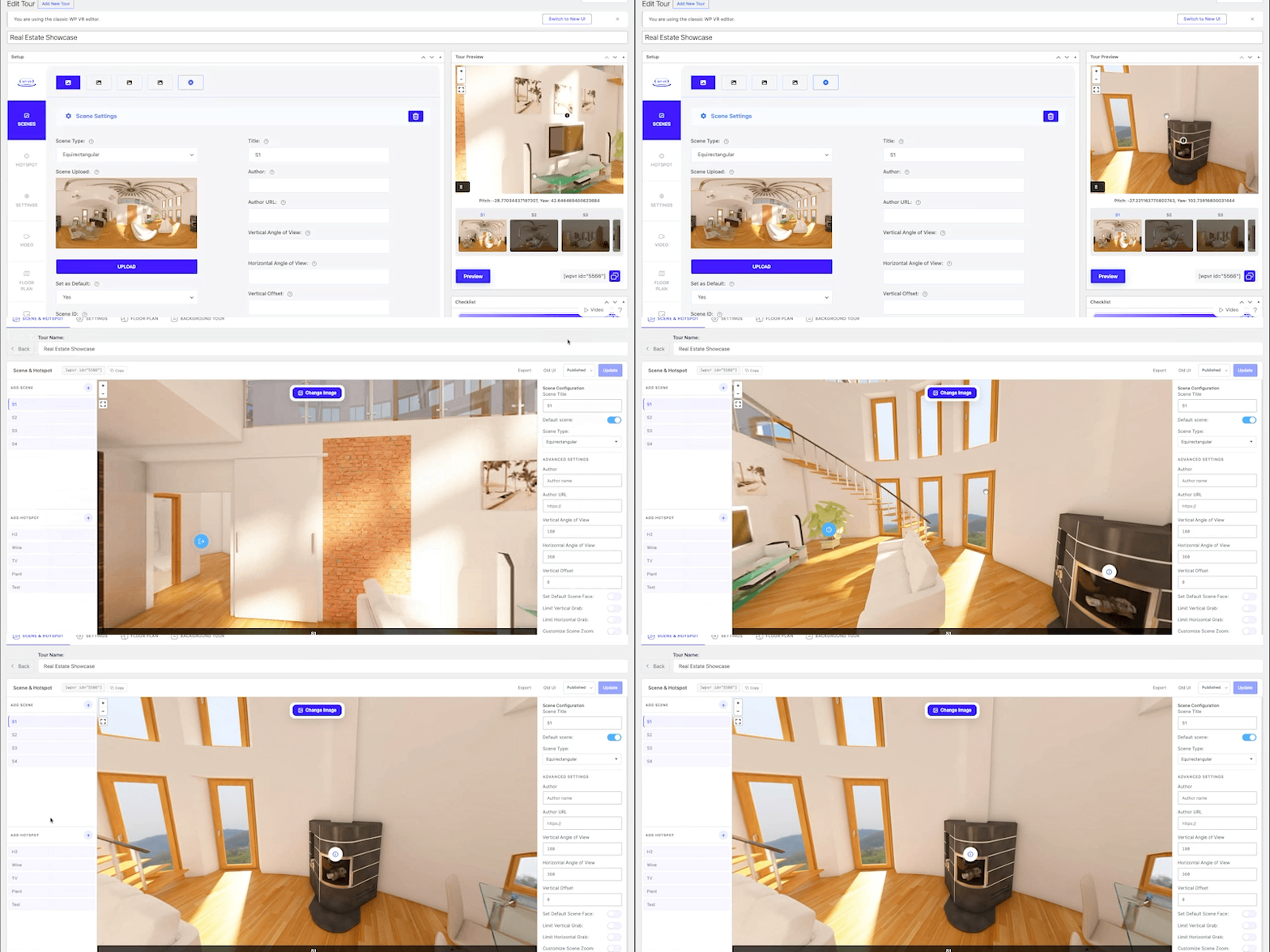

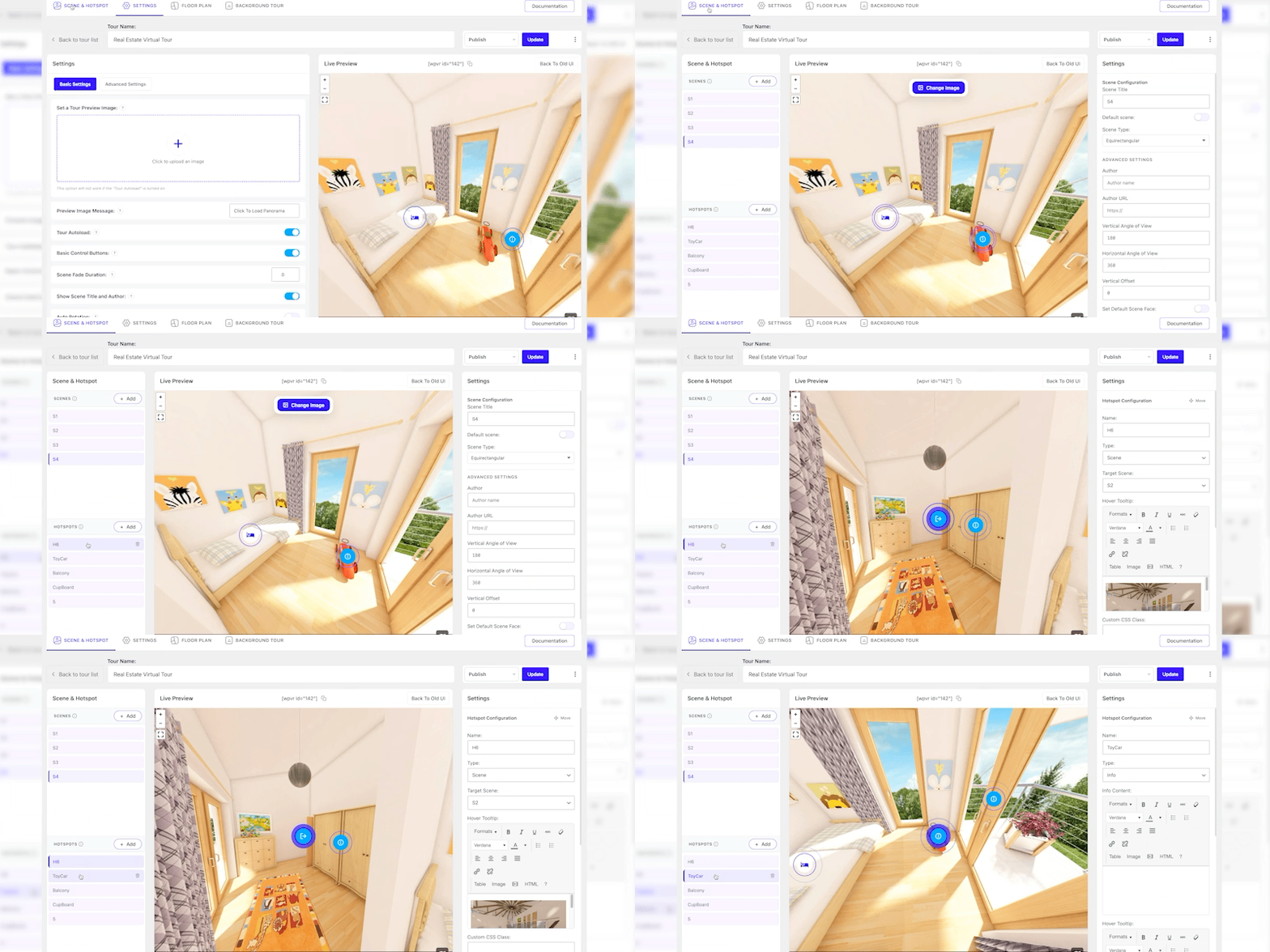


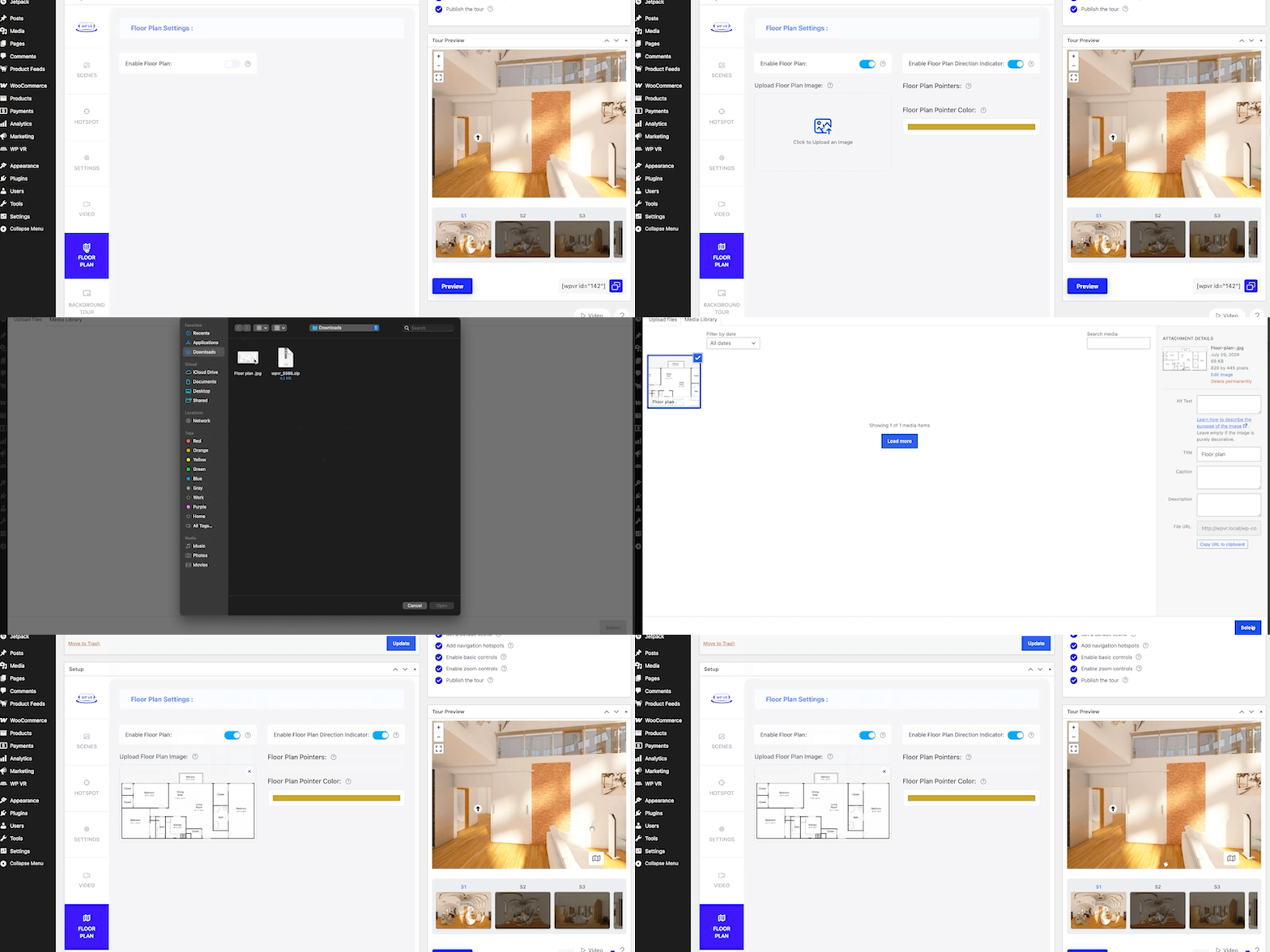

常见问题:
- Is WPVR completely free? Is there any limitation?
WPVR offers a fully functional free version. The free plugin allows you to create unlimited virtual tours, with up to 5 scenes per tour and 5 hotspots per scene. This is plenty for a compact home or apartment. You can upgrade to Pro for unlimited scenes, unlimited hotspots, virtual floor plans, and advanced features.
- Do I need any coding or technical skills to build my first tour?
Not at all. You don't have to touch a single line of code. Just upload your 360 photos, connect your rooms, and drop in a few clickable hotspots from a simple dashboard. You'll likely have your very first live tour in under five minutes.
- Why should I add a virtual tour to my property listing instead of just photos?
Your photos only show a single snapshot, but a tour lets your buyers walk through your whole place at their own pace. They can explore every room without booking a visit, so that when they contact you, they are already serious. You save time, and your listing stands out from everyone still posting flat photos.
- How do I create virtual tour? Upload photos using an app or record a video, what's the process?
You'll need to upload a 360 panoramic, and the plugin will turn it into a 360 virtual tour. For a house, you can capture 360 photos of every room using a smartphone or iPhone with specific apps. And if you want a cleaner, more professional look, use a 360 camera (e.g., Ricoh Theta, Insta360, GoPro MAX). Try to keep your shots high-resolution (over 3000×1500 pixels, so every room looks sharp. Once you have the photos, you upload them into WPVR and connect them via hotspots to create an immersive virtual tour.
- How do I connect multiple rooms so visitors can walk through my property?
You can link scenes together using "Scene Type Hotspots". Simply place a hotspot near a door or entryway in Room A and set its target destination to Room B. Visitors clicking the hotspot will navigate directly into the next room.
- Can buyers submit inquiries or book visits within my tour?
Yes, you can attach booking forms, lead forms, or contact buttons directly on your virtual tour, letting prospects contact you instantly.
- Can I add an interactive virtual floor plan to my real estate tours?
Yes, With WPVR Pro, you can upload a 2D floor plan image and place interactive pointers on it. Clicking a pointer on the floor plan immediately transports the viewer to that specific room in your 360 tour.
- Can I match the hotspot icons to my brand?
Yes, you can style your hotspots to fit your look, and even use custom CSS for full control. Your free version gives you solid icon options, and Pro adds a library of 900+ premium icons plus custom colors. Either way, your markers stay clean and easy for visitors to spot.
- Can I embed a 360-degree video tour, not panoramic photos?
Yes, you can use WPVR as a 360 video player too, and it's included for free. You can host the video yourself or pull it from YouTube and Vimeo. If you have 360-degree videos recorded, then start using them ASAP.
- Does WPVR work with page builders (Elementor, Gutenberg, Divi) and Real Estate themes?
Yes, WPVR includes dedicated widgets and blocks for Elementor, Gutenberg, Divi, Oxygen, and Visual Composer. You can also embed tours on any page, listing templates, or custom fields using standard shortcodes.
- Can mobile visitors navigate using their phone's movement (Gyroscope)?
Yes, On mobile devices, WPVR supports Gyroscope navigation. As users move their smartphones, the 360° view shifts in real-time for a realistic walkthrough experience.
- Will a caching or optimization plugin break my tour?
It can, since aggressive caching or file optimization sometimes blocks the scripts your tour needs. If your tour acts up, just exclude WP VR's assets from your caching or minification settings. Once you clear the cache, it should load smoothly again.
- Can I Allow Other Users On My Site To Create Virtual Tours?
You can only allow backend users like Admins, Editors, and Authors of your site to create virtual tours.
- Admins & editors will have access to all virtual tours on the site to modify, update, and delete them.
- Authors can access their own tours only and modify, update, or delete them.
- Admins can remove access from Authors and Editors at any time.
- How can I report security bugs?
You can report security issues through the Patchstack Vulnerability Disclosure Program. The Patchstack team will review & handle the issue. Report a security vulnerability.
更新日志:
- Fix: Resolved false-positive unsaved changes warning (beforeunload prompt) and prevented tour ID loss when switching a newly published tour from Classic to Modern UI.
- Fix: Improved admin tour list column rendering and scene thumbnail retrieval fallback logic.
- New: Added external image URL support for 360° panorama scenes via CDN and cloud storage (Amazon S3, Cloudflare R2, Google Cloud Storage) across modern and classic tour editors.
- New: Added CDN video URL support for 360° video tours with cross-origin playback handling.
- Enhancement: Added real-time URL verification and WebGL CORS preflight validation before saving tour scenes.
- New: Added Text Overlay feature to create customizable rich text overlays on tour scenes with WYSIWYG editing, styling, and layer controls.
- New: Added Sticker Hotspots with interactive templates including discount buttons, add-to-cart, action buttons, social share, and social proof.
- Enhancement: Added responsive scaling, container observation, and customizable styling options (dimensions, borders, typography) for sticker hotspots.
- Enhancement: Self-hosted Inter font files to eliminate Google Fonts CDN dependencies and improve loading performance.
- Fix: Optimized mobile panorama resolution with attachment metadata, local file fallbacks, device GPU limit checks, and cached attachment lookups.
- Fix: Added missing alternative text (alt attribute) to the floor plan image for accessibility (WCAG) compliance.
- Fix: Improved floor plan pointer data handling and attribute escaping.
- Security Fix: Resolved broken access control, authorization bypasses, and stored XSS vulnerabilities in the setup wizard, tour file import, and REST API endpoints.
- Fix: Restored Fluent Forms and WooCommerce product hotspot types in the modern tour editor.
- Enhancement: Added searchable dropdown with live search and request cancellation for selecting Fluent Forms and WooCommerce products in hotspot configuration.
- Fix: Improved Fluent Forms script handling, layout styling, and dynamic form re-initialization inside tour scenes.
- Fix: Resolved issue where scene numbering counter failed to reset after deleting scenes in the creation modal.
- Fix: Corrected typo in default scene name across translation strings.
- Fix: Restored embed and social share functionality for virtual tours in the new UI (feature parity with legacy UI).
- Fix: Resolved embedded tour rendering issue (black screen) when tour loaded via the embed iframe.
- Fix: Improved tour type detection, hotspot rendering, and data validation across legacy and API services.
- Fix: Resolved issue where tours created with the new UI failed to render when embedded.
- Fix: Improved tour type detection and state synchronization across legacy and REST API services.
- Fix: Prevented WordPress wptexturize and content filters from corrupting tour inline scripts.
- Fix: Resolved container ID conflicts and script errors when embedding multiple tour instances on the same page.
- Fix: Resolved hotspot click and modal popup display issues across different content formats.
- Fix: Added safe fallbacks to prevent PHP undefined key warnings in scene and hotspot data validation.
- New: Added Breakdance page builder integration with dedicated WPVR block support.
- New: Added 360-degree video tour support with Video.js and VideoJS-VR integration in the modern tour editor and frontend.
- Fix: Resolved self-hosted 360-degree video dragging and touch navigation issues with robust deferred initialization.
- Fix: Resolved Gutenberg block inline script corruption caused by wptexturize modifying operators in the content filter.
- Fix: Improved video tour metadata handling, state synchronization, and toggle logic between UI modes and editor.
- Security Fix: Enforced object-level authorization (BOLA) checks on tour REST API and AJAX endpoints so users can no longer read, edit, or delete tours they don't own.
- Security Fix: Restricted the UI mode toggle endpoint to administrators only.
- Security Fix: Sanitized hotspot content (including FluentForm hotspots) on both server and client sides to prevent stored XSS.
- Fix: Resolved
wpvrhotspot is not definederror when caching and JavaScript deferral plugins (Autoptimize, WP Rocket, LiteSpeed Cache) are active. - Fix: Ensured frontend scripts and styles are reliably enqueued across Gutenberg blocks and page builder widgets.
- Fix: Resolved fatal error on
update.phpduring plugin updates. - Fix: Resolved mobile touch dragging and swipe navigation dropping or getting interrupted on mobile browsers.
- Fix: Ensured tour navigation controls (mouse drag, zoom, and keyboard movement) remain properly enabled by default on the Free tier.
- Fix: Corrected keyboard movement control setting mapping in the tour editor.
- Fix: Fix mouse drag & drop issue.
- Fix: Unexpected variable warning.
- New: Introducing the new WPVR user interface for a faster and more intuitive tour-building experience.
- New: Added keyboard accessibility to improve tour navigation and interaction.
- New: Added an imported tour indicator for easier identification of imported tours.
- New: Added smart warning diagnostics to help identify and resolve errors.
- Bug Fix: Prevented hotspots from overlapping panorama controls, keeping controls visible and accessible.
- Bug Fix: Fixed hotspot link types not opening their configured destinations correctly.
- Bug Fix: Improved image-switching performance in the preview section.
- Bug Fix: Fixed broken layout and alignment issues in the desktop tour builder.
- Bug Fix: Removed unexpected warnings from WordPress admin screens.
- Bug Fix: Fixed access and rendering issues for password-protected scenes.
- Fix: Tours using
width="embed"retain their fullscreen layout and control buttons. - Enhancement: Improve tour loading speed on backend.
- Fix: Resolves FontAwesome icon rendering conflicts with active themes and adds dynamic script cache-busting for Pannellum.
- Enhancement: Added an "Imported" status badge in the admin tour list table (All Tours screen) for tours created via import.
- Fix: Vimeo video tour issue resolved for both preview and frontend.
- Fix: Prevent duplicate image entries in the onboarding media gallery.
- Fix: Panorama image now loads correctly when XHR is blocked by WAF or hotlink protection
- Fix: Removed unnecessary stripslashes() call from panodata JSON parsing
- Fix: Resolved stale panoImage reference in async XMP metadata reader
- Fix: Restored WPVR Pro tab compatibility for Floor Plan, Background Tour, and Street View when WPVR Pro v6.7.4 is active with a valid license.
- Fix: Improve 360 video touch support and iPhone fallback
- Fix: Mobile touch dragging no longer scrolls the page and now supports smooth vertical VR navigation.
- Compatibility: WordPress 7
- New: Goodlayers page builder support
- Fix: Shortcode not rendering issue
- Fix: Breakdance builder compatibility
- Bug Fix: Tour not rendering issue on Elementor, DIVI, and Oxygen
- Improvement: Added toggle to control mobile hotspot tip visibility with interaction-based display logic
- Improvement: WP VR now conditionally loads assets to avoid global performance impact
- Bug Fix: Tour Autoload no longer resets when updating Preview Image Message
- Bug Fix: Disabled mobile hotspot hover content from triggering on long-press when turned off in settings
- Bug Fix: Restricted WPVR Analytics menu visibility and removed standalone access for Editor role
- Bug Fix: Vimeo autoplay, loop, and 360° drag now work correctly in WPVR
- Bug Fix: Resolved incorrect checklist display in backend edit mode for published WPVR Street View tours
- Bug Fix: Resolved 360° video dragging issue
- improvement: VR-specific deactivation survey reasons with improved modal UX
- Improvement: Optimized existing onboarding steps for better usability
- New: Added guided tour for new users
- New: Added option to enable/disable consent from settings
- New: Added Pro feature preview overlays and sticky upgrade banner
- Improvement: Refactored telemetry into a single event on tour save
- Bug Fix: Improved admin UI logic and hotspot coordinate capture
- Bug Fix: Mobile popup now shows only on tour pages
- Improvement: Add powered by CTA button
- Improvement: Add powered by CTA button
- Improvement: Update telemetry
- Improvement: Onboarding UI and UX
- Improvement: Update notification banner for Eid-Ul-fitr
- Improvement: Onboarding of WPVR
- Bug Fix: Fixed slow page loads caused by getimagesize() making HTTP loopback requests during mobile media resize 👉 Visit to view full changelog for the free version