
WSTech Visual Table Builder
| 开发者 | shivmaikhuri |
|---|---|
| 更新时间 | 2026年7月13日 14:10 |
| 捐献地址: | 去捐款 |
| PHP版本: | 7.4 及以上 |
| WordPress版本: | 7.0 |
| 版权: | GPL-2.0-or-later |
| 版权网址: | 版权信息 |
详情介绍:
- Dedicated "WSTech Tables" admin screen — create, edit, duplicate, delete
- Each table gets a unique shortcode:
[wstech_table id="123"] - Embed tables in Gutenberg, Elementor, Divi, Beaver Builder, Classic Editor, or PHP templates
- Slug-based shortcodes supported:
[wstech_table slug="pricing-table"] - WordPress revisions for table version history Editor Experience
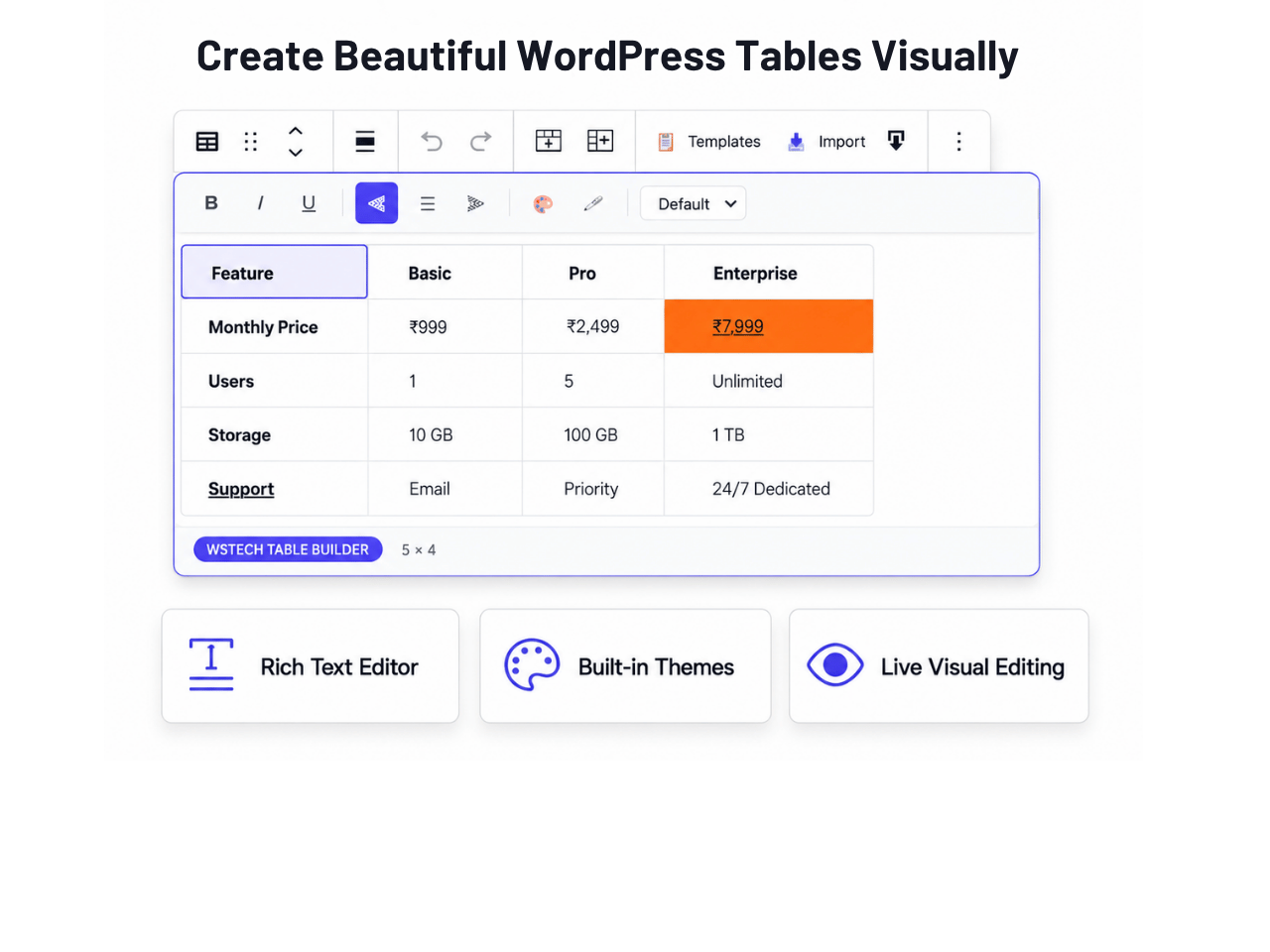
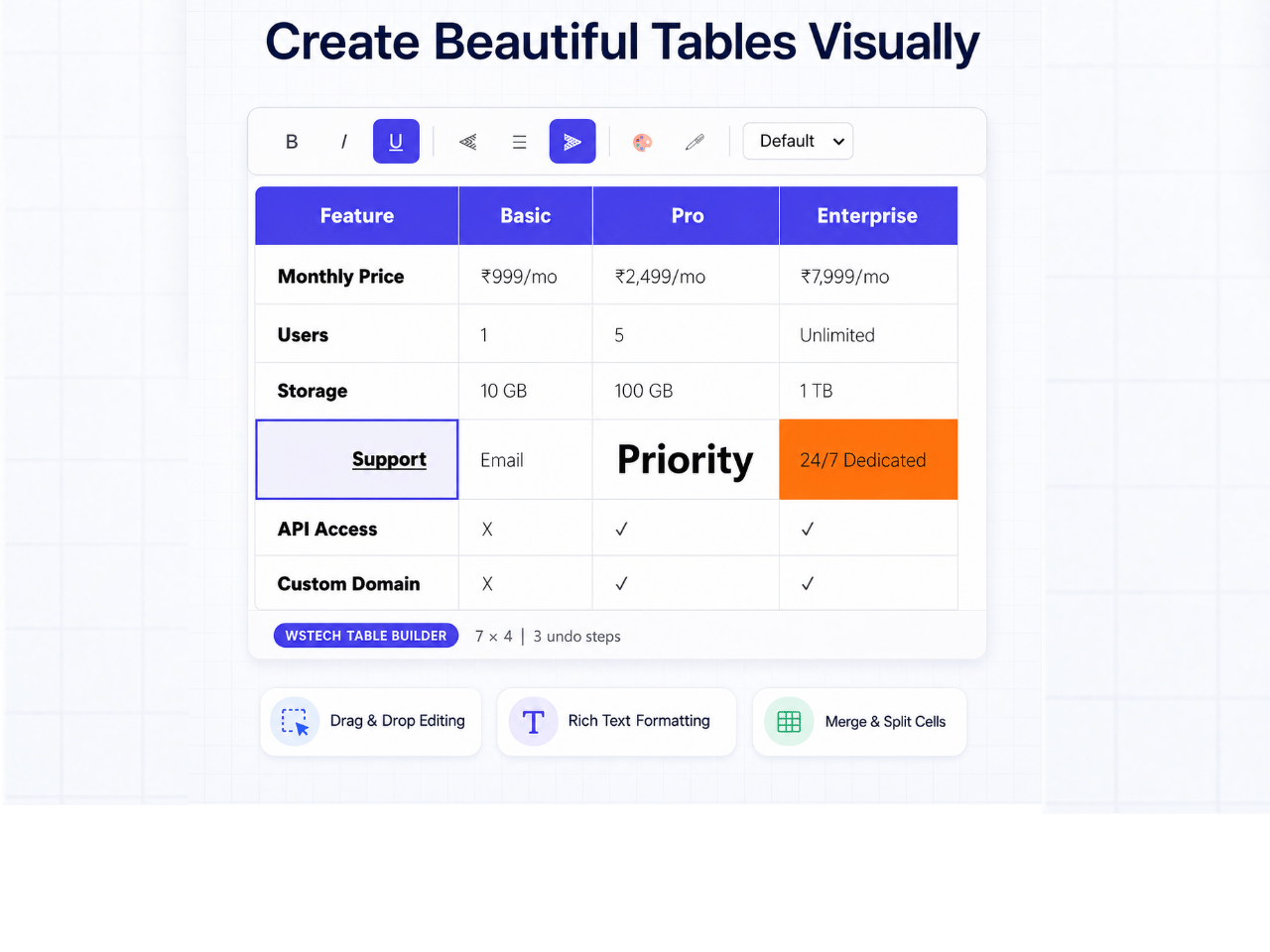
- Click-to-edit cells with full rich text (bold, italic, underline, strikethrough, links)
- Per-cell formatting: background colour, text colour, alignment, vertical align, padding
- Tab/Shift+Tab keyboard navigation — auto-adds rows at the end
- Right-click context menu for quick row/column operations
- Drag & drop row and column reordering
- Undo / Redo via WordPress native history (Ctrl+Z / Ctrl+Y) Table Structure
- Header row (thead), footer row (tfoot), first-column headers
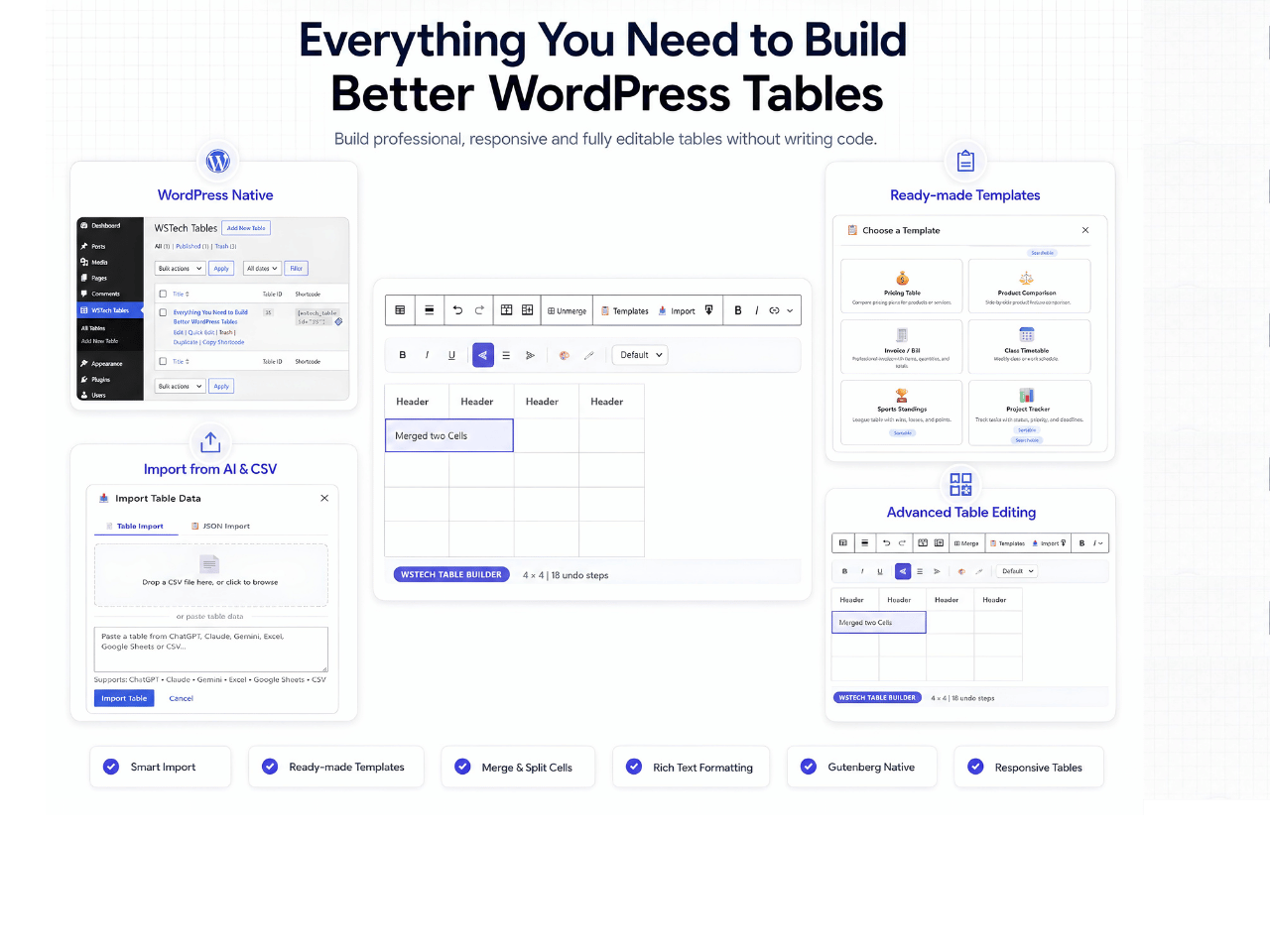
- Merge cells (colspan + rowspan) — Shift+click to multi-select, then merge
- Unmerge any merged cell with one click
- Duplicate rows and columns
- Insert/delete rows and columns (above/below/before/after)
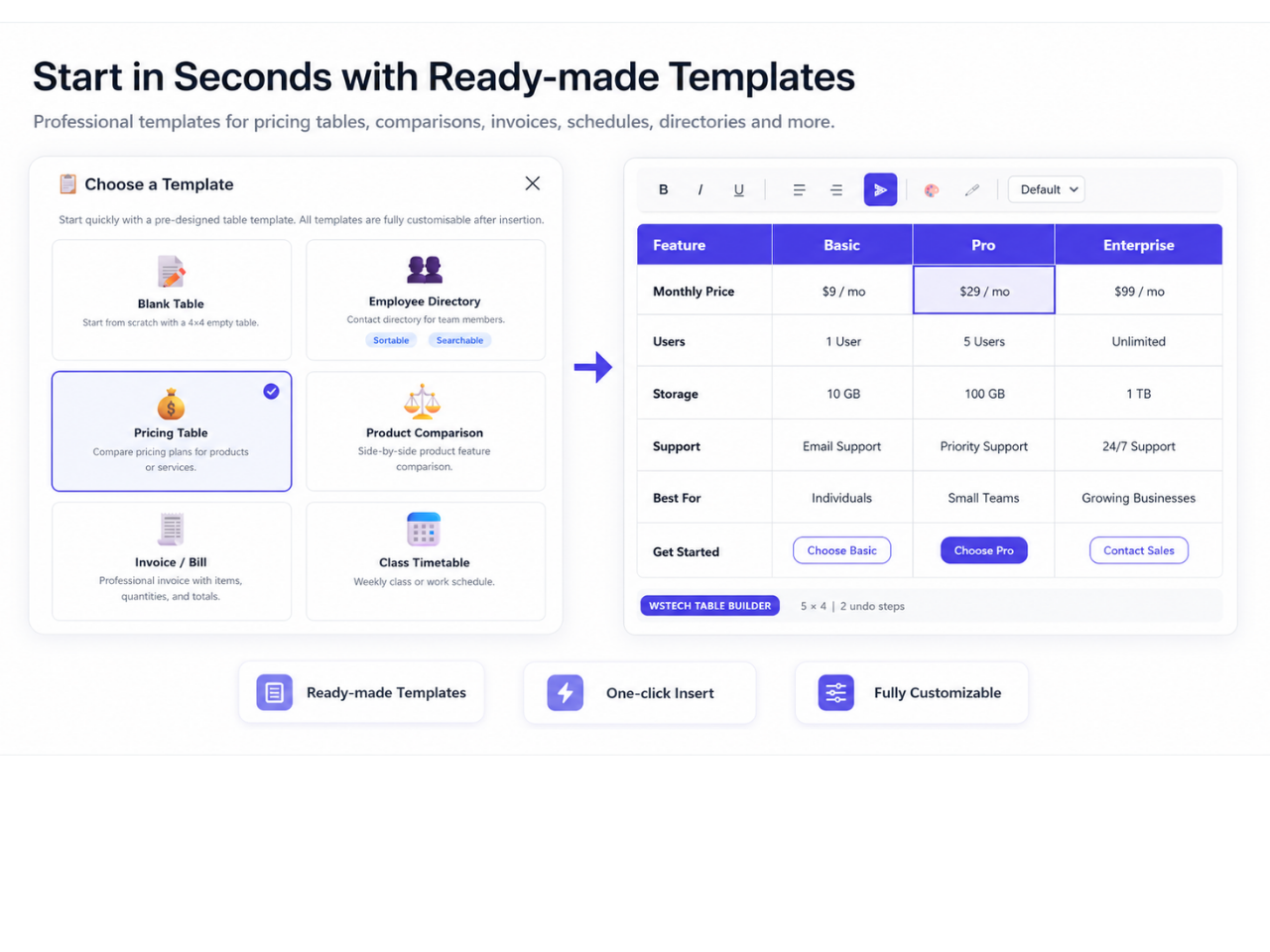
- Optional table caption 10 Built-in Templates
- Blank 4×4, Employee Directory, Pricing Table, Product Comparison
- Invoice/Bill, Class Timetable, Sports Standings, Project Tracker
- Budget Tracker, Nutrition Facts 6 Premium Themes
- Default (Indigo), Striped (Sky Blue), Bordered (Slate), Dark, Minimal, Colorful Data Import / Export
- Smart Import — automatically detects Markdown tables, CSV, and TSV
- Paste tables from ChatGPT, Claude, Gemini, Excel, or Google Sheets
- Export CSV (always available in editor)
- Export JSON (.vtb.json) — full table backup including styles and settings
- Import CSV and TSV — file upload or paste, with automatic delimiter detection
- Import JSON — restore a previously exported .vtb.json
- Frontend CSV Export button (opt-in per table) Frontend Interactivity (instant, no page reloads)
- Column sorting (ASC/DESC, numeric + date-aware)
- Live search / row filter
- Pagination with configurable page size
- Hover row highlight Responsive Design
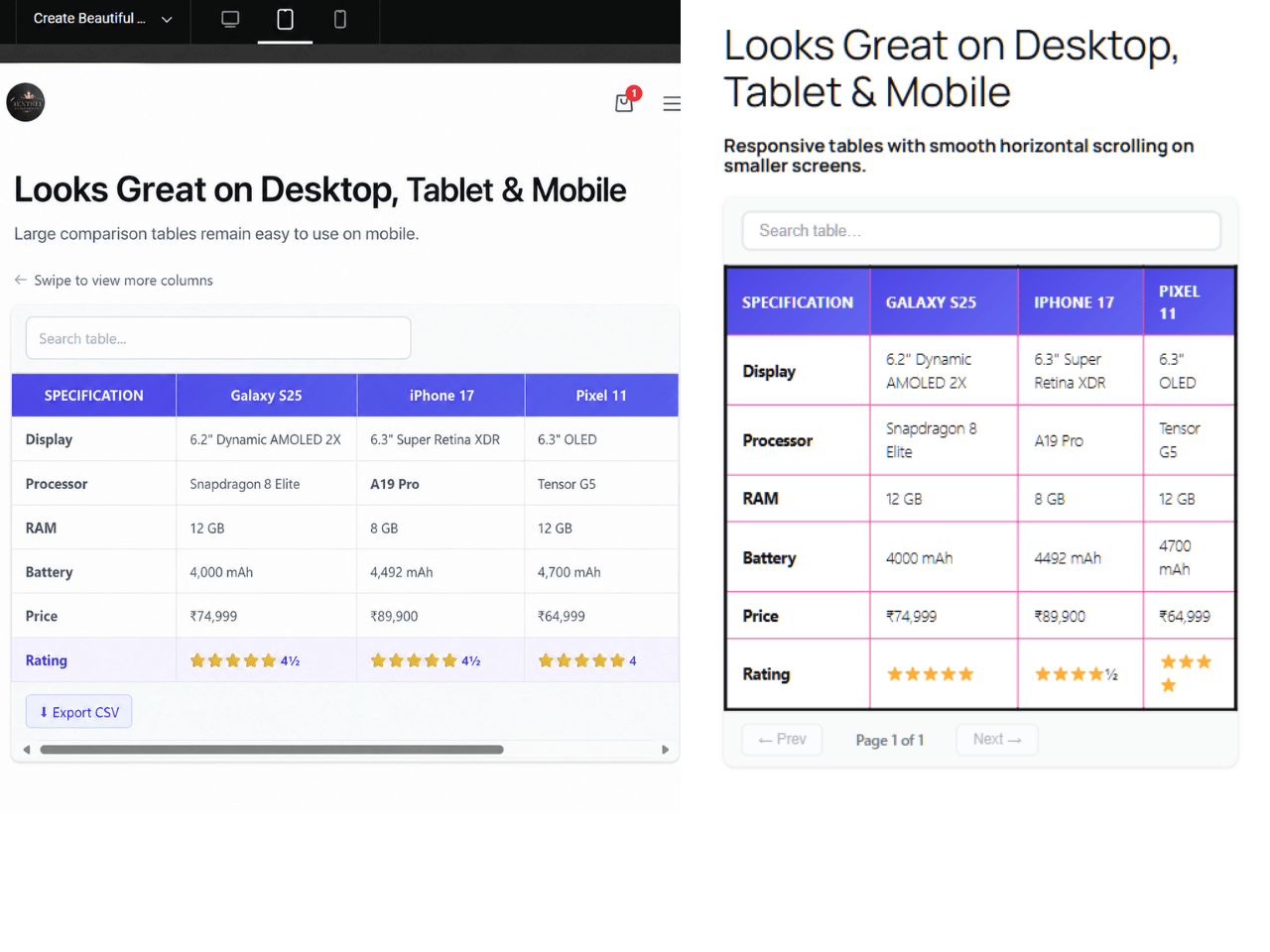
- Horizontal scroll mode (default)
- Stack on Mobile mode — each row becomes a vertical card with column labels Universal Compatibility
- Gutenberg Block Editor (native)
- Elementor (Shortcode Widget)
- Divi (Code Module)
- Beaver Builder
- Classic Editor
-
PHP templates:
<?php echo do_shortcode('[wstech_table id="123"]'); ?>Privacy / External Services - The plugin does not send table data to external services.
- Links to the plugin website and donation page are ordinary admin/readme links only. Source Code and Build
- Public source repository: https://github.com/shivmaikhuri12/wstech-visual-table-builder
- Editable block source files are in the
src/directory. - Compiled block assets are generated into the
build/directory by@wordpress/scripts. - Build tools and development dependencies are declared in
package.json. - To rebuild the production assets from source, run:
- Uninstalling the plugin through WordPress removes WSTech Tables created by the plugin and their associated post meta.
- Go to WSTech Tables → Add New in the admin
- Name your table and design it using the visual editor
- Click Publish
- Copy the shortcode from the sidebar:
[wstech_table id="123"] - Paste the shortcode anywhere — pages, posts, Elementor, Divi, etc. Method 2: Inline Tables (Quick)
- In any post/page, click + Add Block and search for "Visual Table Builder"
- Design your table directly in the post
- Save the post — your table is live!
安装:
- Download the plugin ZIP file.
- In WordPress admin, go to Plugins → Add New → Upload Plugin.
- Select the
wstech-visual-table-builder.zipfile and click Install Now. - Activate WSTech Visual Table Builder from the Plugins screen.
- Go to WSTech Tables → Add New to create a reusable table.
- Publish the table and copy the shortcode from the sidebar or table list.
- Paste the shortcode into a post, page, widget, builder module, or template.
- For one-off tables, edit any post or page and add the Visual Table Builder block directly.
- Extract the plugin ZIP.
- Upload the
wstech-visual-table-builderfolder to/wp-content/plugins/. - Activate the plugin from Plugins → Installed Plugins.
- Confirm that WSTech Tables appears in the WordPress admin menu.
- Go to WSTech Tables → Add New.
- Add a title for admin reference.
- Build your table manually or start from a template.
- Configure header row, footer row, theme, responsive mode, search, sorting, and pagination as needed.
- Publish the table.
- Copy the generated shortcode and embed it where the table should appear.
屏幕截图:
常见问题:
How do I create a pricing table in WordPress?
Go to WSTech Tables → Add New, start with the Pricing Table template or a blank table, edit the plans and features visually, then publish and embed it with the generated shortcode.
How do I build a comparison table in Gutenberg?
Add the Visual Table Builder block in Gutenberg or create a reusable table from WSTech Tables. You can use templates, merge cells, add headers, and enable responsive display options.
Can I create responsive data tables in WordPress?
Yes. Tables can use horizontal scroll for wide layouts or Stack on Mobile mode for a labeled mobile view. Sorting, search, and pagination can also be enabled per table.
Can I import CSV or Excel data into a table?
Yes. Export your Excel, Google Sheets, or LibreOffice data as CSV, then use the Import CSV button. You can upload a CSV file or paste CSV content.
Does the plugin work with Elementor and shortcodes?
Yes. Create a reusable table, copy its shortcode, then paste it into an Elementor Shortcode widget, Divi module, Classic Editor content, widgets, or any shortcode-compatible area.
Can I use the same table on multiple pages?
Yes! Create the table once in WSTech Tables, then paste the same shortcode on as many pages as you want. Editing the table updates it everywhere.
Does it work with Classic Editor?
Yes. Use the shortcode [wstech_table id="123"] in the Classic Editor text area.
Can I export tables?
Yes. Use CSV export for spreadsheet data, or JSON export for a full table backup that includes styles and settings.
How does sorting work?
When you enable Sortable Columns in the sidebar, visitors can click any column header to sort. Sorting is numeric-aware and works entirely client-side.
Can I merge cells?
Yes. Shift+click to select a rectangular range, then click Merge Cells in the format bar.
Does it work with Gutenberg?
Yes. The plugin includes a native Gutenberg block for inline tables and also supports reusable tables through the Shortcode block.
Can I reuse tables?
Yes. Tables created in WSTech Tables can be embedded on multiple pages with the same shortcode.
Where is the source code for the compiled block assets?
The public source repository is https://github.com/shivmaikhuri12/wstech-visual-table-builder. Editable files are in src/, compiled files are in build/, and the production build can be regenerated with npm install followed by npm run build.
更新日志:
- Added Smart Import with automatic Markdown table, CSV, and TSV detection.
- Added support for tables pasted from ChatGPT, Claude, Gemini, Excel, and Google Sheets.
- Markdown imports now ignore separator rows and correctly handle optional leading and trailing pipes.
- Updated the Table Import modal copy and guidance for supported sources.
- Preserved the existing CSV, TSV, JSON import, and export workflows.
- Fixed the Installed Plugins details modal to use the native WordPress.org plugin information response instead of a local custom override.
- Restored standard WordPress.org plugin details behavior, including support for Screenshots, Reviews, ratings, and install metadata where available.
- Fixed release metadata so the plugin version header, stable tag, and WordPress.org SVN tag match.
- NEW: Reusable Table Management via Custom Post Type
- NEW: Shortcode support
[wstech_table id="123"]and[wstech_table slug="name"] - NEW: WSTech Tables admin screen (list, create, edit, duplicate, delete)
- NEW: Shared PHP rendering engine (server-side rendering)
- NEW: Dynamic block rendering via render_callback
- NEW: WordPress revisions support for table version history
- NEW: Sidebar meta box with copy-to-clipboard shortcode
- NEW: Plugin action links (Manage Tables, Add New)
- NEW: Elementor / Divi / Classic Editor support via shortcodes
- NEW: Merge cells (Shift+click multi-select + colspan/rowspan)
- NEW: Drag & Drop row and column reordering
- NEW: 10 built-in templates with animated modal picker
- NEW: CSV Import, JSON Import/Export
- NEW: Duplicate Row/Column
- NEW: Undo / Redo toolbar buttons
- NEW: Right-click context menu
- IMPROVED: Responsive Stack mode with column labels on mobile
- IMPROVED: Future-proof cell data model with meta field
- Initial release
- Gutenberg block with WYSIWYG cell editing
- 6 premium themes, cell formatting, sorting, search, pagination
- CSV export, responsive modes