
DownUp
| 开发者 | deepakrajpal |
|---|---|
| 更新时间 | 2026年10月23日 11:32 |
| PHP版本: | 7.4 及以上 |
| WordPress版本: | 7.1 |
| 版权: | GPLv2 or later |
| 版权网址: | 版权信息 |
详情介绍:
-dev suffix, e.g. 1.4.2 becomes 1.4.2-dev), purely so WordPress's own update system offers a normal update for it. Nothing is downloaded or changed beyond that one version number — WordPress (or the plugin's/theme's own update source) does the rest, exactly as if a real new release had come out.
In short:
- Works on both plugins and themes, the same way.
- Never downloads, installs, or touches anything beyond that one version line.
- Enabled by default for everything — an opt-out settings screen, not opt-in.
- Two use cases, same mechanism either way — see below.
Version: header to a lower pre-release value (e.g. 1.4.2 becomes 1.4.2-dev). WordPress (or the plugin's/theme's own update checker, if it has one) then reports an update is available, and you complete it the normal way via Update Now.
It never downloads, installs, or modifies any code beyond that one header line. It relies entirely on WordPress's own update mechanism, or the target plugin's/theme's own legitimate update source.
Workflow
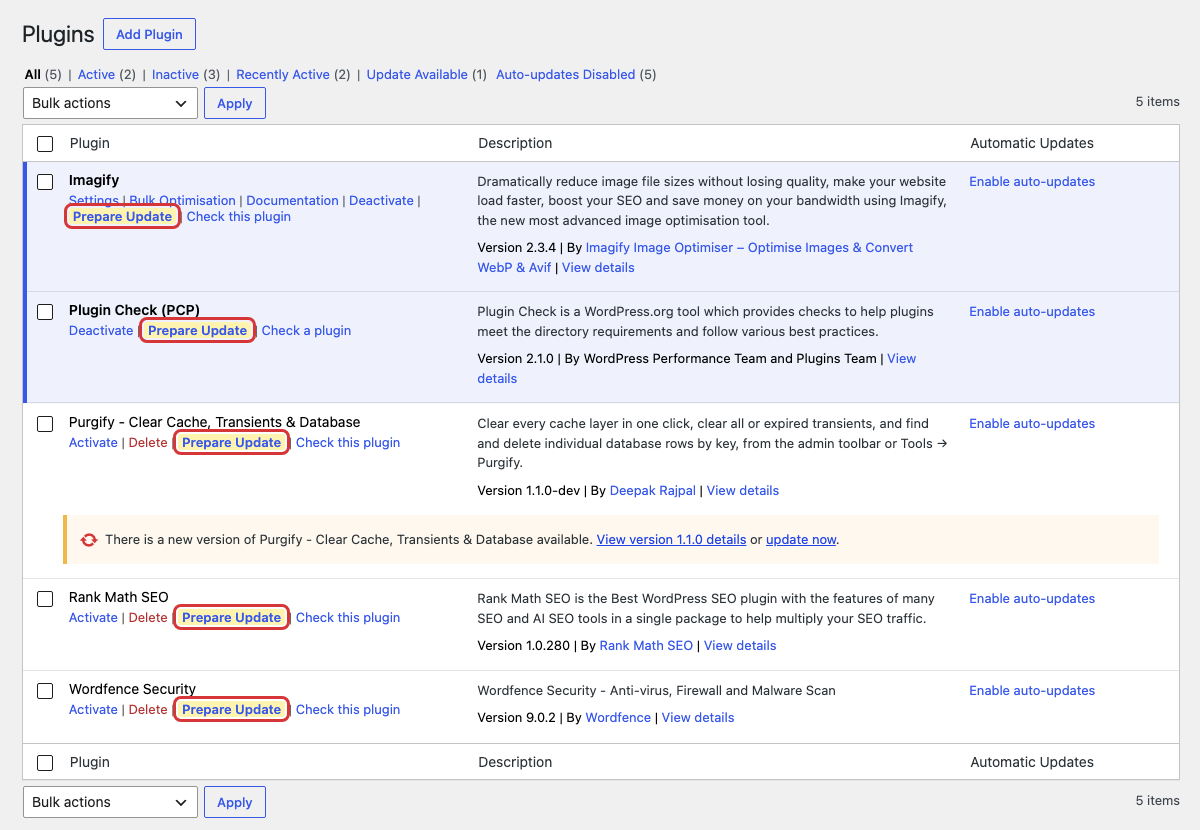
- As soon as the plugin is active, every installed plugin gets a "Prepare Update" row action on the Plugins page; every installed theme gets the same link on the Tools > DownUp screen (WordPress's Themes screen doesn't support in-context custom actions the way the Plugins screen does). Uncheck any plugin or theme you don't want this on there.
- After deploying new code with an unchanged version number, click "Prepare Update" for the plugin (on the Plugins page) or theme (on Tools > DownUp) you just deployed.
- Click "Update Now" as usual to finish.
安装:
- Upload the
downupfolder to/wp-content/plugins/, or install it through the Plugins > Add New screen in wp-admin. - Activate the plugin through the Plugins screen.
- That's it — every plugin now has a "Prepare Update" row action on the Plugins page. Go to Tools > DownUp to manage themes, or to turn this off for specific plugins or themes.
屏幕截图:
常见问题:
Does this plugin download or install anything?
No. It only rewrites one line (the Version: header) in the target plugin's or theme's main file. The actual download and install still happens through WordPress's own "Update Now," using either WordPress.org or the target's own legitimate update source — never this plugin.
What exactly does "Prepare Update" do?
It appends a -dev suffix to the current version (e.g. 1.4.2 becomes 1.4.2-dev). Since that string compares as lower than the real version, WordPress's normal update check reports an update is available, the same way it would for a genuine new release.
Why a -dev suffix instead of just lowering the version number?
Decrementing a number (e.g. 1.4.2 to 1.4.1) risks colliding with a real version that was actually released before. Appending -dev is always guaranteed to compare as lower without guessing at arithmetic or matching a real past release.
What if I click "Prepare Update" twice by accident?
Nothing happens the second time — the plugin detects the version already carries the -dev marker and refuses, asking you to finish or cancel the pending update first.
I clicked "Prepare Update" but no update is showing. Why?
"Prepare Update" only makes your installed version look like a pre-release of itself. WordPress still needs an update source that knows about the real version, so an update only shows if the latest version that source reports is equal to or higher than the version you had installed. The most common cause is publishing a brand-new release and preparing it straight away: WordPress.org's update check can lag behind the plugin's own page for a while, so it still reports the previous release — which is lower than yours, so there is nothing to offer yet. Wait a while, then go to Dashboard > Updates and click "Check again". Also note that a plugin or theme with no update source at all (not on WordPress.org and without its own updater) will never show an update, however it's prepared.
How do I stop this from showing up for a specific plugin or theme?
Go to Tools > DownUp and uncheck it in the Plugins or Themes list there. Everything is enabled by default; unchecking an item just hides the "Prepare Update" link for it.
Does this work on themes too, or just plugins?
Both, but not identically in the UI. Plugins get a "Prepare Update" row action right on the Plugins page, because WordPress supports custom row actions there. Themes don't have an equivalent — WordPress's Themes screen is built from JS templates that only recognize a few fixed buttons (Activate, Customize, Delete), so there's no way to inject a custom action into it. Themes instead get their "Prepare Update" link on the Tools > DownUp screen itself. Either way, the underlying mechanism is identical — a -dev suffix appended to the Version: line — and the resulting "update available" notice still shows up normally wherever WordPress would normally show it (the Plugins list, or the theme's tile on Appearance > Themes).
Is this safe to use on any plugin or theme?
It only touches the item's own version header, nothing else, and requires the update_plugins (or update_themes) capability plus a nonce on every action. That said, it will happily "prepare" anything you point it at — including things you didn't mean to — so it's worth keeping the settings checklist limited to what you actually manage this way.
更新日志:
- Initial release: enabled by default for all plugins and themes (opt-out settings list), fake-downgrade action for both, WP-CLI commands (
wp downup prepare <plugin>,wp downup prepare-theme <theme>).