
PHP Constants Manager
| 开发者 | cartpauj |
|---|---|
| 更新时间 | 2026年5月28日 11:36 |
| PHP版本: | 7.4 及以上 |
| WordPress版本: | 7.0 |
| 版权: | GPLv2 or later |
| 版权网址: | 版权信息 |
详情介绍:
- Complete Constant Management: Create, read, update, and delete PHP constants from the WordPress admin
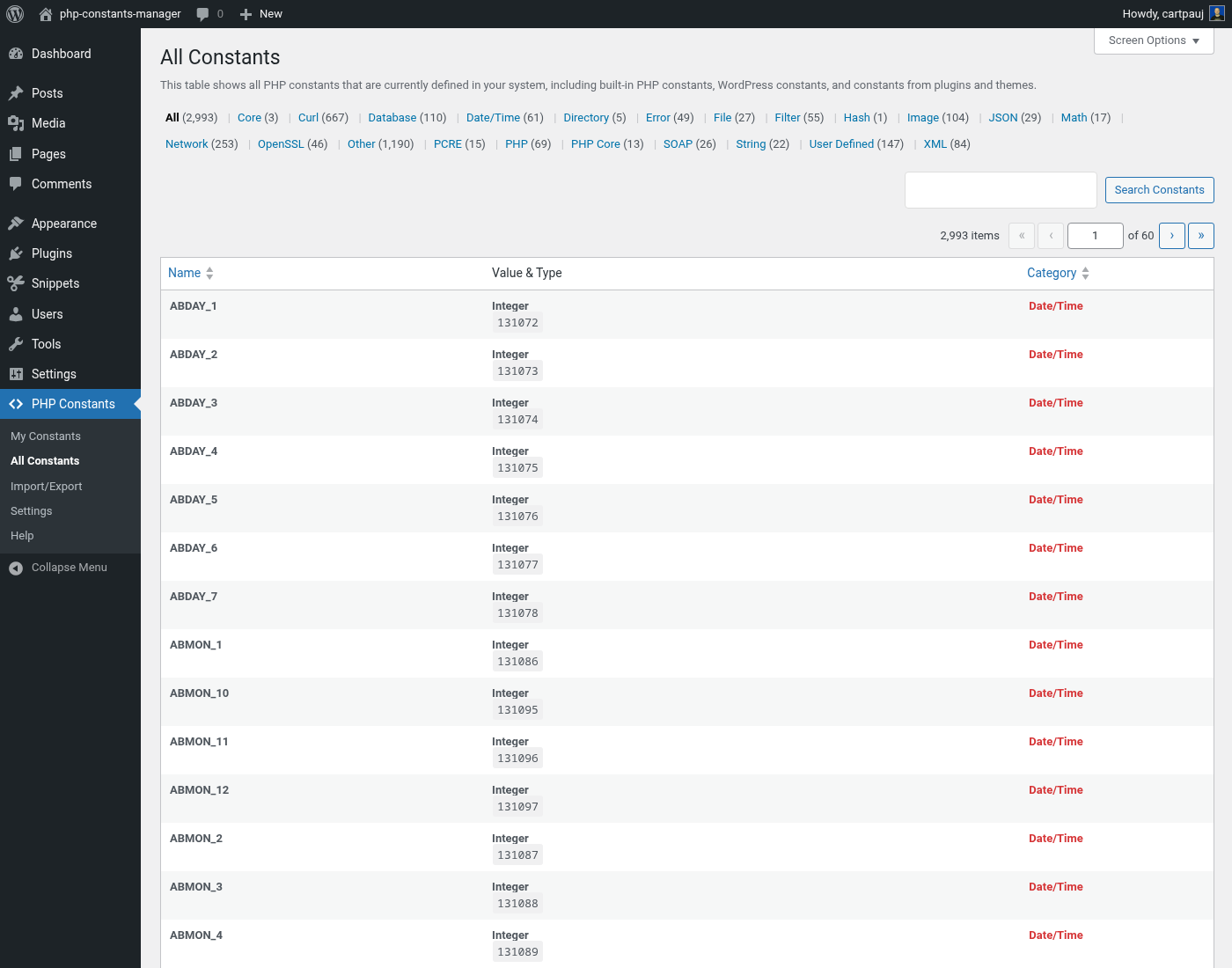
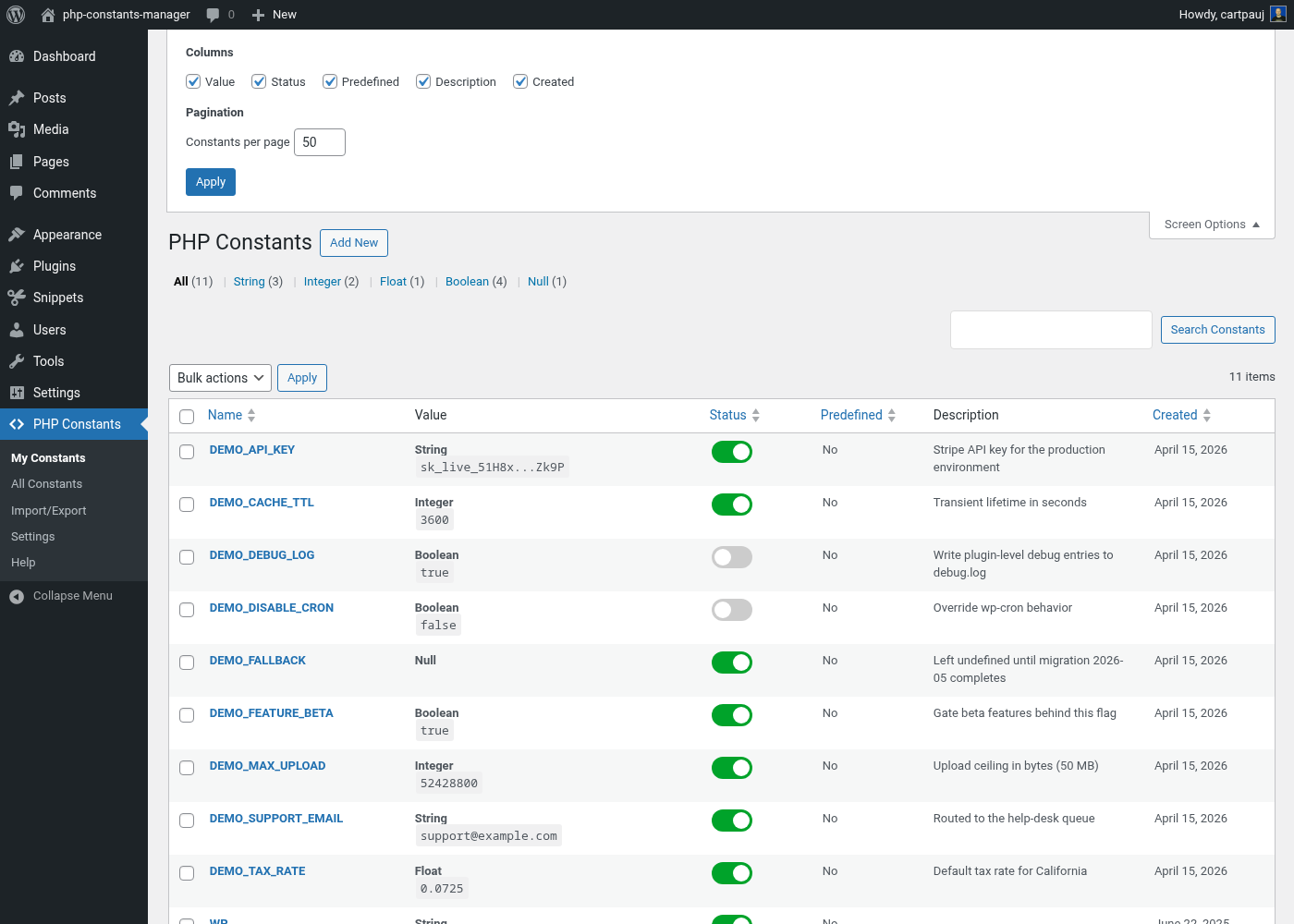
- Dual View System: "My Constants" for your custom constants and "All Constants" to view every constant in your WordPress installation
- Native WordPress UI: Built using WP_List_Table with sorting, searching, and bulk actions
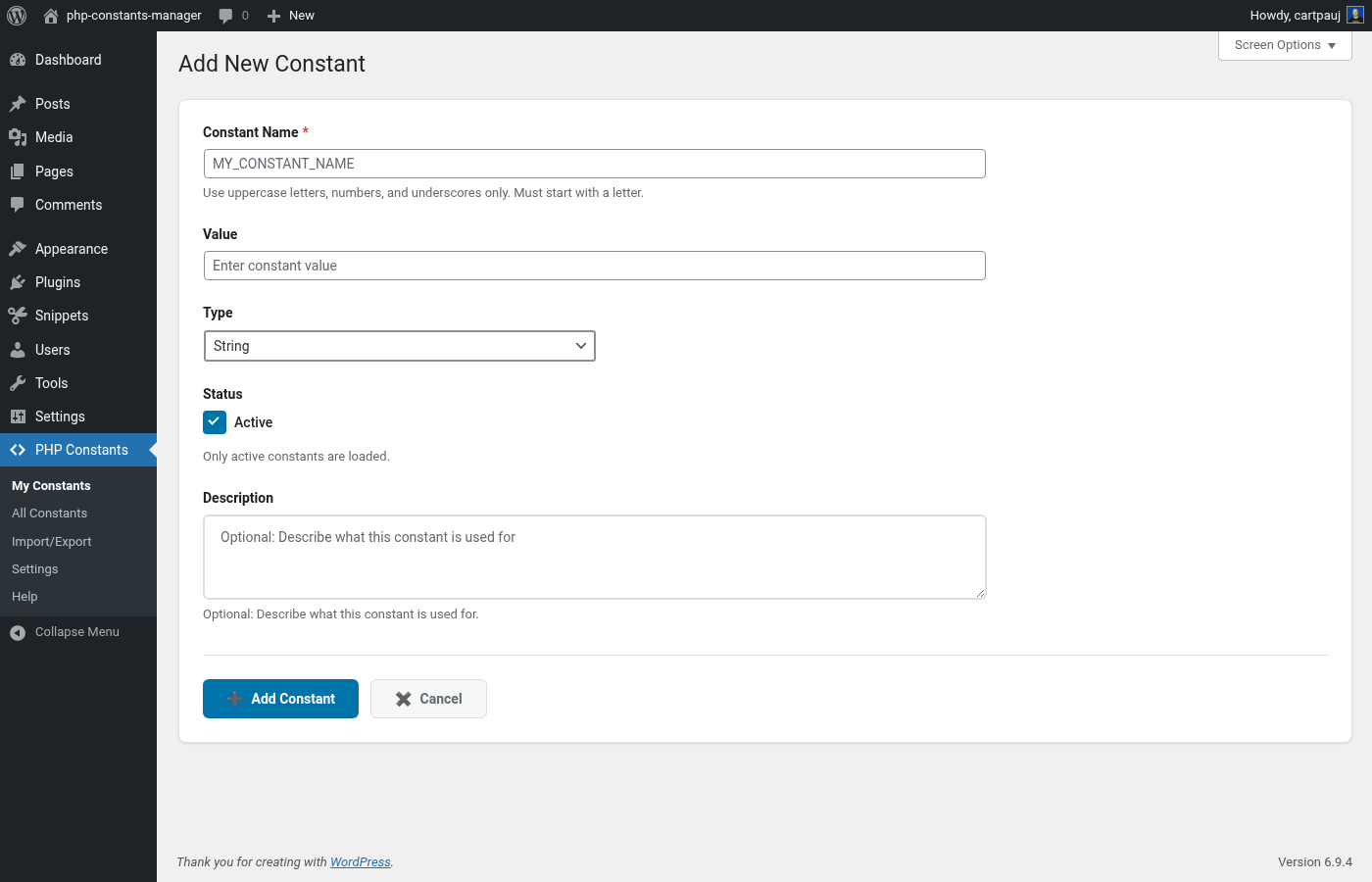
- Multiple Data Types: Support for String, Integer, Float, Boolean, and NULL constant types with strict validation
- Real-time Validation: Form fields validate values against selected type with immediate feedback
- Active/Inactive States: Toggle constants on/off without deleting them
- Conflict Detection: Visual indicators show when constants are already defined elsewhere (predefined)
- Screen Options: Customize table views with adjustable items per page and column visibility controls
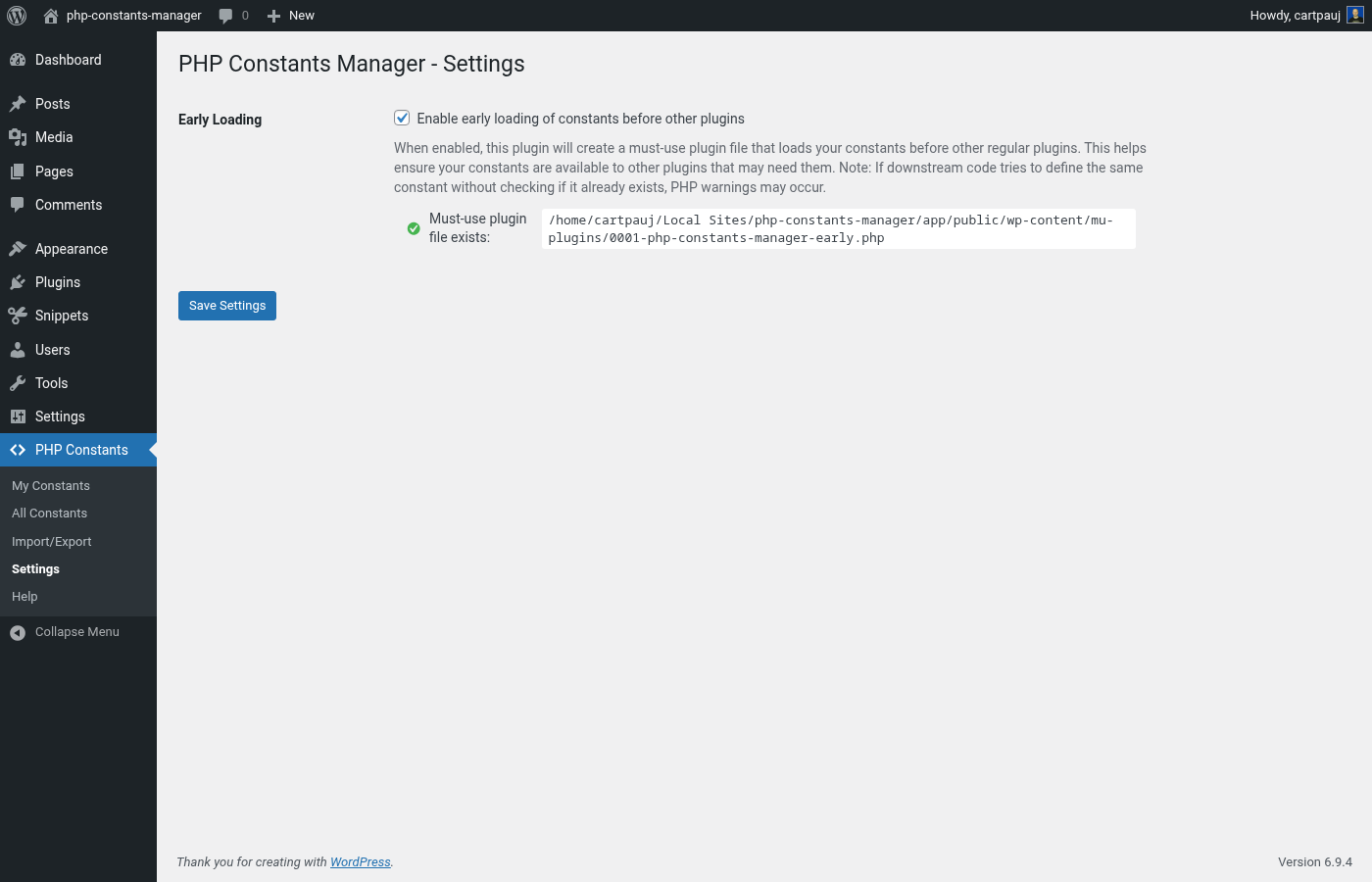
- Early Loading Option: Optional must-use plugin creation for loading constants before other plugins
- Load Order Awareness: Constants loaded during plugins_loaded action (priority 1) for broad compatibility
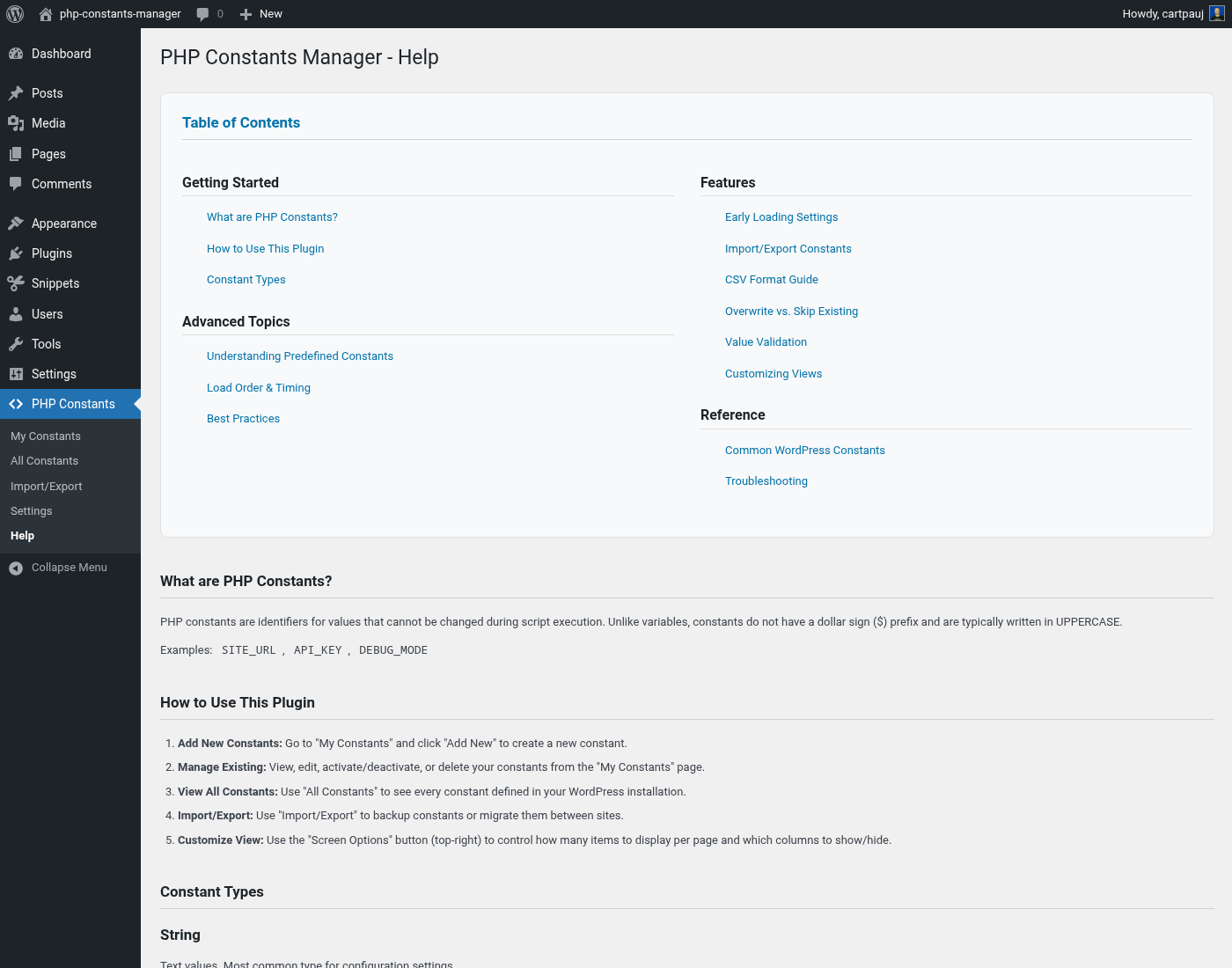
- Comprehensive Help: Built-in help system with detailed documentation and best practices
- Administrator Only: Secure access restricted to users with manage_options capability
- Database Storage: Constants stored safely in a custom database table with full audit trail
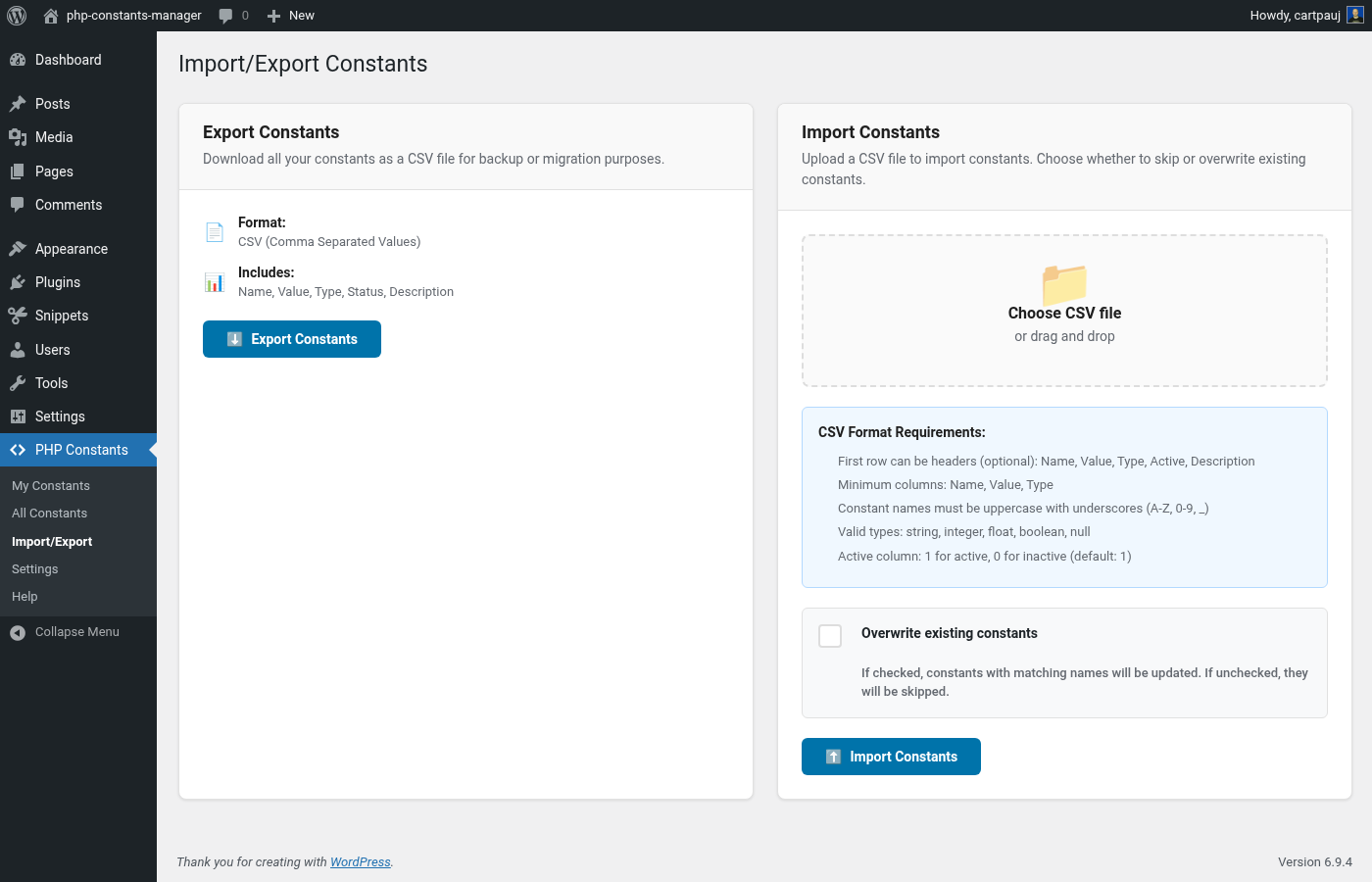
- Import/Export: Backup and migrate constants using CSV files with detailed error reporting
- WP-CLI Integration: Manage constants, import/export CSV, and toggle early loading from the terminal via
wp phpcm ...— ideal for automation, CI/CD, and multi-site provisioning
- Not Predefined: Your constant is unique and will work normally
- Predefined: The constant exists elsewhere - your definition is saved but won't override the existing value due to PHP's constant rules
- Manage environment-specific configuration
- Toggle debug constants without file editing
- Store API keys and configuration values securely
- Create fallback constants for different environments
- Document constant purposes with built-in descriptions
- Audit all constants in your WordPress installation
- Backup constants to CSV files for migration between sites
- Import constants in bulk from properly formatted CSV files
- Automate site setup and deployment pipelines with WP-CLI (
wp phpcm add MY_KEY ...)
phpcm command suite that mirrors the admin UI:
wp phpcm list [--active] [--inactive] [--type=<type>] [--search=<term>] [--format=<format>]— list managed constantswp phpcm get <name>— show a single constant (supports--field=<field>)wp phpcm add <name> [<value>] [--type=<type>] [--description=<text>] [--inactive] [--porcelain]— create a constant (value can be-to read from stdin)wp phpcm update <name> [--value=<value>] [--type=<type>] [--description=<text>] [--active|--inactive]— update fieldswp phpcm delete <name>... [--yes]— delete one or more by namewp phpcm activate|deactivate|toggle <name>...— flip active statewp phpcm defined <name>— report whether the constant is currently defined and by whom (this plugin, early-load, or elsewhere like wp-config.php)wp phpcm all-defines [--user-defined] [--search=<term>]— inspect every PHP constant present in the processwp phpcm status— plugin health summary (table, row counts, early-loading state)wp phpcm import <file|-> [--overwrite]— import CSV (file path or stdin)wp phpcm export [<file>] [--active] [--inactive] [--type=<type>]— write CSV to a file or stdoutwp phpcm early-loading enable|disable|status— manage the must-use plugin that loads constants before all other plugins
wp help phpcm <subcommand> for detailed usage, flags, and examples.
安装:
- Upload the
php-constants-managerfolder to the/wp-content/plugins/directory - Activate the plugin through the 'Plugins' menu in WordPress
- Navigate to 'PHP Constants' in the WordPress admin menu
- Start managing your constants!
屏幕截图:
常见问题:
Is it safe to manage constants this way?
Yes! The plugin includes multiple security measures:
- Only administrators can access the interface
- All inputs are sanitized and validated
- Nonce verification on all actions
- Constants are checked before defining to prevent conflicts
What's the difference between "My Constants" and "All Constants"?
"My Constants" shows only the constants you've created through this plugin, with full management capabilities. "All Constants" displays every constant defined in your WordPress installation (core, plugins, themes) for auditing and reference purposes.
What happens if a constant is already defined (shows as "Predefined")?
The plugin checks if constants are already defined before attempting to define them. If a constant exists, it will show as "Predefined" in the list. Your definition is saved but won't take effect due to PHP's rule that constants cannot be redefined. This commonly happens with WordPress core constants or those defined in wp-config.php.
Can I deactivate constants without deleting them?
Yes! Each constant has an active/inactive toggle. Inactive constants remain in the database but aren't loaded into PHP.
When are my constants available in my code?
By default, constants are loaded during the plugins_loaded action with priority 1, making them available to:
- All theme code (themes load after plugins)
- Most other plugins (unless they use higher priority)
- WordPress hooks like
init,wp_loaded, etc. For earlier loading, enable the "Early Loading" option in Settings, which creates a must-use plugin that loads constants before any regular plugins.
Can I customize how the tables are displayed?
Yes! Use the "Screen Options" button in the top-right corner to:
- Control how many constants are displayed per page (5, 10, 20, 50, 100+)
- Show/hide specific columns in both tables
- Your preferences are saved automatically
How do I know if my constant is working?
Check the "Predefined" column in "My Constants". If it shows "No" and the status is "Active", your constant is working. You can also test it in your code using defined('MY_CONSTANT').
Why can't I override WordPress core constants?
This is a PHP limitation, not a plugin restriction. Constants cannot be redefined once set. Since WordPress core constants are defined very early (in wp-config.php or during WordPress bootstrap), they cannot be overridden by plugins.
How do I import/export constants?
Go to the "Import/Export" page in the plugin menu. You can export all your constants to a CSV file for backup or migration purposes. To import, upload a CSV file with the required format. The CSV must include at minimum: Name, Value, Type columns. Optional columns are Active and Description.
What CSV format should I use for importing?
Your CSV should have these columns:
- Name (required): Uppercase constant name, e.g., "MY_CONSTANT"
- Value (required): The constant value
- Type (required): One of: string, integer, float, boolean, null
- Active (optional): 1 for active, 0 for inactive (defaults to 1)
- Description (optional): Text description Example CSV:
Name,Value,Type,Active,Description
MY_API_KEY,abc123,string,1,API key for service
MAX_POSTS,25,integer,1,Maximum posts per page
DEBUG_MODE,true,boolean,0,Enable debug output
Will importing overwrite existing constants?
No, the import process skips constants that already exist in your database. Only new constants are added. You'll receive a detailed report showing what was imported, skipped, and any errors.
How does value validation work?
The plugin validates that constant values match their selected type:
- Integer: Must be whole numbers (42, -10, 0) - decimals are rejected
- Float: Must be valid numbers (3.14, -2.5, 10) - text is rejected
- Boolean: Must be true, false, 1, 0, yes, no, on, or off (case-insensitive)
- String: Any value accepted, including quotes and special characters
- NULL: Value field is automatically disabled and cleared Both the form interface and CSV import perform this validation with detailed error messages.
What happens if my CSV import has errors?
The import will show exactly what went wrong with specific line numbers and error descriptions. For example:
- "Line 5: Missing required columns (need at least Name, Value, Type)"
- "Line 12: Invalid boolean value 'maybe' (Constant: DEBUG_MODE)"
- "Line 15: Invalid integer value '3.14' (Constant: MAX_ITEMS)" This helps you fix your CSV file and re-import successfully.
Can I manage constants from WP-CLI?
Yes. When WP-CLI is installed the plugin registers a wp phpcm command suite that covers every operation available in the admin UI — create/read/update/delete, toggle active state, CSV import/export, and the early-loading toggle. A few quick examples:
wp phpcm add MY_API_KEY "abc123" --description="External API key"
wp phpcm list --active --type=boolean --format=json
wp phpcm defined WP_DEBUG (reports whether it's defined by this plugin, early-load, or wp-config.php)
wp phpcm export backup.csv --active
cat constants.csv | wp phpcm import - --overwrite
wp phpcm early-loading enable
Commands accept stdin via - for add/update/import. The full list and per-command help is available via wp help phpcm and wp help phpcm <subcommand>.
What is Early Loading and when should I use it?
Early Loading creates a must-use plugin file that loads your constants before any regular plugins. This ensures maximum compatibility when other plugins need your constants during their initialization. Enable Early Loading if:
- Other plugins need to access your constants during their setup
- You're defining configuration constants that affect plugin behavior
- You want maximum compatibility across all plugins Normal loading is fine if:
- Your constants are only used by themes or late-loading code
- You're not experiencing any compatibility issues
- You prefer to minimize files in the mu-plugins directory The Early Loading option is available in the Settings page and automatically manages the must-use plugin file creation and removal.
更新日志:
- Ensure WP 7.0 Compat
- WP-CLI support: manage constants from the terminal with
wp phpcm list|get|add|update|delete|activate|deactivate|toggle|defined|all-defines|status|import|export|early-loading - Refactored shared casting, validation, and formatting helpers into
includes/phpcm-helpers.php— the generated must-use loader now reuses them instead of duplicating logic - Extracted CSV import/export into
PHPCM_Import_Exportso the admin UI and CLI share the same parser and writer
- Renamed must-use plugin to attempt to get it to load earlier than other must-use plugins
- Security hardening
- Enhanced file upload validation with proper isset() checks for $_FILES array indices
- Improved input sanitization for file upload security
- File input sanitation
- Use wp_enqueue commands properly
- Ensure data is sanitized, escaped and validated properly
- Avoid generic class and function names
- Increase prefix length to help avoid conflicts with other plugins
- Early Loading Feature: New Settings page with option to create must-use plugin for loading constants before other plugins
- Enhanced Value Validation: Strict type validation for all constant types with detailed error messages
- Real-time Form Validation: Immediate feedback while typing with visual error indicators
- Improved Data Handling: Fixed slash stripping issues with quotes in values and descriptions
- Detailed Import Error Reporting: CSV import now shows specific line numbers and error descriptions
- Enhanced Security: Improved WordPress VIP coding standards compliance and PHPCS compatibility
- Better User Experience: Type-specific placeholders and normalized value storage
- Code Quality: Removed security-problematic functions and improved escaping throughout
- Initial release
- Complete constant management with full CRUD functionality
- Dual view system: "My Constants" and "All Constants" pages
- WP_List_Table integration with native WordPress UI
- Support for all PHP constant types (string, integer, float, boolean, null)
- Active/inactive toggle functionality
- Predefined constant detection and conflict management
- Screen Options for customizable table views
- Comprehensive built-in help documentation
- Load order optimization with plugins_loaded priority 1
- Administrator-only access with proper capability checks
- Secure database storage with audit trail
- Import/Export functionality with CSV format support
- Comprehensive duplicate prevention and validation
- Enhanced error handling and user feedback