
Variation Gallery for WooCommerce
| 开发者 | taskplugins |
|---|---|
| 更新时间 | 2026年10月8日 21:13 |
| PHP版本: | 7.4 及以上 |
| WordPress版本: | 7.1 |
| 版权: | GPLv2 or later |
| 版权网址: | 版权信息 |
详情介绍:
Variation Gallery for WooCommerce allows you to customize where variation thumbnail galleries appear relative to the product gallery. By default, WooCommerce allows multiple images for each variation, which has no limits on how much visual information can be shown.
👉 Plugin Demo | Documentation | Get Pro 👈
安装:
- Upload the variation gallery for woocommerce folder to your
/wp-content/plugins/directory. - Activate the plugin through the
Pluginsscreen. - Navigate WordPress Admin Panel → Tools → Variation Gallery to set the variation gallery settings.
- Go to WooCommerce product to Add New Products or Edit Product.
屏幕截图:

常见问题:
How to Use WooCommerce Variation Gallery
- Go to
WordPress Admin Panel → Tools → Variation & Gallery
Is it compatible with any kinds of WooCommerce Theme?
Yes, it is compatible with Most popular WooCommerce themes , but need some css update.
How do I add multiple images to a product variation?
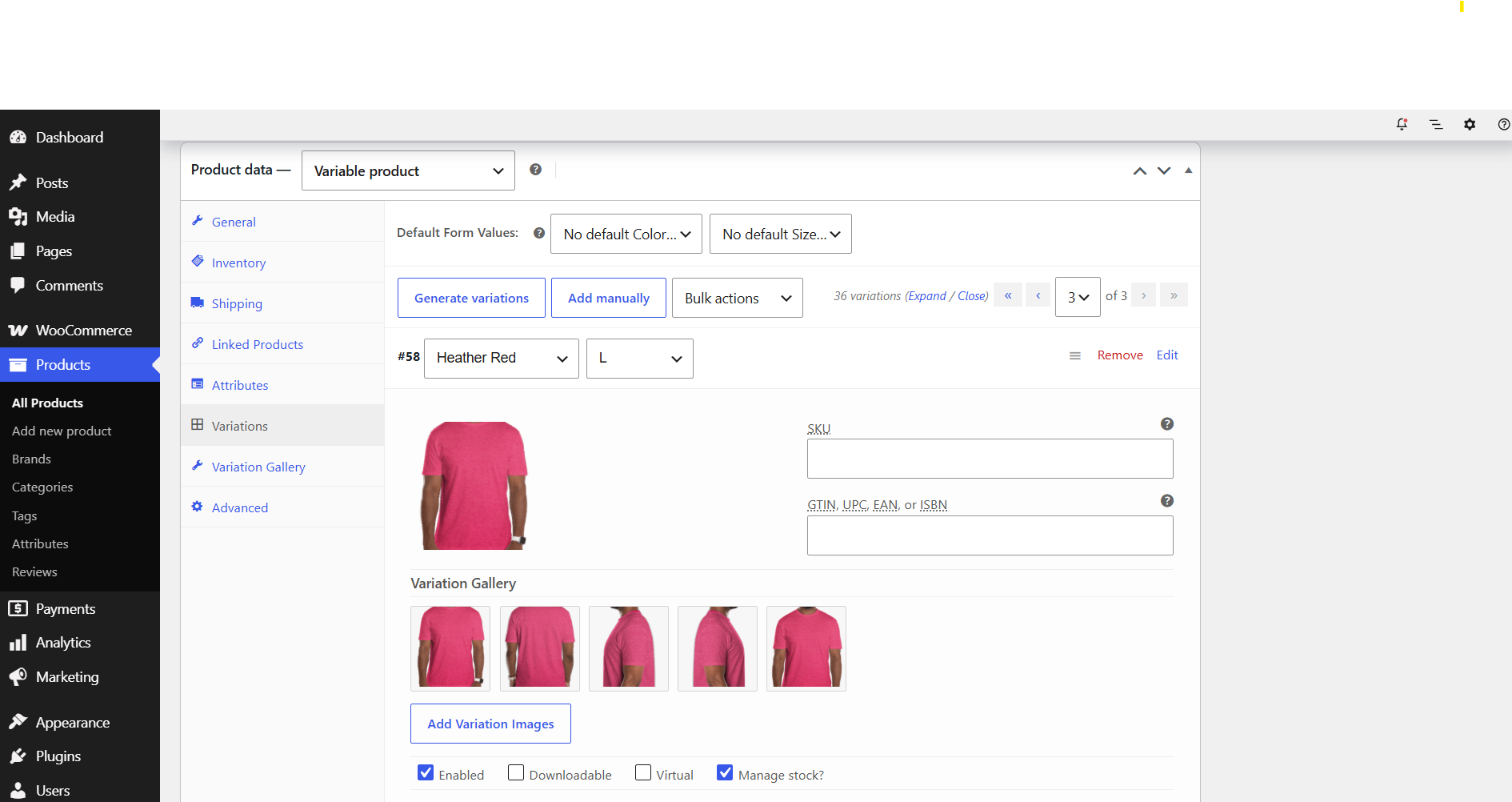
By default, WooCommerce allows multiple gallery images for each specific product variation:
- Navigate to
WordPress Admin Panel → Productsand edit a variable product. - Select the Variations tab and open a variation accordion box.
- Add your desired images for that specific variation and save the changes.
How do I configure gallery settings for an individual product?
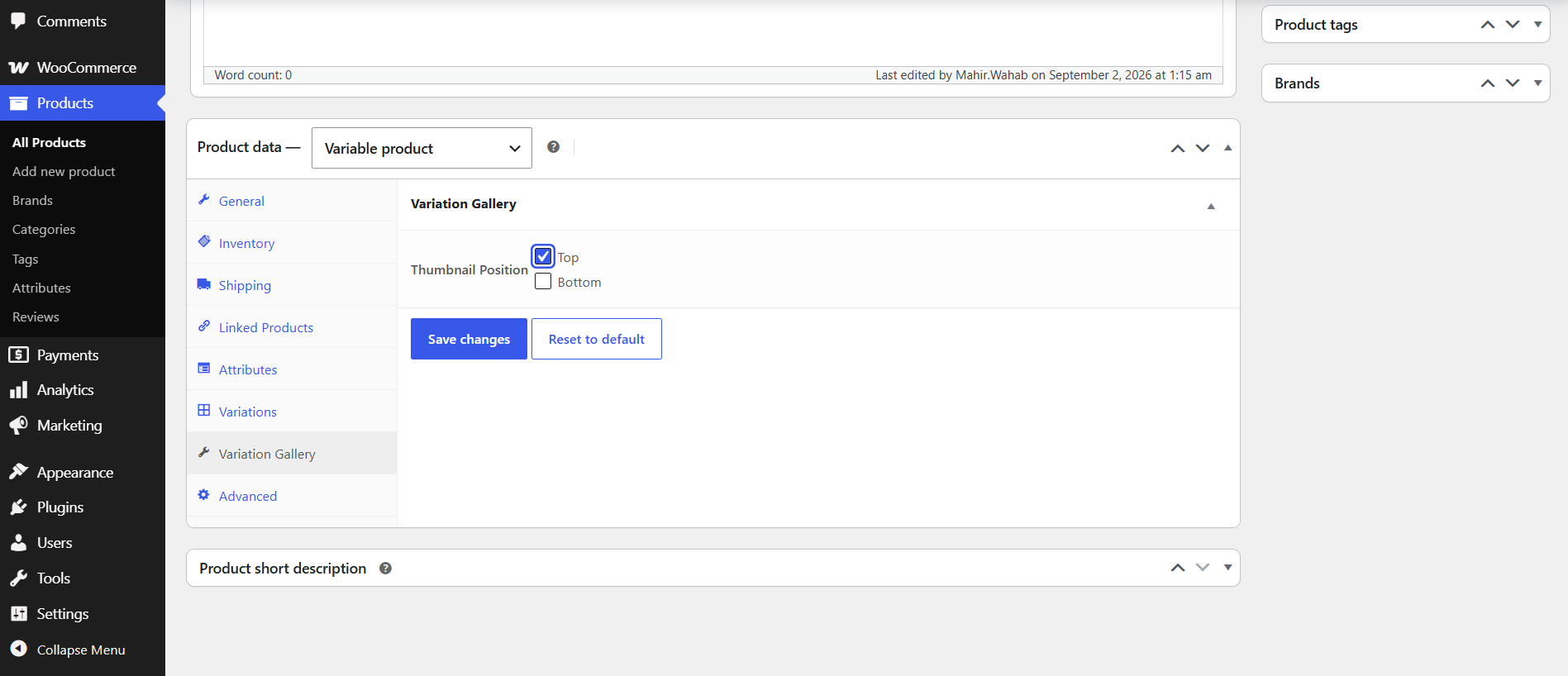
If you want to customize gallery behavior for a single product without enforcing global rules.
- Go to
Products → Variable Productin your WordPress dashboard. - Click on the
Variation Gallerytab located inside the Product Data panel. - Select your preferred thumbnail position checkbox and click Save Changes.
How do I configure global settings across my entire store?
You can set default global rules that apply to all variable products.
- Go to WordPress
Admin Panel → Variation Gallery → Settings. - If you want these global rules to supersede individual product options, enable the Override Product Settings option.
- Choose your desired thumbnail position settings and click Save Settings.
更新日志:
1.0.4
- Upgrade functionality for compatibility WooCommerce.
- Product gallery saving: JavaScript issue resolved.
- Initial release.